Glossary
Each project can include one or more glossaries for storing terms and their preferred translations. Glossaries help keep translations consistent by showing matching terms in the translation editor.
Glossaries are regular translation components with special behavior. The source language stores the terms Weblate searches for in source strings. Each glossary translation stores the preferred term, forbidden term, or untranslatable entry for one target language.
Terms from the glossary containing words from the currently translated source string are displayed in the sidebar of the translation editor.
Hint
The glossary terms are not used in quality checks unless you enable that, see Does not follow glossary for more information.
How glossary matching works
When you translate a regular component, Weblate searches the source string for terms from the source language of the project glossaries. When a term matches, Weblate looks up the corresponding glossary entry for the language currently being translated and shows it in the editor.
This means glossary entries need to exist in the target glossary language to be shown while translating that target language. A source-language-only glossary can still store definitions and context, but it will not provide target-language matches for languages that do not have glossary entries.
If you want a term to be present in every glossary language, mark the source entry as Terminology. If the term should stay unchanged in every language, use Untranslatable terms; combine it with terminology only when you want Weblate to create and maintain entries for all glossary languages.
Managing glossaries
Changed in version 4.5: Glossaries are now regular translation components and you can use all Weblate features on them — commenting, storing in a remote repository, or adding explanations.
Use any component as a glossary by turning on Use as a glossary. You can create multiple glossaries for one project.
An empty glossary for a given project is automatically created with the project. Glossaries are shared among all components of the same project, and optionally with other projects using Share in projects from the respective glossary component.
The glossary component looks like any other component in Weblate with added colored label:
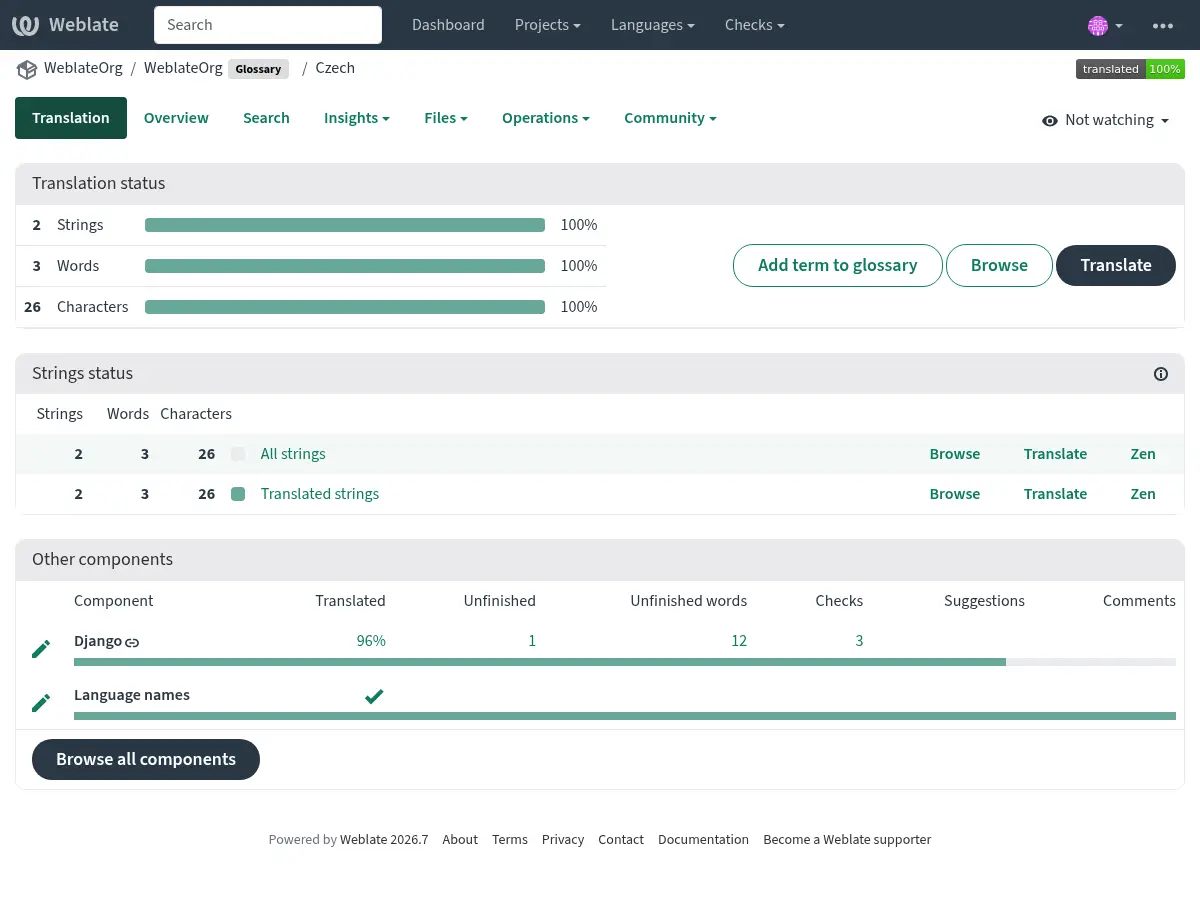
You can browse all glossary terms:
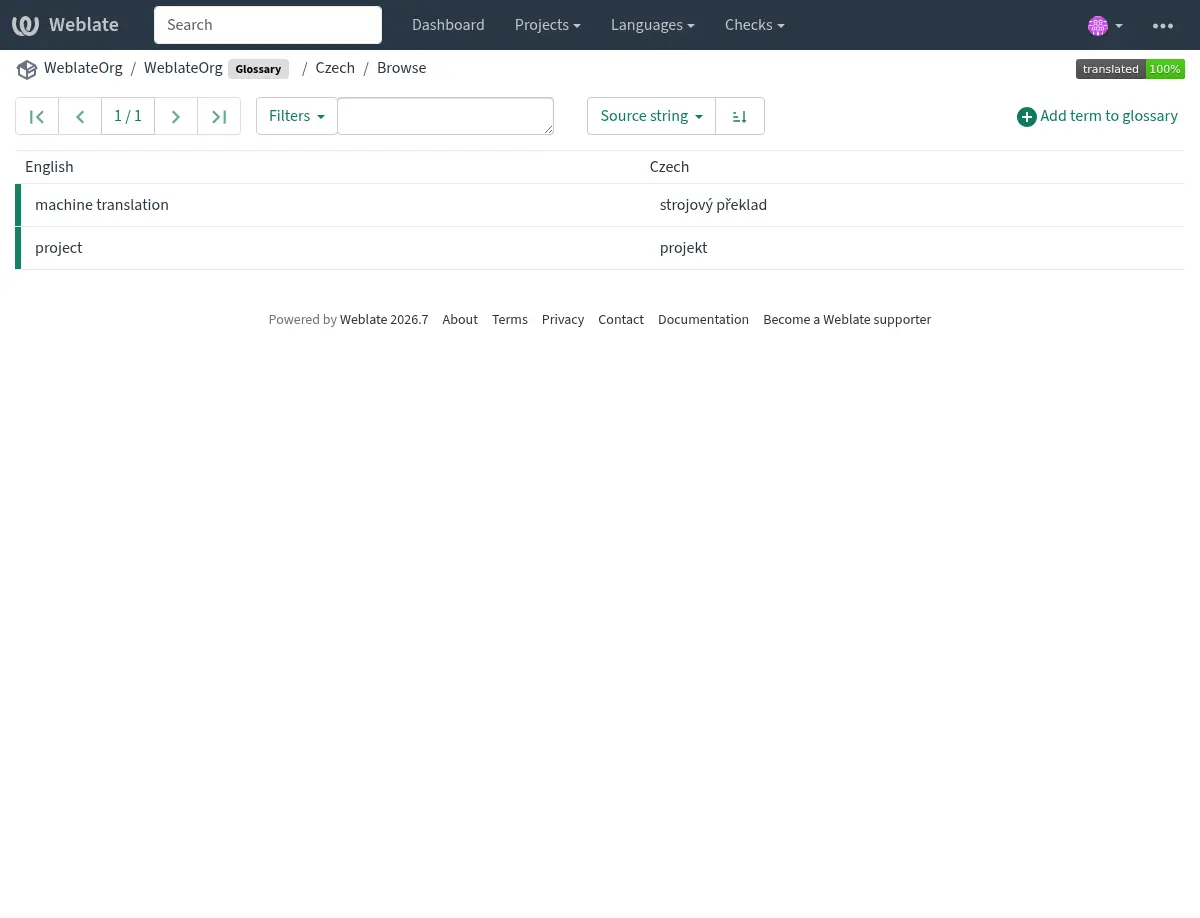
or edit them as any translations.
Glossary terms
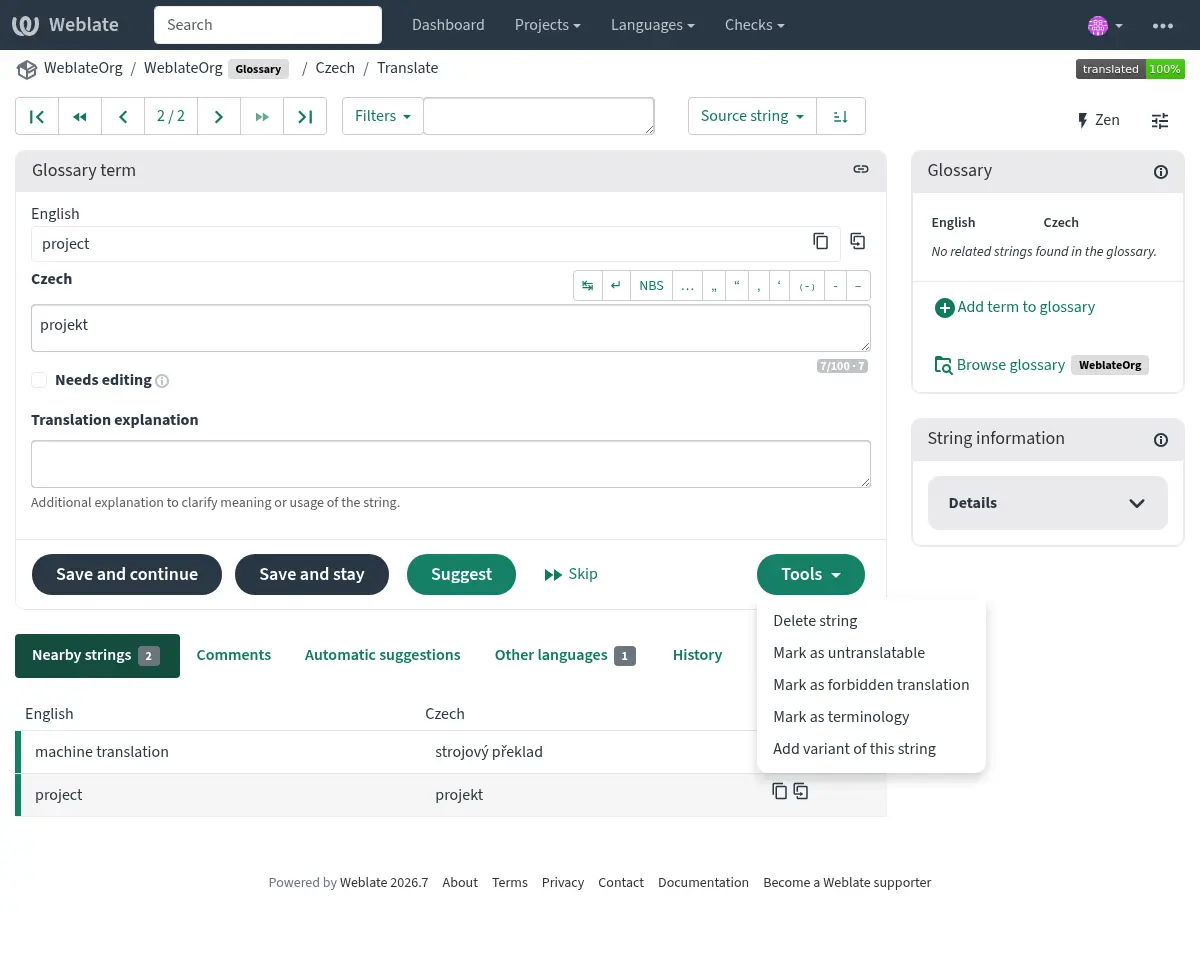
Glossary terms are translated the same way regular strings are. You can toggle additional features using the Tools menu for each term.
See also
Type |
Purpose |
|---|---|
Regular glossary term |
Preferred translation or explanation for a term in one or more languages. |
Source term Weblate keeps present in every glossary language so missing translations can be tracked and filled. |
|
Term that should stay unchanged or should not be translated. |
|
Translation that should not be used for the source term. |
|
Alternative wording, abbreviation, or shorter form grouped with another glossary term. |
Choosing glossary terms
Choose glossary terms for meaning and audience, not only for literal word shape. If a source term is ambiguous, add an explanation so translators know which meaning applies in the project.
Glossary entries are especially useful for brand names, acronyms, product features, technical terms, and newly coined or transliterated words. Use variants for abbreviations or shorter wording, mark important cross-language terms as Terminology, mark terms that should stay unchanged as Untranslatable terms, and mark misleading translations as Forbidden translations.
Untranslatable terms
Added in version 4.5.
Flagging certain glossary term translations read-only by bulk-editing,
typing in the flag, or by using Tools ↓
Mark as untranslatable means they can not be translated. Use this
for brand names, product names, domains, technology names, or other terms that
should not be changed in other languages. Such terms are visually highlighted
in the glossary sidebar.
The read-only flag is enough when the glossary entry already exists in the
languages where it should be shown. Add the Terminology flag as
well only when Weblate should create and maintain the untranslatable entry in
every glossary language.
See also
Forbidden translations
Added in version 4.5.
Flagging certain glossary term translations as forbidden by bulk-editing,
typing in the flag, or by using Tools ↓
Mark as forbidden translation means they are not to be used.
Use this to clarify translation when some words are ambiguous or could have
unexpected meanings.
Use forbidden entries for translations that should be avoided. Use regular glossary entries for preferred translations.
See also
Terminology
Added in version 4.5.
Flagging certain source-language glossary terms as terminology by
bulk-editing, typing in the flag, or by using Tools ↓
Mark as terminology adds entries for them to all languages in the
glossary. Use this for important terms that should be well thought out, and
retain a consistent meaning across all languages.
The terminology flag is ongoing state, not just a one-time action. While the flag remains on the source term, Weblate treats it as terminology and keeps an entry for it in every glossary language. If a language entry is removed, the next glossary synchronization creates it again.
Removing the terminology flag stops this automatic maintenance, but it does
not remove or otherwise revert entries that were already created. They remain
regular glossary entries.
A regular glossary term can also have translations in every language. The difference is that Weblate does not recreate missing language entries for a regular term after they are removed.
See also
Variants
Variants are a generic way to group strings together. All term variants are listed in the glossary sidebar when translating.
Hint
You can use this to add abbreviations or shorter expressions for a term.
See also
Glossary import
Similar to regular translation components, you can upload existing glossaries to Weblate. Formats like CSV files or TermBase eXchange format are supported and can be uploaded, see Uploading translations.
TBX files can include explanations, read-only metadata, and glossary flags; see TermBase eXchange format for the exact metadata mapping.
Even though TBX can contain multiple languages, Weblate still maps component files to languages using the component file mask and language settings. For a TBX glossary component, keep the component source language as the source term language and name translation files for the target language they represent. Avoid naming a translation file with the same language as the component source language, because the source language already exists in Weblate and this can lead to duplicate language detection.
See also
Language files and synchronization
Glossary components follow the languages used by the regular components in the same project. When a language is added to a regular component, Weblate adds the missing glossary language as well so glossary matches can be shown for that language.
This automatic language synchronization is intentional. Filtering glossary language files with Language filter can reduce the number of managed files, but it also means Weblate has no glossary entries to show for filtered-out target languages.
Terminology entries are also synchronized. When a source glossary term is marked as terminology, Weblate creates missing entries in all glossary languages and recreates them if they are removed while the flag is still set.
Weblate can clean up stale glossary translations only for Weblate-managed glossaries, only when no regular component in the project still uses that language, and only when the stale glossary translation has no translated terms. If the stale glossary language still contains terms, Weblate keeps it and reports it as an unused glossary language.
Common setup patterns
- English-only explanatory glossary
Add source-language glossary terms with explanations. This works as a maintained term list, but it will not show target-language glossary matches unless you also create entries in the target glossary languages.
- Required terminology
Add terms in the source glossary language, mark them as Terminology, and let translators fill the created entries in each target language. Use explanations to document the intended meaning.
- Non-translatable terms
Mark terms as Untranslatable terms when they should stay unchanged. Add Terminology only when the term should be present in every glossary language for matching and review.
- Forbidden translations
Add the misleading translation as a Forbidden translations entry. Add the preferred wording as a separate regular glossary entry when translators should use a specific translation instead.
Glossaries in automatic suggestion
Added in version 5.3.
Some automatic suggestion services utilize glossaries during the translation, please consult their documentation in Automatic suggestions to see the support.
The glossary is processed before exposed to the service:
Duplicate source entries are skipped for services that require unique source terms. LLM-based services can receive duplicates with explanations to disambiguate them.
Any control characters and leading and trailing whitespace are stripped.
Forbidden translations are skipped.
Note
Many services store glossaries server-side and enforce limit on the number of saved glossaries. Weblate always deletes the oldest glossary if it runs out of space.