Migrating to Weblate
Are you using a different localization platform and considering switching to Weblate? This guide provides a quick, step-by-step process to help you migrate your translation project from platforms like Transifex, Crowdin, Lokalise, or similar services.
Weblate is designed around continuous localization with Git integration at its core, making it ideal for teams that want to keep translations close to their development workflow.
参考
国際化に向けた取り組み for choosing the right internationalization framework
Weblate との連携 for detailed integration options
継続的な現地語化 for setting up automated workflows
前提条件
Before starting your migration, ensure you have:
On your localization platform:
Access to export your translation files
List of translators and their roles/permissions
Understanding of your current workflow (review process, automation, etc.)
For Weblate:
A Weblate instance (either Hosted Weblate or self-hosted)
Admin or project creation permissions on your Weblate instance
Prepare your translation files
Export translations from your current platform
Most localization platforms allow you to export all translations at once:
Transifex: Use their CLI tool or download translations from the web interface
Crowdin: Export all translations as a ZIP file from project settings
Lokalise: Use the bulk export feature
Phrase: Download all locales from the project dashboard
ヒント
Keep your translation files in the format native to your internationalization framework (PO, XLIFF, JSON, etc.) rather than converting them. Weblate supports many formats.
Commit translations to your Git repository
ヒント
If you would rather not store translations in an external Git repository, you can skip this step and use the Upload translation files option when creating a component.
If your translations aren't already in Git:
Create a Git repository or use your existing project repository
Organize translation files following your project structure
Commit and push the files to your Git hosting service (GitHub, GitLab, Bitbucket, etc.)
git add locales/
git commit -m "Add translation files for Weblate migration"
git push origin main
参考
継続的な現地語化 for optimal repository structure
バージョン管理との連携 for supported version control systems
Import your project into Weblate
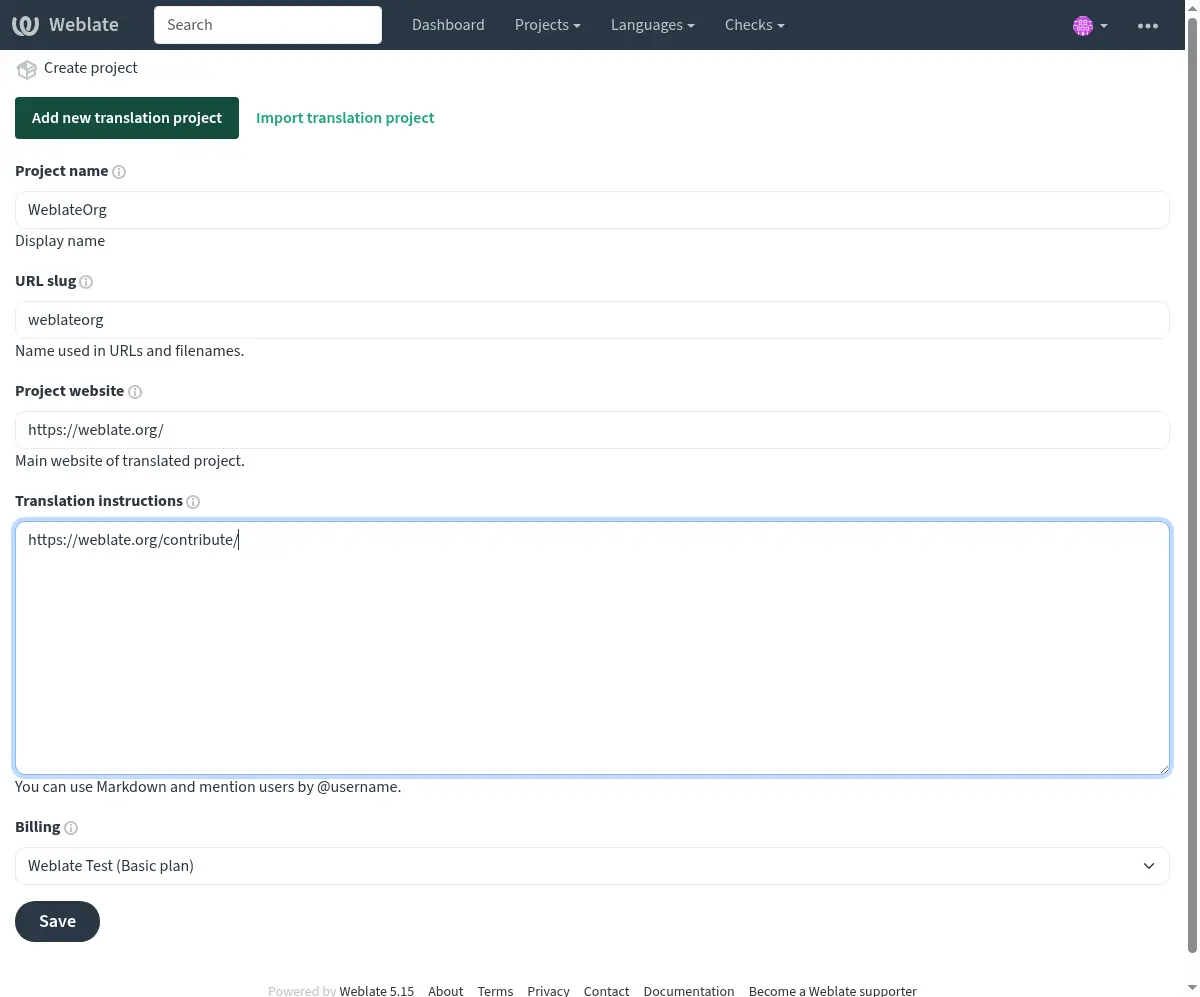
Create a new project
Navigate to your Weblate instance.
Click Add new translation project in the + menu.
Fill in your project details:
Project name: Your application or project name
URL slug: Short identifier (e.g.,
myapp)Project website: Your project homepage (optional)
参考
翻訳プロジェクトとコンポーネントの追加 for detailed project creation instructions
Add a component from your Git repository
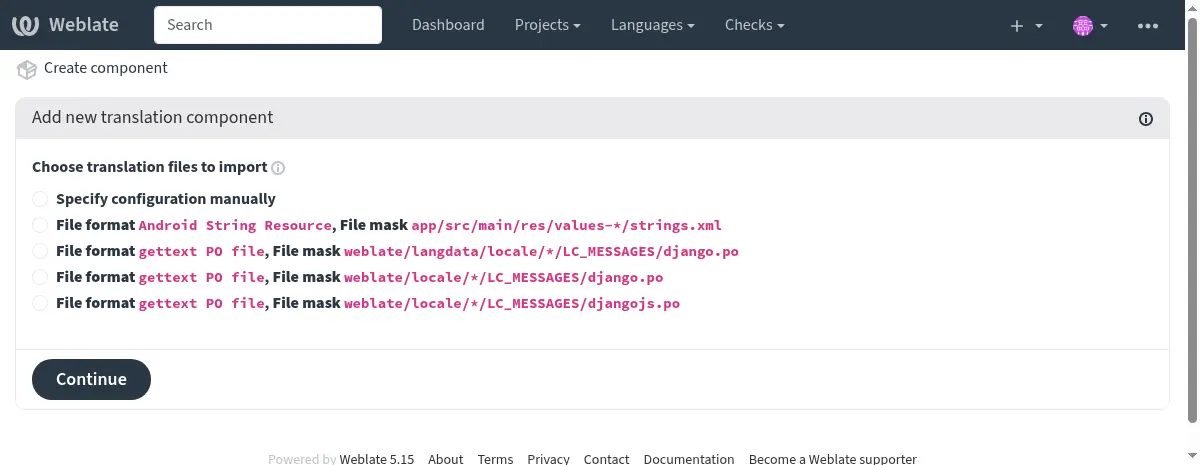
After creating the project, click Add new translation component
Select From version control
Configure your component:
Component name: e.g., "Application strings", "Website", "Documentation"
Repository URL: Your Git repository URL (HTTPS or SSH)
Repository branch: Optional: Specify repository branch (Weblate automatically detects the default branch if not specified)
Weblate will automatically detect:
Translation file format
Available languages
原文の言語
Review and confirm the detected settings
ヒント
For repositories with multiple translation components (e.g., separate files for backend, frontend, documentation), create a separate Weblate component for each.
You can speed this up using From existing component for shared repositories or コンポーネントの検出 to automatically create them.
参考
コンポーネント構成 for all configuration options
バイリンガル形式とモノリンガル形式 for understanding monolingual vs. bilingual formats
Configure your workflow
Set up access control
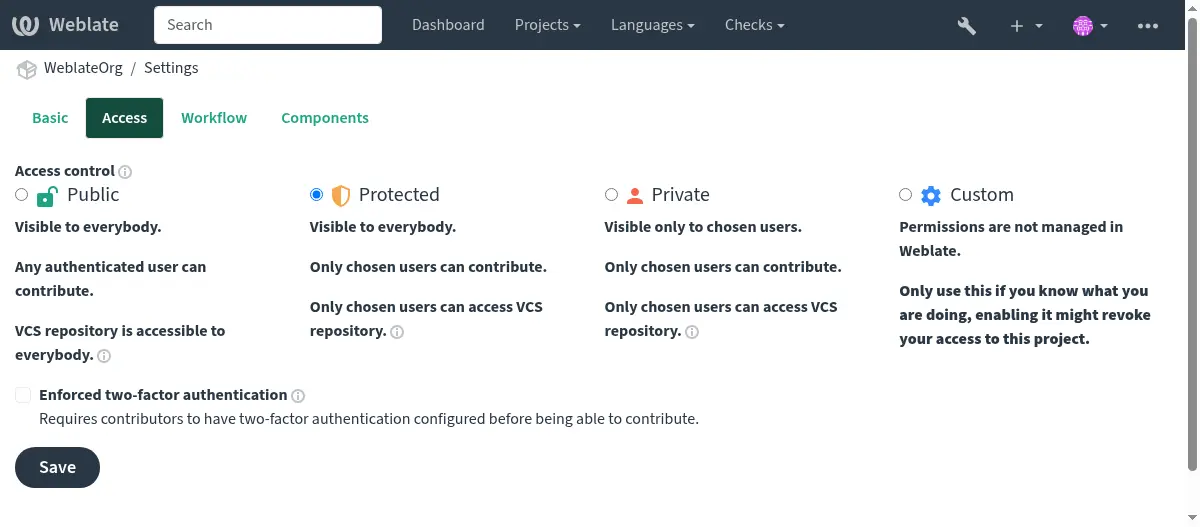
Choose your project's visibility and access level:
Go to your project settings: Operations → Settings → Access tab
Select the appropriate access control:
Public: Open-source projects, anyone can contribute
Protected: Visible to all, but only invited users can translate
Private: Only invited users can view and translate
参考
プロジェクトごとのアクセス制御の管理 for detailed access control configuration
Set up continuous localization
Enable automatic updates and commits:
Configure repository integration:
Pull changes: Set up a webhook so Weblate updates when your source code changes
Push changes: Configure 変更点を Weblate からプッシュ so translations are committed back to your repository
Enable automatic actions in component settings:
Push on commit: Automatically push translations to your repository
Commit interval: Set how often pending translations are committed (e.g., every 24 hours)
参考
継続的な現地語化 for complete workflow automation
Configure quality checks and workflows
Customize translation quality controls:
Optional: Enable add-ons
Weblate offers アドオン to automate common tasks:
POT に合わせて PO ファイルを更新 (msgmerge): Automatically update PO files from POT templates
翻訳ファイルのクリーンアップ: Remove unused translation strings
Git コミットのスカッシュ: Squash commits before pushing to your repository
コンポーネントの検出: Automatically discover new translation files
参考
アドオン for all available add-ons
Test and verify
Before announcing the migration to your translators:
Test the workflow:
Make a test translation
Verify it appears in your Git repository
Test pulling changes from your repository into Weblate
Import any existing translation memory (optional):
Use 翻訳メモリ to import previous translations
This helps with consistency and speeds up translation
Configure notifications:
参考
翻訳メモリ for translation memory management
Invite and manage users
Invite translators
For Protected and Private projects:
Navigate to Operations → Users in your project
Use Add user to invite translators
Assign them to appropriate teams:
Translators: Can translate strings
Reviewers: Can review and approve translations
Managers: Can manage project settings
For Public projects, users can start contributing immediately after signing up.
Tip
Send your translators a welcome message with:
Link to your project on Weblate
Overview of any project-specific terminology or style guides
Information about your review process
参考
プロジェクトごとのアクセス制御の管理 for team management
アクセス制御 for advanced permission configuration
Next steps
After completing the migration:
Announce to translators: Let your translation team know about the migration with clear instructions
Monitor initial usage: Watch for any issues during the first few days
Gather feedback: Ask translators about their experience compared to the previous platform
Optimize workflow: Adjust settings based on your team's needs
Remove previous platform: Once the migration is completed, remember to revoke access granted to the previous platform.
Tip
During migration, you can run both platforms in parallel for a transition period to ensure everything works as expected before fully switching over.
Additional resources
Weblate との連携 - Detailed integration patterns
翻訳ワークフロー - Different workflow configurations
継続的な現地語化 - Automated continuous localization
Weblate の REST API - API for automation and integrations
翻訳の進捗状況レポート - Setting up translation progress reports
よくある質問 - Frequently asked questions
ヒント
Join the Weblate community if you need help during your migration. The community is active and helpful!