Code-Hosting-Integrationen
Weblate lässt sich an mehreren Stellen mit Code-Hosting-Sites integrieren: Repository-Zugriff, eingehende Benachrichtigungen und Zurückpushen von Übersetzungen. Die genaue Einrichtung hängt davon ab, ob Sie Hosted Weblate nutzen oder eine eigene Weblate-Instanz betreiben, und davon, ob Weblate direkt pushen oder Pull Requests erstellen soll.
Verwenden Sie diese Seite als Checkliste für Anbieter. Die einzelnen Einstellungsseiten bleiben die maßgebliche Referenz für die Einstellungssyntax.
Einrichtungsübersicht
Weblate Zugriff auf das Repository gewähren.
Für GitHub-Repositorys auf Hosted Weblate verwenden Sie die Hosted-Weblate-App aus dem Weblate-Ablauf GitHub-Konto verbinden. Die App gewährt Zugriff auf das Hosted-Weblate-Repository, ohne den gehosteten weblate-Benutzer einzuladen.
Für andere Hosted-Weblate-Repositorys sowie für direkte SSH-Pushes außerhalb des GitHub-App-Ablaufs fügen Sie den gehosteten weblate-Benutzer hinzu, sofern dieser verfügbar ist, siehe Auf Repositorys von Hosted Weblate zugreifen.
Für ein selbst gehostetes Weblate einen dedizierten Code-Hosting-Benutzer erstellen und ihm Zugriff mit dem SSH-Schlüssel von Weblate oder einem HTTPS-Token gewähren, siehe Auf Repositorys von Code-Hosting-Sites zugreifen (GitHub, GitLab, Bitbucket, Azure DevOps, …).
Quellcode-Repository konfigurieren, damit Weblate das Repository klonen kann.
Eingehende Benachrichtigungen so konfigurieren, dass Weblate Änderungen kurz nach einem Push zieht. Der Repository-Webhook oder die App muss auf die entsprechende Weblate-Hook-URL verweisen, und für das Projekt muss Hooks aktivieren eingeschaltet sein.
Wie Weblate Übersetzungen zurückpushen soll:
Git oder Mercurial und Repository-Push-URL verwenden, um direkt zu pushen.
Ein anbieterspezifisches VCS-Backend, wie GitHub oder GitLab verwenden, um Pull oder Merge Requests zu erstellen. Diese Backends benötigen API-Zugangsdaten in den Weblate-Einstellungen.
Optional Push-Branch einsetzen, wenn Weblate zu einem Branch im Upstream-Repository pushen soll, anstatt einen Fork zu verwenden, sofern unterstützt.
Änderungen aus Weblate pushen
Für jede Übersetzungskomponente kann eine Push-URL eingerichtet werden (siehe Repository-Push-URL), und in diesem Fall kann Weblate Änderungen an das Remote-Repository pushen. Weblate kann auch so konfiguriert werden, dass Änderungen automatisch bei jedem Commit gepusht werden; dies ist standardmäßig aktiviert, siehe Bei Commit gleichzeitig Pushen.
Wenn Sie nicht möchten, dass Änderungen automatisch gepusht werden, können Sie manuell unter Repository-Wartung oder über die API via wlc push pushen.
Falls Sie kein direktes Pushen durch Weblate möchten, gibt es Unterstützung für GitHub-Pull-Requests, GitLab-Merge-Requests, Gitea-Pull-Requests, Pagure-Merge-Requests, Azure-DevOps-Pull-Requests oder Gerrit-Review-Requests. Sie können diese aktivieren, indem Sie GitHub, GitLab, Gitea, Gerrit, Azure DevOps oder Pagure als Versionsverwaltung in der Komponentenkonfiguration auswählen.
Insgesamt sind folgende Optionen mit Git, Mercurial, GitHub, GitLab, Gitea, Pagure, Azure DevOps, Gerrit, Bitbucket Data Center und Bitbucket Cloud verfügbar:
Gewünschte Einrichtung |
|||
|---|---|---|---|
Kein Push |
leer |
leer |
|
Direkt pushen |
SSH-URL |
leer |
|
Push zu separatem Branch |
SSH-URL |
Branch-Name |
|
Kein Push |
leer |
leer |
|
Direkt pushen |
SSH-URL |
leer |
|
GitHub-Pull-Request vom Fork |
leer |
leer |
|
GitHub-Pull-Request vom Branch |
SSH-URL [1] |
Branch-Name |
|
GitLab-Merge-Request vom Fork |
leer |
leer |
|
GitLab-Merge-Request vom Branch |
SSH-URL [1] |
Branch-Name |
|
Gitea-Merge-Request vom Fork |
leer |
leer |
|
Gitea-Merge-Request vom Branch |
SSH-URL [1] |
Branch-Name |
|
Pagure-Merge-Request vom Fork |
leer |
leer |
|
Pagure-Merge-Request vom Branch |
SSH-URL [1] |
Branch-Name |
|
Azure-DevOps-Pull-Request vom Fork |
leer |
leer |
|
Azure-DevOps-Pull-Request vom Branch |
SSH-URL [1] |
Branch-Name |
|
Gerrit-Review |
SSH-URL |
Ziel-Branch-Name (optional) |
|
Bitbucket-Data-Center-Pull-Request vom Fork |
leer |
leer |
|
Bitbucket-Data-Center-Pull-Request vom Branch |
SSH-URL [1] |
Branch-Name |
|
Bitbucket-Cloud-Pull-Request vom Fork |
leer |
leer |
|
Bitbucket-Cloud-Pull-Request vom Branch |
SSH-URL [1] |
Branch-Name |
GitHub
GitHub-Repository-Zugriff
Hosted-Weblate-GitHub-App
Bei Hosted Weblate empfiehlt es sich, die Hosted-Weblate-App über den Weblate-Arbeitsbereich zu verbinden, in dem sich Ihr Projekt befindet. Nutzen Sie den Ablauf GitHub-Konto verbinden, installieren Sie die App für den GitHub-Benutzer oder die Organisation, der/die Besitzer Ihrer Repositorys ist, gewähren Sie Zugriff auf die Repositorys, die Sie übersetzen möchten, und importieren Sie Komponenten aus dem verbundenen GitHub-Konto.
The App-backed workflow uses GitHub installation access tokens for cloning, pushing translation branches, creating pull requests, and receiving incoming notifications. You do not need to invite the Hosted Weblate weblate GitHub user or configure a separate repository webhook for components imported this way.
Use the Hosted Weblate weblate GitHub user only when you intentionally configure direct SSH pushes outside the GitHub App workflow, see Auf Repositorys von Hosted Weblate zugreifen.
HTTPS mit persönlichem Zugangstoken
For a single private repository, HTTPS access with an access token is usually the simplest setup when the provider supports Git over HTTPS. Use the provider-required username and token in Quellcode-Repository.
Configure Repository-Push-URL only when Weblate should push changes directly or when the chosen workflow requires a push URL, see Änderungen aus Weblate pushen.
The token needs read access for cloning and write access for pushing. Provider-specific VCS backends that create pull or merge requests might require separate API credentials.
Um diesen Ansatz zu verwenden:
Ein persönliches Zugangstoken erstellen, wie in Creating an access token for command-line use beschrieben.
Das Token in die Repository-URL einfügen:
https://username:token@github.com/owner/repo.git.
Dies eignet sich, wenn Sie mit Weblate beginnen oder mit einem einzelnen Repository arbeiten.
SSH mit einem eigenen Benutzer
For setups with multiple repositories, use SSH access with a dedicated code
hosting user for Weblate. Add Weblate’s public SSH key to that user, grant the
user access to the repositories, and use SSH URLs in Quellcode-Repository,
for example git@example.com:group/project.git.
Configure Repository-Push-URL only when Weblate should push changes directly or when the chosen workflow requires a push URL, see Änderungen aus Weblate pushen.
This also avoids provider restrictions on SSH key reuse. Some code hosting sites allow a public SSH key to be added only once, or only to a single user or deploy key entry. Keeping Weblate’s SSH key on a dedicated user lets that user be granted access to multiple repositories without reusing the key in several places.
This keeps personal, project, or API access tokens out of repository URLs. Provider API credentials are still needed when using a provider-specific VCS backend to create pull or merge requests; those credentials are configured separately from the Git repository URL.
On Hosted Weblate, use provider integrations where available. For GitHub, the recommended setup is the Hosted Weblate app. For direct SSH access on supported code hosting sites, use the hosted weblate user, see Auf Repositorys von Hosted Weblate zugreifen.
Für GitHub erstellen Sie einen eigenen Benutzer, z. B. weblate-bot, und verwenden Sie GitHub-SSH-URLs für Ihre Repositorys, z. B. git@github.com:owner/repo.git.
On Hosted Weblate, use this SSH-user workflow only for direct SSH pushes outside the recommended Hosted Weblate app workflow.
Bemerkung
Beim Verwenden von GitHub für Pull Requests wirkt sich die Push-Branch-Konfiguration auf das Verhalten aus: Wenn sie nicht gesetzt ist, wird das Projekt geforkt und die Änderungen werden durch einen Fork gepusht. Wenn sie gesetzt ist, werden die Änderungen in das Upstream-Repository und den ausgewählten Branch gepusht.
GitHub-Benachrichtigungen
Weblate bietet native Unterstützung für GitHub.
If you are using Hosted Weblate, use the Hosted Weblate app from Weblate’s Connect GitHub account flow. It uses GitHub App webhooks, so you do not need to configure a separate Webhook in GitHub. Components imported from the connected GitHub account also use the App for repository access and pull requests, without inviting the Hosted Weblate weblate GitHub user.
The Hosted Weblate legacy app is kept for existing webhook-only setups. Use it only when you need the legacy app to deliver GitHub notifications to Hosted Weblate.
For self-hosted Weblate, register the GitHub App using the in-app registration flow described below. Weblate generates the App manifest, GitHub returns the credentials, and they are stored in the database - there is no settings-based configuration.
Registering the GitHub App from Weblate
The fastest way to add the GitHub App is to let Weblate generate a GitHub App manifest with the correct permissions, events, and webhook URL pre-filled:
Sign in to Weblate with an account that has management access.
Open Manage → VCS Installations → Register Weblate GitHub App.
Fill in the form. The GitHub host defaults to
github.com; change it to your GitHub Enterprise hostname if needed. Leave Organization blank to register the App under your personal account, or enter an organization slug to register it under that org.Click Continue to GitHub and confirm on GitHub’s Create GitHub App page (you can still rename the App there).
GitHub redirects back to Weblate, which exchanges the temporary code for the App ID, private key, webhook secret, and slug and stores them in the database. The Connect GitHub account button is available immediately afterwards.
The manifest requests the permissions and event subscriptions Weblate needs
(Contents and Pull requests read/write, Metadata read-only,
Organization administration read-only, Workflows read/write, and the
Installation, Meta and Push events), and sets the callback, setup
and per-integration webhook URLs automatically, so no manual GitHub App
configuration is required. GitHub delivers the Installation and
Installation repositories events to all GitHub Apps by default.
GitHub only offers accounts where the signed-in GitHub user can install or request the app. If an organization is not shown during the install flow, check the user’s organization role and the organization’s GitHub App installation restrictions. On GitHub.com, public apps can be installed on other accounts; private apps can only be installed on the account that owns the app.
Connecting a workspace
Connected GitHub accounts are bound to a Weblate workspace. A user with project administration rights for any project in a workspace can connect a GitHub account on that workspace. After connecting, every project in the workspace can import components from repositories the app installation has access to. For organization installations, Weblate verifies that the install-time GitHub user can administer the organization installation.
Projects that are not in a workspace cannot connect a GitHub App installation.
Components imported through the GitHub App flow use the dedicated GitHub (via Weblate GitHub app) VCS backend. The component settings UI keeps the repository URL read-only to prevent the App-issued credentials from being redirected to an unrelated repository.
App webhook URL
Each registered GitHub App integration has its own webhook URL containing an opaque token that uniquely identifies a single integration:
https://weblate.example.com/hooks/integrations/<webhook_token>/
If you are not using a GitHub App, add the Weblate webhook in the repository settings (Webhooks) to receive notifications on every push to a GitHub repository, as shown on the image below:
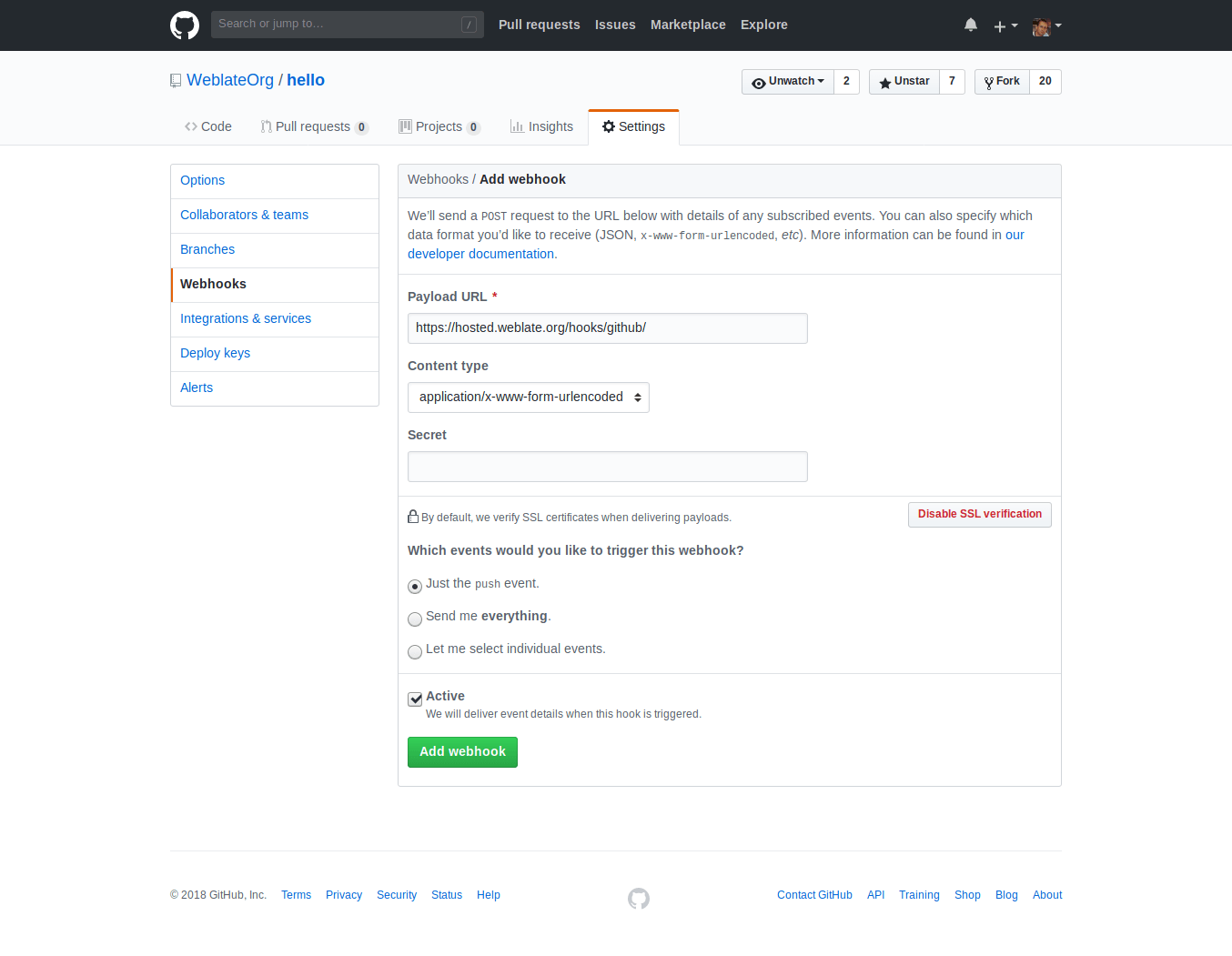
Die Payload URL besteht aus Ihrer Weblate-URL, an die /hooks/github/ angehängt wird, für den Hosted-Weblate-Dienst ist dies zum Beispiel https://hosted.weblate.org/hooks/github/.
Sie können die anderen Werte auf den Standardeinstellungen belassen. Weblate kann beide Inhaltstypen verarbeiten und verwendet nur das Push-Ereignis.
GitHub-Pull-Requests
Dies fügt eine dünne Schicht über Git unter Verwendung der GitHub API hinzu, um das Pushen von Übersetzungsänderungen als Pull Requests zu ermöglichen, anstatt sie direkt in das Repository zu pushen.
Git pusht Änderungen direkt in ein Repository, während das GitHub-Backend Pull Requests erstellt. Letzteres wird für den bloßen Zugriff auf Git-Repositorys nicht benötigt.
Um Pull Requests zu erstellen, wählen Sie GitHub als Versionsverwaltung aus und konfigurieren Sie GITHUB_CREDENTIALS. Für GitHub.com, verwenden Sie api.github.com als API-Host. Das Token muss Weblate erlauben, Repository-Inhalte zu lesen und zu schreiben und Pull Requests zu erstellen. Wenn Weblate private Repositorys forken soll, benötigt das Token eventuell auch Administrationszugriff.
GitLab
GitLab-Repository-Zugriff
HTTPS mit persönlichem oder projektbezogenem Zugangstoken
For a single private repository, HTTPS access with an access token is usually the simplest setup when the provider supports Git over HTTPS. Use the provider-required username and token in Quellcode-Repository.
Configure Repository-Push-URL only when Weblate should push changes directly or when the chosen workflow requires a push URL, see Änderungen aus Weblate pushen.
The token needs read access for cloning and write access for pushing. Provider-specific VCS backends that create pull or merge requests might require separate API credentials.
Für GitLab benötigt das Token die Berechtigung write_repository, um Änderungen in das Repository pushen zu können. Das Projekt-Zugangstoken erfordert die Rolle Developer, um Änderungen pushen zu können.
Die URL muss einen Benutzernamen enthalten. Für ein persönliches Zugangstoken ist es der tatsächliche Benutzername: https://user:personal_access_token@gitlab.com/example/example.git. Für Projekt-Zugangstoken kann es ein nicht leerer Wert sein: https://example:project_access_token@gitlab.com/example/example.git.
Bemerkung
Die Regeln für das Verwenden von Projekt-Zugangstoken haben sich zwischen den verschiedenen GitLab-Versionen geändert. Der nicht-leere Wert ist die aktuelle Anforderung, aber ältere Versionen hatten andere Erwartungen (Projektname, Bot-Benutzername). Prüfen Sie im Zweifelsfall die zu Ihrer Version passende GitLab-Dokumentation.
SSH mit einem eigenen Benutzer
For setups with multiple repositories, use SSH access with a dedicated code
hosting user for Weblate. Add Weblate’s public SSH key to that user, grant the
user access to the repositories, and use SSH URLs in Quellcode-Repository,
for example git@example.com:group/project.git.
Configure Repository-Push-URL only when Weblate should push changes directly or when the chosen workflow requires a push URL, see Änderungen aus Weblate pushen.
This also avoids provider restrictions on SSH key reuse. Some code hosting sites allow a public SSH key to be added only once, or only to a single user or deploy key entry. Keeping Weblate’s SSH key on a dedicated user lets that user be granted access to multiple repositories without reusing the key in several places.
This keeps personal, project, or API access tokens out of repository URLs. Provider API credentials are still needed when using a provider-specific VCS backend to create pull or merge requests; those credentials are configured separately from the Git repository URL.
On Hosted Weblate, use provider integrations where available. For GitHub, the recommended setup is the Hosted Weblate app. For direct SSH access on supported code hosting sites, use the hosted weblate user, see Auf Repositorys von Hosted Weblate zugreifen.
Für GitLab erstellen Sie einen eigenen Benutzer und verwenden GitLab-SSH-URLs, z. B. git@gitlab.com:group/project.git.
GitLab-Benachrichtigungen
Weblate unterstützt GitLab-Hooks. Fügen Sie einen Projekt-Webhook mit der Ziel-URL /hooks/gitlab/ auf Ihrer Weblate-Installation hinzu, zum Beispiel https://hosted.weblate.org/hooks/gitlab/.
Fehlerbehebung
Überprüfen Sie den GitLab-Webhook-Request-Verlauf darauf, ob Webhooks geliefert werden.
Die Nutzdaten der Antwort enthalten Informationen über übereinstimmende Komponenten.
GitLab-Merge-Requests
Dies fügt eine dünne Schicht über Git unter Verwendung der GitLab API hinzu, um das Pushen von Übersetzungsänderungen als Merge Requests zu ermöglichen, anstatt sie direkt in das Repository zu pushen.
Für den Zugriff auf Git-Repositorys ist dies nicht notwendig, das gewöhnliche Git funktioniert genauso, der einzige Unterschied ist, wie das Pushen zu einem Repository gehandhabt wird. Mit Git werden Änderungen direkt in das Repository gepusht, während das GitLab-Backend einen Merge Request erstellt.
Um Merge Requests zu erstellen, wählen Sie GitLab als Versionsverwaltung aus und konfigurieren Sie GITLAB_CREDENTIALS.
Die Push-Branch-Konfiguration beeinflusst, wohin Weblate Änderungen pusht, bevor der Merge Request geöffnet wird. Wenn sie nicht gesetzt ist, wird das Projekt geforkt und die Änderungen werden durch einen Fork gepusht. Wenn sie gesetzt ist, werden die Änderungen in das Upstream-Repository und den ausgewählten Branch gepusht.
Gitea, Forgejo, und Codeberg
Gitea-, Forgejo-, und Codeberg-Repository-Zugriff
HTTPS mit einem Zugangstoken
For a single private repository, HTTPS access with an access token is usually the simplest setup when the provider supports Git over HTTPS. Use the provider-required username and token in Quellcode-Repository.
Configure Repository-Push-URL only when Weblate should push changes directly or when the chosen workflow requires a push URL, see Änderungen aus Weblate pushen.
The token needs read access for cloning and write access for pushing. Provider-specific VCS backends that create pull or merge requests might require separate API credentials.
SSH mit einem eigenen Benutzer
For setups with multiple repositories, use SSH access with a dedicated code
hosting user for Weblate. Add Weblate’s public SSH key to that user, grant the
user access to the repositories, and use SSH URLs in Quellcode-Repository,
for example git@example.com:group/project.git.
Configure Repository-Push-URL only when Weblate should push changes directly or when the chosen workflow requires a push URL, see Änderungen aus Weblate pushen.
This also avoids provider restrictions on SSH key reuse. Some code hosting sites allow a public SSH key to be added only once, or only to a single user or deploy key entry. Keeping Weblate’s SSH key on a dedicated user lets that user be granted access to multiple repositories without reusing the key in several places.
This keeps personal, project, or API access tokens out of repository URLs. Provider API credentials are still needed when using a provider-specific VCS backend to create pull or merge requests; those credentials are configured separately from the Git repository URL.
On Hosted Weblate, use provider integrations where available. For GitHub, the recommended setup is the Hosted Weblate app. For direct SSH access on supported code hosting sites, use the hosted weblate user, see Auf Repositorys von Hosted Weblate zugreifen.
Für Hosted-Weblate-Repositorys auf Codeberg fügen Sie den gehosteten weblate-Benutzer hinzu, wenn Sie Schreibrechte benötigen, siehe Auf Repositorys von Hosted Weblate zugreifen.
Gitea-Benachrichtigungen
Weblate unterstützt Gitea-Webhooks. Fügen Sie einen Gitea Webhook für das Push events-Ereignis mit der Ziel-URL /hooks/gitea/ auf Ihrer Weblate-Installation hinzu, zum Beispiel https://hosted.weblate.org/hooks/gitea/. Dies kann in Webhooks unter Repository Settings erfolgen.
Forgejo-Benachrichtigungen
Weblate unterstützt Forgejo-Webhooks. Fügen Sie einen Forgejo Webhook für das Push events-Ereignis mit der Ziel-URL /hooks/gitea/ auf Ihrer Weblate-Installation hinzu, zum Beispiel https://hosted.weblate.org/hooks/forgejo/. Dies kann in Webhooks unter Repository Settings erfolgen.
Gitea-Pull-Requests
Added in version 4.12.
Dies fügt eine dünne Schicht über Git unter Verwendung der Gitea API hinzu, um das Pushen von Übersetzungsänderungen als Pull Requests zu ermöglichen, anstatt sie direkt in das Repository zu pushen.
Für den Zugriff auf Git-Repositorys ist dies nicht notwendig, das gewöhnliche Git funktioniert genauso, der einzige Unterschied ist, wie das Pushen zu einem Repository gehandhabt wird. Mit Git werden Änderungen direkt in das Repository gepusht, während das Gitea-Backend Pull Requests erstellt.
Um Pull Requests zu erstellen, wählen Sie Gitea als Versionsverwaltung aus und konfigurieren Sie GITEA_CREDENTIALS.
Bitbucket
Bitbucket-Repository-Zugriff
HTTPS mit einem Zugangstoken
For a single private repository, HTTPS access with an access token is usually the simplest setup when the provider supports Git over HTTPS. Use the provider-required username and token in Quellcode-Repository.
Configure Repository-Push-URL only when Weblate should push changes directly or when the chosen workflow requires a push URL, see Änderungen aus Weblate pushen.
The token needs read access for cloning and write access for pushing. Provider-specific VCS backends that create pull or merge requests might require separate API credentials.
SSH mit einem eigenen Benutzer
For setups with multiple repositories, use SSH access with a dedicated code
hosting user for Weblate. Add Weblate’s public SSH key to that user, grant the
user access to the repositories, and use SSH URLs in Quellcode-Repository,
for example git@example.com:group/project.git.
Configure Repository-Push-URL only when Weblate should push changes directly or when the chosen workflow requires a push URL, see Änderungen aus Weblate pushen.
This also avoids provider restrictions on SSH key reuse. Some code hosting sites allow a public SSH key to be added only once, or only to a single user or deploy key entry. Keeping Weblate’s SSH key on a dedicated user lets that user be granted access to multiple repositories without reusing the key in several places.
This keeps personal, project, or API access tokens out of repository URLs. Provider API credentials are still needed when using a provider-specific VCS backend to create pull or merge requests; those credentials are configured separately from the Git repository URL.
On Hosted Weblate, use provider integrations where available. For GitHub, the recommended setup is the Hosted Weblate app. For direct SSH access on supported code hosting sites, use the hosted weblate user, see Auf Repositorys von Hosted Weblate zugreifen.
Hosted Weblate hat einen eigenen weblate-Benutzer für den Bitbucket-Zugang, siehe Auf Repositorys von Hosted Weblate zugreifen.
Um direkt zu pushen, verwenden Sie Git oder Mercurial mit Repository-Push-URL.
Bitbucket-Benachrichtigungen
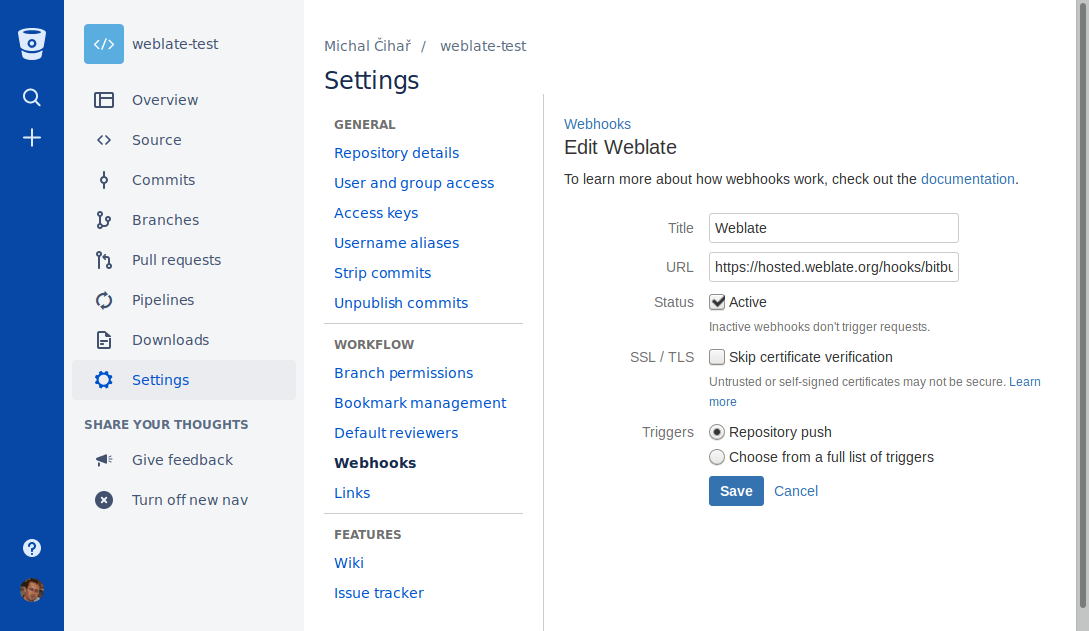
Weblate unterstützt Bitbucket-Webhooks. Fügen Sie einen Webhook, der bei einem Repository-Push ausgelöst wird, mit der Ziel-URL /hooks/bitbucket/ auf Ihrer Weblate-Installation hinzu, zum Beispiel https://hosted.weblate.org/hooks/bitbucket/.
Bitbucket-Data-Center-Pull-Requests
Added in version 4.16.
Dies fügt eine dünne Schicht über Git unter Verwendung der Bitbucket-Data-Center-API hinzu, um das Pushen von Übersetzungsänderungen als Pull Requests zu ermöglichen, anstatt sie direkt in das Repository zu pushen.
Warnung
Dies unterstützt die Bitbucket-Cloud-API nicht.
Für den Zugriff auf Git-Repositorys ist dies nicht notwendig, Git funktioniert genauso, der einzige Unterschied ist, wie das Pushen in ein Repository gehandhabt wird. Mit Git werden Änderungen direkt in das Repository gepusht, während das Bitbucket Data Center-Backend einen Pull Request erstellt.
Um Pull Requests zu erstellen, wählen Sie Bitbucket Data Center als Versionsverwaltung aus und konfigurieren Sie BITBUCKETSERVER_CREDENTIALS.
Bitbucket-Cloud-Pull-Requests
Added in version 5.8.
Dies fügt eine dünne Schicht auf Git unter Verwendung der Bitbucket-Cloud-API hinzu, um das Pushen von Übersetzungsänderungen als Pull-Requests zu ermöglichen, anstatt sie direkt in das Repository zu pushen.
Warnung
Dies unterscheidet sich von der Bitbucket-Data-Center-API.
Für den Zugriff auf Git-Repositorys ist dies nicht notwendig, Git funktioniert genauso, der einzige Unterschied ist, wie das Pushen in ein Repository gehandhabt wird. Mit Git werden Änderungen direkt in das Repository gepusht, während das Bitbucket Cloud-Backend einen Pull Request erstellt.
Um Pull Requests zu erstellen, wählen Sie Bitbucket Cloud als Versionsverwaltung aus und konfigurieren Sie BITBUCKETCLOUD_CREDENTIALS.
Azure DevOps
Azure-Repos-Repository-Zugriff
HTTPS mit einem Zugangstoken
For a single private repository, HTTPS access with an access token is usually the simplest setup when the provider supports Git over HTTPS. Use the provider-required username and token in Quellcode-Repository.
Configure Repository-Push-URL only when Weblate should push changes directly or when the chosen workflow requires a push URL, see Änderungen aus Weblate pushen.
The token needs read access for cloning and write access for pushing. Provider-specific VCS backends that create pull or merge requests might require separate API credentials.
Verwenden Sie die von Azure Repos angezeigte HTTPS-Klon-URL für das Repository.
SSH mit einem eigenen Benutzer
For setups with multiple repositories, use SSH access with a dedicated code
hosting user for Weblate. Add Weblate’s public SSH key to that user, grant the
user access to the repositories, and use SSH URLs in Quellcode-Repository,
for example git@example.com:group/project.git.
Configure Repository-Push-URL only when Weblate should push changes directly or when the chosen workflow requires a push URL, see Änderungen aus Weblate pushen.
This also avoids provider restrictions on SSH key reuse. Some code hosting sites allow a public SSH key to be added only once, or only to a single user or deploy key entry. Keeping Weblate’s SSH key on a dedicated user lets that user be granted access to multiple repositories without reusing the key in several places.
This keeps personal, project, or API access tokens out of repository URLs. Provider API credentials are still needed when using a provider-specific VCS backend to create pull or merge requests; those credentials are configured separately from the Git repository URL.
On Hosted Weblate, use provider integrations where available. For GitHub, the recommended setup is the Hosted Weblate app. For direct SSH access on supported code hosting sites, use the hosted weblate user, see Auf Repositorys von Hosted Weblate zugreifen.
Verwenden Sie die von Azure Repos angezeigte SSH-URL für das Repository.
Azure-Repos-Benachrichtigungen
Weblate unterstützt Azure-Repos-Webhooks. Fügen Sie einen Webhook für das Ereignis Code pushed mit der Ziel-URL /hooks/azure/ auf Ihrer Weblate-Installation hinzu, zum Beispiel https://hosted.weblate.org/hooks/azure/. Dies kann in Service hooks unter Project settings erfolgen.
Azure-DevOps-Pull-Requests
Dies fügt eine dünne Schicht über Git unter Verwendung der Azure DevOps API hinzu, um das Pushen von Übersetzungsänderungen als Pull Requests zu ermöglichen, anstatt sie direkt in das Repository zu pushen.
Git pusht Änderungen direkt in ein Repository, während das Azure DevOps-Backend Pull Requests erstellt. Letzteres wird für den bloßen Zugriff auf Git-Repositorys nicht benötigt.
Um Pull Requests zu erstellen, wählen Sie Azure DevOps als Versionsverwaltung aus und konfigurieren Sie AZURE_DEVOPS_CREDENTIALS.
Pagure
Pagure-Repository-Zugriff
HTTPS mit einem Zugangstoken
For a single private repository, HTTPS access with an access token is usually the simplest setup when the provider supports Git over HTTPS. Use the provider-required username and token in Quellcode-Repository.
Configure Repository-Push-URL only when Weblate should push changes directly or when the chosen workflow requires a push URL, see Änderungen aus Weblate pushen.
The token needs read access for cloning and write access for pushing. Provider-specific VCS backends that create pull or merge requests might require separate API credentials.
SSH mit einem eigenen Benutzer
For setups with multiple repositories, use SSH access with a dedicated code
hosting user for Weblate. Add Weblate’s public SSH key to that user, grant the
user access to the repositories, and use SSH URLs in Quellcode-Repository,
for example git@example.com:group/project.git.
Configure Repository-Push-URL only when Weblate should push changes directly or when the chosen workflow requires a push URL, see Änderungen aus Weblate pushen.
This also avoids provider restrictions on SSH key reuse. Some code hosting sites allow a public SSH key to be added only once, or only to a single user or deploy key entry. Keeping Weblate’s SSH key on a dedicated user lets that user be granted access to multiple repositories without reusing the key in several places.
This keeps personal, project, or API access tokens out of repository URLs. Provider API credentials are still needed when using a provider-specific VCS backend to create pull or merge requests; those credentials are configured separately from the Git repository URL.
On Hosted Weblate, use provider integrations where available. For GitHub, the recommended setup is the Hosted Weblate app. For direct SSH access on supported code hosting sites, use the hosted weblate user, see Auf Repositorys von Hosted Weblate zugreifen.
Pagure-Benachrichtigungen
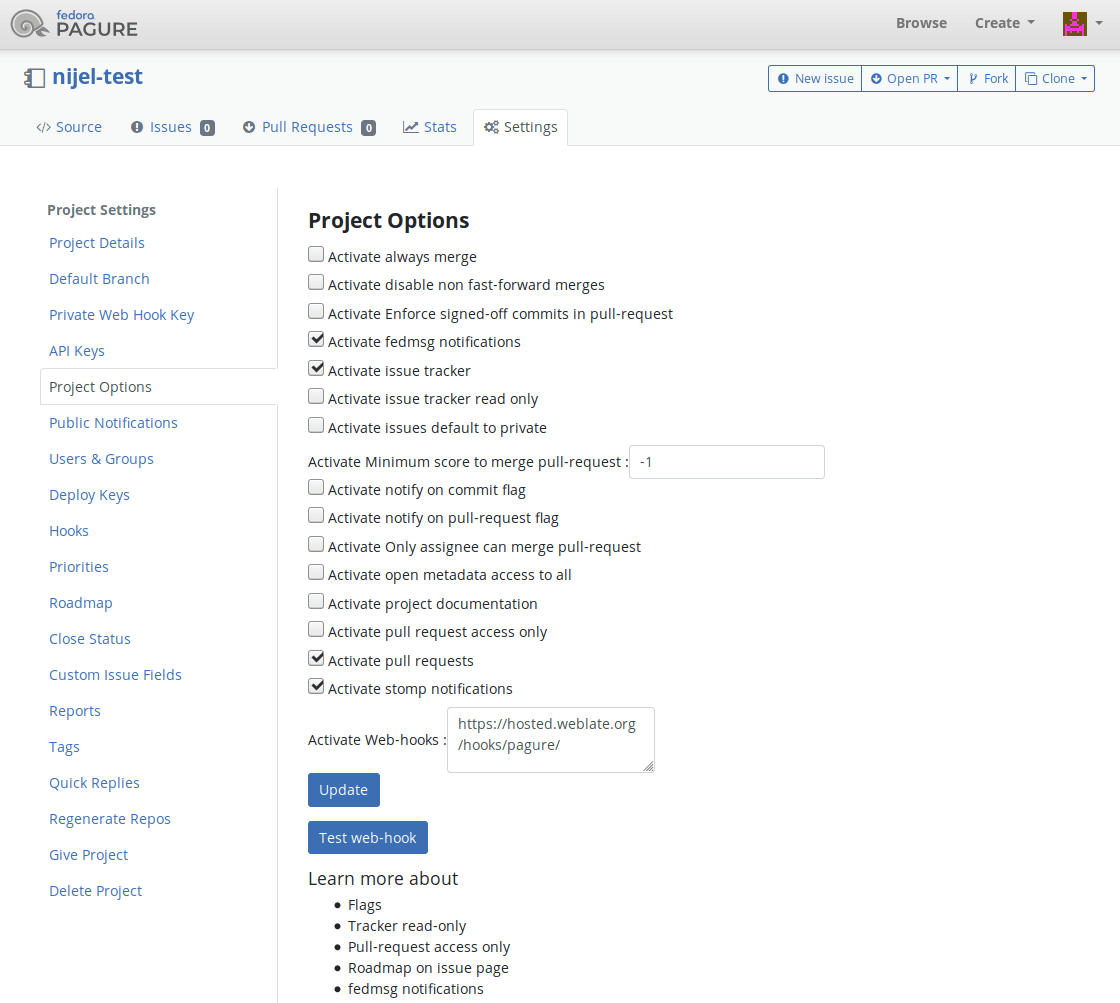
Weblate unterstützt Pagure-Hooks. Fügen Sie einen Webhook mit der Ziel-URL /hooks/pagure/ auf Ihrer Weblate-Installation hinzu, zum Beispiel https://hosted.weblate.org/hooks/pagure/. Dies kann in Activate Web-hooks unter Project options erfolgen:
Pagure-Merge-Requests
Added in version 4.3.2.
Dies fügt eine dünne Schicht über Git unter Verwendung der Pagure API hinzu, um das Pushen von Übersetzungsänderungen als Merge Requests zu ermöglichen, anstatt sie direkt in das Repository zu pushen.
Für den Zugriff auf Git-Repositorys ist dies nicht notwendig, das gewöhnliche Git funktioniert genauso, der einzige Unterschied ist, wie das Pushen zu einem Repository gehandhabt wird. Mit Git werden Änderungen direkt in das Repository gepusht, während das Pagure-Backend einen Merge Request erstellt.
Um Merge Requests zu erstellen, wählen Sie Pagure als Versionsverwaltung aus und konfigurieren Sie PAGURE_CREDENTIALS.
Andere Arbeitsabläufe
Gitee-Repository-Zugriff
HTTPS mit einem Zugangstoken
For a single private repository, HTTPS access with an access token is usually the simplest setup when the provider supports Git over HTTPS. Use the provider-required username and token in Quellcode-Repository.
Configure Repository-Push-URL only when Weblate should push changes directly or when the chosen workflow requires a push URL, see Änderungen aus Weblate pushen.
The token needs read access for cloning and write access for pushing. Provider-specific VCS backends that create pull or merge requests might require separate API credentials.
SSH mit einem eigenen Benutzer
For setups with multiple repositories, use SSH access with a dedicated code
hosting user for Weblate. Add Weblate’s public SSH key to that user, grant the
user access to the repositories, and use SSH URLs in Quellcode-Repository,
for example git@example.com:group/project.git.
Configure Repository-Push-URL only when Weblate should push changes directly or when the chosen workflow requires a push URL, see Änderungen aus Weblate pushen.
This also avoids provider restrictions on SSH key reuse. Some code hosting sites allow a public SSH key to be added only once, or only to a single user or deploy key entry. Keeping Weblate’s SSH key on a dedicated user lets that user be granted access to multiple repositories without reusing the key in several places.
This keeps personal, project, or API access tokens out of repository URLs. Provider API credentials are still needed when using a provider-specific VCS backend to create pull or merge requests; those credentials are configured separately from the Git repository URL.
On Hosted Weblate, use provider integrations where available. For GitHub, the recommended setup is the Hosted Weblate app. For direct SSH access on supported code hosting sites, use the hosted weblate user, see Auf Repositorys von Hosted Weblate zugreifen.
Gitee-Benachrichtigungen
Weblate unterstützt Gitee-Webhooks. Fügen Sie einen WebHook für das Push-Ereignis mit der Ziel-URL /hooks/gitee/ auf Ihrer Weblate-Installation hinzu, zum Beispiel https://hosted.weblate.org/hooks/gitee/. Dies kann in WebHooks unter Repository Management erfolgen.
Gerrit-Review-Requests
Die Gerrit-Unterstützung fügt eine dünne Schicht über Git mit dem Werkzeug git-review hinzu, um das Pushen von Übersetzungsänderungen als Gerrit-Review-Requests zu ermöglichen, anstatt sie direkt in das Repository zu pushen.
Die optionale Push-Branch-Einstellung wählt den Ziel-Branch für die Überprüfung in Gerrit aus. Lassen Sie sie leer, um Repository-Branch zu verwenden. Verwenden Sie den Kurznamen des Branches, z. B. main; Weblate und git-review pushen die Überprüfung automatisch nach refs/for/<branch>. Gerrit-Push-Optionen können in beiden Einstellungen an % angehängt werden, zum Beispiel main%topic=l10n. Gerrit interpretiert diese Optionen als das konfigurierte Weblate-Gerrit-Konto und wendet dessen Berechtigungen an.
Die Gerrit-Dokumentation enthält Einzelheiten zur Konfiguration, die für die Einrichtung solcher Repositorys erforderlich ist. Für dieses Backend gibt es keine separate Einstellung für Zugangsdaten zum Code-Hosting.
Docker-Zugangsdaten
Bei Docker-Installationen können die Zugangsdaten für die Code-Hosting-API auch über Umgebungsvariablen bereitgestellt werden, siehe Zugangsdaten für Code-Hosting-Sites.