Hozzáférés-szabályozás#
Weblate comes with a fine-grained privilege system to assign user permissions for the whole instance, or in a limited scope.
Egyszerű hozzáférés-szabályozása#
If you are not administrating the whole Weblate installation and just have access to manage certain projects (like on Hosted Weblate), your access control management options are limited to following settings. If you don’t need any complex setup, those are sufficient for you.
Projekt hozzáférés-szabályozása#
Megjegyzés
Projects running the gratis Libre plan on Hosted Weblate are always Public. You can switch to the paid plan if you want to restrict access to your project.
Korlátozhatja a felhasználók hozzáférését az egyes projektekhez egy másik Hozzáférés-vezérlés beállítás kiválasztásával. Választható beállítások a következők:
- Public
Mindenki számára látható.
Bármely hitelesített felhasználó közreműködhet.
A verziókövető tárolója mindenki számára hozzáférhető lehet.
Choose this for open-source projects, or when your Weblate instance is private or locked-down.
- Protected
Mindenki számára látható.
Csak a kiválasztott felhasználók járulhatnak hozzá.
Csak a kiválasztott felhasználók férhetnek hozzá a verziókövetőhöz.
Choose this to gain visibility, but still have control over who can contribute.
- Private
Csak a kiválasztott felhasználók számára látható.
Csak a kiválasztott felhasználók járulhatnak hozzá.
Csak a kiválasztott felhasználók férhetnek hozzá a verziókövetőhöz.
Choose this for projects that should not be exposed publicly at all.
- Custom
Csak a kiválasztott felhasználók számára látható.
Csak a kiválasztott felhasználók járulhatnak hozzá.
Csak a kiválasztott felhasználók férhetnek hozzá a verziókövetőhöz.
Not available on Hosted Weblate.
You will have to set up all the permissions using Custom access control.
Choose this on your own Weblate instance if you want to define access in a specific, finely customizable way.
Access control can be changed in the Access tab of the configuration (Manage ↓ Settings) of each respective project.
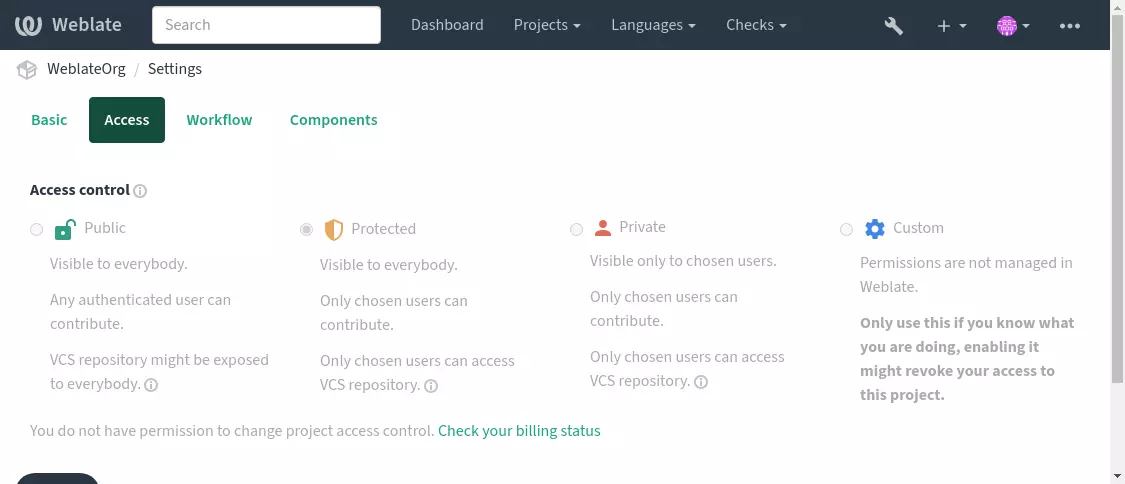
The default value can be changed by DEFAULT_ACCESS_CONTROL.
Megjegyzés
Even for Private projects, some info about your project will be exposed: statistics and language summary for the whole instance will include counts for all projects despite the access control setting. Your project name and other information can’t be revealed through this.
Megjegyzés
The actual set of permissions available for users by default in Public, Protected, and Private projects can be redefined by Weblate instance administrator using custom settings.
Lásd még
Managing per-project access control#
Users with the Manage project access privilege (see List of privileges and built-in roles) can manage users in projects via adding them to the teams. The initial collection of teams is provided by Weblate, but additional ones can be defined providing more fine-grained access control. You can limit teams to languages and assign them designated access roles (see List of privileges and built-in roles).
The following teams are automatically created for every project:
For Public, Protected and Private projects:
- Adminisztráció
Includes all permissions available for the project.
- Review (only if review workflow is turned on)
Can approve translations during review.
For Protected and Private projects only:
- Fordítás
Can translate the project and upload translations made offline.
- Források
Can edit source strings (if allowed in the project settings) and source string info.
- Nyelvek
Can manage translated languages (add or remove translations).
- Szójegyzék
Can manage glossary (add or remove entries, also upload).
- Memória
Can manage translation memory.
- Képernyőképek
Can manage screenshots (add or remove them, and associate them to source strings).
- Automatikus fordítás
Can use automatic translation.
- VCS
Can manage VCS and access the exported repository.
- Számlázás
Can access billing info and settings (see Számlázás).
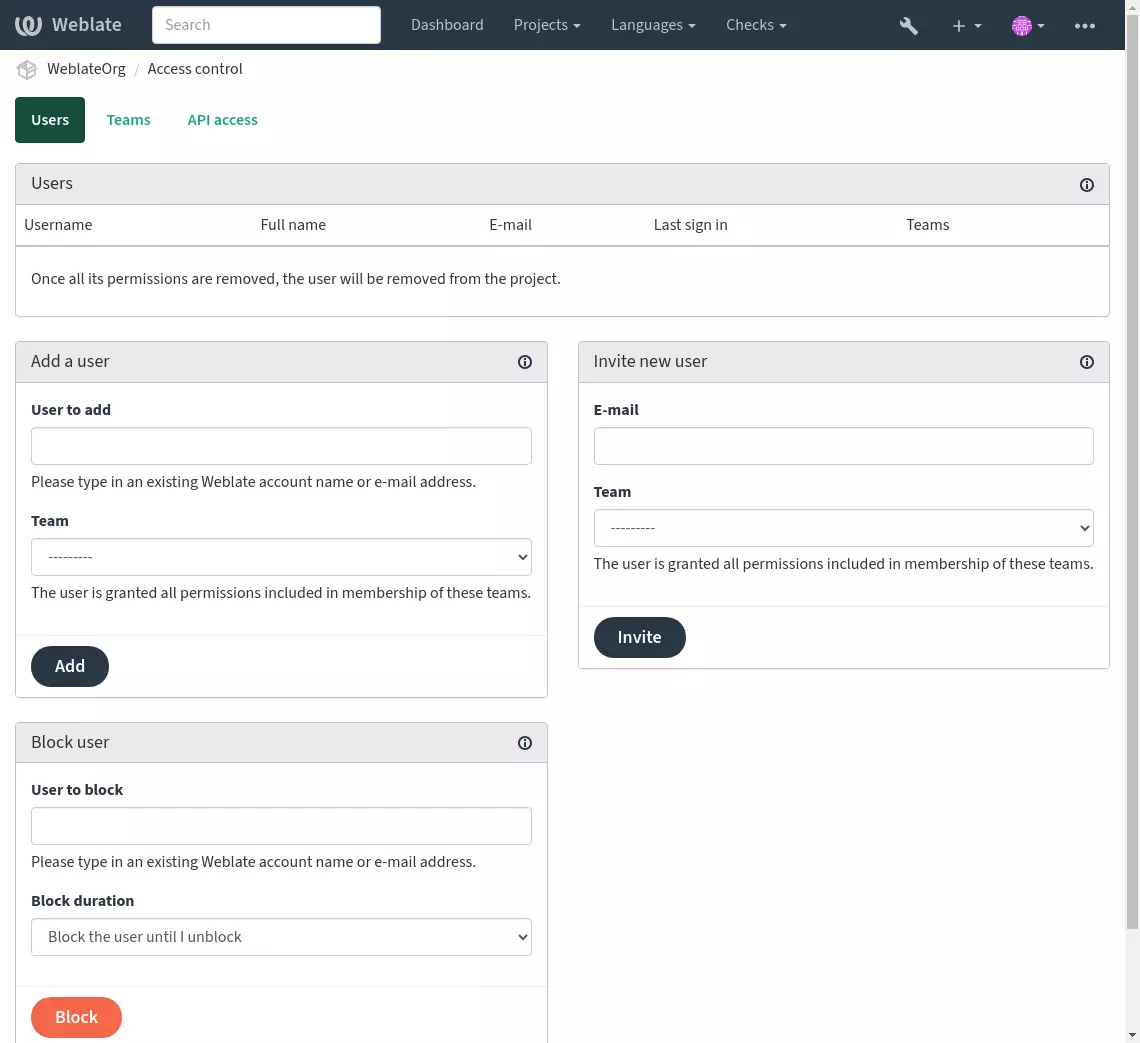
These features are available on the Access control page, which can be accessed from the project’s menu Manage ↓ Users.
Csapatrendszergazdák#
Új a(z) 4.15 verzióban.
Each team can have team administrator, who can add and remove users within the team. This is useful in case you want to build self-governed teams.
New user invitation#
Adding existing users will send them invitation to confirm. With
REGISTRATION_OPEN the administrator can also invite new users using
e-mail. Invited users have to complete the registration process to get access
to the project.
It is not required to have any site-wide privileges in order to do so, access management permission on the project’s scope (e.g. a membership in the Administration team) would be sufficient.
Tipp
If the invited user missed the validity of the invitation, a new invitation has to be created.
The same kind of invitations are available site-wide from the management interface on the Users tab.
A 5.0 verzióban változott: Weblate now does not automatically create accounts or add users to the teams. This is only done after confirmation from the user.
Blocking users#
Új a(z) 4.7 verzióban.
In case some users behave badly in your project, you have an option to block them from contributing. The blocked user still will be able to see the project if he has permissions for that, but he won’t be able to contribute.
Per-project permission management#
You can set your projects to Protected or Private, and manage users per-project in the Weblate user interface.
By default this prevents Weblate from granting access provided by Users and Viewers default teams due to these teams’ own configuration. This doesn’t prevent you from granting permissions to those projects site-wide by altering default teams, creating a new one, or creating additional custom settings for individual component as described in Custom access control below.
One of the main benefits of managing permissions through the Weblate user interface is that you can delegate it to other users without giving them the superuser privilege. In order to do so, add them to the Administration team of the project.
Custom access control#
Megjegyzés
This feature is unavailable on Hosted Weblate.
The permission system is based on teams and roles, where roles define a set of permissions, and teams link them to users and translations, see Users, roles, teams, and permissions for more details.
The most powerful features of the Weblate’s access control system for now are available only through the Django admin interface. You can use it to manage permissions of any project. You don’t necessarily have to switch it to Custom access control to utilize it. However you must have superuser privileges in order to use it.
If you are not interested in details of implementation, and just want to create a simple-enough configuration based on the defaults, or don’t have a site-wide access to the whole Weblate installation (like on Hosted Weblate), please refer to the Egyszerű hozzáférés-szabályozása section.
Common setups#
This section contains an overview of some common configurations you may be interested in.
Site-wide permission management#
To manage permissions for a whole instance at once, add users to appropriate default teams:
Users (this is done by default by the automatic team assignment).
Reviewers (if you are using review workflow with dedicated reviewers).
Managers (if you want to delegate most of the management operations to somebody else).
You should keep all projects configured as Public (see Projekt hozzáférés-szabályozása), otherwise the site-wide permissions provided by membership in the Users and Reviewers teams won’t have any effect.
You may also grant some additional permissions of your choice to the default teams. For example, you may want to give a permission to manage screenshots to all the Users.
You can define some new custom teams as well. If you want to keep managing your permissions site-wide for these teams, choose an appropriate value for the Project selection (e.g. All projects or All public projects).
Custom permissions for languages, components or projects#
You can create your own dedicated teams to manage permissions for distinct objects such as languages, components, and projects. Although these teams can only grant additional privileges, you can’t revoke any permission granted by site-wide or per-project teams by adding another custom team.
Example:
If you want (for whatever reason) to allow translation to a specific language (lets say Czech) only to a closed set of reliable translators while keeping translations to other languages public, you will have to:
Remove the permission to translate Czech from all the users. In the default configuration this can be done by altering the Users default team.
Group Users# Nyelvválasztás
As defined
Nyelvek
All but Czech
Add a dedicated team for Czech translators.
Group Czech translators# Szerepek
Power users
Projektválasztás
All public projects
Nyelvválasztás
As defined
Nyelvek
Czech
Add users you wish to give the permissions to into this team.
As you can see, permissions management this way is powerful, but can be quite a tedious job. You can’t delegate it to another user, unless granting superuser permissions.
Users, roles, teams, and permissions#
The authentication models consist of several objects:
- Engedély
Individual permission defined by Weblate. Permissions cannot be assigned to users. This can only be done through assignment of roles.
- Role
A role defines a set of permissions. This allows reuse of these sets in several places, making the administration easier.
- Felhasználó
User can belong to several teams.
- Csoport
Group connect roles, users, and authentication objects (projects, languages, and component lists).
Megjegyzés
A team can have no roles assigned to it, in that case access to browse the project by anyone is assumed (see below).
Access for browse to a project#
A user has to be a member of a team linked to the project, or any component inside that project. Having membership is enough, no specific permissions are needed to browse the project (this is used in the default Viewers team, see List of teams).
Access for browse to a component#
A user can access unrestricted components once able to access the components’ project (and will have all the permissions the user was granted for the project). With Restricted access turned on, access to the component requires explicit permissions for the component (or a component list the component is in).
Scope of teams#
The scope of the permission assigned by the roles in the teams are applied by the following rules:
If the team specifies any Component list, all the permissions given to members of that team are granted for all the components in the component lists attached to the team, and an access with no additional permissions is granted for all the projects these components are in. Components and Projects are ignored.
If the team specifies any Components, all the permissions given to the members of that team are granted for all the components attached to the team, and an access with no additional permissions is granted for all the projects these components are in. Projects are ignored.
Otherwise, if the team specifies any Projects, either by directly listing them or by having Projects selection set to a value like All public projects, all those permissions are applied to all the projects, which effectively grants the same permissions to access all projects unrestricted components.
The restrictions imposed by a team’s Languages are applied separately, when it’s verified if a user has an access to perform certain actions. Namely, it’s applied only to actions directly related to the translation process itself like reviewing, saving translations, adding suggestions, etc.
Tipp
Use Language selection or Project selection to automate inclusion of all languages or projects.
Example:
Let’s say there is a project
foowith the components:foo/barandfoo/bazand the following team:
Group Spanish Admin-Reviewers# Szerepek
Review Strings, Manage repository
Összetevők
foo/bar
Nyelvek
Spanish
Members of that team will have following permissions (assuming the default role settings):
General (browsing) access to the whole project
fooincluding both components in it:foo/barandfoo/baz.Review strings in
foo/barSpanish translation (not elsewhere).Manage VCS for the whole
foo/barrepository e.g. commit pending changes made by translators for all languages.
Automatic team assignments#
While editing the Team, you can specify Automatic assignments, which is a list of regular expressions used to automatically assign newly created users to a team based on their e-mail addresses. This assignment only happens upon account creation.
The most common use-case for the feature is to assign all new users to some
default team. This behavior is used for the default Users and Guest teams
(see List of teams). Use regular expression ^.*$ to match all users.
Another use-case for this option might be to
give some additional privileges to employees of your company by default.
Assuming all of them use corporate e-mail addresses on your domain, this can
be accomplished with an expression like ^.*@mycompany.com.
Megjegyzés
Automatic team assignment to Users and Viewers is always recreated
when upgrading from one Weblate version to another. If you want to turn it off, set the regular expression to
^$ (which won’t match anything).
Megjegyzés
As for now, there is no way to bulk-add already existing users to some team via the user interface. For that, you may resort to using the REST API.
Default teams and roles#
After installation, a default set of teams is created (see List of teams).
These roles and teams are created upon installation. The built-in roles are always kept up to date by the database migration when upgrading. You can’t actually change them, please define a new role if you want to define your own set of permissions.
List of privileges and built-in roles#
Hatókör |
Jogosultság |
Szerepek |
|---|---|---|
Billing (see Számlázás) |
Számlázási információk megtekintése |
Administration, Billing |
Változtatások |
Változtatások letöltése |
Administration |
Megjegyzések |
Megjegyzés küldése |
Administration, Edit source, Power user, Review strings, Translate |
Megjegyzés törlése |
Administration |
|
Megjegyzés megoldása |
Administration, Review strings |
|
Összetevő |
Összetevő-beállítások szerkesztése |
Administration |
Összetevő zárolása, fordítások megakadályozása |
Administration |
|
Szójegyzék |
Szójegyzék-bejegyzés hozzáadása |
Administration, Manage glossary, Power user |
Szójegyzék-bejegyzés szerkesztése |
Administration, Manage glossary, Power user |
|
Szójegyzék-bejegyzés törlése |
Administration, Manage glossary, Power user |
|
Szójegyzék-bejegyzések feltöltése |
Administration, Manage glossary, Power user |
|
Automatikus javaslatok |
Automatikus javaslatok használata |
Administration, Edit source, Power user, Review strings, Translate |
Fordítási memória |
Fordítási memória szerkesztése |
Administration, Manage translation memory |
Fordítási memória törlése |
Administration, Manage translation memory |
|
Projektek |
Projektbeállítások szerkesztése |
Administration |
Projekt-hozzáférés kezelése |
Administration |
|
Jelentések |
Jelentések letöltése |
Administration |
Képernyőképek |
Képernyőkép hozzáadása |
Administration, Manage screenshots |
Képernyőkép szerkesztése |
Administration, Manage screenshots |
|
Képernyőkép törlése |
Administration, Manage screenshots |
|
Forrásszövegek |
További szöveginformációk szerkesztése |
Administration, Edit source |
Szövegek |
Új szöveg hozzáadása |
Administration |
Szöveg eltávolítása |
Administration |
|
Sikertelen ellenőrzés eltüntetése |
Administration, Edit source, Power user, Review strings, Translate |
|
Szövegek szerkesztése |
Administration, Edit source, Power user, Review strings, Translate |
|
Szövegek felülvizsgálata |
Administration, Review strings |
|
Szöveg szerkesztése, ha javaslatok érvényesülnek |
Administration, Review strings |
|
Forrásszövegek szerkesztése |
Administration, Edit source, Power user |
|
Javaslatok |
Javaslat elfogadása |
Administration, Edit source, Power user, Review strings, Translate |
Javaslat hozzáadása |
Administration, Edit source, Add suggestion, Power user, Review strings, Translate |
|
Javaslat törlése |
Administration, Power user |
|
Szavazás a javaslatra |
Administration, Edit source, Power user, Review strings, Translate |
|
Fordítások |
Nyelv hozzáadása a fordításhoz |
Administration, Power user, Manage languages |
Automatikus fordítás végrehajtása |
Administration, Automatic translation |
|
Meglévő fordítás törlése |
Administration, Manage languages |
|
Fordítási fájl letöltése |
Administration, Edit source, Access repository, Power user, Review strings, Translate, Manage languages |
|
Több nyelv hozzáadása a fordításhoz |
Administration, Manage languages |
|
Feltöltések |
Feltöltött fordítás szerzőjének meghatározása |
Administration |
Meglévő szövegek felülírása feltöltéssel |
Administration, Edit source, Power user, Review strings, Translate |
|
Fordítások feltöltése |
Administration, Edit source, Power user, Review strings, Translate |
|
VCS |
Hozzáférés a belső tárolóhoz |
Administration, Access repository, Power user, Manage repository |
Változtatások véglegesítése a belső tárolóba |
Administration, Manage repository |
|
Változtatás felküldése a belső tárolóból |
Administration, Manage repository |
|
Változtatások visszaállítása a belső tárolóban |
Administration, Manage repository |
|
Távoli tároló helyének megtekintése |
Administration, Access repository, Power user, Manage repository |
|
A belső tároló frissítése |
Administration, Manage repository |
|
Site wide privileges |
Kezelőfelület használata |
|
Új projektek hozzáadása |
||
Nyelvmeghatározások hozzáadása |
||
Nyelvmeghatározások kezelése |
||
Csapatok kezelése |
||
Felhasználók kezelése |
||
Szerepek kezelése |
||
Közlemények kezelése |
||
Fordítási memória kezelése |
||
Gépi fordítás kezelése |
||
Összetevőlisták kezelése |
Megjegyzés
Site-wide privileges are not granted to any default role. These are powerful and quite close to superuser status. Most of them affect all projects in your Weblate installation.
List of teams#
The following teams are created upon installation (or after executing
setupgroups) and you are free to modify them. The migration will,
however, re-create them if you delete or rename them.
- Vendégek
Defines permissions for non-authenticated users.
This team only contains anonymous users (see
ANONYMOUS_USER_NAME).You can remove roles from this team to limit permissions for non-authenticated users.
Default roles: Add suggestion, Access repository
- Látogatók
This role ensures visibility of public projects for all users. By default, all users are members of this team.
By default, automatic team assignment makes all new accounts members of this team when they join.
Default roles: none
- Felhasználók
Default team for all users.
By default, automatic team assignment makes all new accounts members of this team when they join.
Default roles: Power user
- Reviewers
Group for reviewers (see Translation workflows).
Default roles: Review strings
- Menedzserek
Group for administrators.
Default roles: Administration
Figyelem
Never remove the predefined Weblate teams and users as this can lead to unexpected problems! If you have no use for them, you can removing all their privileges instead.
Additional access restrictions#
If you want to use your Weblate installation in a less public manner, i.e. allow
new users on an invitational basis only, it can be done by configuring Weblate
in such a way that only known users have an access to it. In order to do so, you can set
REGISTRATION_OPEN to False to prevent registrations of any new
users, and set REQUIRE_LOGIN to /.* to require signing in to access
all the site pages. This is basically the way to lock your Weblate installation.
Tipp
You can use built-in New user invitation to add new users.