Weblate を使用した翻訳
Thank you for your interest in translating with Weblate!
Generally, there are two most used modes of translation: * Project accepts direct translations * Project accepts the suggestions made by users. Sometimes, anonymous suggestions are accepted as well.
There are more translation workflows detailed in 翻訳ワークフロー.
Projects, or the components in them are either visible to everyone, or only to a certain group of translators.
翻訳プロジェクト
翻訳プロジェクトには関連するコンポーネント(同じソフトウェア、本、またはプロジェクトのリソース)が含まれます。
翻訳リンク
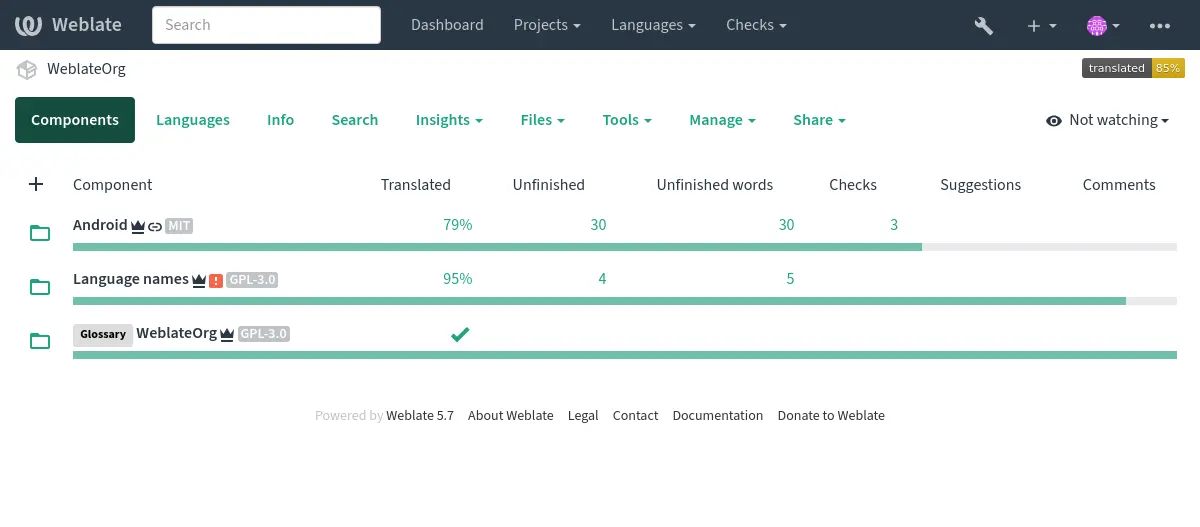
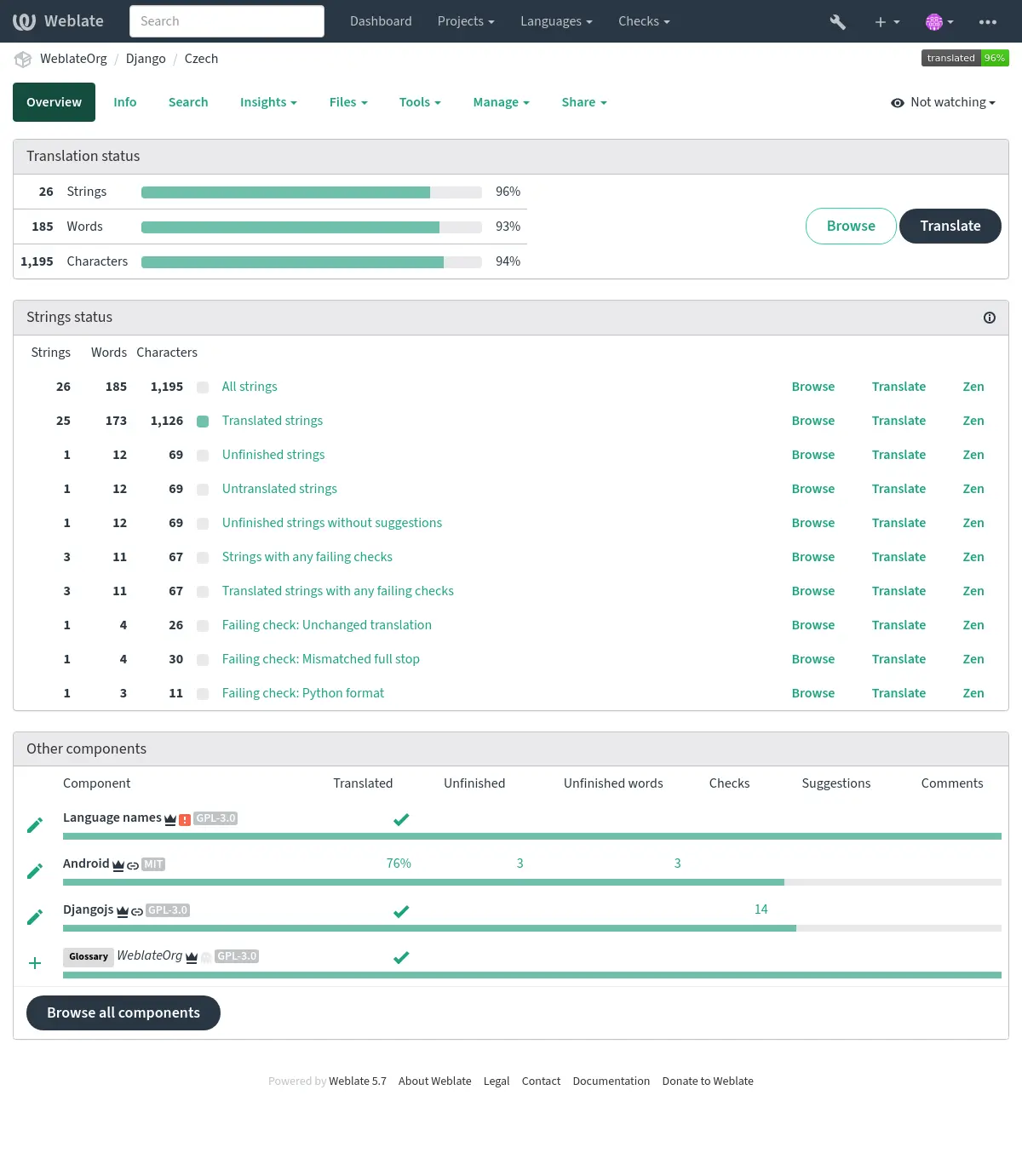
Having navigated to a component, a set of links lead to its actual translation. The translation is further divided into individual checks, like Untranslated strings or Unfinished strings. If the whole project is already translated without any errors, All strings is still available. Alternatively you can use the Search feature to find a specific string or term.
提案
注釈
実際の権限は、Weblate の構成によって異なります。
Anonymous users (by default) can only forward suggestions. Doing so is still available to signed-in users, in cases where uncertainty about a translation arises, prompting other translators to review it.
All suggestions are scanned on a daily basis to remove duplicates and those matching current translations.
別表記
Variants are used to group different-length variants of a string. The frontend of your project can then utilize different strings depending on the size of a screen or window.
ラベル
ラベルを使用してプロジェクト内の文字列を分類し、翻訳ワークフローを詳細に設定します(例: 文字列のカテゴリの設定)。
Weblate が使用するラベル:
参考
翻訳
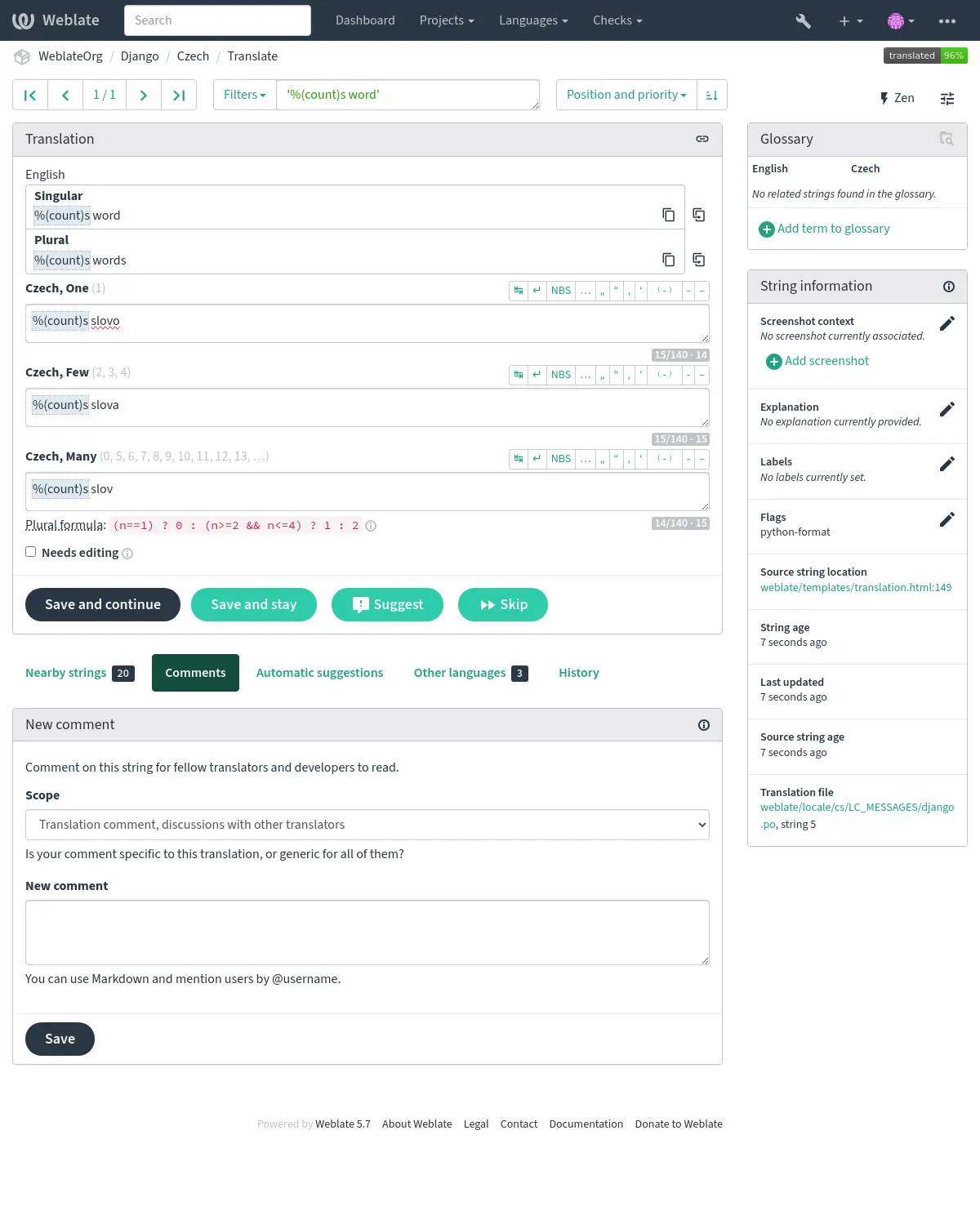
翻訳ページでは、原文と翻訳のための編集入力枠が表示されます。翻訳が複数形である場合、複数形の原文および編集入力枠が表示され、それぞれが翻訳された言語の複数形の数で説明およびラベル付けされます。
すべての特殊な空白文字には、赤い下線が引かれ、灰色の記号で示されます。後続の複数のスペースにも赤い下線が引かれ、翻訳者にフォーマット上の問題が発生したことを警告します。
このページには、さまざまな追加情報が表示されます、そのほとんどはプロジェクトのソースコードからのものです(文字列情報、コメント、メッセージを使用している場所など)。環境設定で選択した参考言語の翻訳入力枠は、原文の上に表示されます(参照: 参考言語)。
翻訳文の下に他の翻訳者からの提案が表示され、採用 (✓) 、採用して編集 (✏️)、または削除 (🗑) ができます。
複数形
Words changing form to account for their numeric designation are called plurals. Each language has its own definition of them. English, for example, supports one. In the singular definition of an example "car", implicitly one car is referenced, in the plural definition of "cars", two or more cars are referenced (or the concept of cars as a noun). Languages like, for example, Czech or Arabic have more forms of plurals, and their rules for plurals are different as well.
Weblate has full support for each of these forms, in each respective language. Each grammatical number is translated in a separate field for a pre-defined set of cardinal numbers specific to the translation language. The number of fields and how they are in turn used in the translated application or project, depends on the configured plural formula. Weblate shows the basic information and the Language Plural Rules by the Unicode Consortium is a more detailed description.
参考
代替の翻訳
Added in version 4.13.
注釈
これは現在、複数値 CSV ファイル でのみ対応してます。
一部の形式では、1 つの文字列に対して複数の翻訳を含めることができます。Tools メニューを使用して、多くの代替翻訳を追加できます。代替翻訳欄を空白にすると保存時に自動的に削除されます。
キーボードショートカット
翻訳中に利用できるキーボード ショートカット:
キーボード ショートカット |
説明 |
|---|---|
Alt+Home |
検索結果の、先頭の翻訳に移動する。 |
Alt+End |
検索結果の、末尾の翻訳に移動する。 |
Alt+PageUp または Ctrl+↑ または Alt+↑ または Cmd+↑ |
検索結果の、1 つ前の翻訳に移動する。 |
Alt+PageDown または Ctrl+↓ または Alt+↓ または Cmd+↓ |
検索結果の、次の翻訳に移動する。 |
Ctrl+Enter または Cmd+Enter |
現在の翻訳を送信する。翻訳の編集中に 保存して次へ を押すことと同じ。 |
Ctrl+Shift+Enter または Cmd+Shift+Enter |
翻訳の要編集フラグを解除して送信する。 |
Alt+Enter または Option+Enter |
提案として文字列を送信する。翻訳の編集中に 提案 を押した場合と同じです。 |
Ctrl+E または Cmd+E |
翻訳入力欄にフォーカスを移動する。 |
Ctrl+U または Cmd+U |
コメント入力欄にフォーカスを移動する。 |
Ctrl+M または Cmd+M |
自動提案 タブの表示。参照: 自動提案。 |
Ctrl+1 to Ctrl+9 または Cmd+1 to Cmd+9 |
番号を指定して、原文に設定されたプレースホルダーを、翻訳にコピーする。 |
Ctrl+M の後に 1 から 9 または Cmd+M の後に 1 から 9 |
番号を指定して、機械翻訳を翻訳にコピーする。 |
Ctrl+I の後に 1 から 9 または Cmd+I の後に 1 から 9 |
番号を指定して、検査不合格となった 1 項目を除外する。 |
Ctrl+J または Cmd+J |
前後の文字列 タブの表示。 |
Ctrl+S または Cmd+S |
検索窓にフォーカスを移動する。 |
Ctrl+O または Cmd+O |
原文を、翻訳に複製する。 |
Ctrl+Y または Cmd+Y |
要編集 にチェックを付ける。 |
→ and ← |
Browse the next translation strings. Browse the previous translation strings. |
ビジュアル キーボード
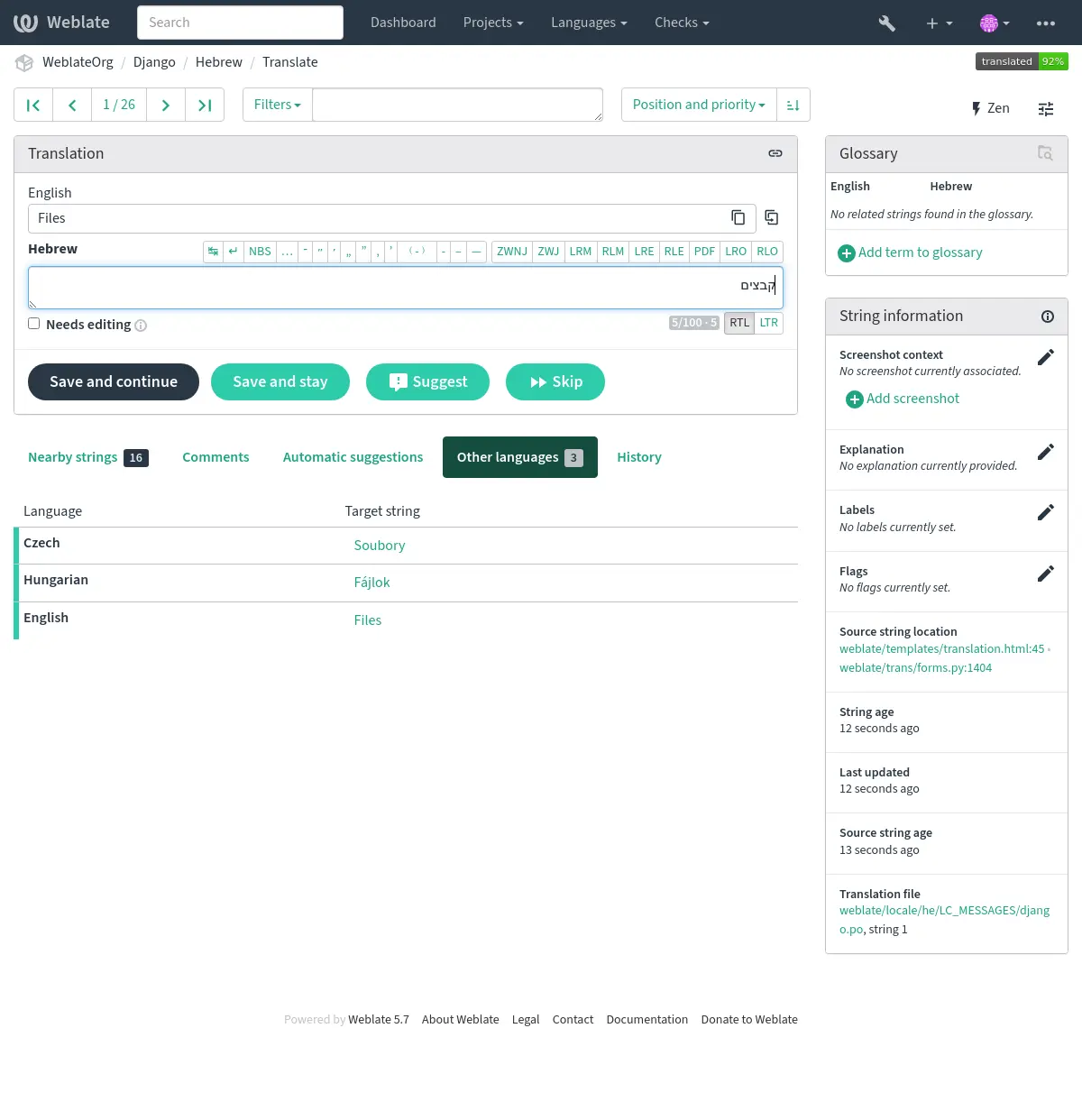
A small visual keyboard row is shown just above the translation field. Its rows are specific to each language; it can be useful for local punctuation or characters that are hard to type by hand.
表示される記号は3種類あります。
Per-language characters provided by Weblate (e.g. quotes or RTL-specific characters)
SPECIAL_CHARSで設定された文字
翻訳情報
このコンテキストの説明は、現在の文字列に関する関連情報を提供します。
- 文字列属性
メッセージ ID、コンテキスト(
msgctxt)、原文の参照など。- スクリーンショット
スクリーンショットを Weblate にアップロードして、文字列がどこでどのように使用されているかを翻訳者に伝えることができます。参照: 文字列の視覚情報。
- 前後の文字列
Displays neighbouring strings from the translation file. These are usually also used in a similar context and prove useful in keeping the translation consistent.
- その他の出現箇所
メッセージが複数の場所で表示される場合(複数のコンポーネントなど)、一貫性がないと判断されると(参照: 一貫性の欠如)、このタブにすべてのメッセージを表示します。どれを使用するかは選択できます。
- 翻訳メモリ
過去に翻訳した同様の文字列を確認します。参照: 翻訳メモリ。
- 用語集
現在のメッセージで使用しているプロジェクトの用語集の用語を表示します。
- 最近の更新
Weblate を使用して最近このメッセージを変更したユーザーの一覧です。
- プロジェクト
翻訳者への指示や、プロジェクトが使用しているバージョン管理システムの、リポジトリ内の文字列へのディレクトリやリンクなどのプロジェクト情報。
直リンクが必要な場合は、翻訳形式での対応が必要です。
翻訳履歴
Every change is by default (unless turned-off in component settings) saved in the database, and can be reverted. Optionally, translations can also be reverted in the underlying version control system.
翻訳した文字列の長さ
Weblate では、翻訳した文字列の長さを制限するために、複数の方法で翻訳の長さを設定できます。
The default limitation for translation is ten times longer than the source string. This can be modified with
LIMIT_TRANSLATION_LENGTH_BY_SOURCE_LENGTH. If you are hitting this, it can also be caused by a monolingual translation being wrongly set up as a bilingual one, making Weblate mistaking the translation key for the actual source string. See バイリンガル形式とモノリンガル形式 for more info.Maximum length in characters defined by the translation file or flag, as per 翻訳の最大文字数.
Maximal rendered size in pixels as defined by flags; see 翻訳の文字の最大サイズ.
自動提案
設定と翻訳した言語に基づいて、Weblate は複数の機械翻訳ツールと 翻訳メモリ からの提案を提供します。すべての機械翻訳は、各翻訳ページの 1 つのタブの中から使用できます。
翻訳メモリ で一致検索を実行することもできます。
参考
対応するツールの一覧の検索。参照: 自動提案。
自動翻訳
翻訳の開始時に、外部のソースを基にした自動翻訳を使用できます。このツールは 自動翻訳 として、コンポーネントと言語を選択して ツール メニューから操作できます。
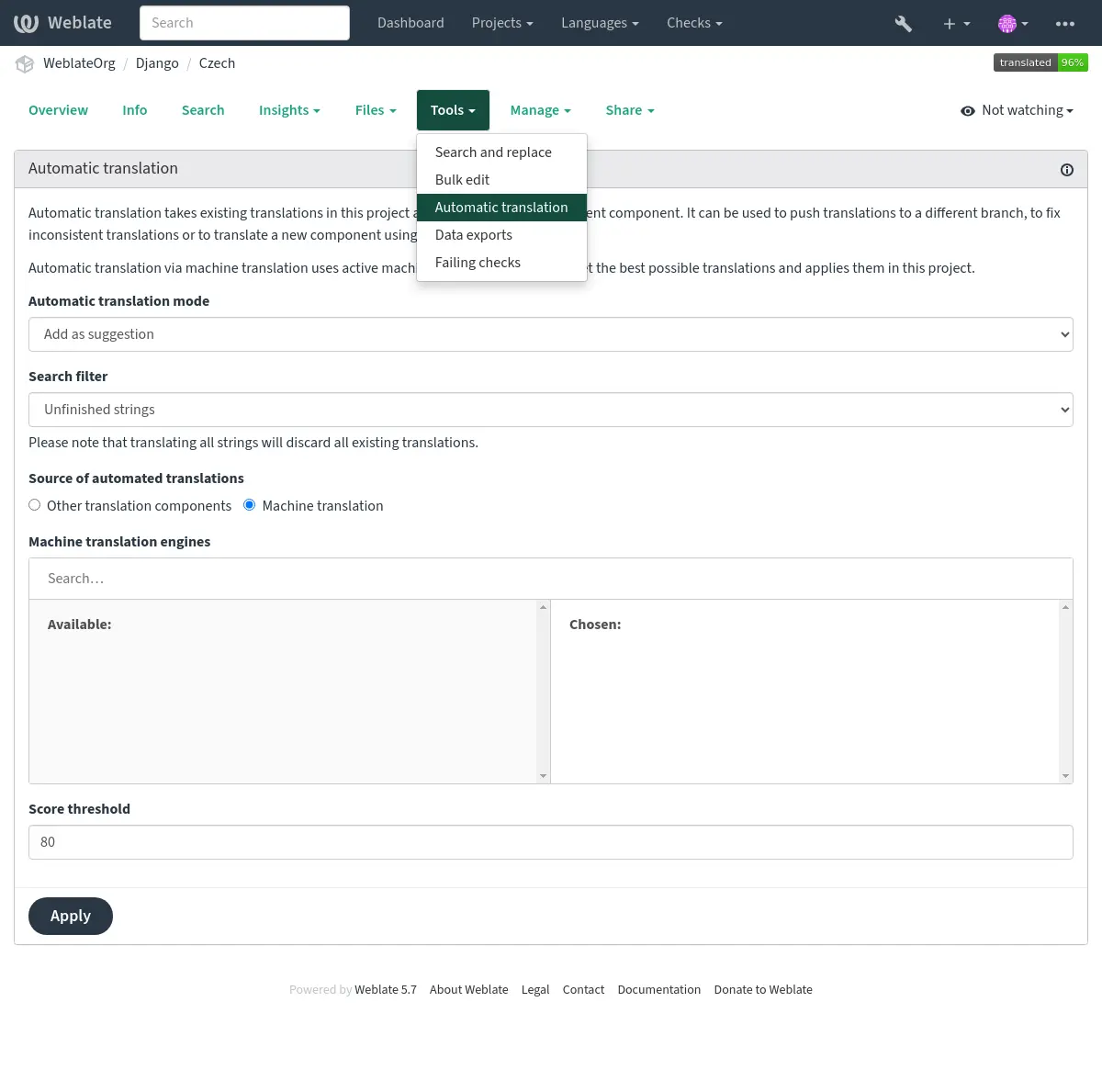
選択できる 2 つの操作モード:
他の Weblate コンポーネントを翻訳のソースとして使用する。
品質を厳選して選んだ機械翻訳サービスを使用する。
自動翻訳する文字列の選択もできます。
警告
すべての文字列 などの範囲が大きいフィルターを使用すると、既存の翻訳が上書きされてしまうことに注意してください。
異なるコンポーネント間の翻訳を統合する場合(例: アプリケーションおよびその WEB サイト)や、既存の翻訳(翻訳メモリ)を使用して新しいコンポーネントの翻訳を始める場合に便利です。
自動翻訳された文字列には、自動翻訳された文字列 というラベルが付けられます。
接続制限
To avoid abuse of the interface, rate limiting is applied to several operations like searching, sending contact forms, or translating. If affected by it, you are blocked for a certain period, until you can perform the operation again.
デフォルトの制限値と最適な設定については、管理者ドキュメントを確認してください。参照: 接続制限。
検索と置換
用語を効率的に変更したり、文字列をまとめて修正をするには、 ツール メニューから 検索と置換 を使用します。
ヒント
Don't worry about messing up the strings, as it is a two-step process. A preview of edited strings is shown before confirming the change.
一括編集
Bulk editing allows performing one operation for multiple strings. Define strings by searching for them and actions to perform on matching ones. Supported operations:
Change string state (for example to approve all unreviewed strings).
翻訳フラグの変更(参照: フラグを使用した動作の設定)
文字列ラベルの変更(参照: 文字列ラベル)
ヒント
This tool is called Bulk edit, accessible in the Tools menu of each project, component or translation.
マトリックス表示
You can compare different languages efficiently using this view It is available on every component page, from the Tools menu. First select all languages you want to compare, confirm your selection, then click on any translation to open and edit it.
The matrix view is also a very good starting point to find missing translations in different languages, and quickly add them from one view.
Zen モード
This mode simplifies the layout and removes additional UI elements such as Nearby strings or the Glossary. It is available by clicking the Zen button on the top-right of the regular editor (translation of a string).
You can select the Zen editor as your default editor using the 環境設定 tab on your ユーザー情報. You can also choose there between having translations listed Top to bottom or Side by side, depending on your personal preference.
コメント
Three types of comments can be posted: * for translations * for source strings * for reporting source string bugs when this functionality is turned on using 原文の査読の有効化.
Choose the suitable type for the topic you want to discuss. Source string comments are in any event good for providing feedback on the original string, for example that it should be rephrased, or to ask questions about it.
Markdown syntax can be used in all comments, as well as mentioning other users by using``@username``.
参考
原文のフィードバックの受け取り、原文の査読、原文の査読の有効化