மொழிபெயர்ப்பு செயல்முறை
பரிந்துரை வாக்களிப்பு
உள்நுழைந்துள்ள பயனர்கள் ஏற்றுக்கொள்ளும் வகையில், அனைவரும் இயல்பாகவே பரிந்துரைகளைச் சேர்க்கலாம். ஒன்றுக்கும் மேற்பட்ட உள்நுழைந்துள்ள பயனர்கள் ஒப்புக்கொள்ளும் போது, வாக்களிப்பை இயக்குவதற்கு கூறு உள்ளமைவு உடன் Suggestion voting மற்றும் தானாகவே பரிந்துரைகளை ஏற்பது என்ற அமைப்பை அமைப்பதன் மூலம், உள்நுழைந்துள்ள பயனர்கள் ஒரு சரத்தைப் பயன்படுத்த, பரிந்துரை வாக்களிப்பைப் பயன்படுத்தலாம்.
Note
தானியங்கு ஏற்பு அமைக்கப்பட்டவுடன், சாதாரண பயனர்கள் நேரடியாக மொழிபெயர்ப்புகளைச் சேமிக்கும் அல்லது பரிந்துரைகளை ஏற்கும் உரிமையை இழக்கின்றனர். இது பரிந்துரைகள் செயல்படுத்தப்படும்போது சரத்தைத் திருத்து permission மூலம் மேலெழுதப்படலாம்.
இவற்றை நீங்கள் access control உடன் பின்வரும் அமைப்புகளில் ஒன்றாக இணைக்கலாம்:
பயனர்கள் பரிந்துரைகளைப் பரிந்துரைக்கிறார்கள் மற்றும் வாக்களிக்கிறார்கள் மற்றும் ஏற்றுக்கொள்ளப்பட்டதை வரையறுக்கப்பட்ட குழு கட்டுப்படுத்துகிறது.
வாக்களிப்பை இயக்கவும்.
தானாக ஏற்றுக்கொள்வதை முடக்கு.
மொழிபெயர்ப்புகளைச் சேமிக்க பயனர்களை அனுமதிக்காதீர்கள்.
பயனர்கள் தங்கள் வரையறுக்கப்பட்ட எண்ணிக்கையை ஒப்புக்கொண்டவுடன், தானாக ஏற்றுக்கொள்ளப்பட்ட பரிந்துரைகளுக்கு வாக்களிக்கவும்.
வாக்களிப்பை இயக்கவும்.
தானாக ஏற்றுக்கொள்வதற்கு விரும்பிய எண்ணிக்கையிலான வாக்குகளை அமைக்கவும்.
பரிந்துரைகளுக்கு விருப்ப வாக்களிப்பு. (பயனர்கள் பல பரிந்துரைகளை வழங்குவதன் மூலம் ஒரு மொழிபெயர்ப்பைப் பற்றி உறுதியாகத் தெரியாதபோது அவர்கள் விருப்பமாகப் பயன்படுத்தலாம்.)
வாக்களிப்பதை மட்டும் இயக்கவும்.
மூல சரங்கள் குறித்த கூடுதல் செய்தி
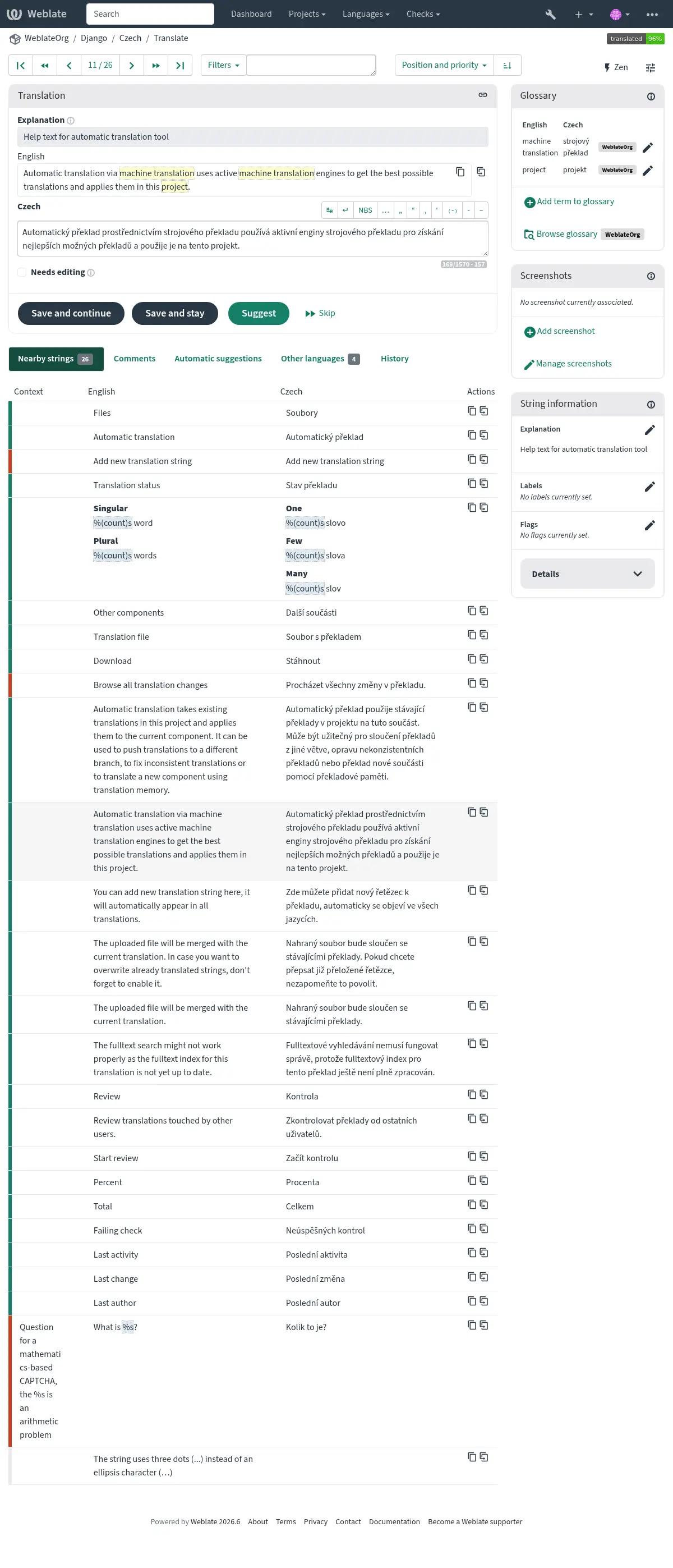
விளக்கங்கள், சரம் முன்னுரிமைகள், கொடிகள் மற்றும் காட்சி சூழல் உள்ளிட்ட சரங்களுக்கு கூடுதல் தகவலைச் சேர்ப்பதன் மூலம் மொழிபெயர்ப்பு செயல்முறையை மேம்படுத்தவும். அந்த தகவல்களில் சில மொழிபெயர்ப்பு கோப்புகளிலிருந்து பிரித்தெடுக்கப்படலாம், மேலும் சில கூடுதல் சரம் தகவலைத் திருத்துவதன் மூலம் சேர்க்கப்படலாம்:
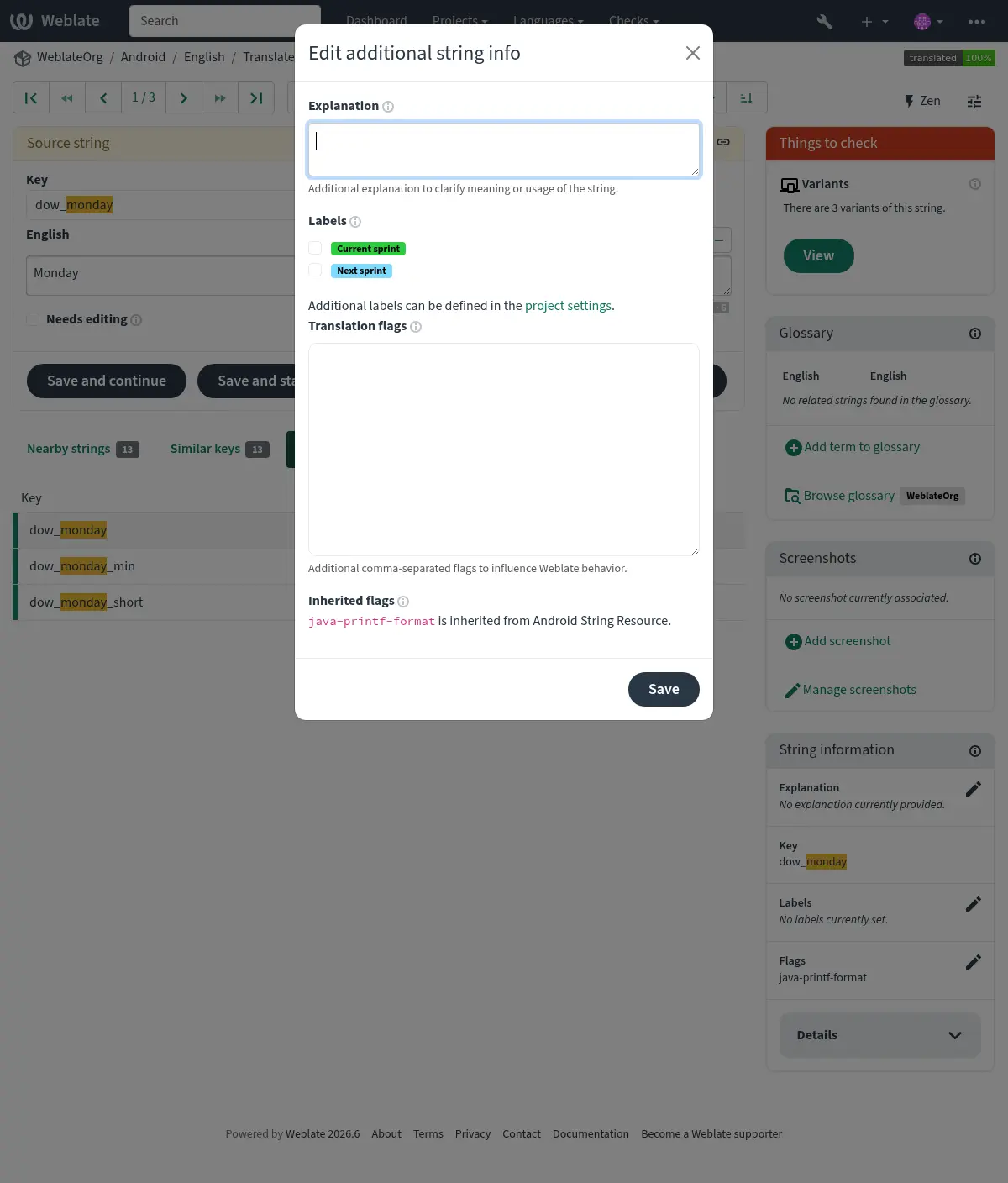
Screenshot சூழல் அல்லது Flags என்பதற்கு அடுத்துள்ள "திருத்து" ஐகானைக் சொடுக்கு செய்வதன் மூலம் மொழிபெயர்ப்பு இடைமுகத்திலிருந்து இதை நேரடியாக அணுகலாம்.
See also
சரங்கள் முன்னுரிமை
முன்னுரிமை கொடியைப் பயன்படுத்தி, முந்தைய மொழிபெயர்ப்பிற்கான அதிக முன்னுரிமை சரங்களை வழங்க, சரத்தின் முன்னுரிமையை மாற்றலாம்.
Hint
மொழிபெயர்ப்பின் ஓட்டத்தை தர்க்கரீதியான முறையில் ஆர்டர் செய்ய இதைப் பயன்படுத்தலாம்.
See also
மொழிபெயர்ப்பு கொடிகள்
Customization of quality checks and other Weblate behavior, see கொடிகளைப் பயன்படுத்தி நடத்தை தனிப்பயனாக்குதல்.
சரம் கொடிகள் மொழிபெயர்ப்பு கொடிகள் இல் இருந்து கூறு உள்ளமைவு மற்றும் கொடிகள் மொழிபெயர்ப்பு கோப்பிலிருந்து பெறப்படுகின்றன (பார்க்க உள்ளூராக்கல் கோப்பு வடிவங்கள்).
விளக்கம்
Changed in version 4.1: முந்தைய பதிப்புகளில் இது கூடுதல் சூழல் என அழைக்கப்பட்டது.
Changed in version 4.18: ஒரு கோப்புடன் விளக்கத்தை ஒத்திசைப்பதற்கான உதவி அறிமுகப்படுத்தப்பட்டது.
மொழிபெயர்ப்பின் நோக்கம் அல்லது பயன்பாட்டை தெளிவுபடுத்த விளக்கத்தைப் பயன்படுத்து. இணைப்புகள் மற்றும் பிற மார்க்அப்பைச் சேர்க்க நீங்கள் மார்க் டவுனைப் பயன்படுத்தலாம்.
சில கோப்பு வடிவங்கள் கோப்பில் விளக்கத்தை சேமிப்பதை ஆதரிக்கின்றன, பார்க்கவும் விளக்கம்.
Hint
வலைபெயர்ப்பு சில வடிவங்களுக்கான மொழிபெயர்ப்புக் கோப்பில் உள்ள விளக்கத்தையும் காட்டலாம், பார்க்கவும் மூல சரம் விளக்கம்.
Screenshots and visual context
உங்கள் நிரலுக்குள் பயன்பாட்டில் கொடுக்கப்பட்ட மூல சரத்தை காட்டும் திரை சாட்டை பதிவேற்றலாம். இது எங்கு பயன்படுத்தப்படுகிறது, அது எவ்வாறு மொழிபெயர்க்கப்பட வேண்டும் என்பதைப் புரிந்துகொள்ள மொழிபெயர்ப்பாளர்கள் உதவுகிறார்கள்.
பதிவேற்றிய திரை காட்சி மொழிபெயர்ப்பு சூழல் பக்கப்பட்டியில் காட்டப்பட்டுள்ளது:
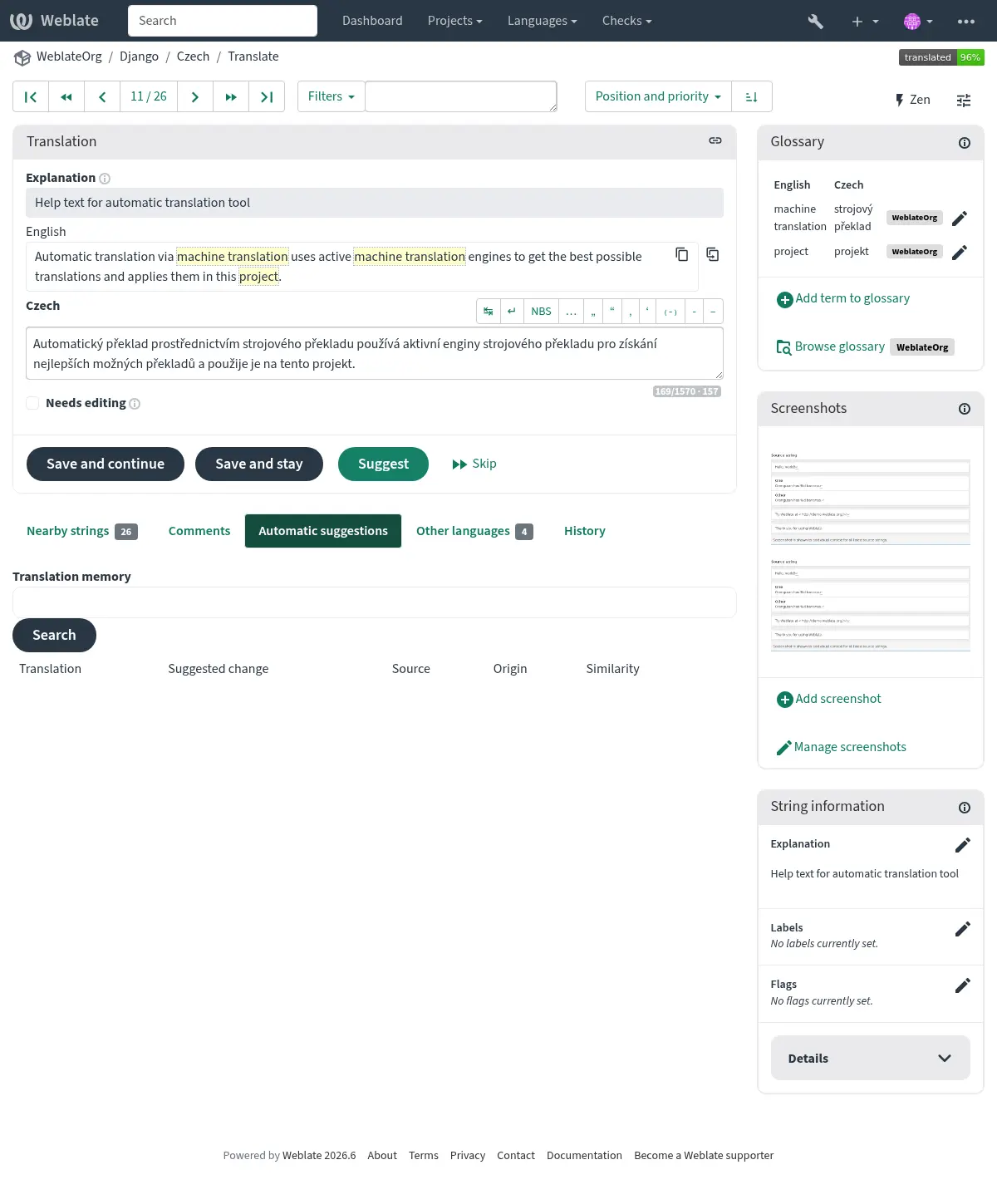
In addition to மூல சரங்கள் குறித்த கூடுதல் செய்தி, screenshots can be managed in the Weblate UI, kept in sync from the repository, or handled through the வலைபெயர்ப்பு ரெச்ட் பநிஇ.
Managing screenshots in the UI
Each screenshot is stored for a specific translation language. In the translate page, screenshots attached to the source language are shown for every translation of the string, while screenshots attached to any other language are shown only for that language. You can add a screenshot directly from the translate page using Add screenshot in the Screenshot context panel, or open the separate management interface under the Operations menu. There you can upload screenshots, assign them to source strings manually, or let Weblate find strings in the image using text recognition (OCR) with the Find strings in image button. Matching source strings can be assigned individually, in a selected batch, or all at once.
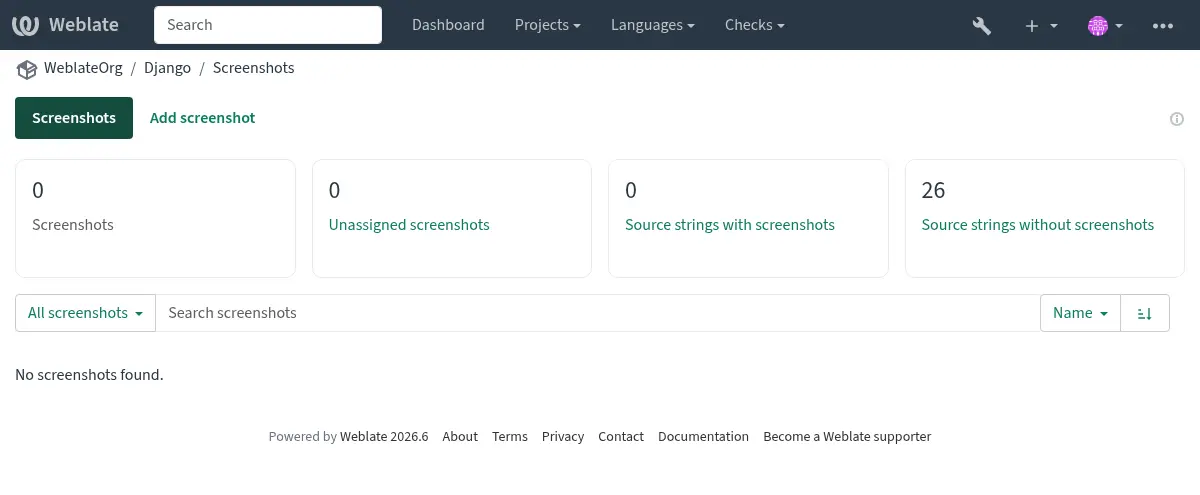
The screenshot listing summarizes uploaded screenshots and lets you search or filter them:
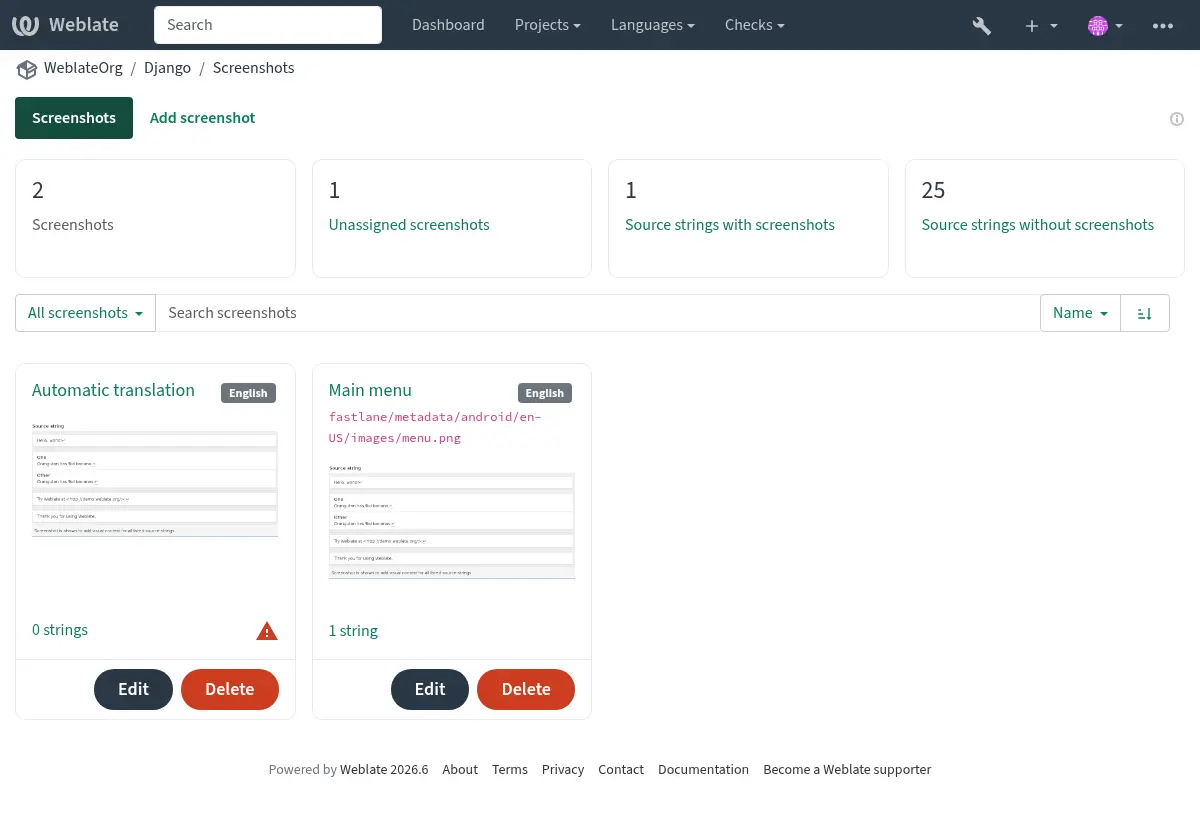
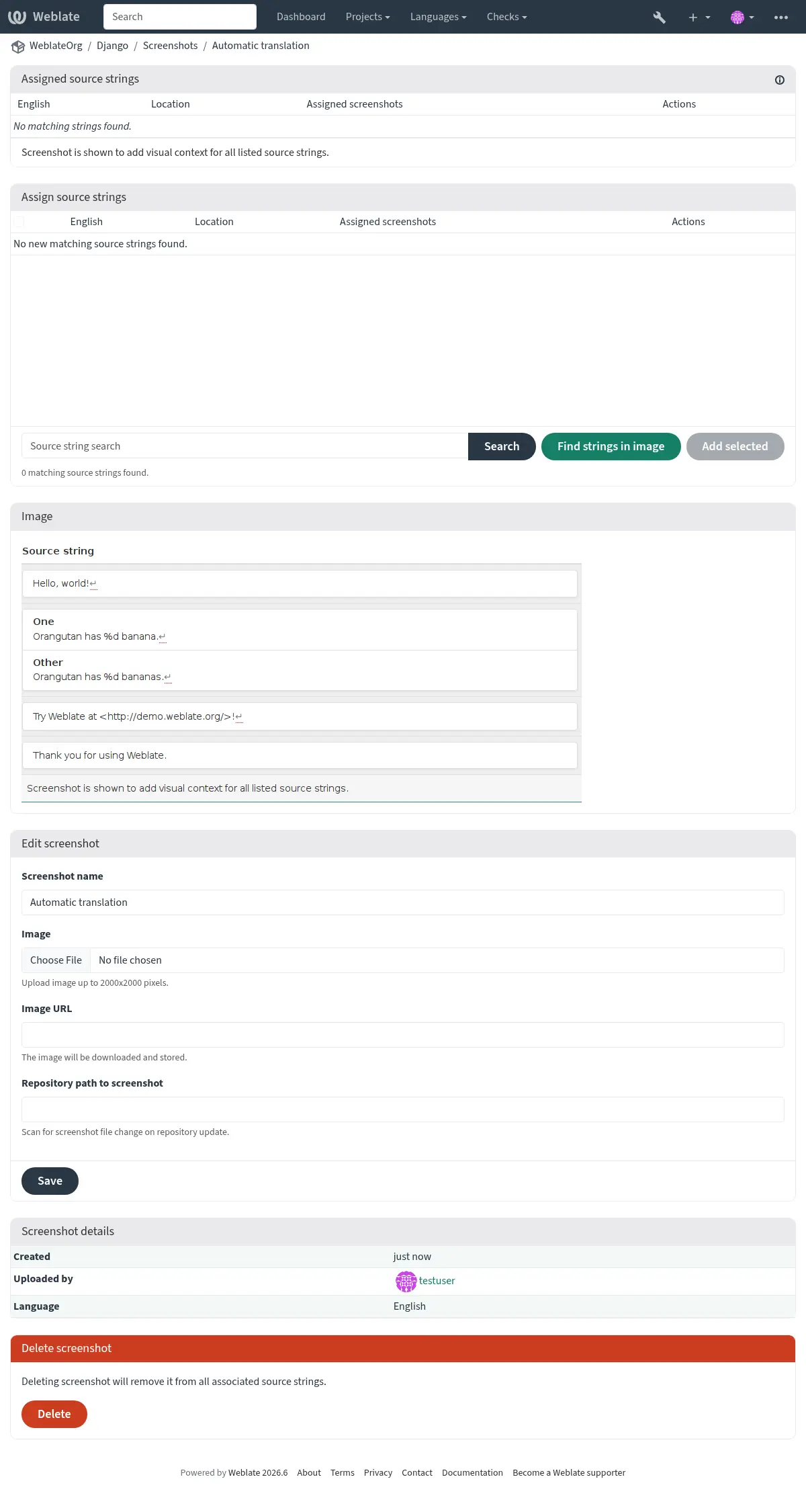
ஒரு திரை காட்சி பதிவேற்றப்பட்டதும், இந்த இடைமுகம் மேலாண்மை மற்றும் மூல சரம் சங்கத்தை கையாளுகிறது:
Use the screenshot listing search to find screenshots by name, repository path,
language, assigned source string, source string context, or source string
location. The search accepts plain text as well as advanced screenshot queries,
see Searching for screenshots. For example, use NOT has:string to find
unassigned screenshots, has:string to find assigned screenshots, or
repository:fastlane to review screenshots discovered from repository paths.
You can upload a screenshot from a local file, paste it from the clipboard, or
provide a URL to download an image from an external source. URL-based uploads
may be restricted based on the ALLOWED_ASSET_DOMAINS setting, which
controls which domains are trusted for downloading external assets, including
any redirects followed while fetching the image, and
ASSET_RESTRICT_PRIVATE, which rejects internal or non-public targets
unless they are included in ASSET_PRIVATE_ALLOWLIST. The
ALLOWED_ASSET_SIZE setting limits maximal size for the asset.
Managing screenshots from the repository
உங்கள் பதிப்பு கட்டுப்பாட்டு அமைப்பு (வி.சி.எச்) களஞ்சியத்திலிருந்து திரை சாட்களை நேரடியாக சேர்க்கலாம் அல்லது புதுப்பிக்கலாம்.
இந்த அம்சத்தை இயக்க, நீங்கள் ஒரு கூறுகளை உருவாக்கும்போது திரைக்காட்சி கோப்பு முகமூடியை அமைக்கலாம், இது களஞ்சியத்தில் புதுப்பிப்புகளுக்காக கண்காணிக்கப்படும், அல்லது திரை சாட்களை கைமுறையாக பதிவேற்றும்போது அவற்றைச் சேர்க்கலாம் அல்லது புதுப்பிக்கலாம்.
To connect a manually uploaded screenshot with later repository updates, fill in Repository path to screenshot with the path tracked in the repository.
களஞ்சியம் புதுப்பிக்கப்படும் போது, கணினி தானாகவே மாற்றங்களுக்கு ச்கேன் செய்யும். களஞ்சியத்தில் இருக்கும் திரை சாட்கள் புதுப்பிக்கப்படும், மேலும் குறிப்பிட்ட திரைக்காட்சி கோப்பு முகமூடியுடன் பொருந்தக்கூடிய புதிய திரை சாட்கள் கூறுகளில் சேர்க்கப்படும்.
For application projects, a practical workflow is:
Capture source-language screenshots for the most visible user interface.
Store them in a stable repository path, for example below
fastlane/metadata/android/en-US/images/phoneScreenshots/.Configure திரைக்காட்சி கோப்பு முகமூடி for that path.
Update the component repository so Weblate discovers or refreshes the screenshots.
Use OCR or source string search to assign screenshots to the matching source strings, and review the Source strings without screenshots counter for important strings still missing visual context.
See also
Managing screenshots through the API
Screenshot workflows are also available through the REST API. Use
GET /api/components/(string:project)/(string:component)/screenshots/
to list screenshots for one component, POST /api/screenshots/ to
create screenshots,
POST /api/screenshots/(int:id)/file/ to replace the image,
POST /api/screenshots/(int:id)/units/ and
DELETE /api/screenshots/(int:id)/units/(int:unit_id) to manage source
string associations, and DELETE /api/screenshots/(int:id)/ to delete
screenshots. Screenshot API objects include the related translation and the
optional repository path used for repository-based updates.