Optional Weblate modules
Several optional modules are available for your setup.
Git exporter
Provides you read-only access to the underlying Git repository using HTTP(S).
Instalim
Add
weblate.gitexportto installed apps insettings.py:INSTALLED_APPS += ("weblate.gitexport",)
Export existing repositories by migrating your database after installation:
weblate migrate
Ndihmëz
Git exporter is turned on in our official Docker image. To turn it of, use:
WEBLATE_REMOVE_APPS=weblate.gitexport
Usage
The module automatically hooks into Weblate and sets the exported repository URL in
the Component configuration.
The repositories are accessible under the /git/ part of the Weblate URL, for example
https://example.org/git/weblate/main/.
Repositories for publicly available projects can be cloned without authentication:
git clone 'https://example.org/git/weblate/main/'
Access to browse the repositories with restricted access (with Private
access control or when REQUIRE_LOGIN is enabled)
requires an API token which can be obtained in your
user profile:
git clone 'https://user:KEY@example.org/git/weblate/main/'
Shënim
Weblate serves the Git repository itself, but it does not serve Git LFS
objects. For repositories using Git LFS, clone from the upstream repository
and add Weblate as another remote. If you only need Git-tracked files, you
can clone from Weblate with GIT_LFS_SKIP_SMUDGE=1 to skip downloading
Git LFS objects.
Ndihmëz
By default members or Users group and anonymous user have access to the repositories for public projects via Access repository and Power user roles.
Faturim
This is used on Hosted Weblate to define billing plans, track invoices and usage limits.
Instalim
1. Add weblate.billing to installed apps in
settings.py:
INSTALLED_APPS += ("weblate.billing",)
Run the database migration to optionally install additional database structures for the module:
weblate migrate
Billing plan creation and assignment
You first need to create a billing plan to activate billing. Navigate to the Administration section (represented by the wrench icon) and open the Tools screen. From there, proceed to the Django admin interface.
In the Django admin interface, locate the BILLING section and add a billing plan. For instance, you can add a Free plan with no cost.
If you wish to assign a billing plan to an existing project, this can also be done within the Django admin interface using the Customer billings option.
Lastly, the Django admin interface provides an Invoice option for logging your customer payments.
Usage
After installation you can control billing in the admin interface. Users with billing enabled will get new Billing tab in their Profil përdoruesi.
The billing module additionally allows project admins to create new projects and components without being superusers (see Adding translation projects and components). This is possible when following conditions are met:
The billing is in its configured limits (any overusage results in blocking of project/component creation) and paid (if its price is non zero)
The user is admin of existing project with billing or user is owner of billing (the latter is necessary when creating new billing for users to be able to import new projects).
Upon project creation user is able to choose which billing should be charged for the project in case he has access to more of them.
Legal module
This is used on Hosted Weblate to provide required legal documents. It comes provided with blank documents, and you are expected to fill out the following templates in the documents:
legal/documents/tos.htmlTerms of service document
legal/documents/privacy.htmlPrivacy policy document
legal/documents/summary.htmlShort overview of the terms of service and privacy policy
On changing the terms of service documents, please adjust
LEGAL_TOS_DATE so that users are forced to agree with the updated
documents.
Shënim
Legal documents for the Hosted Weblate service operated by Weblate s.r.o. are available in this Git repository: <https://github.com/WeblateOrg/wllegal/tree/main/wllegal/templates/legal/documents>.
The bundled terms of service and related legal documents are specific to that service and are not intended for general use. They might still come in handy as a starting point if adjusted to meet your needs.
Instalim
1. Add weblate.legal to installed apps in
settings.py:
INSTALLED_APPS += ("weblate.legal",)

# Optional:

# Social auth pipeline to confirm TOS upon registration/subsequent sign in
SOCIAL_AUTH_PIPELINE += ("weblate.legal.pipeline.tos_confirm",)

# Middleware to enforce TOS confirmation of signed in users
MIDDLEWARE += [
    "weblate.legal.middleware.RequireTOSMiddleware",
]
Run the database migration to optionally install additional database structures for the module:
weblate migrate
Edit the legal documents in the
weblate/legal/templates/legal/folder to match your service.
Ndihmëz
In Docker deployments, enable the legal module using
WEBLATE_LEGAL_INTEGRATION instead of editing
settings.py. Use tos-confirm to enable the legal module and
terms of service confirmation enforcement, or wllegal to additionally
load the hosted legal document templates used by services operated by
Weblate s.r.o. These templates are not intended for general use. To provide
your own templates in Docker, place them in
/app/data/python/customize/templates/legal/documents, see
Replacing logo and other static files.
Usage
After installation and editing, the legal documents are shown in the Weblate UI.
Avatars
Avatars are downloaded and cached server-side to reduce information leaks to the sites serving them
by default. The built-in support for fetching avatars from e-mails addresses configured for it can be
turned off using ENABLE_AVATARS.
Weblate currently supports:
Shihni edhe
CDN përkthimesh
The CDN përkthimesh JavaScript and Translation files CDN add-ons
write files to LOCALIZE_CDN_PATH; Weblate does not serve them.
Configure the web server or CDN serving LOCALIZE_CDN_URL as a
public, read-only static file host.
Treat every published CDN file as public. The add-on specific UUID in the URL is not an access-control mechanism. Do not enable CDN add-ons for components that contain private strings, unreleased product text, customer data, internal URLs, API examples, repository paths, translator comments, or file-format metadata that should not be exposed.
The Translation files CDN add-on publishes raw translation files in formats supported by Weblate. Some formats can be interpreted by browsers or other clients as HTML, SVG, XML, JavaScript, YAML, or application-specific configuration. Serve the CDN from a dedicated domain that is separate from Weblate and from the application consuming the translations. Do not share authentication cookies with the CDN domain.
Recommended server configuration:
Serve only the directory configured by
LOCALIZE_CDN_PATH; do not expose Weblate repositories, backups, media, configuration, or the whole data directory.Disable directory listing.
Use HTTPS and make the CDN host read-only from the web server.
Send X-Content-Type-Options with
nosniff.Configure conservative MIME types. Serve unknown translation formats as text/plain or application/octet-stream; only serve
weblate.jsas JavaScript.For raw translation formats that are not intended to be rendered in a browser, consider adding Content-Disposition with
attachment.Configure
Access-Control-Allow-Originonly for sites that need browser access to the files.Set cache lifetimes that match your update expectations, and purge CDN caches when stale translations must disappear quickly.
The following nginx snippet serves only the configured CDN directory and applies conservative defaults for raw translation files:
#
# nginx configuration for the Weblate localization CDN
#
# You will want to change:
#
# - server_name to match the host configured in LOCALIZE_CDN_URL
# - root to match LOCALIZE_CDN_PATH
# - Access-Control-Allow-Origin to the sites that need browser access
# - TLS configuration if HTTPS is not terminated before nginx
#
server {
    listen 80;
    server_name cdn.example.com;

    # LOCALIZE_CDN_PATH
    root /home/weblate/data/l10n-cdn;

    autoindex off;
    disable_symlinks on;

    location = / {
        return 404;
    }

    # The JavaScript localization add-on publishes this loader.
    location ~ "^/[0-9a-f]{32}/weblate\.js$" {
        try_files $uri =404;

        types {
            application/javascript js;
        }
        default_type application/javascript;

        add_header X-Content-Type-Options nosniff always;
        # add_header Access-Control-Allow-Origin "https://www.example.com" always;

        expires 1h;
    }

    # Other CDN files are translation files. Serve them conservatively so raw
    # formats are not interpreted as active browser content.
    location / {
        try_files $uri =404;

        types {
        }
        default_type text/plain;

        add_header X-Content-Type-Options nosniff always;
        add_header Content-Disposition "attachment" always;
        # add_header Access-Control-Allow-Origin "https://www.example.com" always;

        expires 1h;
    }
}
Signing Git commits with GnuPG
All commits can be signed by the GnuPG key of the Weblate instance.
Turn on
WEBLATE_GPG_IDENTITY. (Weblate will generate a GnuPG key when needed and will use it to sign all translation commits.)This feature needs GnuPG 2.1 or newer installed.
You can find the key in the
DATA_DIRand the public key is shown on the «About» page: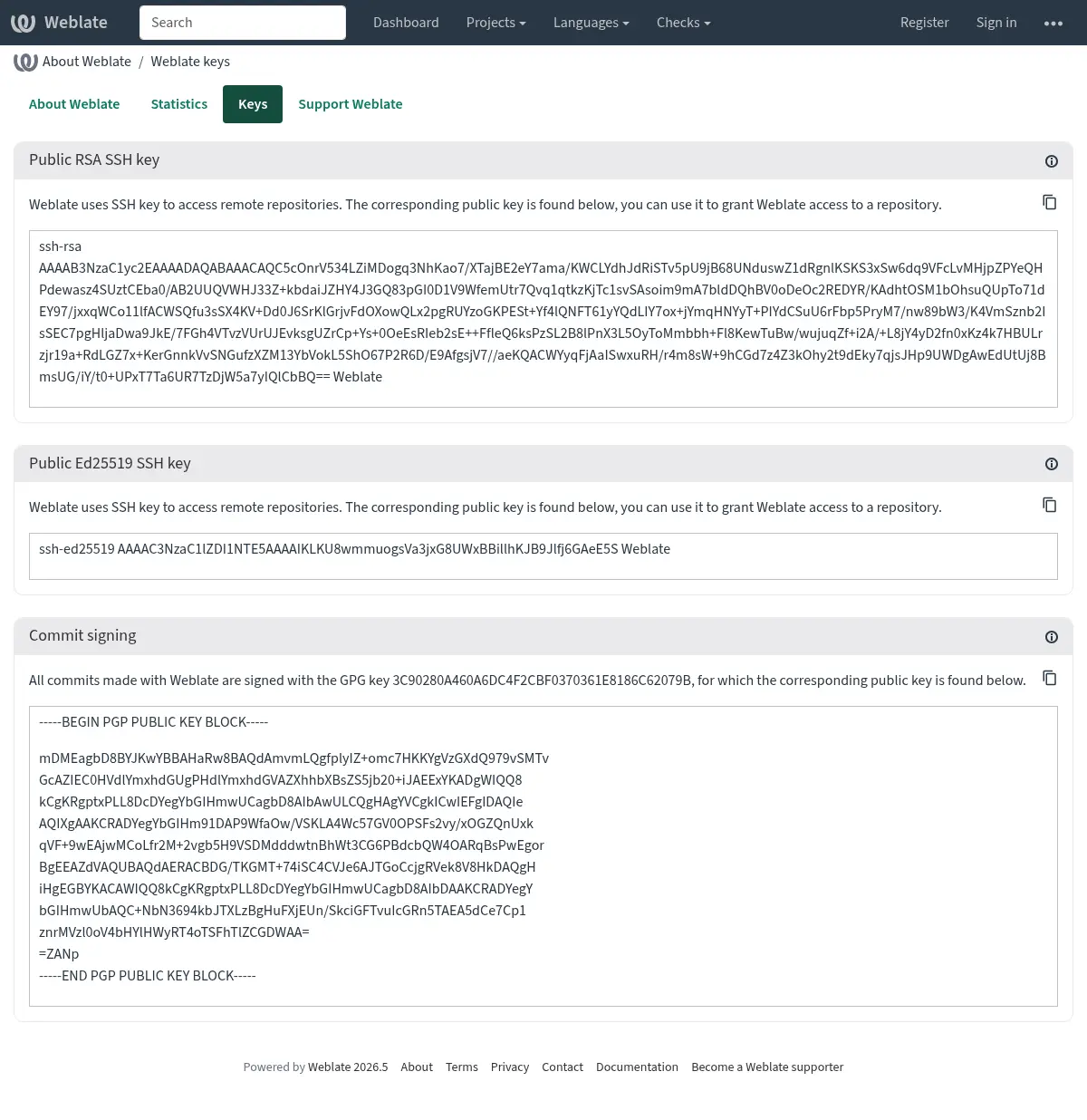
Alternatively you can also import existing keys into Weblate, just set
HOME=$DATA_DIR/homewhen invoking gpg.
Ndihmëz
The key material is cached by Weblate for a long period. In case you let
Weblate generate a key with WEBLATE_GPG_IDENTITY and then import
key with the same identity to use an existing key, purging redis cache is
recommended to see the effect of such change.
Shënim
When sharing DATA_DIR between multiple hosts, please follow instructions
at https://wiki.gnupg.org/NFS to make GnuPG signing work reliably.
Shihni edhe
Rate limiting
Ndryshuar në versionin 4.6: The rate limiting no longer applies to signed in superusers.
Several operations in Weblate are rate limited. At most
RATELIMIT_ATTEMPTS attempts are allowed within RATELIMIT_WINDOW seconds.
The user is then blocked for RATELIMIT_LOCKOUT. There are also settings specific to scopes, for example RATELIMIT_CONTACT_ATTEMPTS or RATELIMIT_TRANSLATE_ATTEMPTS. The table below is a full list of available scopes.
The following operations are subject to rate limiting:
Emër |
Fokus |
Allowed attempts |
Ratelimit window |
Lockout period |
|---|---|---|---|---|
Regjistrim |
|
5 |
300 |
600 |
Sending message to admins |
|
2 |
300 |
600 |
Password authentication on sign-in |
|
5 |
300 |
600 |
Second-factor authentication |
|
5 |
300 |
600 |
Sitewide search |
|
6 |
60 |
60 |
Translating |
|
30 |
60 |
600 |
Adding to glossary |
|
30 |
60 |
600 |
Starting translation into a new language |
|
2 |
300 |
600 |
Creating new project |
|
5 |
600 |
600 |
The rate limiting is based on sessions when user is signed in and on IP address if not.
If a user fails to sign in AUTH_LOCK_ATTEMPTS times, password authentication will be turned off on the account until having gone through the process of having its password reset.
The settings can be also applied in the Docker container by adding WEBLATE_ prefix to the setting name, for example RATELIMIT_ATTEMPTS becomes WEBLATE_RATELIMIT_ATTEMPTS.
The API has separate rate limiting settings, see API rate limiting.