Instrukcje konfiguracji
Instalacja Weblate
Depending on your setup and experience, choose an appropriate installation method for you:
Instalowanie za pomocą Dockera, recommended for production setups.
Virtualenv installation, recommended for production setups:
Instalacja ze źródeł, recommended for development.
Architecture overview
- Serwer Web
Handling incoming HTTP requests, Obsługa plików statycznych.
- Celery workers
Zadania w tle korzystające z Celery are executed here.
Depending on your workload, you might want to customize the number of workers.
Use dedicated node when scaling Weblate horizontally.
- WSGI server
A WSGI server serving web pages to users.
Use dedicated node when scaling Weblate horizontally.
- Baza danych
PostgreSQL database server for storing all the content, see Konfiguracja bazy danych dla Weblate.
Use dedicated database node for sites with hundreds of millions of hosted words.
- Datastore
Key/value datastore such as Valkey or Redis server for cache and tasks queue, see Zadania w tle korzystające z Celery.
Use dedicated node when scaling Weblate horizontally.
- File system
File system storage for storing VCS repositories and uploaded user data. This is shared by all the processes.
Use networked storage when scaling Weblate horizontally.
- E-mail server
SMTP server for outgoing e-mail, see Konfigurowanie poczty wychodzącej. It can be provided externally.
Podpowiedź
Instalowanie za pomocą Dockera includes PostgreSQL and Valkey, making the installation easier.
Wymagania dotyczące oprogramowania
System operacyjny
Weblate is known to work on Linux, FreeBSD and macOS. Other Unix like systems will most likely work too.
Weblate is not supported on Windows. But it may still work and patches are happily accepted.
Zobacz także
Architecture overview describes overall Weblate architecture and required services.
Zależności ythona
Weblate is written in Python and supports Python
3.12 or newer. You can install dependencies using pip or from your
distribution packages, full list is available in requirements.txt.
Najbardziej znaczące zależności:
- Django
- Celery
- Translate Toolkit
- translation-finder
- Python Social Auth
- Django REST Framework
Optional dependency specifier |
Python packages |
Weblate feature |
|---|---|---|
|
||
|
||
|
||
|
Google Cloud Translation Advanced with glossary support |
|
|
||
|
||
|
PostgreSQL, see Konfiguracja bazy danych dla Weblate |
|
|
||
|
||
|
Integrating SAML 2 IDP into Weblate |
|
|
Needed for Zaktualizuj plik POT (Sphinx) |
|
|
Hosted Weblate integration |
|
|
wsgi server for Weblate |
|
|
When installing using pip, you can directly specify desired features when installing:
uv pip install "weblate[Postgres,Amazon,SAML]"
Lub możesz zainstalować Weblate ze wszystkimi opcjonalnymi funkcjami:
uv pip install "weblate[all]"
Or you can install Weblate without any optional features:
uv pip install weblate
Troubleshooting pip install
ERROR: Dependency 'gobject-introspection-2.0' is required but not found.The installed
PyGobjectpackage cannot find a matching GObject Introspection library -gobject-introspection-2.0.Older versions are no longer supported by Weblate.
ffi_prep_closure(): bad user_data (it seems that the version of the libffi library seen at runtime is different from the 'ffi.h' file seen at compile-time)This is caused by incompatibility of binary packages distributed via PyPI with the distribution. To address this, you need to rebuild the package on your system:
uv pip install --force-reinstall --no-binary :all: cffi
error: ‘xmlSecKeyDataFormatEngine’ undeclared (first use in this function); did you mean ‘xmlSecKeyDataFormat’?This is a known issue of the xmlsec package, please see https://github.com/xmlsec/python-xmlsec/issues/314.
lxml & xmlsec libxml2 library version mismatchThe
lxmlandxmlsecpackages have to be built against onelibxml2. You should build them locally to avoid this issue:uv pip install --force-reinstall --no-binary xmlsec --no-binary lxml lxml xmlsec
Inne wymagania systemowe
The following dependencies have to be installed on the system:
Git- Pango, Cairo and related header files and GObject introspection data
https://cairographics.org/, https://www.gtk.org/docs/architecture/pango, see Pango i Cairo
git-review(opcjonalnie dla obsługi Gerrit)git-svn(opcjonalnie dla obsługi Subversion)tesseract(needed only if tesserocr binary wheels are not available for your system)
Zależność od czasu kompilacji
To build some of the Zależności ythona you might need to install their
dependencies. This depends on how you install them, so please consult
individual packages for documentation. You won’t need those if using prebuilt
Wheels while installing using pip or when you use distribution packages.
Pango i Cairo
Weblate uses Pango and Cairo for rendering bitmap widgets (see Building the translation community) and rendering checks (see Zarządzanie czcionkami). To properly install Python bindings for those you need to install system libraries first - you need both Cairo and Pango, which in turn need GLib. All those should be installed with development files and GObject introspection data.
Wymagania sprzętowe
Weblate should run on any contemporary hardware without problems, the following is the minimal configuration required to run Weblate on a single host (Weblate, database and web server):
3 GB of RAM
2 rdzenie procesora
1 GB miejsca
Informacja
Rzeczywiste wymagania dotyczące instalacji Weblate różnią się znacznie w zależności od rozmiaru zarządzanych tłumaczeń.
Użycie pamięci
The more memory the better - it is used for caching on all levels (file system, database and Weblate). For hundreds of translation components, at least 4 GB of RAM is recommended.
Podpowiedź
For systems with less memory than recommended, Single-process Celery setup is recommended.
CPU usage
Many concurrent users increase the amount of needed CPU cores.
Storage usage
The typical database storage usage is around 300 MB per 1 million hosted words.
Storage space needed for cloned repositories varies, but Weblate tries to keep their size minimal by doing shallow clones.
Nodes
For small and medium-sized sites (millions of hosted words), all Weblate components (see Architecture overview) can be run on a single node.
When you grow to hundreds of millions of hosted words, it is recommended to have a dedicated node for database (see Konfiguracja bazy danych dla Weblate).
Weryfikowanie podpisów wersji
Weblate release are cryptographically signed using Sigstore signatures. The signatures are attached to the GitHub release.
The verification can be performed using sigstore package. The following example verifies signature of the 5.4 release:
sigstore verify github \
   --cert-identity https://github.com/WeblateOrg/weblate/.github/workflows/setup.yml@refs/tags/weblate-5.4 \
   --bundle Weblate-5.4-py3-none-any.whl.sigstore \
   Weblate-5.4-py3-none-any.whl
Uprawnienia systemu plików
The Weblate process needs to be able to read and write to the directory where
it keeps data - DATA_DIR. All files within this directory should be
owned and writable by the user running all Weblate processes (typically WSGI and Celery, see Uruchamianie serwera and Zadania w tle korzystające z Celery).
The default configuration places them in the same tree as the Weblate sources, however
you might prefer to move these to a better location such as:
/var/lib/weblate.
Weblate tries to create these directories automatically, but it will fail when it does not have permissions to do so.
The configured CACHE_DIR also has to be writable by the Weblate
process and has to allow executing generated helper files. Do not mount
CACHE_DIR with the noexec option.
You should also take care when running Polecenia zarządzania, as they should be ran under the same user as Weblate itself is running, otherwise permissions on some files might be wrong.
In the Docker container, all files in the /app/data volume have to be
owned by the weblate user inside the container (UID 1000).
Zobacz także
Konfiguracja bazy danych dla Weblate
It is recommended to run Weblate with a PostgreSQL database server.
PostgreSQL 13 and higher is supported. PostgreSQL 15 or newer is recommended.
Zobacz także
Database connections
In the default configuration, each Weblate process keeps a persistent
connection to the database. Persistent connections improve Weblate
responsiveness, but might require more resources for the database server.
Please consult CONN_MAX_AGE and
Persistent connections for more info.
Weblate needs at least the following number of connections:
\((4 \times \mathit{nCPUs}) + 2\) for Celery processes
\(\mathit{nCPUs} + 1\) for WSGI workers
This applies to Docker container defaults and example configurations provided in this documentation, but the numbers will change once you customize the amount of WSGI workers or adjust parallelism of Celery.
The actual limit for the number of database connections needs to be higher to account following situations:
Polecenia zarządzania need their connection as well.
If case process is killed (for example by OOM killer), it might block the existing connection until timeout.
PostgreSQL
PostgreSQL is usually the best choice for Django-based sites. It’s the reference database used for implementing Django database layer.
Informacja
Weblate uses trigram extension which has to be installed separately in some
cases. Look for postgresql-contrib or a similarly named package.
Zobacz także
Tworzenie bazy danych w PostgreSQL
It is usually a good idea to run Weblate in a separate database, and separate user account:
# If PostgreSQL was not installed before, set the main password
sudo -u postgres psql postgres -c "\password postgres"

# Create a database user called "weblate"
sudo -u postgres createuser --superuser --pwprompt weblate

# Create the database "weblate" owned by "weblate"
sudo -u postgres createdb -E UTF8 -O weblate weblate
Podpowiedź
If you don’t want to make the Weblate user a superuser in PostgreSQL, you can omit that. In that case you will have to perform some of the migration steps manually as a PostgreSQL superuser in schema Weblate will use:
CREATE EXTENSION IF NOT EXISTS pg_trgm;
CREATE EXTENSION IF NOT EXISTS btree_gin;
Konfigurowanie Weblate do korzystania z PostgreSQL
The settings.py snippet for PostgreSQL:
DATABASES = {
    "default": {
        # Database engine
        "ENGINE": "django.db.backends.postgresql",
        # Database name
        "NAME": "weblate",
        # Database user
        "USER": "weblate",
        # Configures name of the PostgreSQL role to alter during the database migration
        # "ALTER_ROLE": "weblate",
        # Database password
        "PASSWORD": "password",
        # Set to empty string for localhost
        "HOST": "database.example.com",
        # Set to empty string for default
        "PORT": "",
        # Persistent connections
        "CONN_MAX_AGE": None,
        "CONN_HEALTH_CHECKS": True,
    }
}
The database migration performs ALTER ROLE on the database role used
by Weblate. In most cases, the name of the role matches the username. In more
complex setups the role name is different from the username, and you will get an error
about non-existing role during the database migration
(psycopg2.errors.UndefinedObject: role "weblate@hostname" does not exist).
This is known to happen with Azure Database for PostgreSQL, but it’s not
limited to this environment. Please set ALTER_ROLE to change the name of the
role Weblate should alter during the database migration.
Zobacz także
Inne konfiguracje
Konfigurowanie poczty wychodzącej
Weblate sends out e-mails on various occasions - for account activation and on various notifications configured by users. For this it needs access to an SMTP server.
The mail server setup is configured using these settings:
EMAIL_HOST, EMAIL_HOST_PASSWORD,
EMAIL_USE_TLS, EMAIL_USE_SSL,
EMAIL_HOST_USER and EMAIL_PORT. Their
names are quite self-explanatory, but you can find more info in the
Django documentation.
Podpowiedź
In case you get error about not supported authentication (for example
SMTP AUTH extension not supported by server), it is most likely caused
by using insecure connection and server refuses to authenticate this way.
Try enabling EMAIL_USE_TLS in such case.
Działanie za odwrotnym proxy
Several features in Weblate rely on correct HTTP headers being passed to Weblate. When using reverse proxy, please make sure that the needed information is correctly passed.
To debug this configuration, you can look at HTTP environment in Raport wydajności.
- Adres IP klienta
This is needed for Ograniczenie szybkości or Dziennik aktywności.
Weblate parses IP address from the
REMOTE_ADDR, which is set by the WSGI handler. This might be empty (when using socket for WSGI) or contain a reverse proxy address, so Weblate needs an additional HTTP header with a client IP address.Enabling
IP_BEHIND_REVERSE_PROXYshould be sufficient for the most usual setups, but you might need to adjustIP_PROXY_HEADERandIP_PROXY_OFFSETas well (useWEBLATE_IP_PROXY_HEADERandWEBLATE_IP_PROXY_OFFSETin the Docker container).Podpowiedź
This configuration cannot be turned on by default, because it would allow IP address spoofing on installations that don’t have a properly configured reverse proxy.
- Server host name
The Host header should match to whatever is configured as
SITE_DOMAIN. Additional configuration might be needed in your reverse proxy (for example useProxyPreserveHost Onfor Apache orproxy_set_header Host $host;with nginx).Podpowiedź
CSRF verification failed errors are often caused by a mismatch between the Host header and configured
SITE_DOMAIN.- Client protocol
Not passing correct protocol may cause Weblate to end up in redirection loop trying to upgrade client to HTTPS. Make sure it is correctly exposed by the reverse proxy as X-Forwarded-Proto.
This header then needs to be configured in
SECURE_PROXY_SSL_HEADER(settings.py) orWEBLATE_SECURE_PROXY_SSL_HEADER(Docker environment).Ważne
The header value is case-sensitive in the configuration, so
WEBLATE_SECURE_PROXY_SSL_HEADER=HTTP_X_FORWARDED_PROTO,httpsandWEBLATE_SECURE_PROXY_SSL_HEADER=HTTP_X_FORWARDED_PROTO,HTTPSare not interchangeable.Podpowiedź
If you are getting a „Too many redirects” error from the browser, this is most likely caused by mismatch between the actual protocol (HTTPS) and what is observed by Weblate.
Zmienione w wersji 5.13: The protocol proxy headers are automatically handled by gunicorn in the default configuration, but other WSGI servers have more secure configuration and require explicit setting of this.
Since Weblate 5.13 the Docker container is using granian and it now requires the explicit configuration of
WEBLATE_SECURE_PROXY_SSL_HEADER.
Zobacz także
HTTP proxy
Weblate does execute VCS commands and those accept proxy configuration from
environment. The recommended approach is to define proxy settings in
settings.py:
import os

os.environ["http_proxy"] = "http://proxy.example.com:8080"
os.environ["HTTPS_PROXY"] = "http://proxy.example.com:8080"
Zobacz także
Dostosowywanie konfiguracji
Zobacz także
Copy weblate/settings_example.py to weblate/settings.py and
adjust it to match your setup. You will probably want to adjust the following
options:
ADMINS
List of site administrators to receive notifications when something goes wrong, for example notifications on failed merges, or Django errors.
Contact form sends e-mail on these as well unless
ADMINS_CONTACTis configured.
ALLOWED_HOSTS
You need to set this to list the hosts your site is supposed to serve. For example:
ALLOWED_HOSTS = ["demo.weblate.org"]Alternatywnie można dołączyć symbol wieloznaczny:
ALLOWED_HOSTS = ["*"]
SESSION_ENGINE
Configure how your sessions will be stored. In case you keep the default database backend engine, you should schedule: weblate clearsessions to remove stale session data from the database.
If you are using Valkey or Redis as cache (see Configure cache) it is recommended to use it for sessions as well:
SESSION_ENGINE = "django.contrib.sessions.backends.cache"Zobacz także
DATABASES
Connectivity to database server, please check Django’s documentation for more details.
Zobacz także
DEBUG
Disable this for any production server. With debug mode enabled, Django will show backtraces in case of error to users, when you disable it, errors will be sent per e-mail to
ADMINS(see above).Debug mode also slows down Weblate, as Django stores much more info internally in this case.
Zobacz także
DEFAULT_FROM_EMAIL
E-mail sender address for outgoing e-mail, for example registration e-mails.
Zobacz także
SECRET_KEY
Key used by Django to sign some info in cookies, see Tajny klucz Django for more info.
Zobacz także
SERVER_EMAIL
E-mail used as sender address for sending e-mails to the administrator, for example notifications on failed merges.
Zobacz także
Wypełnianie bazy danych
After your configuration is ready, you can run
migrate to create the database structure. Now you should be
able to create translation projects using the admin interface.
Once you are done, you should also check the Performance report in the admin interface, which will give you hints of potential non optimal configuration on your site.
Zobacz także
Instalacja produkcyjna
For a production setup you should carry out adjustments described in the following sections. The most critical settings will trigger a warning, which is indicated by an exclamation mark in the top bar if signed in as a superuser:
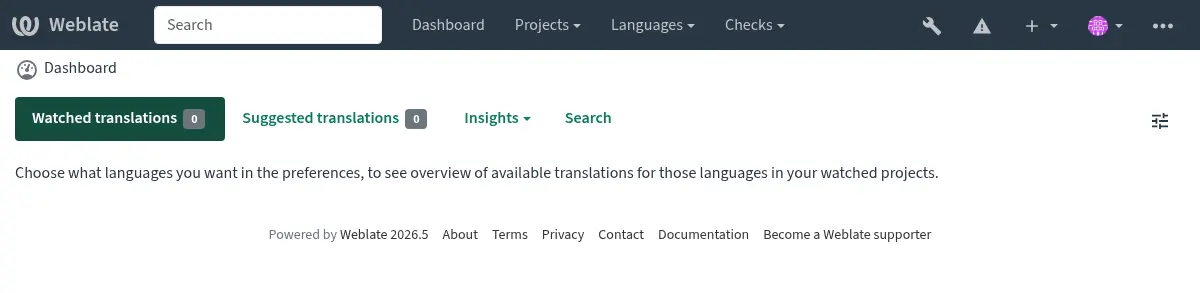
It is also recommended to inspect checks triggered by Django (though you might not need to fix all of them):
weblate check --deploy
You can also review the very same checklist at Raport wydajności in the Interfejs zarządzania.
Zobacz także
Wyłączenie trybu debugowania
Disable Django’s debug mode (DEBUG) by:
DEBUG = False
With debug mode on, Django stores all executed queries and shows users backtraces of errors, which is not desired in a production setup.
Zobacz także
Prawidłowe konfigurowanie administratorów
Set the correct admin addresses to the ADMINS setting to defining who will receive
e-mails in case something goes wrong on the server, for example:
ADMINS = ("Your Name <your_email@example.com>",)
Zobacz także
Ustaw prawidłową domenę strony
Adjust site name and domain in the admin interface, otherwise links in RSS or
registration e-mails will not work. This is configured using
SITE_DOMAIN which should contain site domain name.
Zmienione w wersji 4.2: Prior to the 4.2 release the Django sites framework was used instead, please see The „sites” framework.
Prawidłowa konfiguracja HTTPS
It is strongly recommended to run Weblate using the encrypted HTTPS protocol.
After enabling it, you should set ENABLE_HTTPS in the settings:
ENABLE_HTTPS = True
Podpowiedź
You might want to set up HSTS as well, see SSL/HTTPS for more details.
Ustaw prawidłowo SECURE_HSTS_SECONDS
If your site is served over SSL, you have to consider setting a value for SECURE_HSTS_SECONDS
in the settings.py to enable HTTP Strict Transport Security.
By default it’s set to 0 as shown below.
SECURE_HSTS_SECONDS = 0
If set to a non-zero integer value, the django.middleware.security.SecurityMiddleware
sets the HTTP Strict Transport Security header on all responses that do not already have it.
Ostrzeżenie
Setting this incorrectly can irreversibly (for some time) break your site. Read the HTTP Strict Transport Security documentation first.
Użyj potężnego silnika bazy danych
Please use PostgreSQL for a production environment, see Konfiguracja bazy danych dla Weblate for more info.
Use adjacent location for running the database server, otherwise the networking performance or reliability might ruin your Weblate experience.
Check the database server performance or tweak its configuration, for example using PGTune.
Configure cache
If possible, use Valkey or Redis from Django by adjusting the CACHES
configuration variable, for example:
CACHES = {
    "default": {
        "BACKEND": "django_redis.cache.RedisCache",
        "LOCATION": "redis://127.0.0.1:6379/0",
        # If redis is running on same host as Weblate, you might
        # want to use unix sockets instead:
        # 'LOCATION': 'unix:///var/run/redis/redis.sock?db=0',
        "OPTIONS": {
            "CLIENT_CLASS": "django_redis.client.DefaultClient",
            "PARSER_CLASS": "redis.connection.HiredisParser",
        },
    }
}
Podpowiedź
In case you change settings for the cache, you might need to adjust them for Celery as well, see Zadania w tle korzystające z Celery.
Zobacz także
Pamięć podręczna awatarów
In addition to caching of Django, Weblate performs caching of avatars. It is recommended to use a separate, file-backed cache for this purpose:
CACHES = {
    "default": {
        # Default caching backend setup, see above
        "BACKEND": "django_redis.cache.RedisCache",
        "LOCATION": "unix:///var/run/redis/redis.sock?db=0",
        "OPTIONS": {
            "CLIENT_CLASS": "django_redis.client.DefaultClient",
            "PARSER_CLASS": "redis.connection.HiredisParser",
        },
    },
    "avatar": {
        "BACKEND": "django.core.cache.backends.filebased.FileBasedCache",
        "LOCATION": os.path.join(DATA_DIR, "avatar-cache"),
        "TIMEOUT": 604800,
        "OPTIONS": {
            "MAX_ENTRIES": 1000,
        },
    },
}
Konfigurowanie wysyłania wiadomości e-mail
Weblate needs to send out e-mails on several occasions, and these e-mails should
have a correct sender address, please configure SERVER_EMAIL and
DEFAULT_FROM_EMAIL to match your environment, for example:
SERVER_EMAIL = "admin@example.org"
DEFAULT_FROM_EMAIL = "weblate@example.org"
Informacja
To disable sending e-mails by Weblate set EMAIL_BACKEND
to django.core.mail.backends.dummy.EmailBackend.
This will disable all e-mail delivery including registration or password reset e-mails.
Konfiguracja dozwolonych hostów
Django requires ALLOWED_HOSTS to hold a list of domain names
your site is allowed to serve, leaving it empty will block any requests.
In case this is not configured to match your HTTP server, you will get errors
like Invalid HTTP_HOST header: '1.1.1.1'. You may need to add '1.1.1.1'
to ALLOWED_HOSTS.
Podpowiedź
On Docker container, this is available as WEBLATE_ALLOWED_HOSTS.
Tajny klucz Django
The SECRET_KEY setting is used by Django to sign cookies, and you should
really generate your own value rather than using the one from the example setup.
You can generate a new key using weblate-generate-secret-key shipped with Weblate.
Zobacz także
Uruchamianie zadań konserwacyjnych
For optimal performance, it is good idea to run some maintenance tasks in the background. This is automatically done by Zadania w tle korzystające z Celery and covers following tasks:
Sprawdzanie kondycji konfiguracji (co godzinę).
Committing pending changes (hourly), see Leniwe zatwierdzenia and
commit_pending.Aktualizacja alertów komponentów (codziennie).
Update remote branches (nightly), see
AUTO_UPDATE.Translation memory backup to JSON (daily), see
dump_memory.Fulltext and database maintenance tasks (daily and weekly tasks), see
cleanuptrans.
System locales and encoding
The system locales should be configured to UTF-8 capable ones. On most Linux distributions this is the default setting. In case it is not the case on your system, please change locales to UTF-8 variant.
For example by editing /etc/default/locale and setting there
LANG="C.UTF-8".
In some cases the individual services have separate configuration for locales. This varies between distribution and web servers, so check documentation of your web server packages for that.
Apache on Ubuntu uses /etc/apache2/envvars:
export LANG='en_US.UTF-8'
export LC_ALL='en_US.UTF-8'
Apache on CentOS uses /etc/sysconfig/httpd (or
/opt/rh/httpd24/root/etc/sysconfig/httpd):
LANG='en_US.UTF-8'
Kompresowanie zasobów klienta
Weblate comes with a bunch of JavaScript and CSS files. For performance reasons it is good to compress them before sending to a client. In default configuration this is done on the fly at cost of little overhead. On big installations, it is recommended to enable offline compression mode. This needs to be done in the configuration and the compression has to be triggered on every Weblate upgrade.
The configuration switch is simple by enabling
django.conf.settings.COMPRESS_OFFLINE and configuring
django.conf.settings.COMPRESS_OFFLINE_CONTEXT (the latter is
already included in the example configuration):
COMPRESS_OFFLINE = True
On each deploy you need to compress the files to match current version:
weblate compress
Podpowiedź
The official Docker image has this feature already enabled.
Zobacz także
Uruchamianie serwera
Podpowiedź
In case you are not experienced with services described below, you might want to try Instalowanie za pomocą Dockera.
You will need several services to run Weblate, the recommended setup consists of:
Serwer bazy danych (patrz Konfiguracja bazy danych dla Weblate)
Serwer pamięci podręcznej (patrz Configure cache)
Frontend web server for static files and SSL termination (see Obsługa plików statycznych)
WSGI server for dynamic content (see Sample configuration for NGINX and uWSGI)
Celery for executing background tasks (see Zadania w tle korzystające z Celery)
Informacja
There are some dependencies between the services, for example cache and database should be running when starting up Celery or uwsgi processes.
In most cases, you will run all services on single (virtual) server, but in
case your installation is heavy loaded, you can split up the services. The only
limitation on this is that Celery and Wsgi servers need access to
DATA_DIR.
Informacja
The WSGI process has to be executed under the same user the Celery
process, otherwise files in the DATA_DIR will be stored with
mixed ownership, leading to runtime issues.
See also Uprawnienia systemu plików and Zadania w tle korzystające z Celery.
Uruchamianie serwer WWW
Running Weblate is not different from running any other Django based program. Django is usually executed as WSGI or fcgi (see examples for different webservers below).
Informacja
The sample configuration files shown below are maintained in the Weblate
source tree under weblate/examples/. They are included in source
distributions and in this documentation, but Python wheels only install
runtime files. When installing Weblate from PyPI, get the matching source
distribution or source checkout before copying these examples.
For testing purposes, you can use the built-in web server in Django:
weblate runserver
Ostrzeżenie
DO NOT USE THIS SERVER IN A PRODUCTION SETTING. It has not gone through
security audits or performance tests. See also Django documentation on
runserver.
Podpowiedź
The Django built-in server serves static files only with DEBUG
enabled as it is intended for development only. For production use, please
see WSGI setups:
Obsługa plików statycznych
Zmienione w wersji 5.15.2: /media/ is no longer used for serving screenshots.
Django needs to collect its static files in a single directory. To do so,
execute weblate collectstatic --noinput. This will copy the static
files into a directory specified by the STATIC_ROOT setting (this defaults to
a static directory inside CACHE_DIR).
It is recommended to serve static files directly from your web server, you should use that for the following paths:
/static/Serves static files for Weblate and the admin interface (from defined by
STATIC_ROOT)./favicon.icoShould be rewritten to rewrite a rule to serve
/static/favicon.ico.
Polityka bezpieczeństwa treści
The default Weblate configuration enables weblate.middleware.SecurityMiddleware
middleware which sets security related HTTP headers like Content-Security-Policy
or X-XSS-Protection. These are by default set up to work with Weblate and its
configuration, but this might need customization for your environment.
Sample configuration for NGINX and Granian
The following configuration runs Weblate using Granian the NGINX webserver:
#
# nginx configuration for Weblate
#
# You will want to change:
#
# - server_name
# - change /home/weblate/weblate-env to location where Weblate Python environment is placed
# - change /home/weblate/data to match your DATA_DIR
# - change /home/weblate/data/cache to match your CACHE_DIR
# - change python3.12 to match your Python version
# - change weblate user to match your Weblate user
#
server {
    listen 80;
    server_name weblate;
    # Not used
    root /var/www/html;

    location ~ ^/favicon.ico$ {
        # CACHE_DIR/static/favicon.ico
        alias /home/weblate/data/cache/static/favicon.ico;
        expires 30d;
    }

    location /static/ {
        # CACHE_DIR/static/
        alias /home/weblate/data/cache/static/;
        expires 30d;
    }

    location / {
        proxy_set_header X-Forwarded-For $proxy_add_x_forwarded_for;
        proxy_set_header X-Forwarded-Proto $scheme;
        proxy_set_header Host $http_host;
        proxy_pass http://127.0.0.1:8888;
        proxy_read_timeout 3600;
    }
}
Sample configuration for NGINX and Gunicorn
The following configuration runs Weblate using Gunicorn under the NGINX webserver
(weblate/examples/weblate.nginx.gunicorn.conf in the source tree):
#
# nginx configuration for Weblate
#
# You will want to change:
#
# - server_name
# - change /home/weblate/weblate-env to location where Weblate Python environment is placed
# - change /home/weblate/data to match your DATA_DIR
# - change /home/weblate/data/cache to match your CACHE_DIR
# - change python3.12 to match your Python version
# - change weblate user to match your Weblate user
#
server {
    listen 80;
    server_name weblate;
    # Not used
    root /var/www/html;

    location ~ ^/favicon.ico$ {
        # CACHE_DIR/static/favicon.ico
        alias /home/weblate/data/cache/static/favicon.ico;
        expires 30d;
    }

    location /static/ {
        # CACHE_DIR/static/
        alias /home/weblate/data/cache/static/;
        expires 30d;
    }

    location / {
        proxy_set_header X-Forwarded-For $proxy_add_x_forwarded_for;
        proxy_set_header X-Forwarded-Proto $scheme;
        proxy_set_header Host $http_host;
        proxy_pass http://unix:/run/gunicorn.sock;
        proxy_read_timeout 3600;
    }
}
Sample configuration for NGINX and uWSGI
To run production webserver, use the WSGI wrapper installed with Weblate (when
using a Python environment it is installed as
~/weblate-env/lib/python3.14/site-packages/weblate/wsgi.py). Don’t
forget to set the Python search path to your Python environment as well (for
example using virtualenv = /home/user/weblate-env in uWSGI).
The following configuration runs Weblate as uWSGI under the NGINX webserver.
Configuration for NGINX (weblate/examples/weblate.nginx.conf in the source tree):
#
# nginx configuration for Weblate
#
# You will want to change:
#
# - server_name
# - change /home/weblate/weblate-env to location where Weblate Python environment is placed
# - change /home/weblate/data to match your DATA_DIR
# - change /home/weblate/data/cache to match your CACHE_DIR
# - change python3.12 to match your Python version
# - change weblate user to match your Weblate user
#
server {
    listen 80;
    server_name weblate;
    # Not used
    root /var/www/html;

    location ~ ^/favicon.ico$ {
        # CACHE_DIR/static/favicon.ico
        alias /home/weblate/data/cache/static/favicon.ico;
        expires 30d;
    }

    location /static/ {
        # CACHE_DIR/static/
        alias /home/weblate/data/cache/static/;
        expires 30d;
    }

    location / {
        include uwsgi_params;
        # Needed for long running operations in admin interface
        uwsgi_read_timeout 3600;
        # Adjust based to uwsgi configuration:
        uwsgi_pass unix:///run/uwsgi/app/weblate/socket;
        # uwsgi_pass 127.0.0.1:8080;
    }
}
Configuration for uWSGI (weblate/examples/weblate.uwsgi.ini in the source tree):
#
# uWSGI configuration for Weblate
#
# You will want to change:
#
# - change /home/weblate/weblate-env to location where Weblate Python environment is placed
# - change /home/weblate/data to match your DATA_DIR
# - change python3.12 to match your Python version
# - change weblate user to match your Weblate user
#
[uwsgi]
plugins       = python3
master        = true
protocol      = uwsgi
socket        = 127.0.0.1:8080
wsgi-file     = /home/weblate/weblate-env/lib/python3.12/site-packages/weblate/wsgi.py

# Add path to Weblate checkout if you did not install
# Weblate by pip
# python-path   = /path/to/weblate

# Path to the Python environment
virtualenv = /home/weblate/weblate-env

# Needed for OAuth/OpenID
buffer-size   = 8192

# Reload when consuming too much of memory
reload-on-rss = 250

# Increase number of workers for heavily loaded sites
workers       = 8

# Enable threads for Sentry error submission
enable-threads = true

# Child processes do not need file descriptors
close-on-exec = true

# Avoid default 0000 umask
umask = 0022

# Run as weblate user
uid = weblate
gid = weblate

# Enable harakiri mode (kill requests after some time)
# harakiri = 3600
# harakiri-verbose = true

# Enable uWSGI stats server
# stats = :1717
# stats-http = true

# Do not log some errors caused by client disconnects
ignore-sigpipe = true
ignore-write-errors = true
disable-write-exception = true
Zobacz także
Przykładowa konfiguracja dla Apache
It is recommended to use prefork MPM when using WSGI with Weblate.
The following configuration runs Weblate as WSGI, you need to have enabled
mod_wsgi (weblate/examples/apache.conf in the source tree):
#
# VirtualHost for Weblate
#
# You will want to change:
#
# - ServerAdmin and ServerName
# - change /home/weblate/weblate-env to location where Weblate Python environment is placed
# - change /home/weblate/data to match your DATA_DIR
# - change /home/weblate/data/cache to match your CACHE_DIR
# - change python3.12 to match Python version mod-wsgi is compiled for
# - change weblate user to match your Weblate user
#
<VirtualHost *:80>
    ServerAdmin admin@weblate.example.org
    ServerName weblate.example.org

    # CACHE_DIR/static/favicon.ico
    Alias /favicon.ico /home/weblate/data/cache/static/favicon.ico

    # CACHE_DIR/static/
    Alias /static/ /home/weblate/data/cache/static/
    <Directory /home/weblate/data/cache/static/>
        Require all granted
    </Directory>

    # Path to your Weblate Python environment
    WSGIDaemonProcess weblate python-home=/home/weblate/weblate-env user=weblate request-timeout=600
    WSGIProcessGroup weblate
    WSGIApplicationGroup %{GLOBAL}

    WSGIScriptAlias / /home/weblate/weblate-env/lib/python3.12/site-packages/weblate/wsgi.py process-group=weblate
    WSGIPassAuthorization On

    <Directory /home/weblate/weblate-env/lib/python3.12/site-packages/weblate/>
        <Files wsgi.py>
        Require all granted
        </Files>
    </Directory>

</VirtualHost>
Informacja
Weblate requires Python 3, so please ensure you are running Python 3
variant of the modwsgi. Usually it is available as a separate package, for
example libapache2-mod-wsgi-py3.
Użyj odpowiedniej wersji Pythona, aby zainstalować Weblate.
Sample configuration for Apache and Gunicorn
The following configuration runs Weblate in Gunicorn and Apache 2.4
(weblate/examples/apache.gunicorn.conf in the source tree):
#
# VirtualHost for Weblate using gunicorn on localhost:8000
#
# You will want to change:
#
# - ServerAdmin and ServerName
# - change /home/weblate/weblate-env to location where Weblate Python environment is placed
# - change /home/weblate/data to match your DATA_DIR
# - change /home/weblate/data/cache to match your CACHE_DIR
# - change weblate user to match your Weblate user
#
<VirtualHost *:443>
    ServerAdmin admin@weblate.example.org
    ServerName weblate.example.org

    # CACHE_DIR/static/favicon.ico
    Alias /favicon.ico /home/weblate/data/cache/static/favicon.ico

    # CACHE_DIR/static/
    Alias /static/ /home/weblate/data/cache/static/
    <Directory /home/weblate/data/cache/static/>
        Require all granted
    </Directory>

    SSLEngine on
    SSLCertificateFile /etc/apache2/ssl/https_cert.cert
    SSLCertificateKeyFile /etc/apache2/ssl/https_key.pem
    SSLProxyEngine On

    ProxyPass /favicon.ico !
    ProxyPass /static/ !

    ProxyPass / http://localhost:8000/
    ProxyPassReverse / http://localhost:8000/
    ProxyPreserveHost On
</VirtualHost>
Sample configuration to start Granian
Weblate has wsgi optional dependency (see Zależności ythona) that will install everything you need to run Granian. When installing Weblate you can specify it as:
uv pip install Weblate[all,wsgi]
Once you have Granian installed, you can run it. This is usually done at the system level. The following examples show starting via systemd:
[Unit]
Description=granian daemon
After=network.target

[Service]
User=weblate
Group=weblate
WorkingDirectory=/home/weblate/weblate-env/
Environment="DJANGO_SETTINGS_MODULE=weblate.settings"
RuntimeDirectory=granian
ExecStart=/home/weblate/weblate-env/bin/granian \
    --no-ws \
    --workers-max-rss 350 \
    --interface wsgi \
    --workers 2 \
    --backpressure 16 \
    --runtime-threads 8 \
    --runtime-mode mt \
    --port 8888 \
    weblate.wsgi:application

[Install]
WantedBy=multi-user.target
~
Sample configuration to start Gunicorn
Gunicorn has to be installed separately:
uv pip install gunicorn
Once you have Gunicorn installed, you can run it. This is usually done at the system level. The following examples show starting via systemd:
[Unit]
Description=gunicorn socket

[Socket]
ListenStream=/run/gunicorn.sock

[Install]
WantedBy=sockets.target
[Unit]
Description=gunicorn daemon
Requires=gunicorn.socket
After=network.target

[Service]
User=weblate
Group=weblate
WorkingDirectory=/home/weblate/weblate-env/
Environment="DJANGO_SETTINGS_MODULE=weblate.settings"
ExecStart=/home/weblate/weblate-env/bin/gunicorn \
    --preload \
    --timeout 3600 \
    --graceful-timeout 3600 \
    --worker-class=gthread \
    --workers=2 \
    --threads=16 \
    --bind unix:/run/gunicorn.sock \
    weblate.wsgi:application

[Install]
WantedBy=multi-user.target
Zobacz także
Uruchamianie Weblate pod ścieżką
It is recommended to use prefork MPM when using WSGI with Weblate.
A sample Apache configuration to serve Weblate under /weblate. Again using
mod_wsgi (weblate/examples/apache-path.conf in the source tree):
#
# VirtualHost for Weblate, running under /weblate path
#
# You will want to change:
#
# - ServerAdmin and ServerName
# - change /home/weblate/weblate-env to location where Weblate Python environment is placed
# - change /home/weblate/data to match your DATA_DIR
# - change /home/weblate/data/cache to match your CACHE_DIR
# - change python3.12 to match Python version mod-wsgi is compiled for
# - change weblate user to match your Weblate user
#
<VirtualHost *:80>
    ServerAdmin admin@weblate.example.org
    ServerName weblate.example.org

    # CACHE_DIR/static/favicon.ico
    Alias /weblate/favicon.ico /home/weblate/data/cache/static/favicon.ico

    # CACHE_DIR/static/
    Alias /weblate/static/ /home/weblate/data/cache/static/
    <Directory /home/weblate/data/cache/static/>
        Require all granted
    </Directory>

    # Path to your Weblate Python environment
    WSGIDaemonProcess weblate python-home=/home/weblate/weblate-env user=weblate request-timeout=600
    WSGIProcessGroup weblate
    WSGIApplicationGroup %{GLOBAL}

    WSGIScriptAlias /weblate /home/weblate/weblate-env/lib/python3.12/site-packages/weblate/wsgi.py process-group=weblate
    WSGIPassAuthorization On

    <Directory /home/weblate/weblate-env/lib/python3.12/site-packages/weblate/>
        <Files wsgi.py>
        Require all granted
        </Files>
    </Directory>

</VirtualHost>
Additionally, you will have to adjust weblate/settings.py:
URL_PREFIX = "/weblate"
Zadania w tle korzystające z Celery
Weblate uses Celery to execute regular and background tasks. You are supposed to run a Celery service that will execute these. For example, it is responsible for handling following operations (this list is not complete):
Receiving webhooks from external services (see Hooki powiadomień).
Running regular maintenance tasks such as backups, cleanups, daily add-ons, or updates (see Tworzenie kopii zapasowych i przenoszenie weblate,
BACKGROUND_TASKS, Dodatki).Uruchamianie Tłumaczenie automatyczne.
Wysyłanie powiadomień podsumowujących.
Offloading expensive operations from the WSGI process.
Commitowanie oczekujących zmian (patrz Leniwe zatwierdzenia).
A typical setup using Valkey or Redis as a backend looks like this:
CELERY_TASK_ALWAYS_EAGER = False
CELERY_BROKER_URL = "redis://localhost:6379"
CELERY_RESULT_BACKEND = CELERY_BROKER_URL
Zobacz także
You should also start the Celery worker to process the tasks and start scheduled tasks. For debugging or development, this can be done directly on the command-line:
celery --app=weblate.utils worker --beat --queues=celery,notify,memory,translate,backup
Informacja
The Celery process has to be executed under the same user as the WSGI
process, otherwise files in the DATA_DIR will be stored with
mixed ownership, leading to runtime issues.
See also Uprawnienia systemu plików and Uruchamianie serwera.
Executing Celery tasks in the WSGI using eager mode
Informacja
This will have severe performance impact on the web interface, and will break features depending on regular trigger (for example committing pending changes, digest notifications, or backups).
For development, you might want to use eager configuration, which does process all tasks in place:
CELERY_TASK_ALWAYS_EAGER = True
CELERY_BROKER_URL = "memory://"
CELERY_TASK_EAGER_PROPAGATES = True
Uruchamianie Celery jako usługi systemowej
Most likely you will want to run Celery as a daemon and that is covered by
Daemonization. For the most common Linux setup using
systemd, adapt the example files listed below. These examples are maintained in
the Weblate source tree under weblate/examples/; Python wheels do not
install these deployment samples.
Systemd unit to be placed as /etc/systemd/system/celery-weblate.service:
[Unit]
Description=Celery Service (Weblate)
After=network.target

[Service]
Type=forking
User=weblate
Group=weblate
EnvironmentFile=/etc/default/celery-weblate
WorkingDirectory=/home/weblate
RuntimeDirectory=celery
RuntimeDirectoryPreserve=restart
LogsDirectory=celery
ExecStart=/bin/sh -c '${CELERY_BIN} multi start ${CELERYD_NODES} \
  -A ${CELERY_APP} --pidfile=${CELERYD_PID_FILE} \
  --logfile=${CELERYD_LOG_FILE} --loglevel=${CELERYD_LOG_LEVEL} ${CELERYD_OPTS}'
ExecStop=/bin/sh -c '${CELERY_BIN} multi stopwait ${CELERYD_NODES} \
  --pidfile=${CELERYD_PID_FILE}'
ExecReload=/bin/sh -c '${CELERY_BIN} multi restart ${CELERYD_NODES} \
  -A ${CELERY_APP} --pidfile=${CELERYD_PID_FILE} \
  --logfile=${CELERYD_LOG_FILE} --loglevel=${CELERYD_LOG_LEVEL} ${CELERYD_OPTS}'

[Install]
WantedBy=multi-user.target
Environment configuration to be placed as /etc/default/celery-weblate:
# Name of nodes to start
CELERYD_NODES="celery notify memory backup translate"

# Absolute or relative path to the 'celery' command:
CELERY_BIN="/home/weblate/weblate-env/bin/celery"

# App instance to use
# comment out this line if you don't use an app
CELERY_APP="weblate.utils"

# Extra command-line arguments to the worker. You might need to customize
# concurrency depending on the available resources and Weblate usage. Increase
# the concurrency if you get weblate.E019 error, decrease it if you are on a
# low-resource system.
CELERYD_OPTS="--beat:celery --queues:celery=celery --concurrency:celery=2 --prefetch-multiplier:celery=4 \
    --queues:notify=notify --concurrency:notify=2 --prefetch-multiplier:notify=10 \
    --queues:memory=memory --concurrency:memory=2 --prefetch-multiplier:memory=10 \
    --queues:translate=translate --concurrency:translate=4 --prefetch-multiplier:translate=4 \
    --queues:backup=backup  --concurrency:backup=1 --prefetch-multiplier:backup=2"

# Logging configuration
# - %n will be replaced with the first part of the nodename.
# - %I will be replaced with the current child process index
#   and is important when using the prefork pool to avoid race conditions.
CELERYD_PID_FILE="/run/celery/weblate-%n.pid"
CELERYD_LOG_FILE="/var/log/celery/weblate-%n%I.log"
CELERYD_LOG_LEVEL="INFO"
Additional configuration to rotate Celery logs using logrotate to be
placed as /etc/logrotate.d/celery:
/var/log/celery/*.log {
        weekly
        missingok
        rotate 12
        compress
        notifempty
}
Periodic tasks using Celery beat
Weblate comes with built-in setup for scheduled tasks. The task schedule is stored in the database and tasks are executed by the Celery beat daemon.
Podpowiedź
You can define additional tasks in settings.py, for example see
Leniwe zatwierdzenia.
Monitorowanie stanu Celery
You can find current length of the Celery task queues in the
Interfejs zarządzania or you can use celery_queues on the
command-line. In case the queue will get too long, you will also get
configuration error in the admin interface.
Ostrzeżenie
The Celery errors are by default only logged into Celery log and are not visible to user. In case you want to have overview on such failures, it is recommended to configure Collecting error reports and monitoring performance.
Single-process Celery setup
In case you have very limited memory, you might want to reduce number of Weblate processes. All Celery tasks can be executed in a single process using:
celery --app=weblate.utils worker --beat --queues=celery,notify,memory,translate,backup --pool=solo
An installation using Docker can be configured to use a single-process Celery setup by setting CELERY_SINGLE_PROCESS.
Ostrzeżenie
This will have a noticeable performance impact on Weblate.
Monitorowanie eblate
Weblate provides the /healthz/ URL to be used in simple health checks, for example
using Kubernetes. The Docker container has built-in health check using this URL.
For monitoring metrics of Weblate you can use GET /api/metrics/ API endpoint.
Collecting error reports and monitoring performance
Weblate, as any other software, can fail. In order to collect useful failure states we recommend to use third party services to collect such information. This is especially useful in case of failing Celery tasks, which would otherwise only report error to the logs and you won’t get notified on them. Weblate has support for the following services:
E-mail
The default Weblate configuration instruments Django to send e-mails upon
server errors via django.utils.log.AdminEmailHandler. This
is the least effort setup, but you should consider other options for privacy
reasons, as the error e-mails might include sensitive data. You can read more on
that in Security implications.
To disable this behavior, remove mail_admins from the
LOGGING in Weblate settings, or disable
WEBLATE_ADMIN_NOTIFY_ERROR in the Docker environment.
Sentry
Weblate has built-in support for Sentry. To use
it, it’s enough to set SENTRY_DSN in the settings.py:
SENTRY_DSN = "https://id@your.sentry.example.com/"
Sentry can be also used to monitor performance of Weblate by collecting traces
and profiles for defined percentage of operations. This can be configured using
SENTRY_TRACES_SAMPLE_RATE and SENTRY_PROFILES_SAMPLE_RATE.
Zobacz także
Rollbar
Weblate has built-in support for Rollbar. To use it, it’s enough to follow instructions for Rollbar notifier for Python.
In short, you need to adjust settings.py:
# Add rollbar as last middleware:
MIDDLEWARE = [
    # … other middleware classes …
    "rollbar.contrib.django.middleware.RollbarNotifierMiddleware",
]

# Configure client access
ROLLBAR = {
    "access_token": "POST_SERVER_ITEM_ACCESS_TOKEN",
    "environment": "development" if DEBUG else "production",
    "branch": "main",
    "root": "/absolute/path/to/code/root",
}
Everything else is integrated automatically, you will now collect both server and client side errors.
Informacja
Error logging also includes exceptions that were gracefully handled, but might indicate a problem - such as failed parsing of an uploaded file.
Graylog log management
Dodane w wersji 5.9.
Weblate can be configured to log using the GELF TCP protocol. This was developed for Graylog integration, but can be used with any compliant logging platform.
The configuration boilerplate is included in Przykładowa konfiguracja, for
Docker this can be configured using WEBLATE_LOG_GELF_HOST.
Migracja Weblate na inny serwer
Migrating Weblate to another server should be pretty easy, however it stores data in few locations which you should migrate carefully. The best approach is to stop Weblate for the migration.
Migrowanie bazy danych
The most straightforward approach is to use database native tools, as they are usually the most effective (e.g. pg_dump). Alternatively you can use replication if your database supports it.
Zobacz także
Migrating between databases described in Migrating from other databases to PostgreSQL.
Migrowanie repozytoriów VCS
The VCS repositories stored under DATA_DIR need to be migrated as
well. You can simply copy them or use rsync to do the migration
more effectively.
Inne uwagi
Don’t forget to move other services Weblate might have been using like Valkey, Redis, Cron jobs or custom authentication backends.