Tłumaczenie za pomocą Weblate
Thank you for your interest in translating with Weblate!
Generally, there are two most used modes of translation:
Project accepts direct translations
Project accepts the suggestions made by users.
Sometimes, anonymous suggestions are accepted as well.
There are more translation workflows detailed in Proces tłumaczenia.
Projects, or the components in them are either visible to everyone, or only to a certain group of translators.
Zobacz także
Projekty tłumaczeń
Translation projects hold related components; resources for the same software, book, or project.
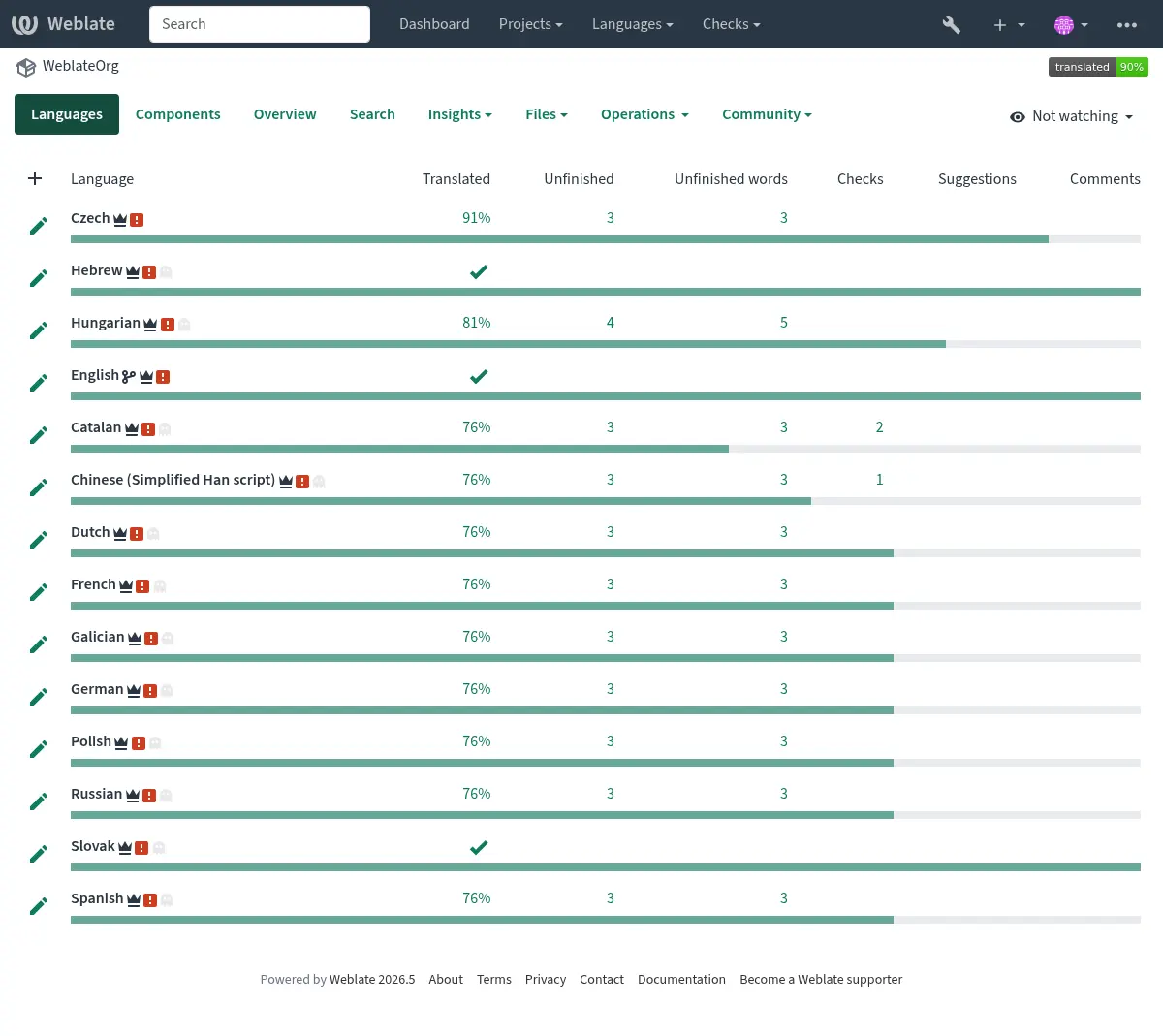
Linki do tłumaczeń
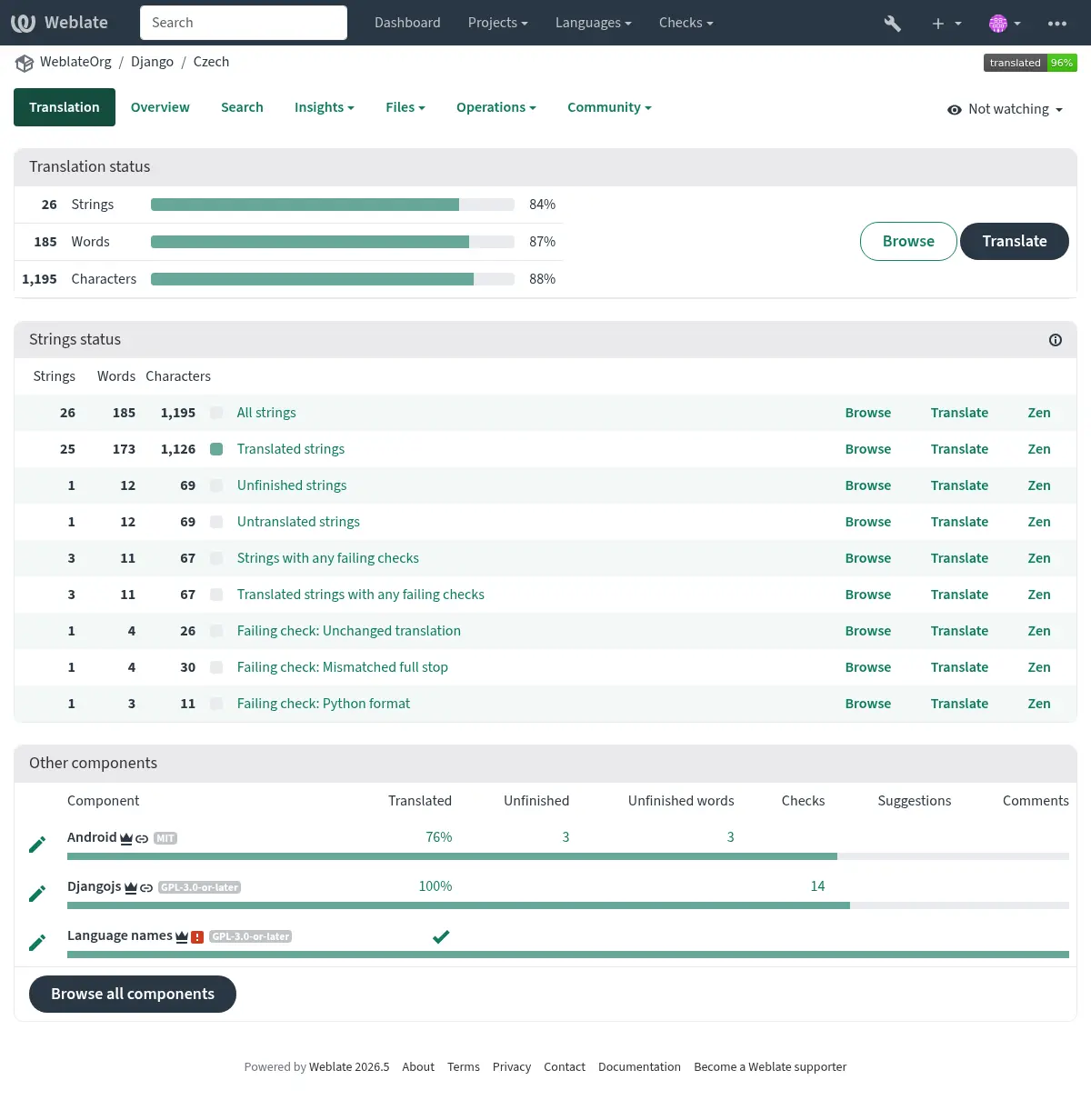
Having navigated to a component, a set of links lead to its actual translation. The translation is further divided into individual checks, like Untranslated strings or Unfinished strings. If the whole project is already translated without any errors, All strings is still available. Alternatively you can use the Search feature to find a specific string or term.
Sugestie
Informacja
Actual permissions might vary depending on your Weblate configuration.
Anonymous users (by default) can only forward suggestions. Doing so is still available to signed-in users, in cases where uncertainty about a translation arises, prompting other translators to review it. Any user can clone an existing suggestion into the translation fields, including plural forms, and use it as the basis for a new suggestion or translation.
All suggestions are scanned on a daily basis to remove duplicates and those matching current translations.
If you have the Accept suggestions permission, you can bulk accept all suggestions from a specific user by clicking the account check icon next to their suggestion. This is useful for quickly processing suggestions from trusted contributors. Suggestions failing quality checks are skipped and remain for manual review.
Warianty
Variants are used to group different-length variants of a string. The frontend of your project can then utilize different strings depending on the size of a screen or window.
Zobacz także
Etykiety
Labels are used to categorize strings within a project to further customize the localization workflow (for example to define categories of strings).
Następujące etykiety są używane przez Weblate:
- Przetłumaczono automatycznie
String translated using Tłumaczenie automatyczne.
- Źródło wymaga przeglądu
String marked for review using Recenzje ciągów źródłowych.
Zobacz także
Tłumaczenie
On the translation page, the source string and an editing area for its translation are shown. Should the translation be plural, multiple source strings and editing areas are shown, each described and labeled in the amount of plural forms the translated language has.
All special whitespace characters are underlined in red and indicated with grey symbols. More than one subsequent space is also underlined in red to alert the translator to a potential formatting issue.
Various bits of extra info can be shown on this page, most of which coming from the project source code (like context, comments or where the message is being used). Translation fields for any secondary languages translators select in the preferences will be shown (see Języki dodatkowe) above the source string.
Below the translation, translators will find suggestions made by others, to be accepted (✓), accepted with changes (✏️), bulk accepted for a specific user (👤✓), cloned into the translation fields (📑) or deleted (🗑).
Liczba mnoga
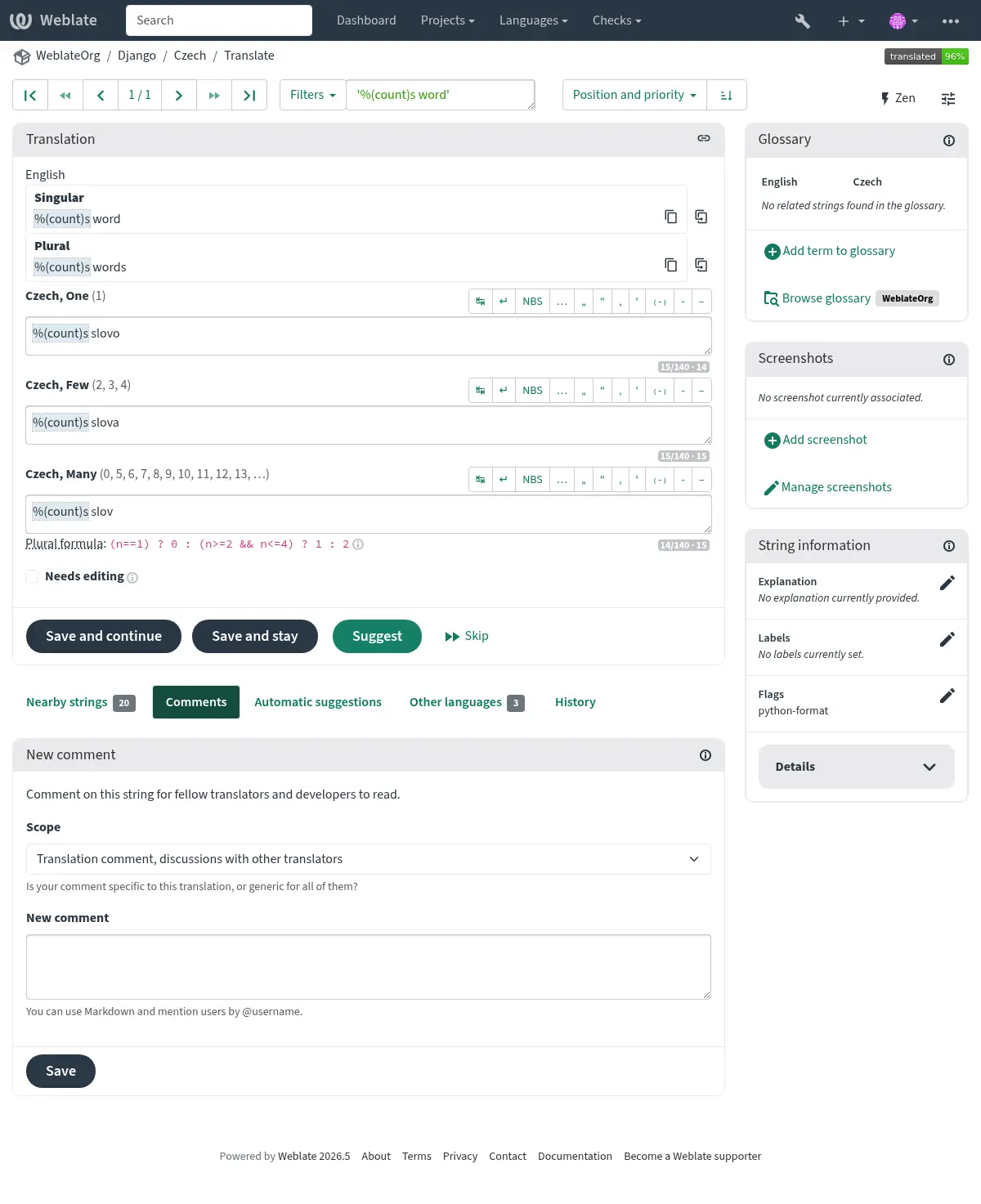
Words changing form to account for their numeric designation are called plurals. Each language has its own definition of them. English, for example, supports one. In the singular definition of an example „car”, implicitly one car is referenced, in the plural definition of „cars”, two or more cars are referenced (or the concept of cars as a noun). Languages like, for example, Czech or Arabic have more forms of plurals, and their rules for plurals are different as well.
Weblate has full support for each of these forms, in each respective language. Each grammatical number is translated in a separate field for a pre-defined set of cardinal numbers specific to the translation language. The number of fields and how they are in turn used in the translated application or project, depends on the configured plural formula. Weblate shows the basic information and the Language Plural Rules by the Unicode Consortium is a more detailed description.
Zobacz także
Alternative translations
Dodane w wersji 4.13.
Informacja
This is currently only supported with Wielowartościowy plik CSV.
With some formats, it is possible to have more translations for a single string. You can add more alternative translations using the Tools menu. Any blank alternative translations will be automatically removed upon saving.
Skróty klawiaturowe
The following keyboard shortcuts can be utilized during translation:
Skróty klawiszowe |
Opis |
|---|---|
? |
Otwórz dostępne skróty klawiaturowe. |
Alt+Home |
Przejdź do pierwszego tłumaczenia w aktualnym wyszukiwaniu. |
Alt+End |
Przejdź do ostatniego tłumaczenia w aktualnym wyszukiwaniu. |
Alt+PageUp lub Ctrl+↑ lub Alt+↑ lub Cmd+↑ |
Przejdź do poprzedniego tłumaczenia w aktualnym wyszukiwaniu. |
Alt+PageDown lub Ctrl+↓ lub Alt+↓ lub Cmd+↓ |
Przejdź do następnego tłumaczenia w aktualnym wyszukiwaniu. |
Ctrl+Enter lub Cmd+Enter |
Submit current form; this is same as pressing Save and continue while editing translation. |
Ctrl+Shift+Enter lub Cmd+Shift+Enter |
Odznacz tłumaczenie jako Wymaga edycji i je prześlij. |
Alt+Enter lub Option+Enter |
Submit the string as a suggestion; this works the same as pressing Suggest while editing translation. |
Ctrl+E lub Cmd+E |
Skup się na edytorze tłumaczeń. |
Ctrl+U lub Cmd+U |
Skup się na edytorze komentarzy. |
Ctrl+M lub Cmd+M |
Shows Automatic suggestions tab, see Automatyczne sugestie. |
Ctrl+1 do Ctrl+9 lub Cmd+1 to Cmd+9 |
Kopiuje miejsca danego numeru z ciągu źródłowego. |
Ctrl+M followed by 1 to 9 or Cmd+M followed by 1 to 9 |
Skopiuj tłumaczenie maszynowe podanego numeru do aktualnego tłumaczenia. |
Ctrl+I followed by 1 to 9 or Cmd+I followed by 1 to 9 |
Zignoruj jedną pozycję na liście testów zakończonych niepowodzeniem. |
Ctrl+J lub Cmd+J |
Pokazuje kartę Ciągi sąsiadujące. |
Ctrl+S lub Cmd+S |
Skup się na polu wyszukiwania. |
Ctrl+O lub Cmd+O |
Skopiuj ciąg źródłowy. |
Ctrl+Y lub Cmd+Y |
Przełącz pole wyboru Wymaga edycji. |
→ |
Przeglądaj następny ciąg tłumaczenia. |
← |
Przeglądaj poprzedni ciąg tłumaczenia. |
Klawiatura wizualna
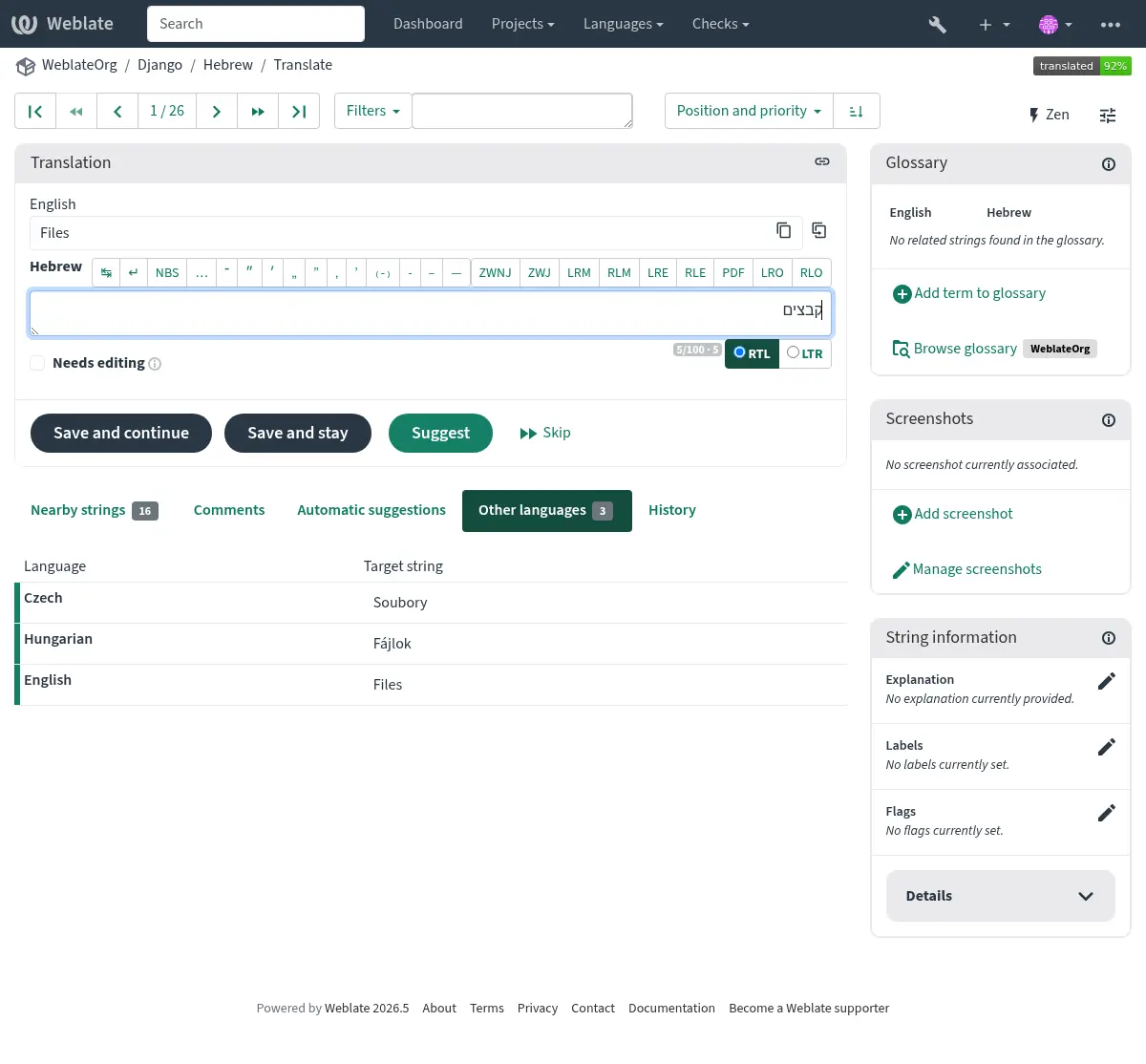
A small visual keyboard row is shown just above the translation field. Its rows are specific to each language; it can be useful for local punctuation or characters that are hard to type by hand.
The shown symbols factor into three categories:
User configured Znaki specjalne defined in the Profil użytkownika
Per-language characters provided by Weblate (e.g. quotes or RTL-specific characters)
Characters configured using
SPECIAL_CHARS
Kontekst tłumaczenia
This contextual description provides related info about the current string.
- Atrybuty ciągu
Things like message ID, context (
msgctxt) or location in source code.- Objaśnienie
Further clarification can be provided in Weblate via Objaśnienie.
- Zrzuty ekranu
Screenshots can be uploaded directly from this panel using Add screenshot, or managed elsewhere in Weblate to better inform translators of where and how the string is used. Source-language screenshots are shown for every translation of the string, while translation-specific screenshots are shown only for that translation; see Screenshots and visual context.
- Ciągi sąsiadujące
Displays neighbouring strings from the translation file. These are usually also used in a similar context and prove useful in keeping the translation consistent.
- Inne wystąpienia
In case a message appears in multiple places (e.g. multiple components), this tab shows all of them if they are found to be inconsistent (see Niespójność). You can choose which one to use.
- Pamięć tłumaczeniowa
Look at similar strings translated in past, see Pamięć tłumaczeniowa.
- Słownik
Displays terms from the project glossary used in the current message.
- Historia
List of people whom have changed this message recently using Weblate.
- Projekt
Project info like instructions for translators, or a directory or link to the string in the version control system repository the project uses.
If you want direct links, the translation format has to support it.
Historia tłumaczeń
Every change is by default (unless turned-off in component settings) saved in the database, and can be reverted. Optionally, translations can also be reverted in the underlying version control system.
Translated string length
Weblate can limit the length of a translation in several ways to ensure the translated string is not too long:
The default limitation for translation is ten times longer than the source string. This can be modified with
LIMIT_TRANSLATION_LENGTH_BY_SOURCE_LENGTH. If you are hitting this, it can also be caused by a monolingual translation being wrongly set up as a bilingual one, making Weblate mistaking the translation key for the actual source string. See Formaty dwujęzyczne i jednojęzyczne for more info.Maximum length in characters defined by the translation file or flag, as per Maksymalna długość tłumaczenia.
Maximal rendered size in pixels as defined by flags; see Maksymalny rozmiar tłumaczenia.
Automatyczne sugestie
Based on configuration and your translated language, Weblate provides suggestions from several machine translation tools and Pamięć tłumaczeniowa. All machine translations are available in a single tab of each translation page.
You can also perform a concordance search on the Pamięć tłumaczeniowa.
Zobacz także
You can find the list of supported tools in Automatyczne sugestie.
Tłumaczenie automatyczne
You can use automatic translation to bootstrap translation based on external sources. This tool is called Automatic translation accessible in the Operations menu, once you have selected a component and a language:
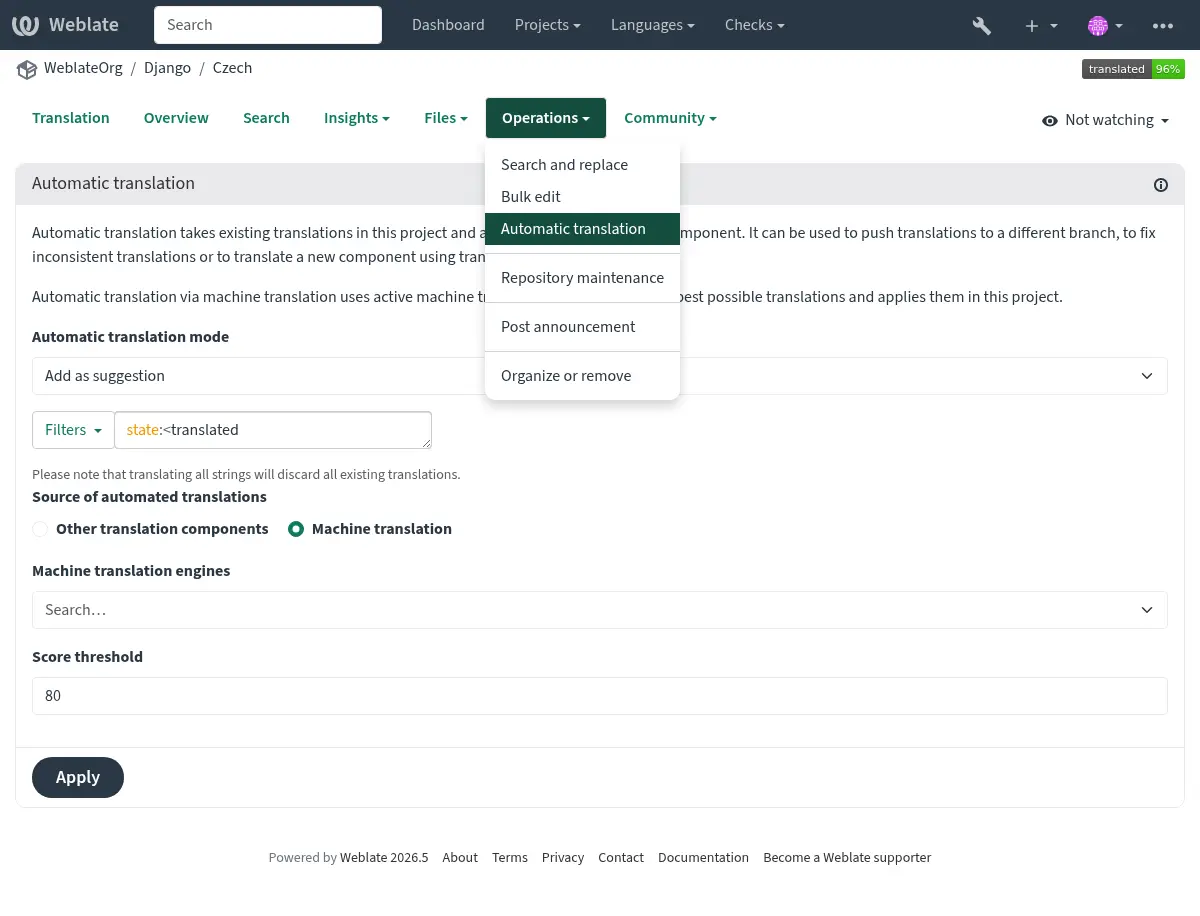
A similar operation Batch automatic translation is available if you have selected a project language, a component or a category.
Two modes of operation are possible:
Using other Weblate components as a source for translations.
Using selected machine translation services with translations above a certain quality threshold.
When using other components as the source, Weblate applies translations only when plural forms are compatible. If the source component uses different plural rules, pluralized strings are skipped and Weblate shows a warning, while single-form strings are still translated.
You can also choose which strings are to be auto-translated.
Ostrzeżenie
Be mindful that this will overwrite existing translations if employed with wide filters such as All strings.
Useful in several situations like consolidating translation between different components (for example the application and its website) or when bootstrapping a translation for a new component using existing translations (translation memory).
Automatycznie przetłumaczone ciągi są oznaczone jako Przetłumaczono automatycznie.
Ograniczenie szybkości
To avoid abuse of the interface, rate limiting is applied to several operations like searching, sending contact forms, or translating. If affected by it, you are blocked for a certain period, until you can perform the operation again.
Default limits and fine-tuning are described in the administrative manual, see Ograniczenie szybkości.
Wyszukaj i zamień
Change terminology effectively or perform bulk fixing of the strings using Search and replace in the Tools menu.
Podpowiedź
Don’t worry about messing up the strings, as it is a two-step process. A preview of edited strings is shown before confirming the change.
Edycja zbiorcza
Bulk editing allows performing one operation for multiple strings. Define strings by searching for them and actions to perform on matching ones. Supported operations:
Change string state (for example to approve all unreviewed strings).
Adjust translation flags (see Dostosowywanie zachowania za pomocą flag)
Adjust string labels (see Etykiety ciągów)
Podpowiedź
This tool is called Bulk edit, accessible in the Tools menu of each project, component or translation.
Zobacz także
Widok matrycy
You can compare different languages efficiently using this view. It is available on every component page, from the Tools menu. First select all languages you want to compare, confirm your selection, then click on any translation to open and edit it.
The matrix view is also a very good starting point to find missing translations in different languages, and quickly add them from one view.
Tryb zen
This mode simplifies the layout and removes additional UI elements such as Nearby strings or the Glossary. It is available by clicking the Zen button on the top-right of the regular editor (translation of a string).
You can select the Zen editor as your default editor using the Preferencje tab on your Profil użytkownika. You can also choose there between having translations listed Top to bottom or Side by side, depending on your personal preference.
Komentarze
Three types of comments can be posted:
for translations
for source strings
for reporting source string bugs when this functionality is turned on using Włącz przeglądy źródeł.
Choose the suitable type for the topic you want to discuss. Source string comments are in any event good for providing feedback on the original string, for example that it should be rephrased, or to ask questions about it.
Markdown syntax can be used in all comments, as well as mentioning other users by using
@username.Zobacz także
Otrzymywanie informacji zwrotnej o ciągu źródłowym
Recenzje ciągów źródłowych
Włącz przeglądy źródeł