翻譯程式
建議投票
Everyone can add suggestions by default, to be accepted by signed in users. Suggestion voting can be used to make use of a string when more than one signed-in user agrees, by setting up the 組件配置 with Suggestion voting to turn on voting, and Automatically accept suggestions to set a threshold for accepted suggestions (this includes a vote from the user making the suggestion if it is cast).
備註
一旦新增了自動接受,那麼普通使用者會失去直接儲存翻譯或接受建議的特權。要繞過這一點,可以通過 當建議強制時編輯字串 permission。
您可以將這些與 access control 合併到以下設定中的一個:
Users suggest and vote for suggestions and a limited group controls what is accepted.
開啟投票。
Turn off automatic acceptance.
Don't let users save translations.
Users suggest and vote for suggestions with automatic acceptance once the defined number of them agree.
開啟投票。
Set the desired number of votes for automatic acceptance.
Optional voting for suggestions. (Can optionally be used by users when they are unsure about a translation by making multiple suggestions.)
Only turn on voting.
來源字串另外的資訊
通過向字串新增額外的資訊來增強翻譯過程,這些資訊包括解釋、字串優先級、檢查標記和可視化上下文。有些資訊可以從翻譯文件中提取,有些可以通過編輯額外的字串資訊新增:
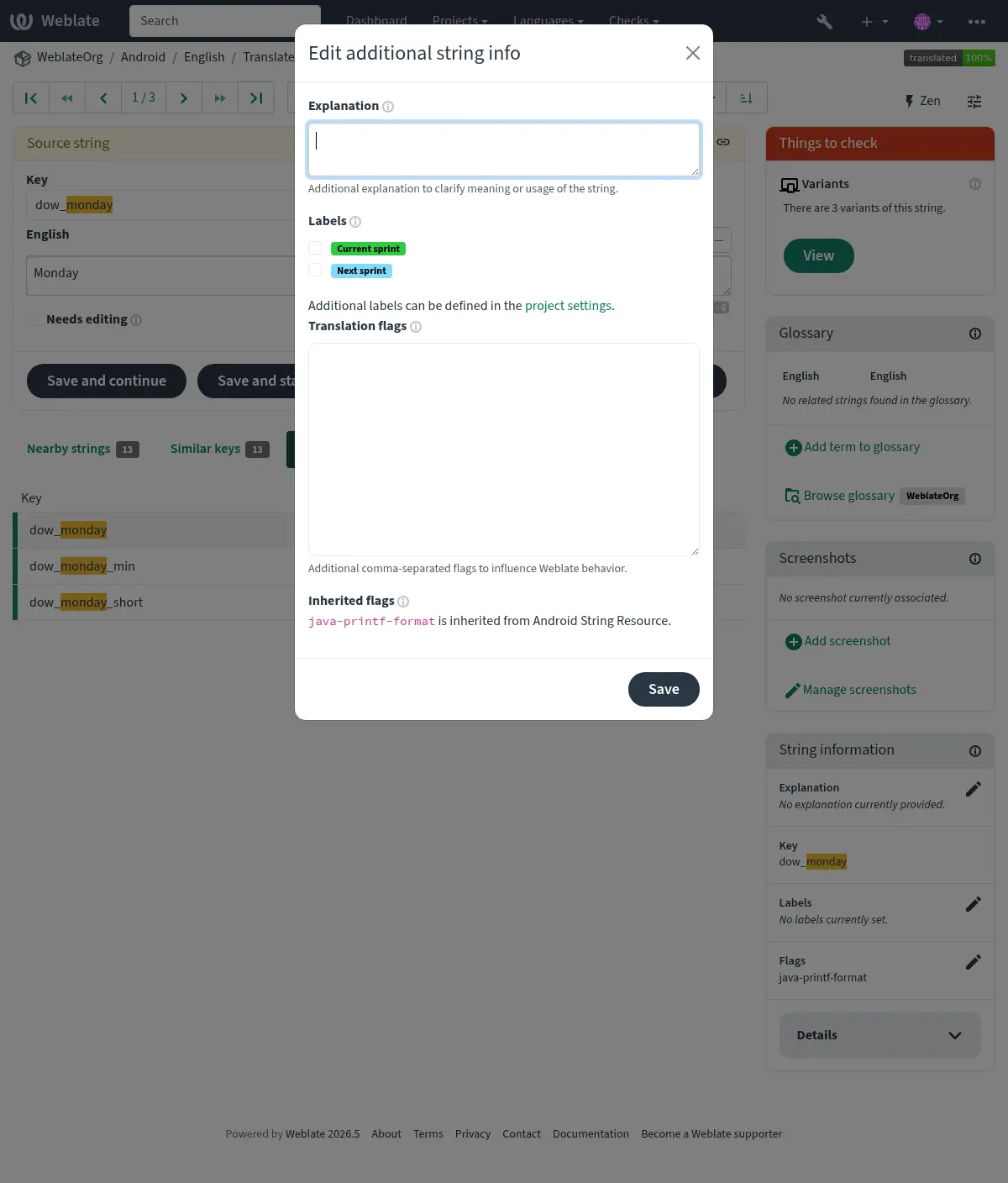
可以通過點擊緊鄰 Screenshot context 或 Flags 的 "Edit" 標籤而從翻譯介面直接存取。
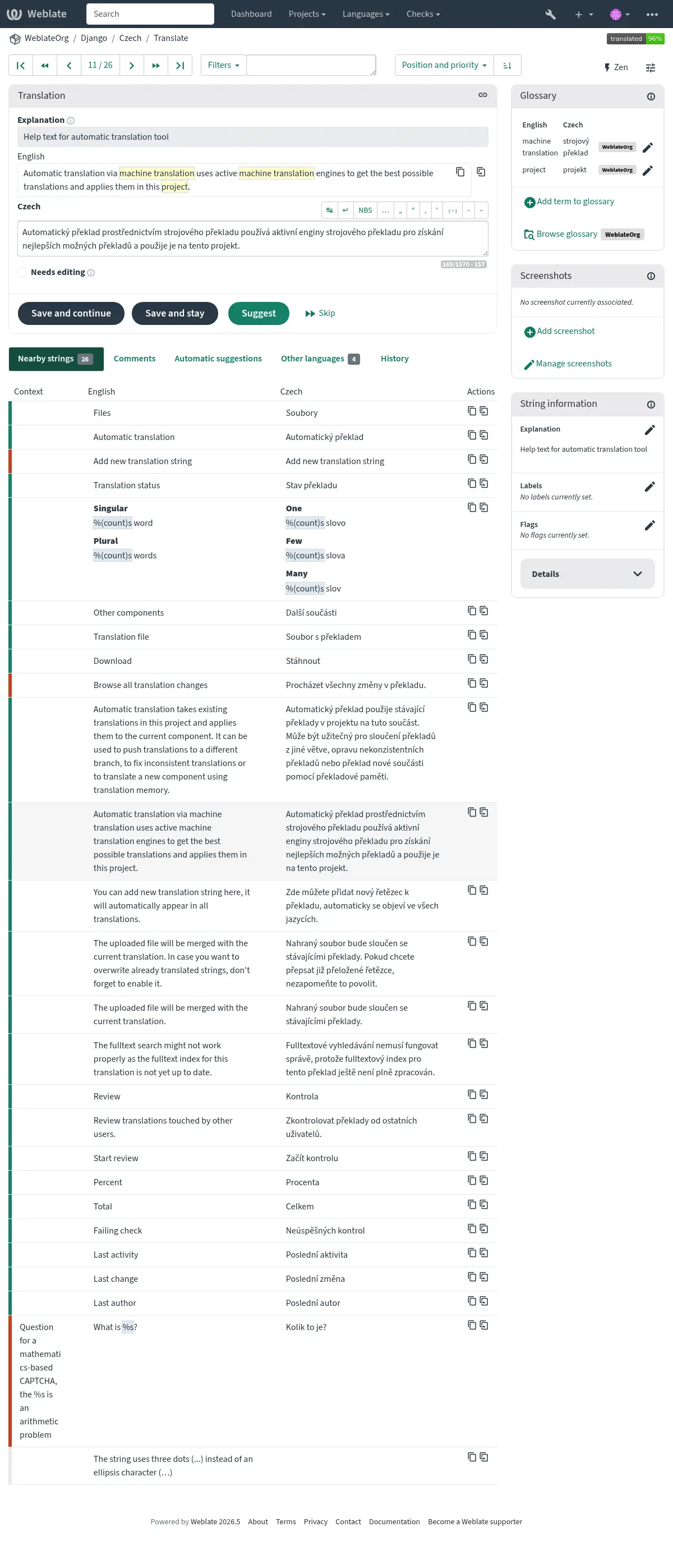
字串優先級
使用 priority 標識可以變更字串優先級來為字串提供更高優先級,以便更早地進行翻譯。
提示
這可以用於以邏輯的方式將翻譯流程排序。
也參考
翻譯旗標
品質檢查和其他 Weblate 行為的客製,請參閱 使用標誌自訂行為。
The string flags are also inherited from the 翻譯旗標 at 組件配置 and flags from the translation file (see 在地化檔案格式).
解釋
在 4.1 版的變更: 在以前的版本中這被稱為 Extra context。
在 4.18 版的變更: Support for syncing explanation with a file was introduced.
使用解釋來明確翻譯的範圍或翻譯的使用。您可以使用 Markdown 來包括連結和其它標記。
Some file formats support storing explanation within the file, see 解釋.
提示
Weblate can also display description present in the translation file for some formats, see 來源字串描述.
Screenshots and visual context
您可以將顯示您程式中使用的給定來源字串的截屏上傳。這幫助翻譯者理解它用在哪裡,並且應該如何翻譯。
上傳的截屏在翻譯語境的側邊條中顯示:
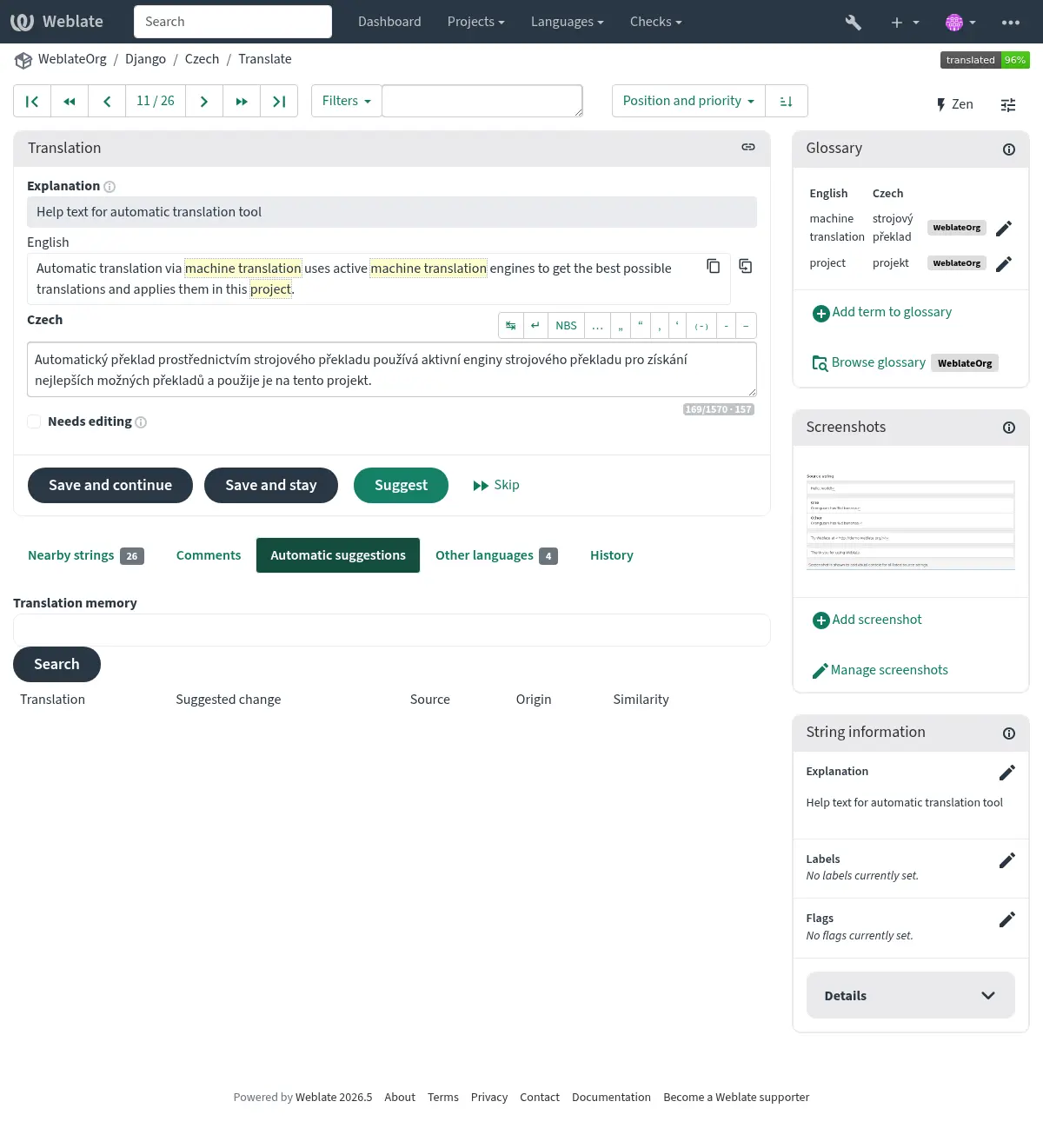
In addition to 來源字串另外的資訊, screenshots can be managed in the Weblate UI, kept in sync from the repository, or handled through the Weblate 的 REST API.
Managing screenshots in the UI
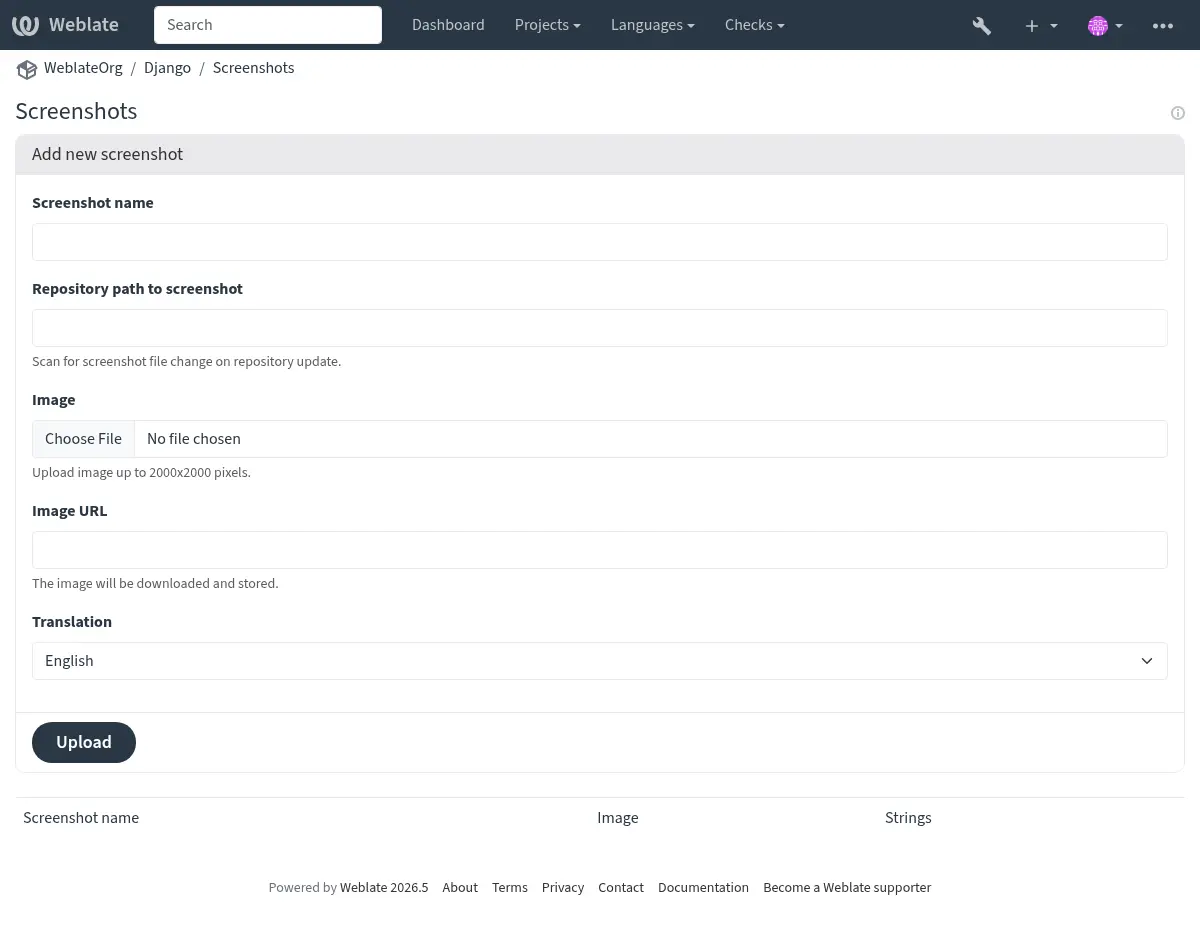
Each screenshot is stored for a specific translation language. In the translate page, screenshots attached to the source language are shown for every translation of the string, while screenshots attached to any other language are shown only for that language. You can add a screenshot directly from the translate page using Add screenshot in the Screenshot context panel, or open the separate management interface under the Operations menu. There you can upload screenshots, assign them to source strings manually, or use optical character recognition (OCR) by pressing the Automatically recognize button.
一旦上傳了截屏,那麼這個介面處理管理以及來源字串的聯繫:
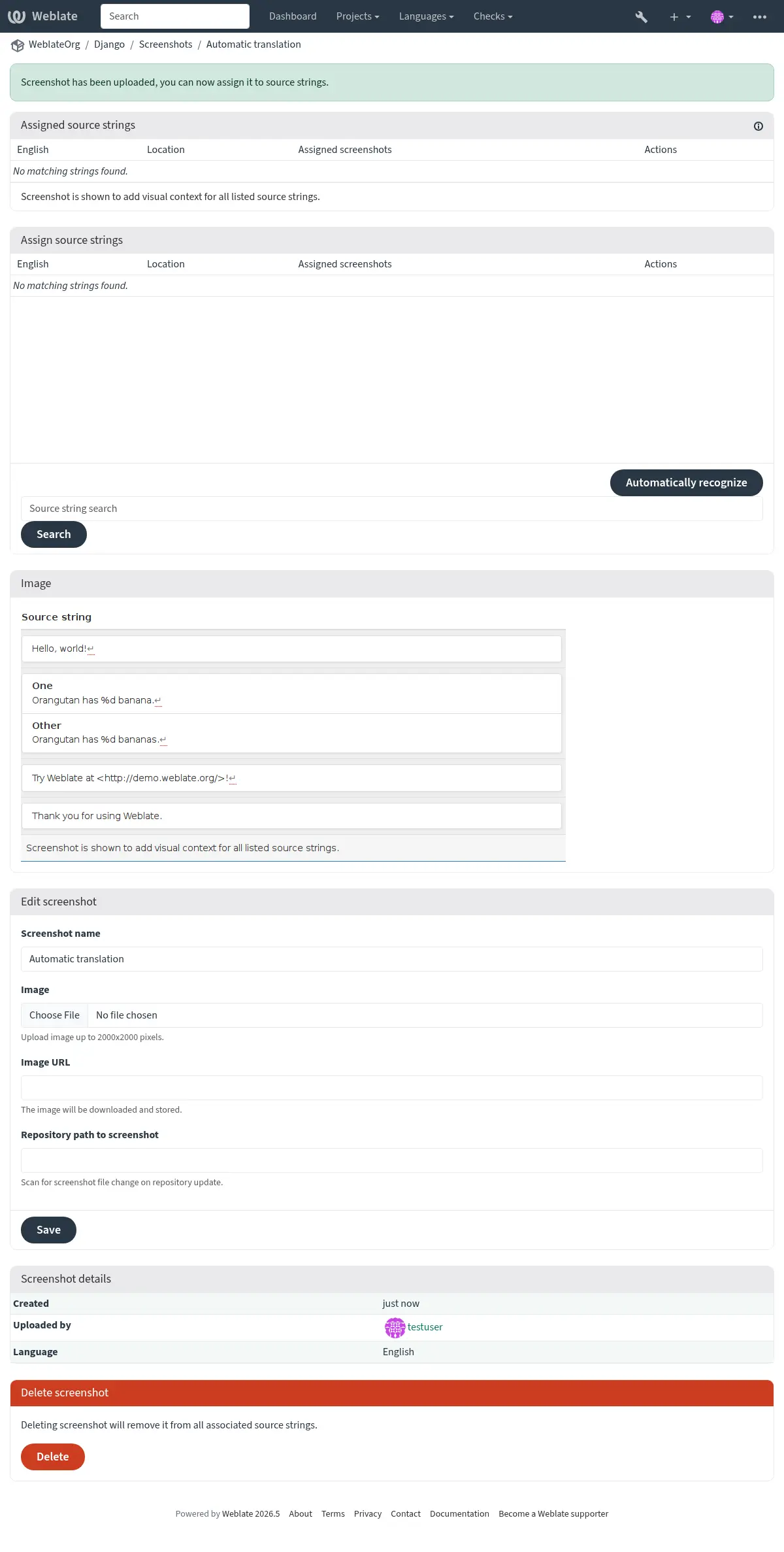
You can upload a screenshot from a local file, paste it from the clipboard, or
provide a URL to download an image from an external source. URL-based uploads
may be restricted based on the ALLOWED_ASSET_DOMAINS setting, which
controls which domains are trusted for downloading external assets, including
any redirects followed while fetching the image, and
ASSET_RESTRICT_PRIVATE, which rejects internal or non-public targets
unless they are included in ASSET_PRIVATE_ALLOWLIST. The
ALLOWED_ASSET_SIZE setting limits maximal size for the asset.
Managing screenshots from the repository
You can add or update screenshots directly from your Version Control System (VCS) repository.
To enable this feature, you can either set a screenshot file mask when creating a component, which will be monitored for updates in the repository, or you can add or update screenshots when uploading them manually.
To connect a manually uploaded screenshot with later repository updates, fill in Repository path to screenshot with the path tracked in the repository.
When the repository is updated, the system will automatically scan for changes. Existing screenshots in the repository will be updated, and new screenshots matching the specified screenshot file mask will be added to the component.
也參考
透過 API 管理螢幕擷圖
Screenshot workflows are also available through the REST API. Use
GET /api/components/(string:project)/(string:component)/screenshots/
to list screenshots for one component, POST /api/screenshots/ to
create screenshots,
POST /api/screenshots/(int:id)/file/ to replace the image,
POST /api/screenshots/(int:id)/units/ and
DELETE /api/screenshots/(int:id)/units/(int:unit_id) to manage source
string associations, and DELETE /api/screenshots/(int:id)/ to delete
screenshots. Screenshot API objects include the related translation and the
optional repository path used for repository-based updates.