Regisztráció és felhasználói profil
Regisztráció
Mindenki számára elérhető a projektek böngészése, a fordítások megtekintése, illetve fordítási javaslatok beküldése. A változtatások mentéséhez viszont regisztráció szükséges – a regisztrált felhasználók neve megjelenik az általuk végzett fordításoknál.
A regisztráció néhány egyszerű lépésből áll:
Töltse ki a regisztrációs űrlapot a szükséges adatokkal.
Aktiválja regisztrációját az e-mailben kapott hivatkozás segítségével.
A profilbeállításoknál lehetőség van megadni, hogy mely nyelveket ismeri.
Vezérlőpult
Bejelentkezés után áttekintheti a projekteket és összetevőket, valamint a fordítási állapotukat.
Alapértelmezetten megjelennek azoknak a projekteknek az összetevői, amelyeket figyelemmel kísér, és ezek összevetésre kerülnek az Ön által előnyben részesített nyelvekkel.
Tipp
A navigációs lapok segítségével válthat különböző nézetek között.
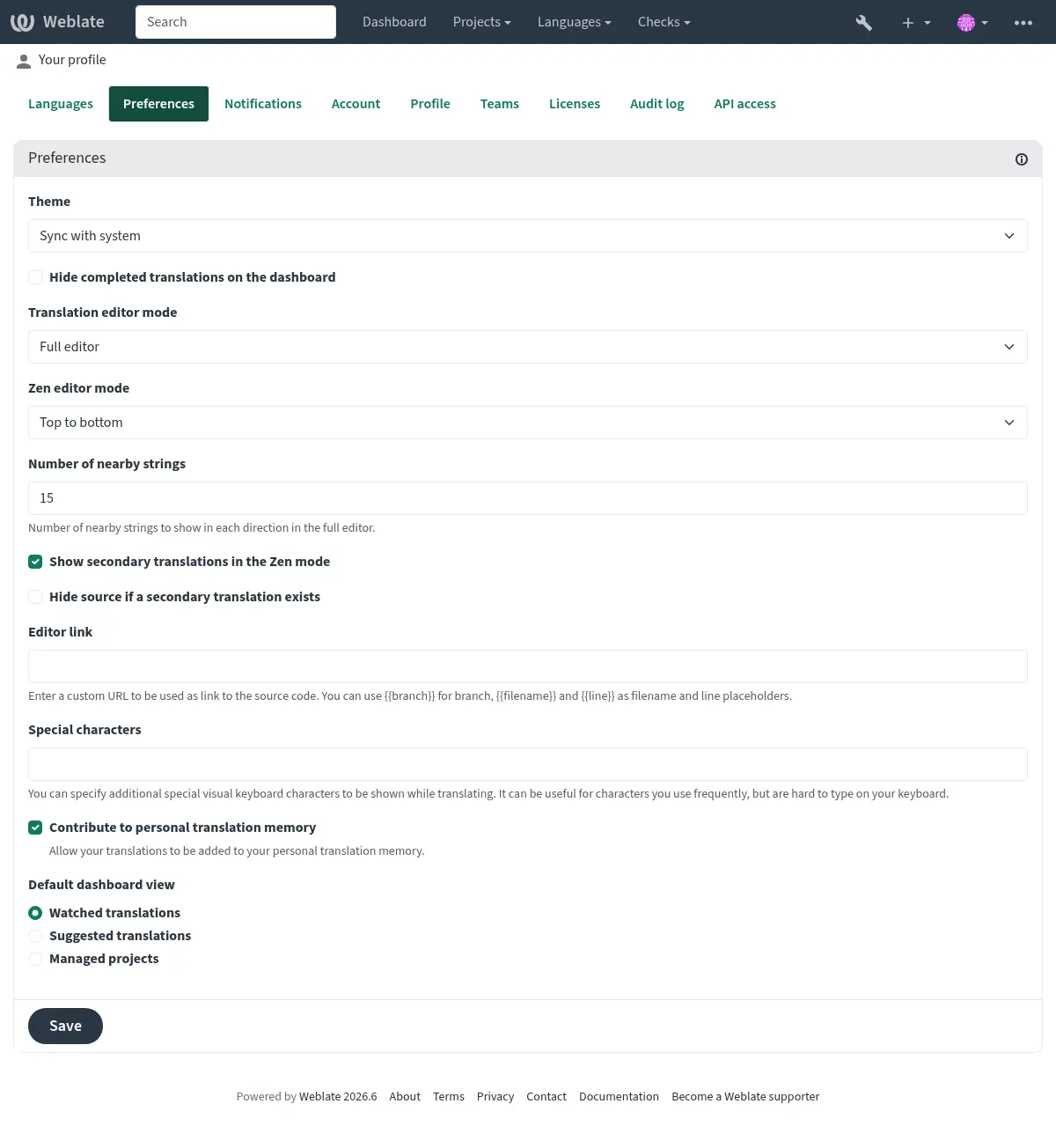
A menü a következő lehetőségeket tartalmazza:
Projektek > Az összes projekt böngészése a főmenüben, amely a Weblate példány minden projektjének fordítási állapotát mutatja.
A Nyelvek menüpontban nyelvet kiválasztva megjelenik az összes projekt fordítási állapota, az elsődleges nyelvei alapján szűrve.
A Megfigyelt fordítások a vezérlőpulton csak azoknak a projekteknek az állapotát mutatja, amelyeket figyel, az elsődleges nyelvei alapján szűrve.
Emellett a legördülő menü tetszőleges számú összetevőlistát is megjeleníthet, amelyeket a Weblate adminisztrátora előre beállított, lásd: Összetevőlisták.
A saját vezérlőpult alapnézetét beállíthatja a Felhasználói beállítások fülön a felhasználói profil beállításaiban.
Megjegyzés
Ha a Weblate egyetlen projekthez van konfigurálva a SINGLE_PROJECT beállítással a settings.py fájlban (lásd: Beállítások), a vezérlőpult nem jelenik meg, hanem a rendszer egy adott projektre vagy összetevőre irányítja át a felhasználót.
Felhasználói profil
A felhasználói profil elérhető a felső menüsor jobb sarkában található felhasználói ikonra kattintva, majd válassza a Beállítások menüpontot.
The settings tabs separate account and commit identity, public profile information, preferences, security, and developer access. Name and e-mail address are used in VCS commits, so keep this info accurate.
Megjegyzés
A nyelvválasztási lehetőségek kizárólag a jelenleg lefordított nyelveket tartalmazzák.
Tipp
További nyelveket kérhet vagy adhat hozzá a fordítandó nyelvek listájához a megfelelő gomb megnyomásával, így azok is elérhetők lesznek.
Nyelvek
Felület nyelve
Válassza ki, hogy mely nyelven szeretné megjeleníteni a felhasználói felületet.
Fordított nyelvek
Válassza ki, mely nyelvekre szeret fordítani. Ezek megjelennek a figyelt projektek főoldalán, így egyszerűbben elérheti az adott nyelvekre készült fordításokat.
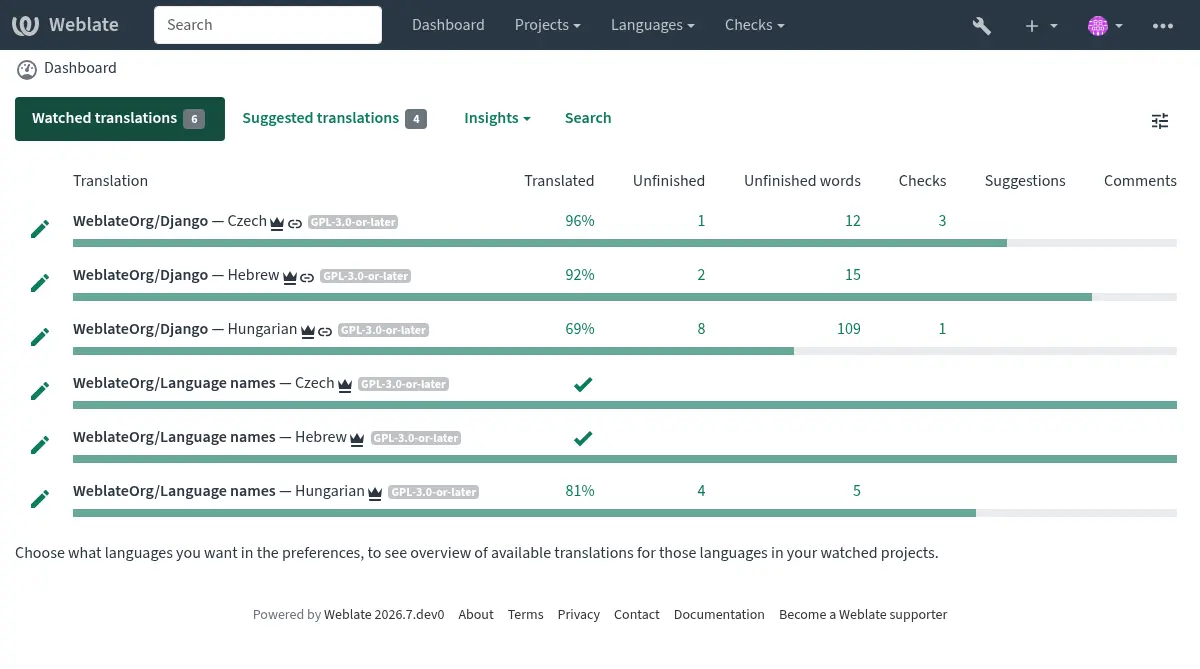
Másodlagos nyelvek
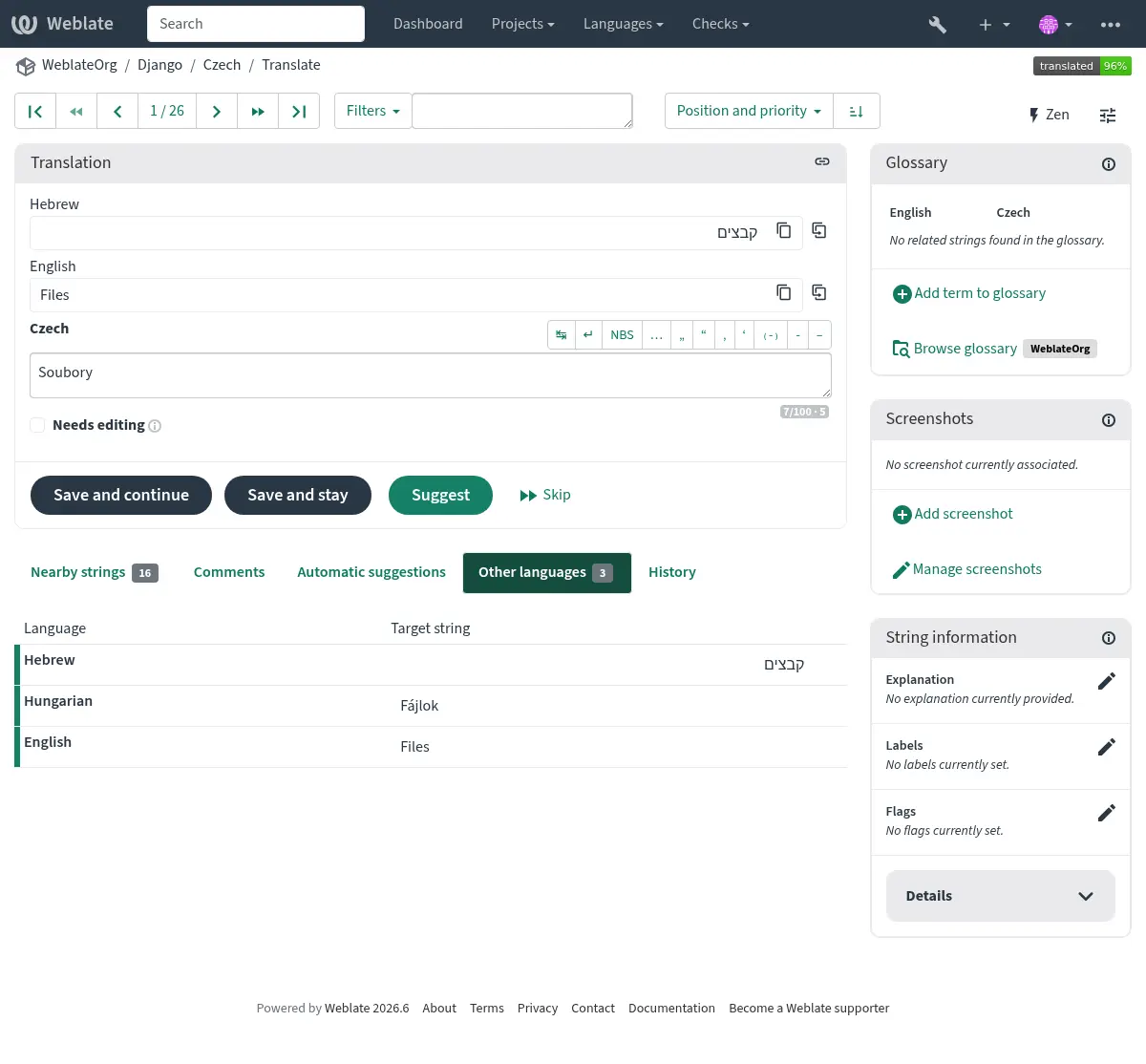
Meghatározhatja, hogy mely másodlagos nyelvek jelenjenek meg segédként a fordítás során. Az alábbi példában a héber nyelv jelenik meg másodlagosként:
Tipp
Ez a projektben (Másodlagos nyelv) vagy az összetevőben (Másodlagos nyelv) is beállítható. Ebben az esetben felhasználható a Szövegösszevonás másodlagos nyelv használatával során.
Felhasználói beállítások
Téma
Adja meg, hogy a Weblate a rendszer sötét vagy világos megjelenítési beállításait kövesse-e vagy válasszon témát manuálisan.
Table columns
By default, Weblate hides some columns in listings (languages, components, projects, …) when the browser window is too narrow to fit them. Enable Show all columns in lists using horizontal scrolling to keep all columns instead and scroll the table horizontally when needed.
Use Visible columns in lists to choose which statistics columns are shown in the listings. This way you can hide numbers you are not interested in, or make room for additional ones such as Total strings.
Alapértelmezett vezérlőpult nézet
A Felhasználói beállítások lapon kiválaszthatja, hogy az elérhető vezérlőpult-nézetek közül melyik jelenjen meg alapértelmezetten. Ha az Összetevőlista nézetet választja, akkor az Alapértelmezett összetevőlista legördülő menüből meg kell adnia, melyik lista jelenjen meg.
Lásd még
Szerkesztő hivatkozás
A forráskód hivatkozás alapértelmezetten a webböngészőben jelenik meg az összetevőben konfiguráltak szerint.
Tipp
A Szerkesztő hivatkozás megadásával helyi szerkesztőt használhat a lefordított szöveghez tartozó VCS-forrásfájl megnyitására. Használható benne Sablonjelölés.
Általában valami ehhez hasonló: editor://open/?file={{filename}}&line={{line}} a jó választás.
Lásd még
További információk egyéni URL-protokoll regisztrálásáról a Nette dokumentációban találhatók.
Különleges karakterek
További különleges karakterek, amelyeket be kell vonni a Vizuális billentyűzet billentyűzetbe.
Értesítések
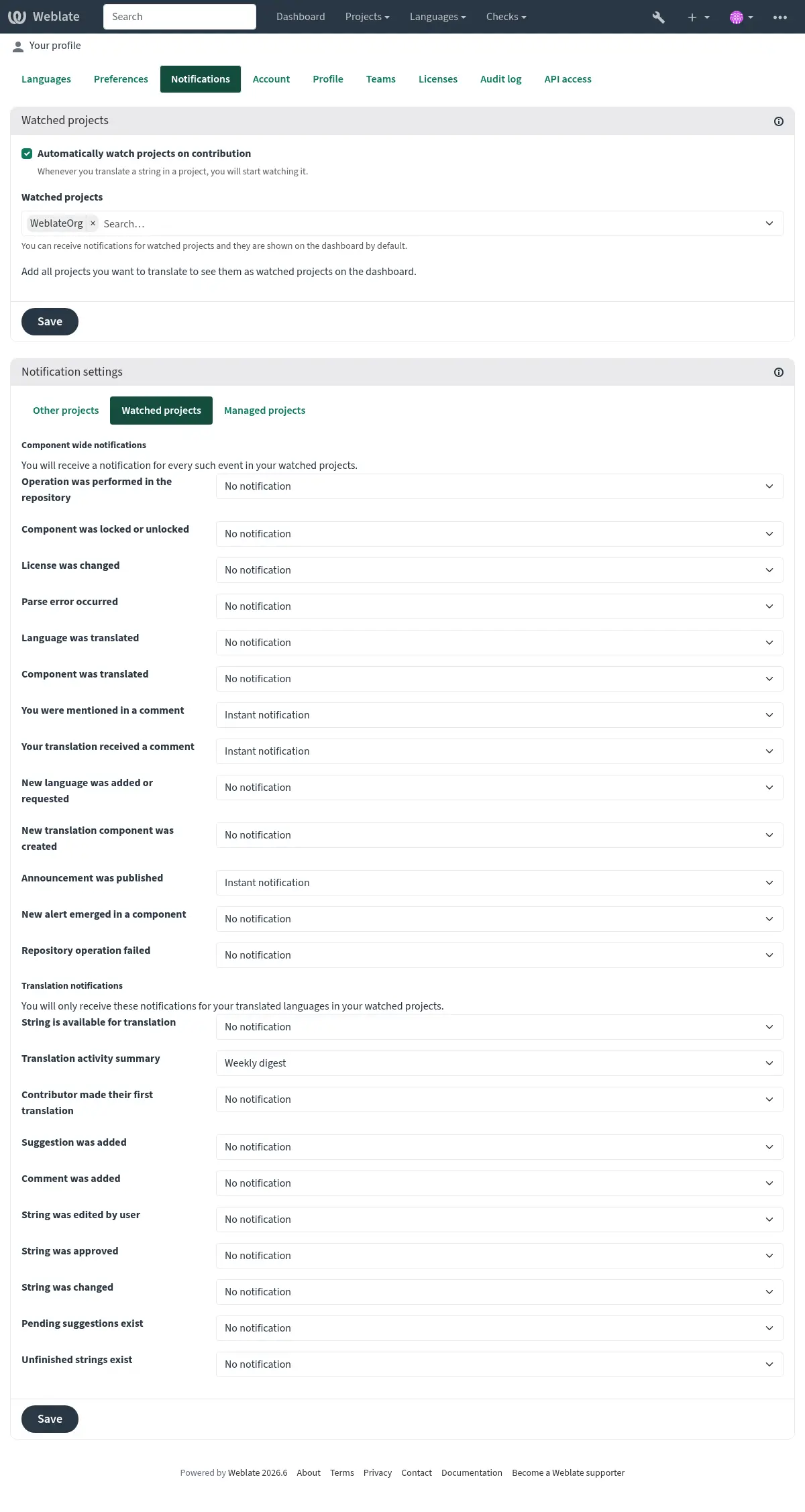
Különböző értesítésekre iratkozhat fel az Értesítések fülön. A megfigyelt vagy kezelt projektek kiválasztott eseményeiről e-mailben kap értesítést.
Egyes értesítések csak a megadott nyelveire vonatkozó eseményeknél kerülnek kiküldésre (például új fordítandó szöveg esetén), míg mások összetevőszinten működnek (például egyesítési hibák esetén). A két típus vizuálisan elkülönül a beállításoknál.
The Translation activity summary notification is digest-only and summarizes added, updated, translated, approved, needs editing, and unfinished strings.
Each periodic notification e-mail contains entries from all matching projects. Listings of individual changes contain up to 100 entries and indicate when additional entries were omitted, while grouped summaries are not limited.
A megfigyelt és kezelt projektek értesítései külön-külön be- vagy kikapcsolhatók, valamint projektenként és összetevőnként is testreszabhatók. Nyissa meg az összetevő áttekintő oldalát, és válasszon egy lehetőséget a Megfigyelés menüből.
Project and component notification subscriptions are automatically removed when you lose access to their targets. Cleanup runs hourly for a different group of users, checking every user once daily. Subscriptions are retained during temporary project blocks or while two-factor authentication requirements are unmet.
In case Automatically watch projects on contribution is enabled you
will automatically start watching projects upon contributing to them. The
default value depends on DEFAULT_AUTO_WATCH.
Megjegyzés
Saját műveleteiről nem fog értesítést kapni.
Tipp
Az értesítések küldése korlátozott: naponta legfeljebb 1000 e-mailt kaphat. Az ezen felüli értesítések nem kerülnek kiküldésre.
Open Notification diagnostics from your notification settings to
inspect your own subscriptions. Administrators with management access and
permission to edit users can open the same page for another user from that
user’s Edit tab. The Overview tab includes watched
projects, notification languages, and subscriptions grouped by scope and target.
In the Diagnostics tab, enter an object path such as
project/category/component/cs. Project and category paths summarize inherited
project settings and exceptions across all accessible
components. Equivalent component settings are grouped together, with counts and
up to five example links to inspect individual components. Component paths show
effective settings and language restrictions; translation paths check the selected
language specifically. Broad summaries do not enumerate individual translations.
Summaries are limited to 200 accessible components and 10 original projects
(including the selected project). For larger scopes, choose a smaller category,
a component, or a translation; partial summaries are not shown.
Lists of more than five watched projects or notification languages show counts
instead of individual links.
Only events with a matching subscription are shown, including disabled subscriptions and subscriptions blocked by language or account conditions. Event conditions and overridden subscriptions are shown directly. Subscription links highlight the matching row in the Overview tab. Component example links open diagnostics for that component. Shared components use subscriptions from their original project.
The diagnostics check eligibility without sending e-mail. Notifications that depend on event details, such as mentions or alerts, are marked as conditional. Actual delivery also depends on the event author, digest content, and rate limits.
Fiók
The Account tab contains your username, name, account e-mail, and commit identity. You can verify another e-mail address here. The account management section at the bottom lets you export your user data (see Weblate user data export), import settings, or remove your account.
When you add an e-mail address, verification instructions are sent to the new address; access to your old mailbox is not required. Open the verification link while signed in to the account where you requested it, then follow the confirmation steps. You may be asked for your current password. Adding an address does not change your account e-mail address. After verification, you can select the new address in the Account tab.
When a connected service provides e-mail verification data during sign-in, Weblate refreshes the addresses verified by that service. Missing e-mail claims leave the stored addresses unchanged; an explicitly empty verified-address list removes that service’s stored addresses. If your account e-mail loses its last verification, Weblate selects another available, verified address or clears the account e-mail if none is available. You can still sign in through the connected service. Add and verify an address to restore password recovery, then select it as your account e-mail to receive notifications. Verified secondary addresses can also be used for password recovery. Pending confirmation links for removed addresses are invalidated. An address still verified by another connected identity remains available.
If you changed your service’s e-mail addresses before upgrading Weblate, check your Account settings and replace any retired account e-mail. Previously removed addresses cannot always be identified automatically.
If the new address already belongs to another account, that mailbox receives guidance on recovering access instead of a verification link. Sign out before recovering the other account. Contact support, when available, for help moving an address between accounts. The browser displays the same confirmation page in both cases to avoid disclosing whether an account exists.
Changing or resetting your password invalidates pending e-mail additions. Request a new verification link to continue adding an address.
Account e-mail addresses match without regard to ASCII letter case. Non-ASCII characters must match exactly when signing in or resetting a password.
You can import settings from a user data file on the Account tab. Compatible language, editor, dashboard, watched-project, and public-profile settings replace the corresponding settings on this server. Unavailable values are skipped and shown after import. The file must be no larger than 50 MB. Contribution counts, activity history, username, and account e-mail are not imported.
Personal Saved searches from the file are added to your existing ones; a saved search with the same name is replaced.
General notification settings and commit identity choices can be imported separately by selecting the corresponding options. Both are off by default. An imported commit e-mail unknown to this account is replaced with the current site’s generated private address. If private addresses are disabled, the unknown address is skipped and your existing choice is preserved. Imported public e-mail addresses must be known to the current account. Both public and commit e-mail addresses must pass the current site’s e-mail validation. Project- and component-specific and one-time notification rules are included in the export but not imported.
The Commit e-mail and Commit name settings let you choose
private identities instead of your account e-mail and name in version control
commits. Use these to avoid publishing your real e-mail and name there. Be aware
that using a different e-mail can disconnect your contributions on other servers
(for example your contributions will no longer link to your profile on GitHub).
Administrators can make private identities the default by setting
PRIVATE_COMMIT_EMAIL_OPT_IN and PRIVATE_COMMIT_NAME_OPT_IN
to False. Your explicit choices override these defaults.
Lásd még
Changes to these settings affect future commits. Names and e-mail addresses already recorded in repository history remain unchanged.

Nyilvános profil
Az ezen az oldalon található mezők kitöltése nem kötelező és bármikor törölheti őket. A mezők kitöltésével hozzájárul ahhoz, hogy az itt megadott adatok megjelenjenek mindenhol, ahol a felhasználói profilja látható.
A nyilvános profil URL-jeinek, például a Webhely URL-je, Kapcsolat URL-je, Fediverzum URL-je és Kódwebhely URL-je mezőknek webhelyre, kapcsolatfelvételi oldalra vagy profiloldalra kell mutatniuk. Az egyértelmű, közvetlen fájlletöltési hivatkozások elutasíthatók, a nyilvános profilhivatkozások pedig lehetőség szerint figyelmeztetést jelenítenek meg a Weblate elhagyása előtt.
The Code site URL should use common code-hosting profile paths,
such as /username or /~username; existing repository-style links such
as /username/project or /group/subgroup/project are also accepted. The
Fediverse URL
should use common profile paths, such as /username, /@username,
/web/@username, /users/username, /accounts/username,
/channel/username, /profile/username, /u/username, or
/people/identifier.
Az egyes felhasználókhoz profilkép is megjeleníthető (ez az ENABLE_AVATARS beállítástól függ). A képek a https://gravatar.com/ oldalról származnak.
Lásd még
Biztonság
The Security tab manages your password, connected sign-in identities, and two-factor authentication. Security keys, authenticator apps, and recovery codes each show their current status and management actions.

Megjegyzés
The list of sign-in services depends on your Weblate configuration, but can include sites such as GitLab, GitHub, Google, Facebook, or Bitbucket and other OAuth 2.0 providers.
Previously connected services remain listed after an administrator removes their authentication backend. You can still use Disconnect to remove their sign-in identities from your account.
Licencek
Developer settings
You can get or reset your API access token and view usage examples here. Use Manage code-hosting connections for integrations with workspaces you administer. These connections are separate from the sign-in identities in Security.
Tevékenység
The audit log keeps track of the actions performed with your account. It logs IP address and browser for every important action with your account. The critical actions also trigger a notification to a primary e-mail address.