Preuzimanje i prenošenje prijevoda
You can export files from a translation, make changes, and import them again. This allows working offline, and then merging changes back into the existing translation. This works even if it has been changed in the meantime.
Napomena
Available options might be limited by access control settings.
Preuzimanje prijevoda
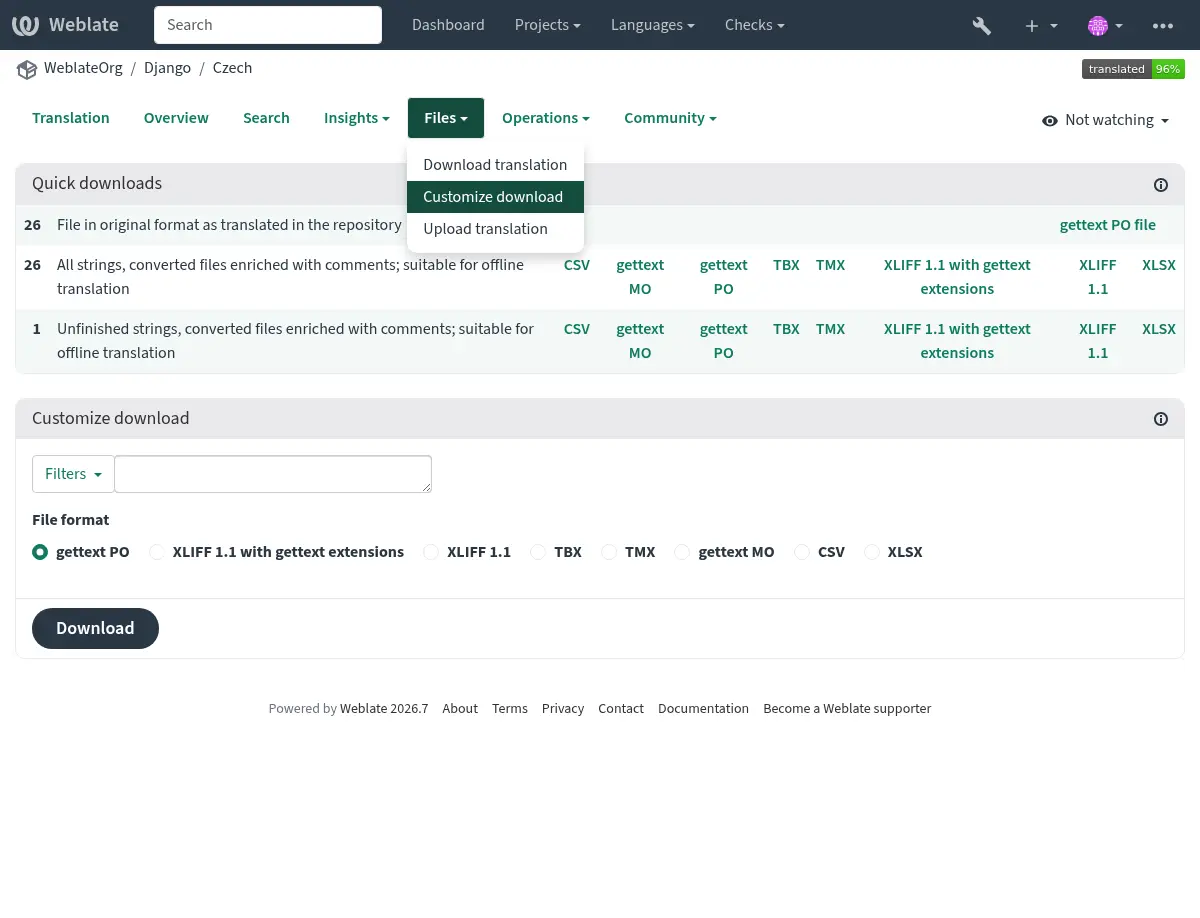
From the project or component dashboard, translatable files can be downloaded in the Files menu.
The first option is to download the file in the original format as it is stored in the repository. In this case, any pending changes in the translation are getting committed and the up-to-date file is yield without any conversions.
You can also download the translation converted into one of the widely used localization formats. The converted files will be enriched with data provided in Weblate; such as additional context, comments or flags.
Napomena
Format conversion changes the localization file representation, but does
not translate between runtime message syntaxes such as ICU MessageFormat
and C printf formatting. Use application-specific tooling when consumers
need different placeholder syntaxes or a compiled resource format not
offered by Weblate.
Several file formats are available via the Files ↓ Customize download menu:
gettext PO (
po)XLIFF 1.1 s gettext proširenjima (
xliff)XLIFF 1.1 (
xliff11)TermBase eXchange (
tbx)Translation Memory eXchange (
tmx)gettext MO (only available when translation is using gettext PO) (
mo)CSV (
csv)Excel Open XML (
xlsx)JSON (only available for monolingual translations) (
json)JSON nested structure file (only available for monolingual translations) (
json-nested)Android String Resource (only available for monolingual translations) (
aresource)iOS strings (only available for monolingual translations) (
strings)
Savjet
The content available in the converted files differs based on file format features, you can find overview in Translation types capabilities.
Preuzimanje komponenti, kategorija ili projekata
Translation files for a component, category or project can be downloaded at once via the Files menu. The download is always served as a ZIP file, and you can choose original or converted formats similarly as in Preuzimanje prijevoda.
Više informacija
GET /api/components/(string:project)/(string:component)/file/
Prenošenje prijevoda
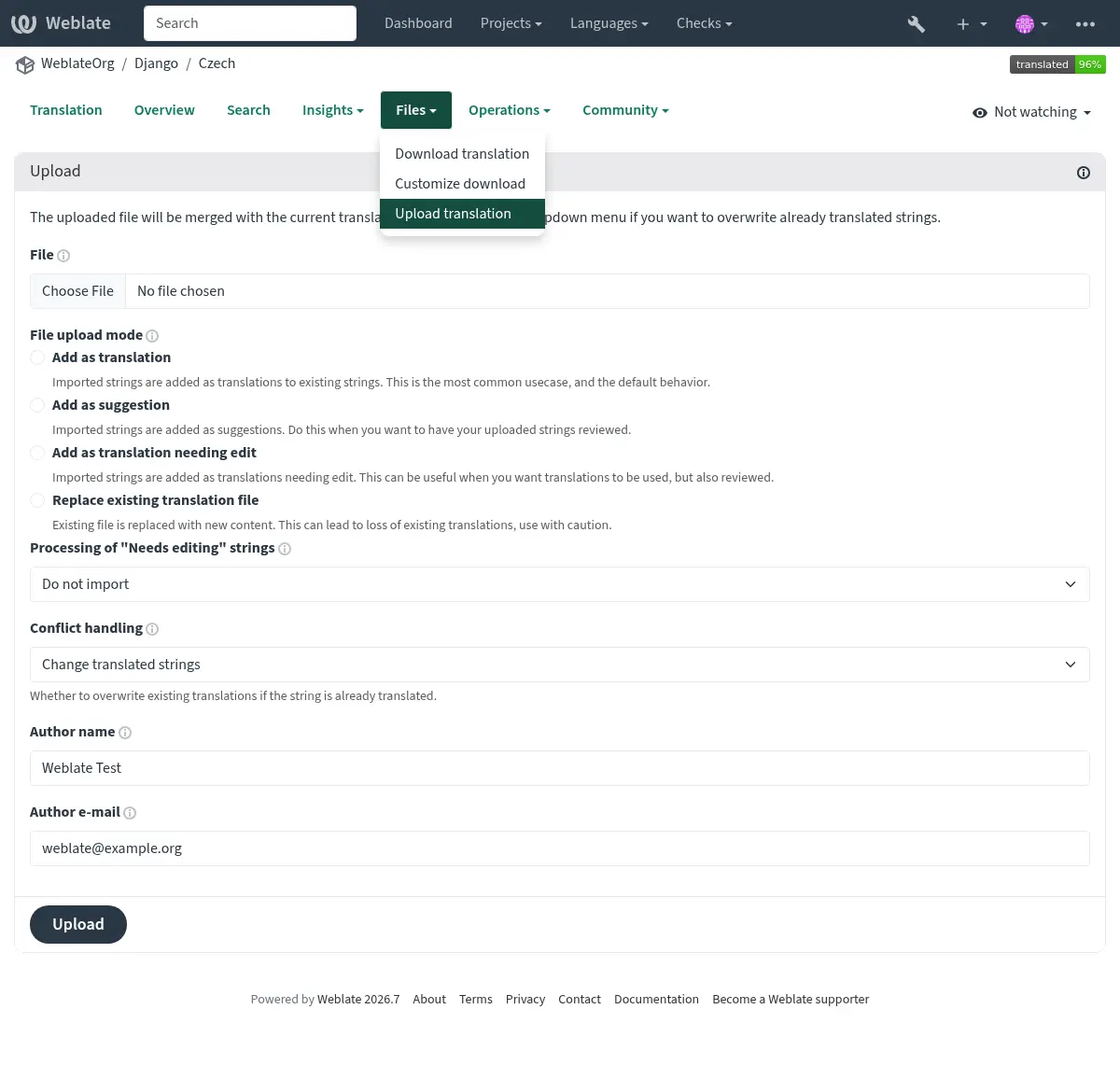
When you have made your changes, use Upload translation in the Files menu.
Podržani datotečni formati
Any file in a supported file format can be uploaded, but it is still recommended to use the same file format as the one used for translation, otherwise some features might not be translated properly.
Više informacija
Language checking
Weblate checks language metadata declared in uploaded files when the format provides it, including PO, XLIFF, Qt Linguist, and ARB files. Uploads declaring a different language are rejected. Known language aliases and variants sharing a base language are accepted, for example Portuguese and Brazilian Portuguese. Files without recognized language metadata can still be uploaded. Weblate does not infer the language from the filename or translated text.
Select Ignore language mismatch to upload a file despite a language mismatch. This does not bypass other upload checks or permissions. When updating source strings, Weblate checks the declared source language instead of the target language.
Načini uvoza
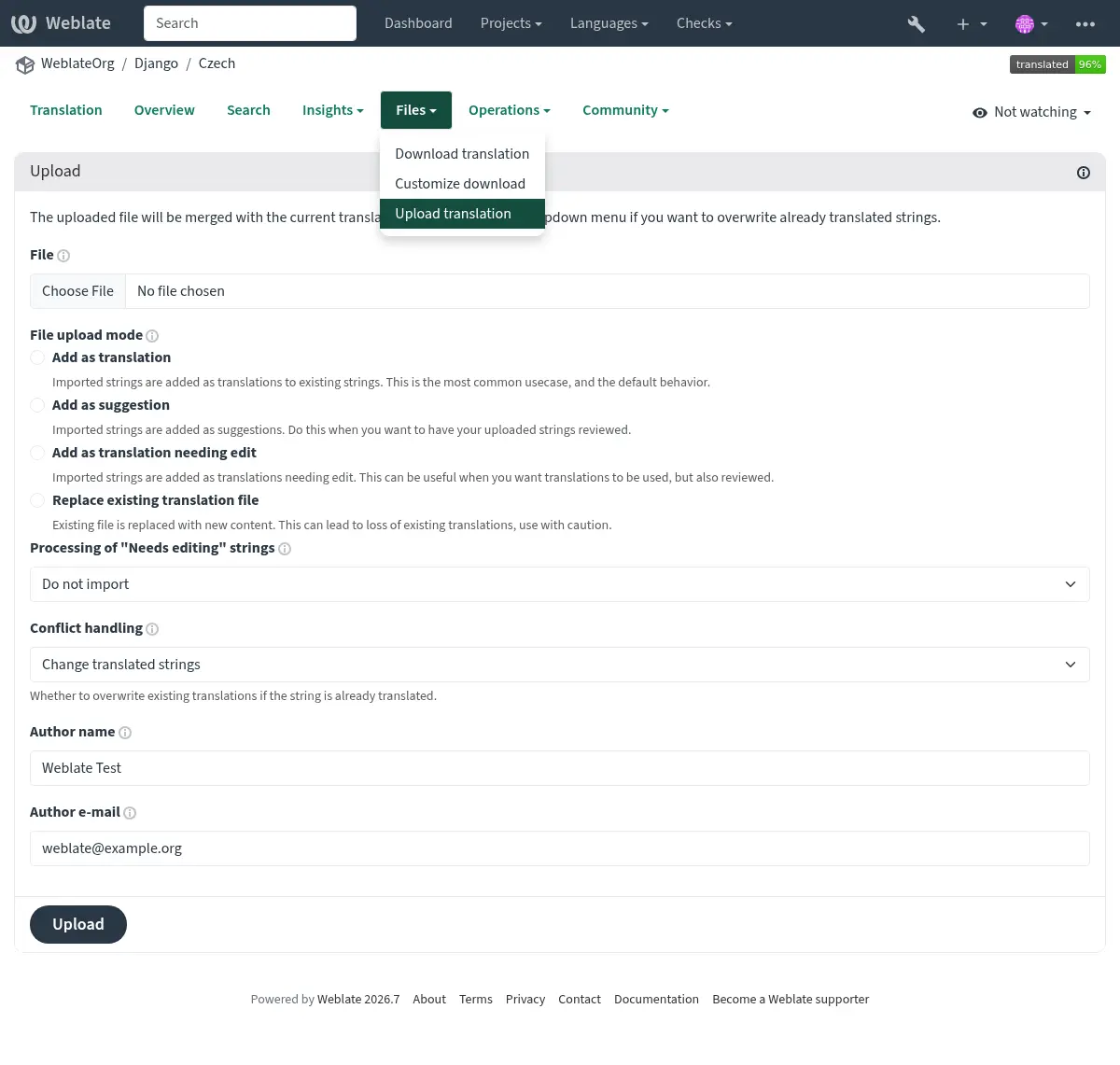
These are the choices presented when uploading translation files:
- Dodaj kao prijevod (
translate) Uvezeni izrazi se dodaju kao prijevodi postojećih izraza. Ovo je najčešći slučaj korištenja i standardno ponašanje.
Only translations are used from the uploaded file and no additional content.
This option is available only if the user has the „Edit strings” permission.
- Dodaj kao prijedlog (
suggest) Uvezeni izrazi se dodaju kao prijedlozi. Koristi ovu opciju kada želiš da se tvoji preneseni izrazi pregledaju.
Only translations are used from the uploaded file and no additional content.
This option is available only if the user has the „Add suggestion” permission.
- Dodaj kao odobreni prijevod (
approve) Uvezeni izrazi se dodaju kao odobreni prijevodi. Koristi ovu opciju kada si već pregledao/la prijevode prije njihovog prenošenja.
Only translations are used from the uploaded file and no additional content.
This option is available only if the user has the „Review strings” permission.
- Dodaj kao prijevod koji se mora urediti (
fuzzy) Uvezeni izrazi se dodaju kao prijevodi koje treba urediti. Ovo može biti korisno kada želiš da se prijevodi koriste, ali i pregledaju.
Only translations are used from the uploaded file and no additional content.
This option is available only if the user has the „Edit strings” permission.
- Zamijeni postojeću prevodilačku datoteku (
replace) Postojeća datoteka je zamijenjena novim sadržajem. To može dovesti do gubitka postojećih prijevoda. Koristi s oprezom.
This option is available only if the user has the „Edit component settings” permission or „Add new string”, „Remove a string” and „Edit strings” permissions.
- Aktualiziraj izvorne izraze (
source) Updates source strings in bilingual translation file. This is similar to what Aktualiziraj PO datoteke za poklapanje s POT datotekom (msgmerge) does.
This option is available only for some file formats and only if the user has the „Upload translations” permission.
- Dodaj nove izraze (
add) Dodaje nove izraze u prijevod. Preskače one koji već postoje.
In case you want to both add new strings and update existing translations, upload the file second time with Add as translation.
Iz prenesene datoteke se koriste samo izvor, prijevod i ključ (kontekst).
This option is available only with Upravljaj izrazima turned on and only if the user has the „Add new string” permission.
Rješavanje konflikata
Definira kako postupati s prenesenim izrazima koji su već prevedeni:
- Promijeni samo neprevedene izraze (
ignore) Zanemari prenesene prijevode koji su već prevedeni.
- Promijeni prevedene izraze (
replace-translated) Zamijeni postojeće prijevode s učitanim prijevodima, ali zadrži odobrene prijevode.
- Promijeni prevedene i odobrene izraze (
replace-approved) Zamijeni postojeće prijevode s učitanim prijevodima, uključujući odobrene prijevode.
Izrazi koji trabaju urediti
There is also an option for how to handle strings needing edit in the imported file. Such strings can be handle in one of the three following ways: „Do not import”, „Import as string needing edit”, or „Import as translated”.