Prevođenje pomoću Weblatea
Thank you for your interest in translating with Weblate! If you are new here, follow Make your first translation for a guided first contribution.
Općenito postoje dva najviše korištena načina prevođenja:
Projekt prihvaća izravne prijevode
Project accepts the suggestions made by users.
Sometimes, anonymous suggestions are accepted as well.
There are more translation workflows detailed in Radni tokovi za prevođenje.
Projects, or the components in them are either visible to everyone, or only to a certain group of translators.
Više informacija
Prevodilački projekti
Translation projects hold related components; resources for the same software, book, or project.
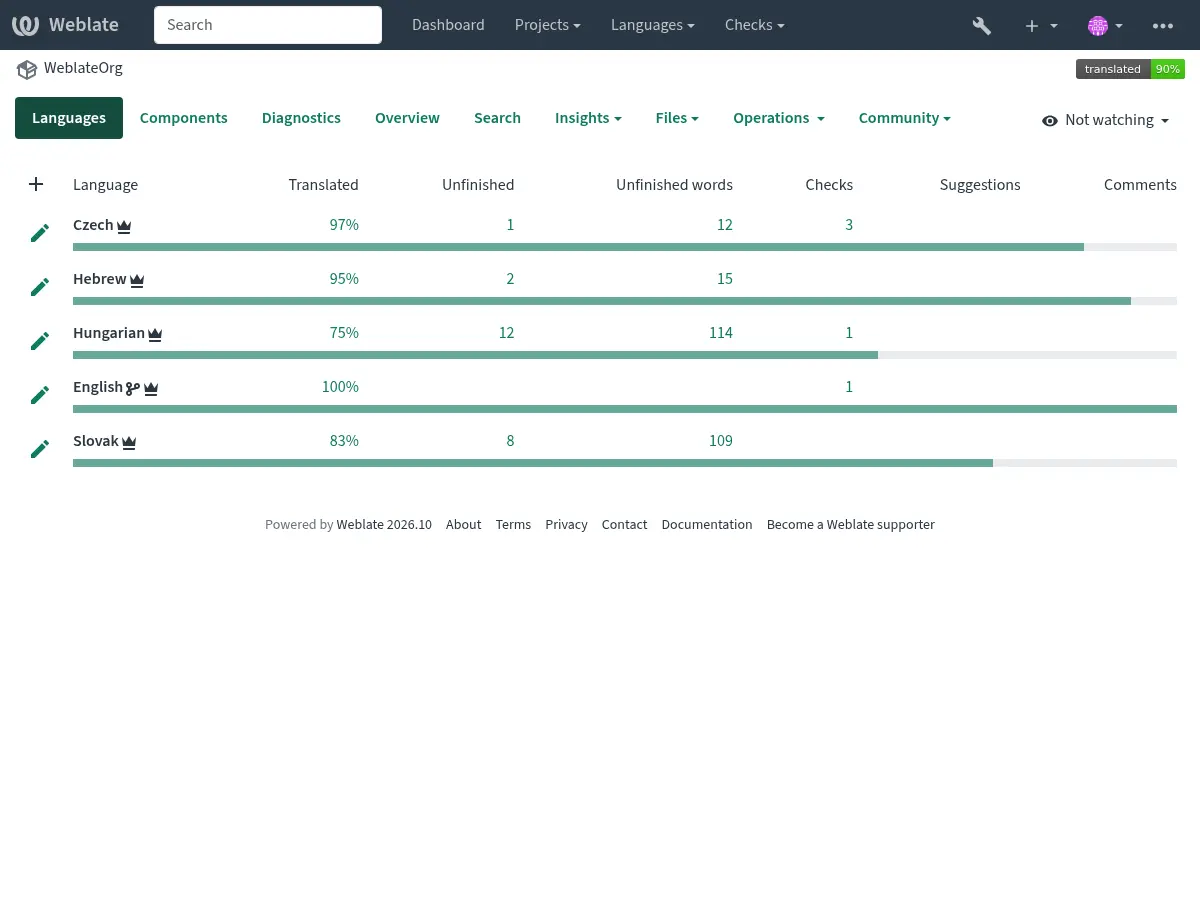
Poveznice prijevoda
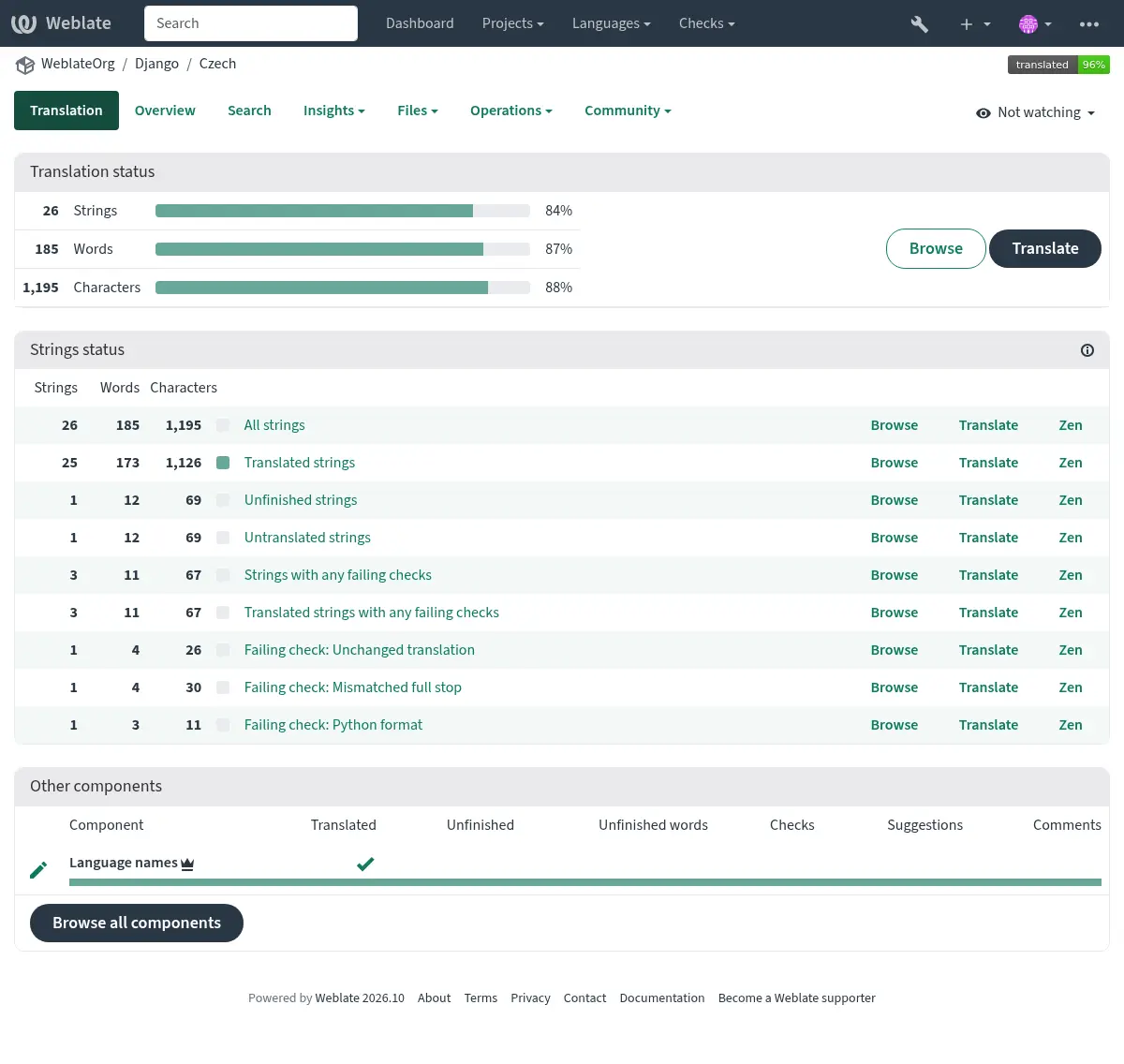
Having navigated to a component, a set of links lead to its actual translation. The translation is further divided into individual checks, like Untranslated strings or Unfinished strings. If the whole project is already translated without any errors, All strings is still available. Alternatively you can use the Search feature to find a specific string or term.
Prijedlozi
Napomena
Actual permissions might vary depending on your Weblate configuration.
Anonymous users (by default) can only forward suggestions. Doing so is still available to signed-in users, in cases where uncertainty about a translation arises, prompting other translators to review it. Any user can clone an existing suggestion into the translation fields, including plural forms, and use it as the basis for a new suggestion or translation.
All suggestions are scanned on a daily basis to remove duplicates and those matching current translations.
If you have the Accept suggestions permission, you can bulk accept all suggestions from a specific user by clicking the account check icon next to their suggestion. This is useful for quickly processing suggestions from trusted contributors. Suggestions failing quality checks are skipped and remain for manual review. Weblate shows the number of matching suggestions for confirmation and processes the acceptance in the background. If you can review the translation, you can accept and approve the suggestions in the same step.
Bulk acceptance selects suggestions from that user only for the current language in the current component. It does not select suggestions in other languages or components, even within the same project. For example, when translating a component into French, bulk acceptance selects only that user’s French suggestions in that component.
Varijante
Variants are used to group different-length variants of a string. The frontend of your project can then utilize different strings depending on the size of a screen or window.
Više informacija
Etikete
Etikete se koriste za kategorizaciju izraza unutar projekta radi daljnje prilagodbe radnog toka lokalizacije (na primjer, za definiranje kategorija izraza).
Weblate koristi sljedeće etikete:
- Automatski prevedeno
Izraz je preveden pomoću Automatsko prevođenje.
- Izvor treba pregledati
Izraz je označen za pregled pomoću Pregledi izvornih izraza.
Više informacija
Prevođenje
On the translation page, the source string and an editing area for its translation are shown. Should the translation be plural, multiple source strings and editing areas are shown, each described and labeled in the amount of plural forms the translated language has.
All special whitespace characters are underlined in red and indicated with grey symbols. More than one subsequent space is also underlined in red to alert the translator to a potential formatting issue.
Various bits of extra info can be shown on this page, most of which coming from the project source code (like context, comments or where the message is being used). Translation fields for any secondary languages translators select in the preferences will be shown (see Sekundarni jezici) above the source string.
Below the translation, translators will find suggestions made by others, to be accepted (✓), accepted with changes (✏️), bulk accepted for a specific user (👤✓), cloned into the translation fields (📑) or deleted (🗑).
Translating special text safely
Some source strings contain text that the application interprets at runtime. Translate the human-readable parts, but keep technical markers intact unless the project instructions say otherwise.
- Placeholders and format strings
Keep variables such as
%s,%1$d,%(name)s,{count},{{ value }}, or similar markers in the translation. Named placeholders describe the inserted value, but the names themselves are not translated. You can usually reorder numbered or named placeholders to fit the target language. Use the placeable copy shortcuts to insert them without typing mistakes.- Markup
Keep HTML and XML tags, tag names, and attribute names unchanged. Translate the visible text between tags and any attribute value that is meant for users, for example alternative text or a tooltip, when it appears as part of the translatable string. Make sure opening and closing tags still match after reordering the sentence.
- Program syntax
Leave function names, commands, environment variables, spreadsheet functions, SQL keywords, and similar program syntax untranslated unless the project explicitly documents a localized form.
- Punctuation and whitespace
Preserve punctuation and spaces that affect the interface, such as trailing colons, ellipses, leading or trailing spaces, and punctuation next to placeholders. Follow the target language’s typography when it differs from the source, and use comments when a source punctuation choice looks wrong.
- Accelerators
Menu labels can mark keyboard accelerators with characters such as
&,_, or~. When the source has an accelerator, keep one in the translation. Choose a readable key in the translated label and avoid obvious conflicts with nearby menu items or buttons.- Plural forms
Translate each plural field Weblate shows. Do not combine forms into a single construction such as
file(s)unless that is correct for the target language and project. If the source string uses an ambiguous plural, report it with a source string comment or review.
Weblate quality checks catch many technical mistakes in placeholders, markup, punctuation, whitespace, and plural forms. They do not replace translator judgment, so use Kontekst prijevoda, Glosar, and Komentari when the source text needs clarification.
Više informacija
Editing source strings and keys
When Upravljaj izrazima is enabled and you have permission to edit source strings, choose Tools → Edit source in the translation editor. You can open this dialog from any language. Changes apply to the source string and its existing translations within the component.
The dialog lets you change the source text, supported key or context, and source explanation. Existing translations, history, comments, labels, and suggestions are retained. Changing source text marks existing translations as needing editing. Changing only the key, context, or explanation preserves their states. Renaming a key may require corresponding changes in your application code.
Changes are written to translation files through the normal pending-change queue and follow the project’s commit policy. Keys used by pending edits remain reserved until those edits are written. Weblate rejects collisions rather than merging strings. Reload the editor if another user has changed the source since you opened the dialog.
Source editing supports PO, TBX, plain XLIFF 1.2, XLIFF 2.0, and Apple XLIFF. Key editing supports JSON (plain, nested, ARB, WebExtension, and i18next), YAML, Ruby YAML, TOML, Go-i18n TOML, Java properties, GWT, PHP, DTD, Android, RESX, and simple Fluent messages. These monolingual formats also support source-text editing. PO contexts and TBX keys are editable; composite XLIFF keys are not.
YAML and TOML keys can be renamed within their existing mapping, but cannot be moved between mappings or renamed inside arrays. Editing source text with unsupported inline markup, changing the number of plural forms or terminology alternatives, and editing components with an intermediate language file are not supported.
Više informacija
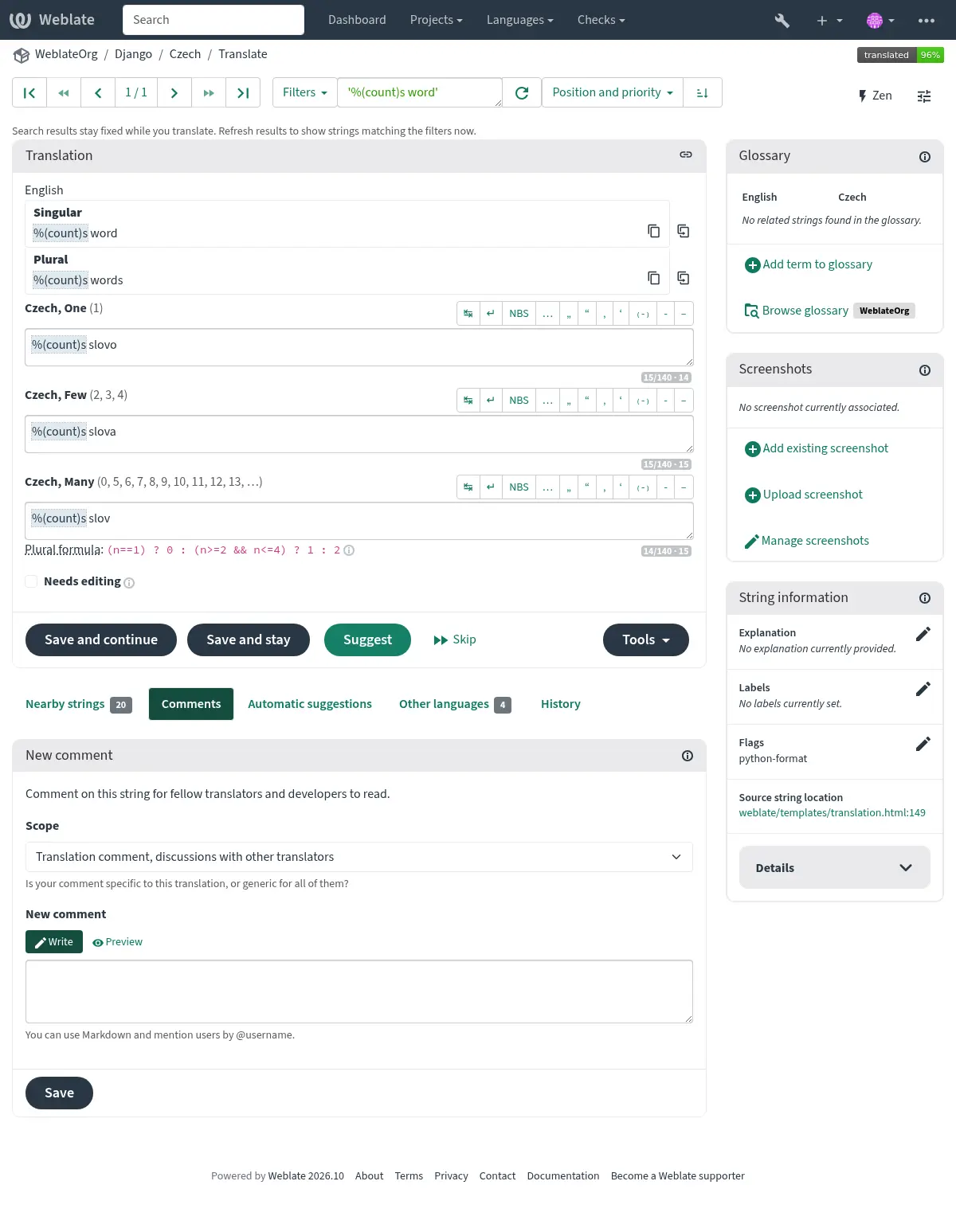
Množine
Words changing form to account for their numeric designation are called plurals. Each language has its own definition of them. English, for example, supports one. In the singular definition of an example „car”, implicitly one car is referenced, in the plural definition of „cars”, two or more cars are referenced (or the concept of cars as a noun). Languages like, for example, Czech or Arabic have more forms of plurals, and their rules for plurals are different as well.
Weblate has full support for each of these forms, in each respective language. Each grammatical number is translated in a separate field for a pre-defined set of cardinal numbers specific to the translation language. The number of fields and how they are in turn used in the translated application or project, depends on the configured plural formula. Weblate shows the basic information and the Language Plural Rules by the Unicode Consortium is a more detailed description.
Više informacija
Alternativni prijevodi
Added in version 4.13.
Napomena
Ovo se trenutačno podržava samo s CSV datoteka s više vrijednosti.
With some formats, it is possible to have more translations for a single string. You can add more alternative translations using the Tools menu. Any blank alternative translations will be automatically removed upon saving.
Tipkovni prečaci
Tijekom prevođenja se mogu koristiti sljedeći tipkovni prečaci:
Tipkovni prečac |
Opis |
|---|---|
? |
Otvori dostupne tipkovne pračace. |
Alt+Home |
Idi na prvi prijevod u trenutačoj pretrazi. |
Alt+End |
Idi na zadnji prijevod u trenutačoj pretrazi. |
Alt+PageUp ili Ctrl+↑ ili Alt+↑ ili Cmd+↑ |
Navigiraj na prethodni prijevod u trenutačnoj pretrazi. |
Alt+PageDown ili Ctrl+↓ ili Alt+↓ ili Cmd+↓ |
Navigiraj na sljedeći prijevod u trenutačnoj pretrazi. |
Ctrl+Enter ili Cmd+Enter |
Pošalji trenutačni obrazac; to je isto kao i pritiskanje Spremi i nastavi tijekom uređivanja prijevoda. |
Ctrl+Shift+Enter ili Cmd+Shift+Enter |
Odznači prijevod da se „Treba urediti” i pošalji ga. |
Ctrl+Alt+Enter or Cmd+Alt+Enter |
Approve the translation and save and continue. Only available to reviewers. |
Alt+Enter ili Option+Enter |
Pošalji izraz kao prijedlog; to funkcionira isto kao i pritiskanje Predloži tijekom uređivanja prijevoda. |
Ctrl+E ili Cmd+E |
Postavi fokus na uređivač prijevoda. |
Ctrl+U ili Cmd+U |
Postavi fokus na uređivač komentara. |
Ctrl+M ili Cmd+M |
Prikazuje karticu Automatski prijedlozi, pogledaj Automatski prijedlozi. |
Ctrl+1 do Ctrl+9 ili Cmd+1 do Cmd+9 |
Kopira rezervirano mjesto zadanog broja iz izvornog izraza. |
Ctrl+M nakon čega slijedi 1 do 9 ili Cmd+M nakon čega slijedi 1 do 9 |
Kopiraj strojni prijevod zadanog broja u trenutačni prijevod. |
Ctrl+I nakon čega slijedi 1 do 9 ili Cmd+I nakon čega slijedi 1 do 9 |
Zanemari jednu stavku u popisu neuspjelih provjera. |
Ctrl+J ili Cmd+J |
Prikazuje karticu Obližnji izrazi. |
Ctrl+S ili Cmd+S |
Fokusiraj polje pretrage. |
Ctrl+O ili Cmd+O |
Kopiraj izvorni izraz. |
Ctrl+Y ili Cmd+Y |
Aktiviraj/Deaktiviraj polje Needs editing. |
→ |
Idi na sljedeći prevodilački izraz. |
← |
Idi na prethodni prevodilački izraz. |
Vizualna tipkovnica
Mali redak vizualne tipkovnice prikazuje se neposredno iznad polja za prijevod. Njegovi redovi su specifični za svaki jezik; može biti koristan za lokalne znakove interpunkcije ili znakove koji se teško ručno upisuju.
Prikazani simboli se dijele u tri kategorije:
Korisnički konfigurirani Posebni znakovi definirani u Korisnički profil
Znakovi po jeziku koje pruža Weblate (npr. navodnici ili specifični znakovi za pisanje s desna na lijevo)
Znakovi koji su konfigurirani pomoću
SPECIAL_CHARS
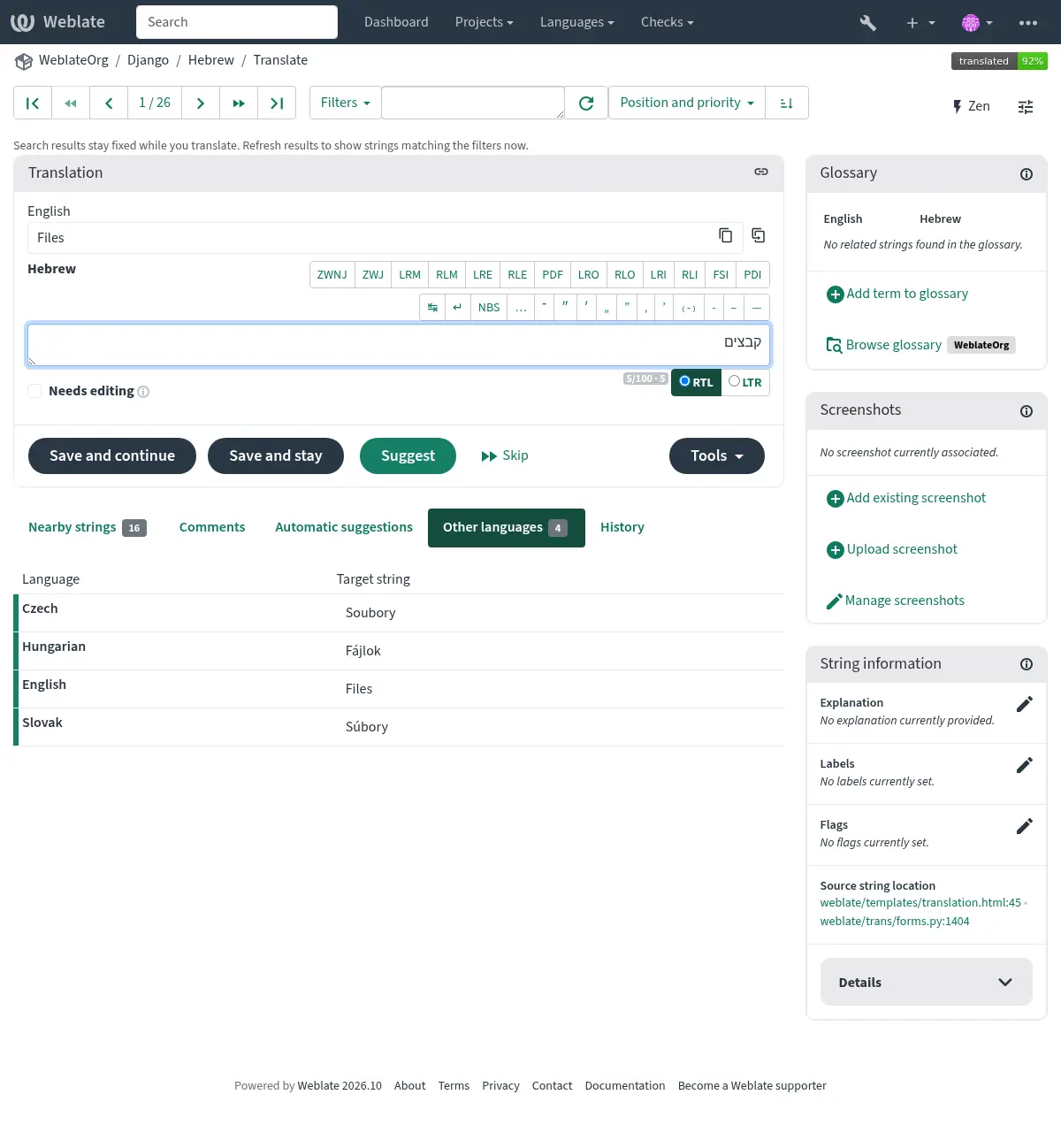
Kontekst prijevoda
Ovaj kontekstualni opis pruža povezane informacije o trenutačnom izrazu.
- Atributi izraza
Stvari poput ID-a poruke, konteksta (
msgctxt) ili mjesta u izvornom kodu.- Objašnjenje
Further clarification can be provided in Weblate via Objašnjenje.
- Snimke ekrana
Screenshots can be uploaded directly from this panel using Upload screenshot, or linked using Add existing screenshot to show where and how the string is used. Source-language screenshots are shown for every translation of the string, while translation-specific screenshots are shown only for that translation; see Screenshots and visual context.
- Obližnji izrazi
Prikazuje obližnje izraze iz prevodilačke datoteke. Obično se također koriste u sličnom kontekstu i korisni su za održavanje dosljednosti prijevoda.
- Ostala pojavljivanja
U slučaju da se poruka pojavljuje na više mjesta (npr. više komponenti), ova kartica prikazuje sve, ako se utvrdi da su nekonzistentne (pogledaj Nedosljednost). Možeš odabrati koju želiš koristiti.
- Prevodilačka memorija
Pogledaj slične u prošlosti prevedene izraze, pogledaj Prevodilačka memorija.
- Glosar
Prikazuje pojmove iz glosara projekta korištene u trenutačnoj poruci.
- Povijest
Popis ljudi koji su nedavno promijenili ovu poruku koristeći Weblate.
- Projekt
Project info like instructions for translators, or a directory or link to the string in the version control system repository the project uses.
If you want direct links, the translation format has to support it.
Adding an existing screenshot
To link a screenshot that has already been uploaded, open the string in the translation editor:
In the Screenshots panel, choose Add existing screenshot.
Browse the thumbnails, or enter a query in Search screenshots and choose Search. Use Previous and Next to browse additional results.
Select a screenshot by clicking its card. The card is highlighted and marked Selected. To select with a keyboard, press Tab to reach the cards, use the arrow keys to move between them, and press Space to select a card.
Choose Add screenshot. The editor reloads on the same string and displays the associated screenshot in the Screenshots panel.
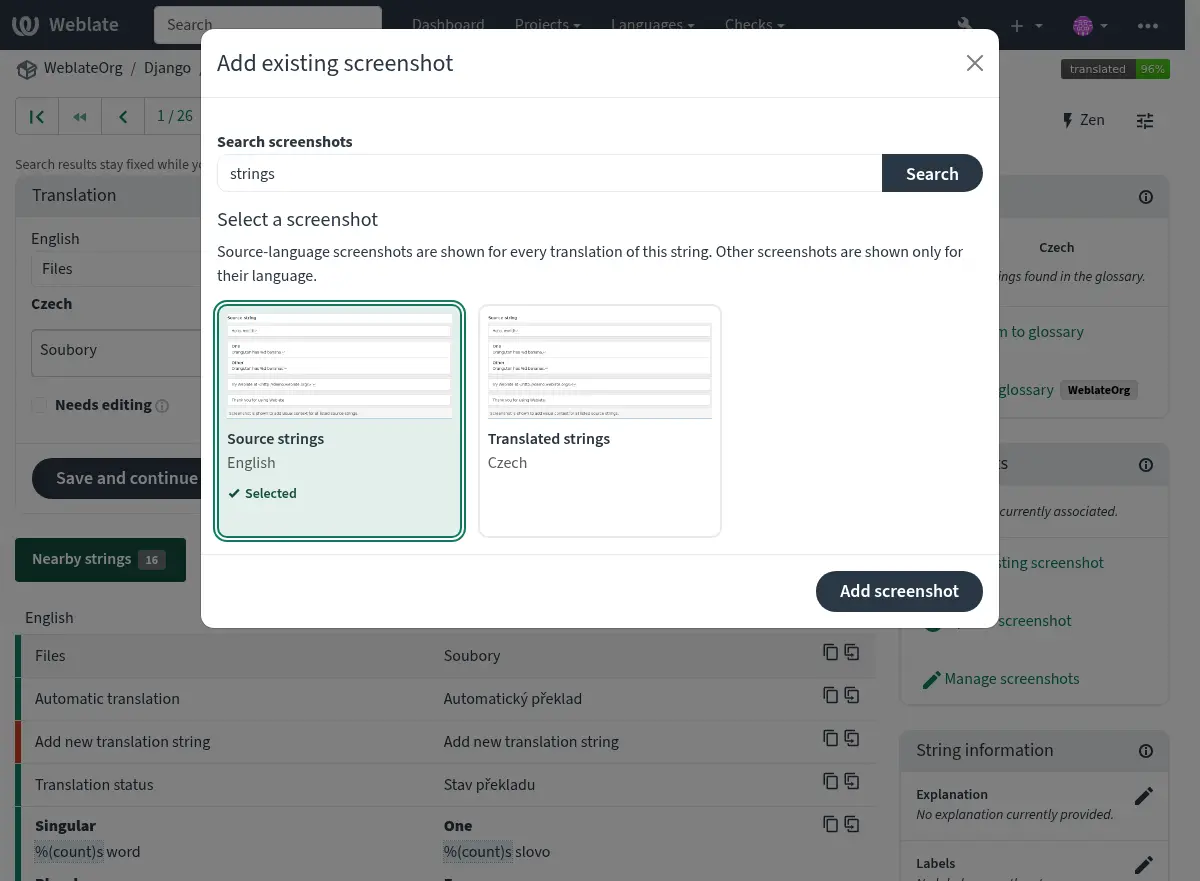
The picker shows screenshots from the current component in the source language or the current translation language. A source-language screenshot is linked to the source string and shown for every translation. A translation-language screenshot is shown only for that language. Screenshots already linked to the string are excluded from the picker.
This action requires the Edit screenshot permission. To upload a new image, use Upload screenshot instead. Use Manage screenshots for the full screenshot management interface.
Povijest prijevoda
Every change is by default (unless turned-off in component settings) saved in the database, and can be reverted. Optionally, translations can also be reverted in the underlying version control system.
In the changes browser, use Older and Newer to browse history, or Latest to return to the newest matching changes. Jump to date starts with the latest changes on or before the selected date. You can then browse in either direction, keeping your search filters. Use Date range to restrict results to a particular period.
CSV downloads and RSS feeds use the search filters, not your browsing position or jump date. CSV downloads contain up to 2,000 matching changes, and RSS feeds contain the latest 10. Old numbered page links open the latest matching changes.
Duljina prevedenog izraza
Weblate može ograničiti duljinu prijevoda na nekoliko načina kako bi se osiguralo da prevedeni izraz nije predug:
Zadano ograničenje za prijevod je deset puta dulje od izvornog izraza. To se može promijeniti pomoću
LIMIT_TRANSLATION_LENGTH_BY_SOURCE_LENGTH. Ako naiđeš na ovaj problem, uzrok može biti i jednojezični prijevod koji je pogrešno postavljen kao dvojezični, zbog čega Weblate brka ključ prijevoda sa stvarnim izvornim izrazom. Pogledaj Dvojezični i jednojezični formati za više informacija.Maksimalni broj znakova definiran u prevodilačkoj datoteci ili oznaci, prema Maksimalna dužina prijevoda.
Maksimalna prikazana veličina u pikselima definirana u oznakama; pogledaj Maksimalna dužina prijevoda.
Automatski prijedlozi
Na temelju konfiguracije i tvog prevedenog jezika, Weblate nudi prijedloge od nekoliko alata za strojno prevođenje i Prevodilačka memorija. Svi strojni prijevodi su dostupni u jednoj kartici svake stranice prijevoda.
Također možeš izvršiti pretragu podudarnosti u Prevodilačka memorija.
Više informacija
Popis podržanih alata možeš pronaći u Automatski prijedlozi.
Automatsko prevođenje
You can use automatic translation to bootstrap translation based on external sources. This tool is called Automatic translation accessible in the Operations menu, once you have selected a component and a language:
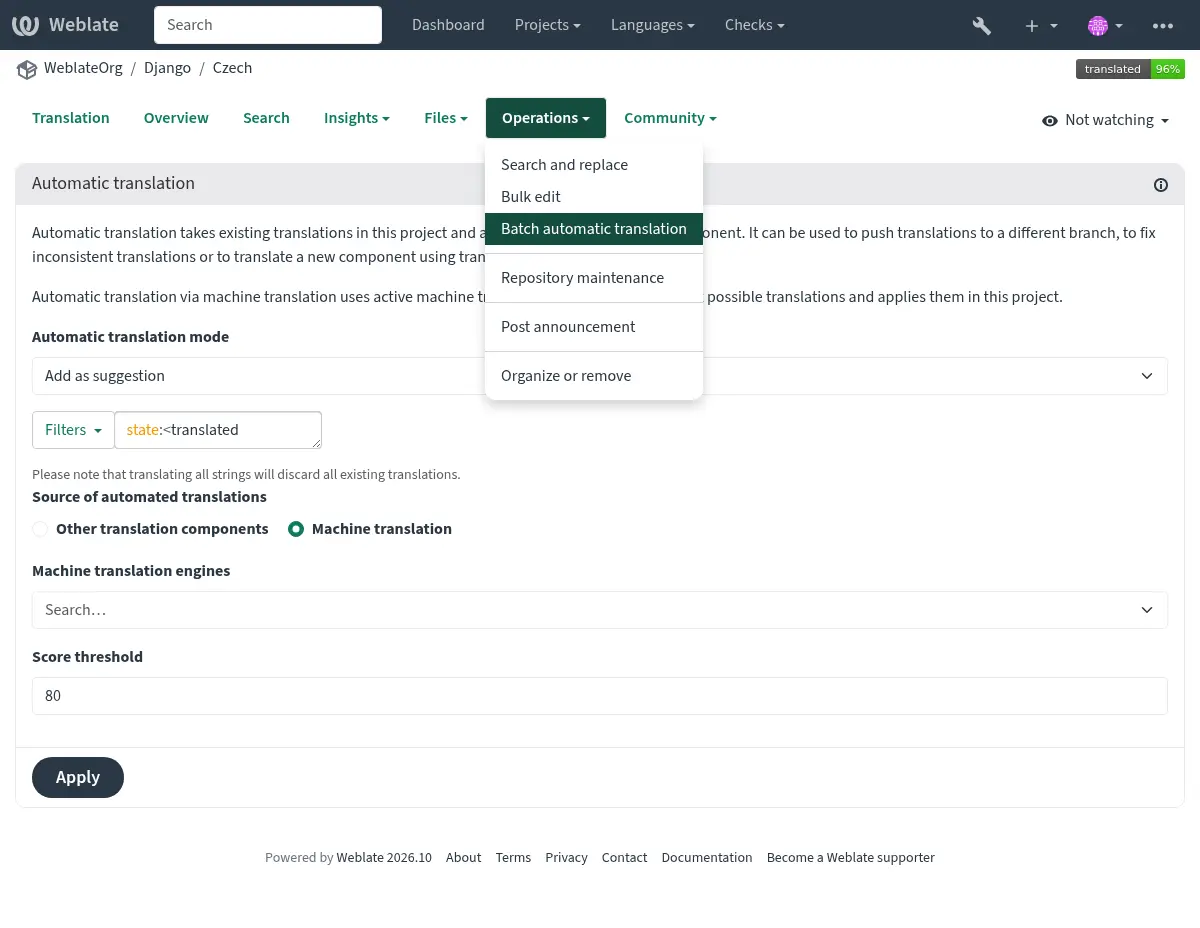
A similar operation Batch automatic translation is available if you have selected a project language, a component or a category.
Moguća su dva načina rada:
Korištenje drugih Weblate komponenti kao izvore za prijevode.
Korištenje odabranih usluga strojnog prevođenja s prijevodima iznad određenog praga kvalitete.
When using other components as the source, Weblate first looks for an exact match of both source text and context, including empty context. If none exists, it uses a translation matching only the source text. Context matches take precedence over source component order; component order breaks ties between equally matching candidates.
Weblate applies translations only when plural forms are compatible. If the source component uses different plural rules, pluralized strings are skipped and Weblate shows a warning, while single-form strings are still translated.
Također možeš odabrati koji će se izrazi automatski prevoditi.
Upozorenje
Be mindful that this will overwrite existing translations if employed with wide filters such as All strings.
Useful in several situations like consolidating translation between different components (for example the application and its website) or when bootstrapping a translation for a new component using existing translations (translation memory).
Automatski prevedeni izrazi su označeni s oznakom Automatski prevedeno.
Više informacija
Rate limiting
To avoid abuse of the interface, rate limiting is applied to several operations like searching, sending contact forms, or translating. If affected by it, you are blocked for a certain period, until you can perform the operation again.
Default limits and fine-tuning are described in the administrative manual, see Rate limiting.
Traži i zamijeni
Change terminology effectively or perform bulk fixing of the strings using Search and replace in the Operations menu.

Savjet
Don’t worry about messing up the strings, as it is a two-step process. A preview of edited strings is shown before confirming the change. You can adjust the search parameters from the preview and update it before applying the replacement.
Skupno uređivanje
Bulk editing allows performing one operation for multiple strings. Define strings by searching for them and actions to perform on matching ones. Supported operations:
Promijeni stanje izraza (npr. za odobravanje svih nepregledanih izraza).
Adjust source-wide or language-specific translation flags (see Customizing behavior using flags)
Prilagodi oznake izraza (pogledaj String labels)
Source flag and label operations affect all languages of matching strings.
Translation flag operations affect only matching translations and skip source
strings. Removing translation flags removes local values; inherited flags
remain in effect. To mark matching translations read-only, add read-only
under Translation flags to add — matching translations.
Savjet
This tool is called Bulk edit, accessible in the Operations menu of each project, component or translation.

Više informacija
Prikaz tablice
You can compare different languages efficiently using this view. It is available on every component page, from the Operations menu. First select all languages you want to compare, confirm your selection, then click on any translation to open and edit it.
The matrix view is also a very good starting point to find missing translations in different languages, and quickly add them from one view.

Zen modus
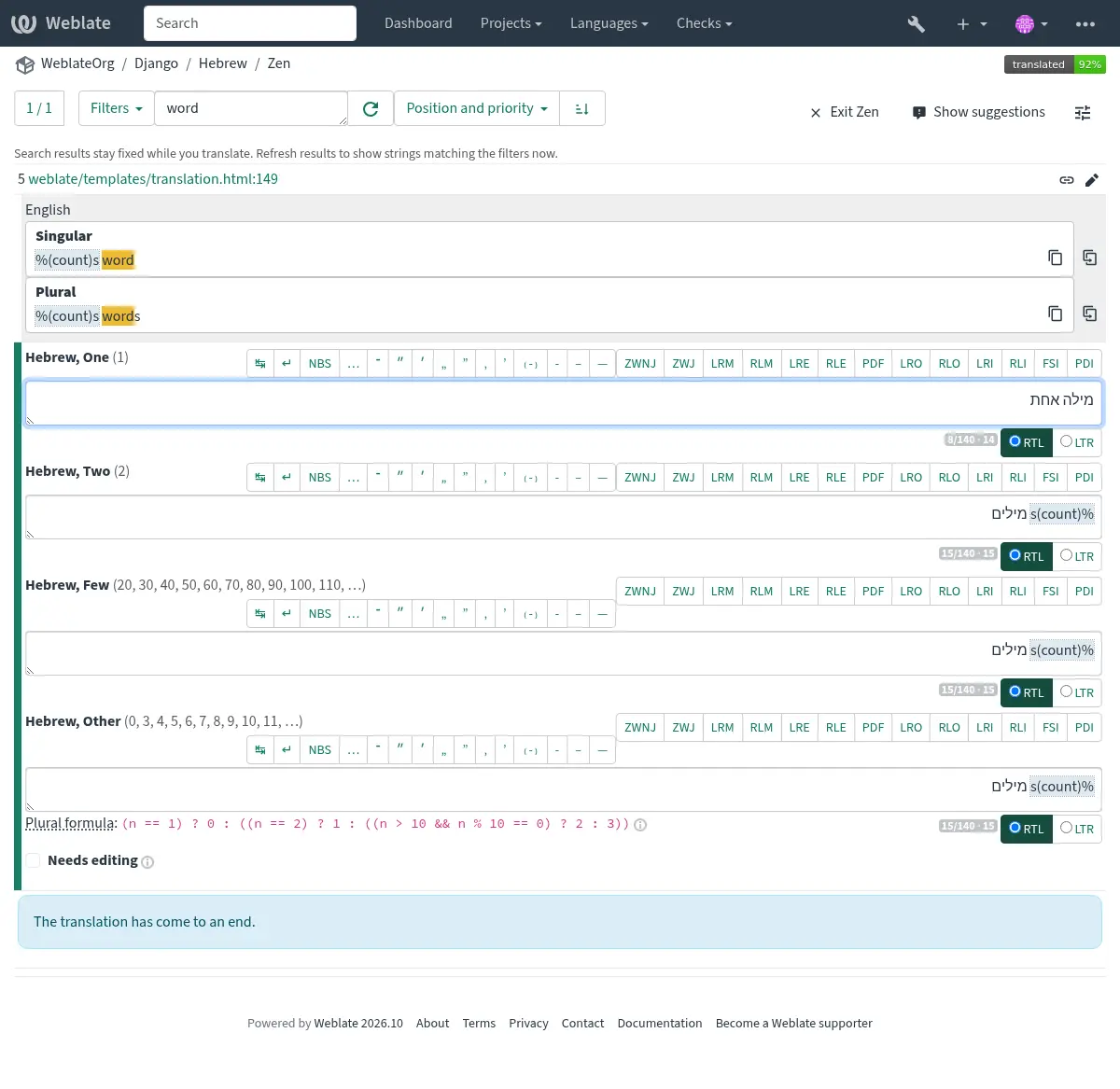
This mode simplifies the layout and removes additional UI elements such as Nearby strings or the Glossary. It is available by clicking the Zen button on the top-right of the regular editor (translation of a string).
You can select the Zen editor as your default editor using the Postavke tab on your Korisnički profil. You can also choose there between having translations listed Top to bottom or Side by side, depending on your personal preference.
Komentari
Mogu se objaviti tri vrste komentara:
za prijevode
za izvorne izraze
za prijavljivanje grešaka u izvornim izrazima kada je ova funkcionalnost uključena pomoću Aktiviraj preglede izvora.
Choose the suitable type for the topic you want to discuss. Source string comments are in any event good for providing feedback on the original string, for example that it should be rephrased, or to ask questions about it.
Markdown syntax can be used in all comments, as well as mentioning other users by using
@username. Use the Preview tab above the comment field to see how the Markdown and mentions will render before posting. Mention a maintainer or another translator when you need them to see a follow-up question; they can reply in the same Comments tab.To find comments again, open your Korisnički profil; the comment count links to your comment activity. To find strings with comments by a specific user, use Pretraživanje. For example,
comment_author:USERNAMEfinds strings with comments by that user, andsource_comment_author:USERNAMEfinds strings with source string comments by that user. When you are signed in, the search filter menu also includes shortcuts for comments by you and source comments by you.Više informacija
Receiving source string feedback
Pregledi izvornih izraza
Aktiviraj preglede izvora