Registracija i korisnički profil
Registracija
Everybody can browse projects, view translations or suggest translations by default. Only registered users are allowed to actually save changes, and are credited for every translation made.
You can register by following a few simple steps:
Fill out the registration form with your credentials.
Activate registration by following the link in the e-mail you receive.
Optionally adjust your profile to choose which languages you know.
Pregledna ploča
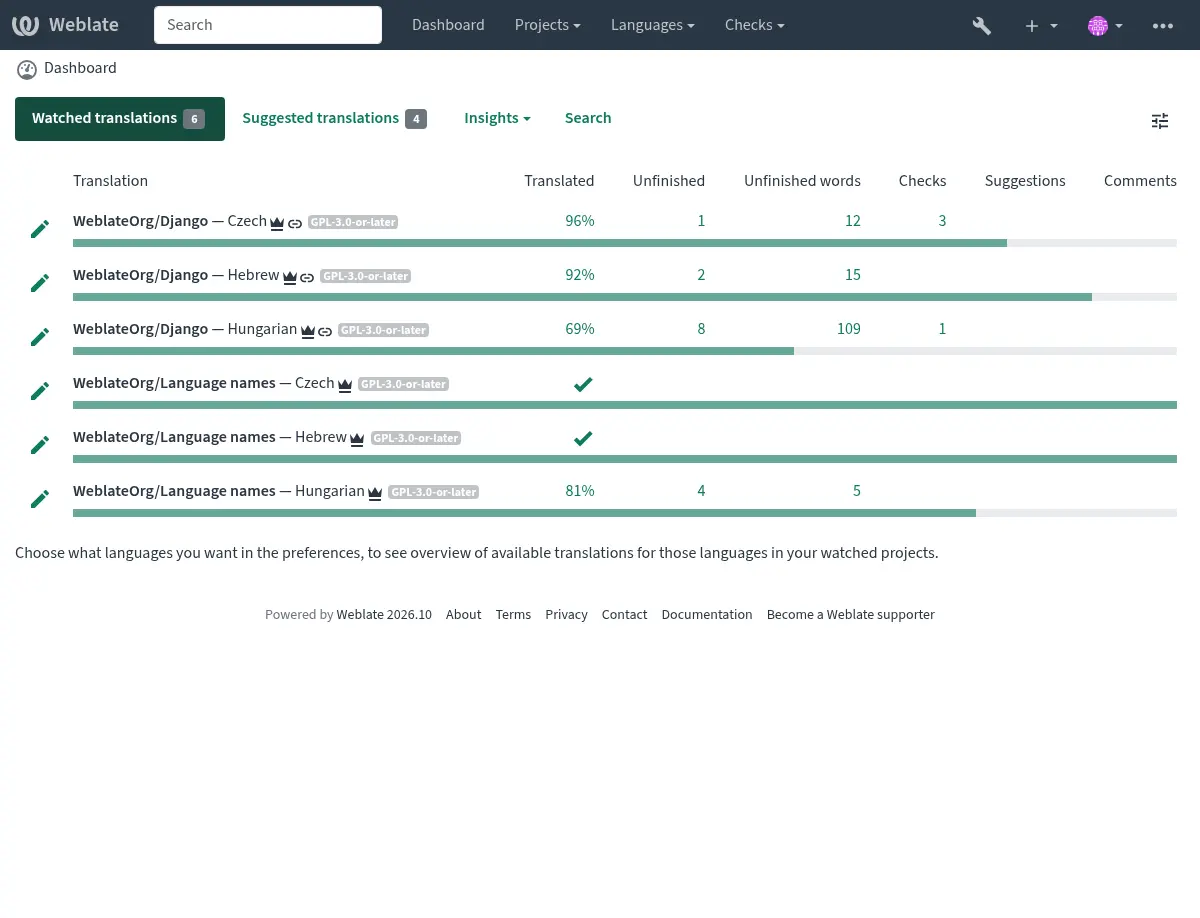
When you sign in, you will see an overview of projects and components, as well as their respective translation progression.
Components of projects you are watching are shown by default, and cross-referenced with your preferred languages.
Savjet
You can switch to different views using the navigation tabs.
The menu has these options:
Projects > Browse all projects in the main menu showing translation status for each project on the Weblate instance.
Selecting a language in the main menu Languages will show translation status of all projects, filtered by one of your primary languages.
Watched translations in the Dashboard will show translation status of only those projects you are watching, filtered by your primary languages.
In addition, the drop-down can also show any number of component lists, sets of project components preconfigured by the Weblate administrator, see Component Lists.
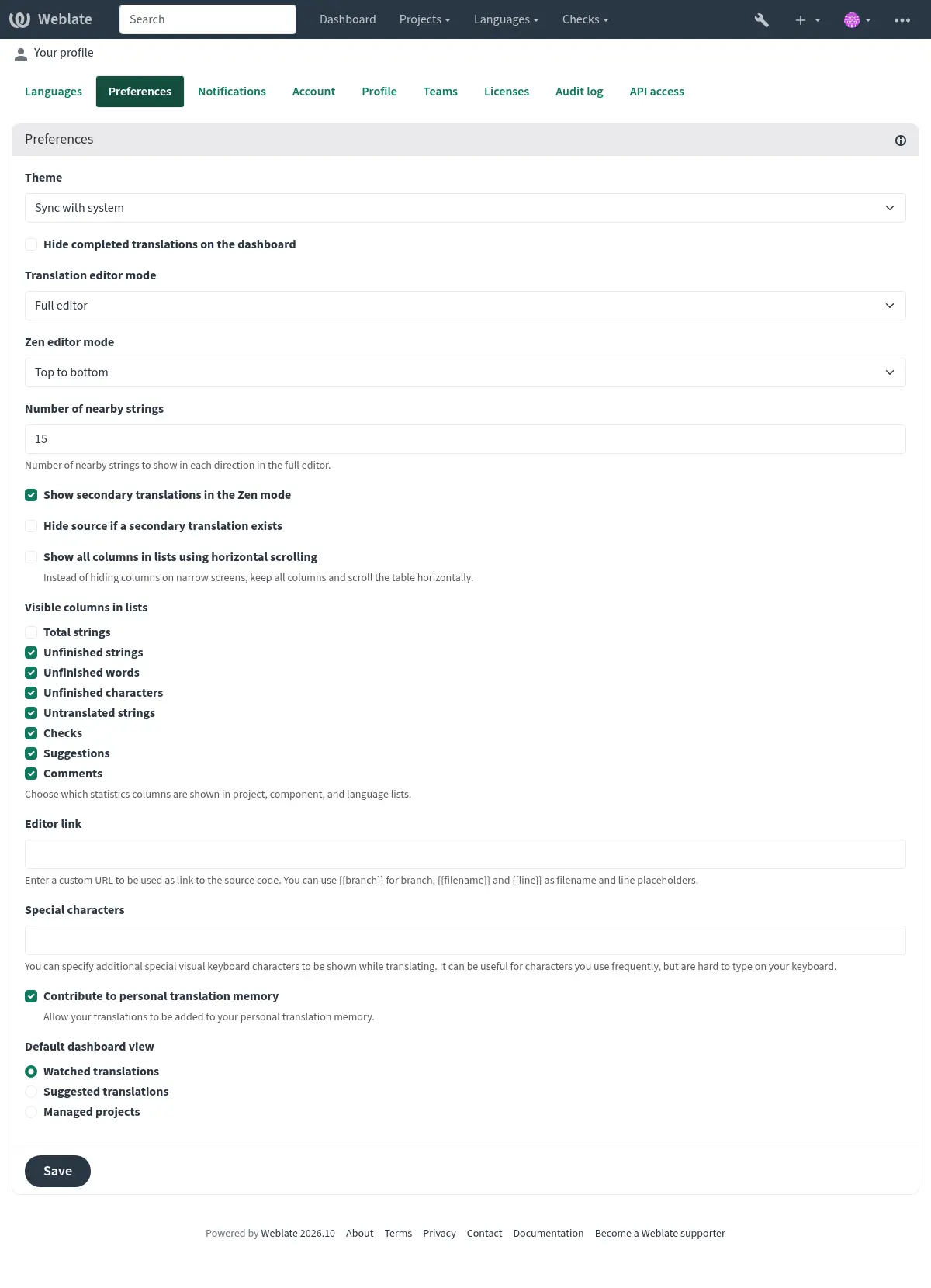
You can configure your personal default dashboard view in the Preferences section of your user profile settings.
Napomena
When Weblate is configured for a single project using
SINGLE_PROJECT in the settings.py file (see Konfiguracija), the dashboard
will not be shown, as the user will be redirected to a single project or component instead.
Korisnički profil
The user profile is accessible by clicking your user icon in the top-right of the top menu, then the Settings menu.
The settings tabs separate account and commit identity, public profile information, preferences, security, and developer access. Name and e-mail address are used in VCS commits, so keep this info accurate.
Napomena
All language selections only offer currently translated languages.
Savjet
Request or add other languages you want to translate by clicking the button to make them available too.
Jezici
Jezik sučelja
Odaberi jezik za prikaz korisničkog sučelja.
Prevedeni jezici
Choose which languages you prefer to translate, and they will be offered on the main page of watched projects, so that you have easier access to all these translations in each of those languages.
Sekundarni jezici
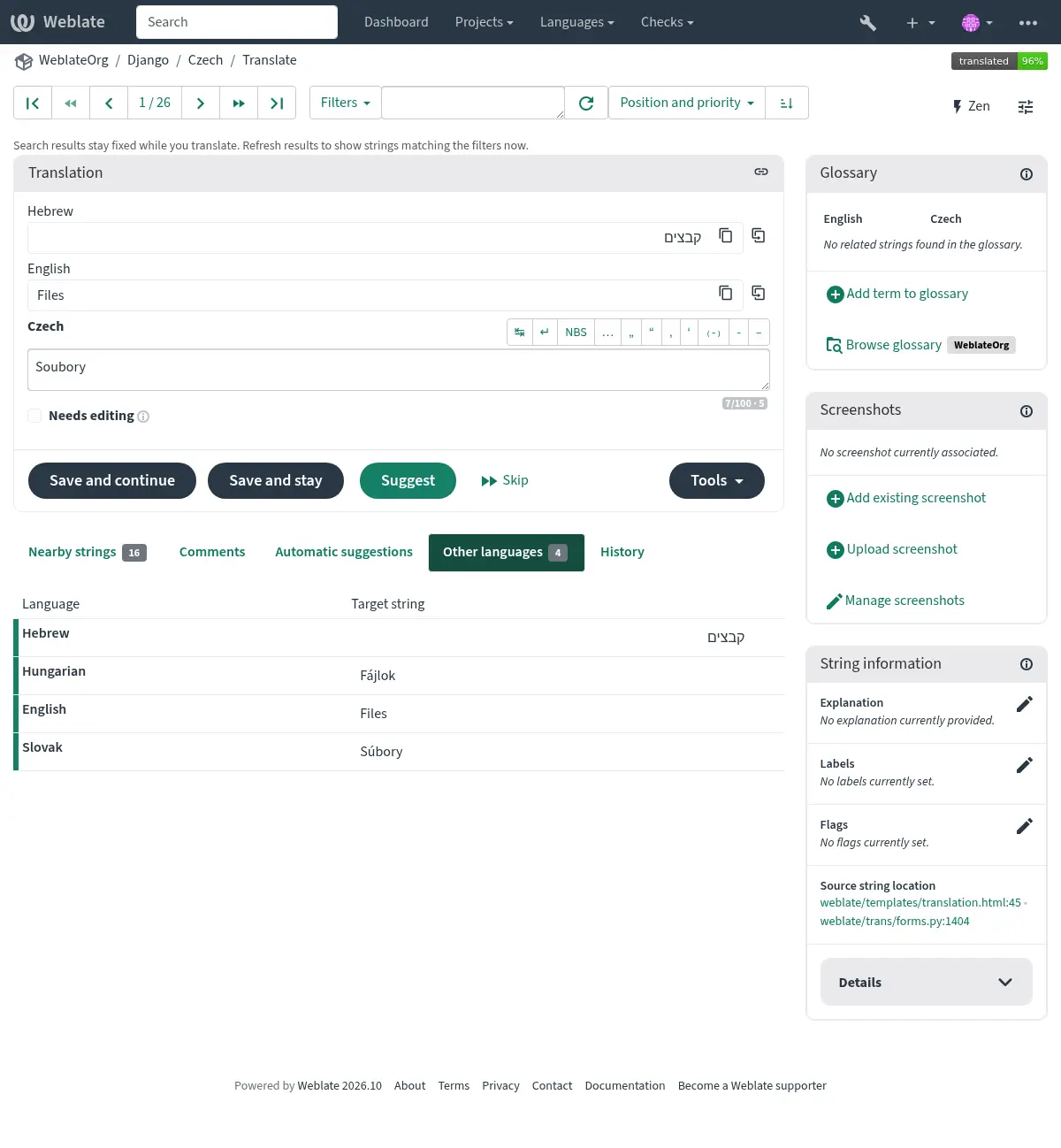
Možeš odrediti koji će se sekundarni jezici prikazati kao pomoć tijekom prevođenja. Primjer se može vidjeti na sljedećoj slici, gdje je hebrejski jezik prikazan kao sekundarni:
Savjet
This can be also configured in the project (Sekundarni jezik) or component (Sekundarni jezik). In that case it can be used for Konsolidacija izraza pomoću sekundarnog jezika.
Postavke
Tema
Odaberi treba li Weblate slijediti postavke sustava za tamnu ili svijetlu temu ili odaberi jednu od njih ručno.
Table columns
By default, Weblate hides some columns in listings (languages, components, projects, …) when the browser window is too narrow to fit them. Enable Show all columns in lists using horizontal scrolling to keep all columns instead and scroll the table horizontally when needed.
Use Visible columns in lists to choose which statistics columns are shown in the listings. This way you can hide numbers you are not interested in, or make room for additional ones such as Total strings.
Standardni prikaz pregledne ploče
On the Preferences tab, you can pick which of the available dashboard views to present by default. If you pick the Component list, you have to select which component list will be displayed from the Default component list drop-down.
Više informacija
Poveznica uređivača
A source code link is shown in the web-browser configured in the Konfiguracija komponente by default.
Savjet
By setting the Editor link, you use your local editor to open the VCS source code file of translated strings. You can use Označavanje u predlošcima.
Usually something like editor://open/?file={{filename}}&line={{line}} is a good option.
Više informacija
You can find more info on registering custom URL protocols for the editor in the Nette documentation.
Posebni znakovi
Additional special characters to include in the Vizualna tipkovnica.
Obavijesti
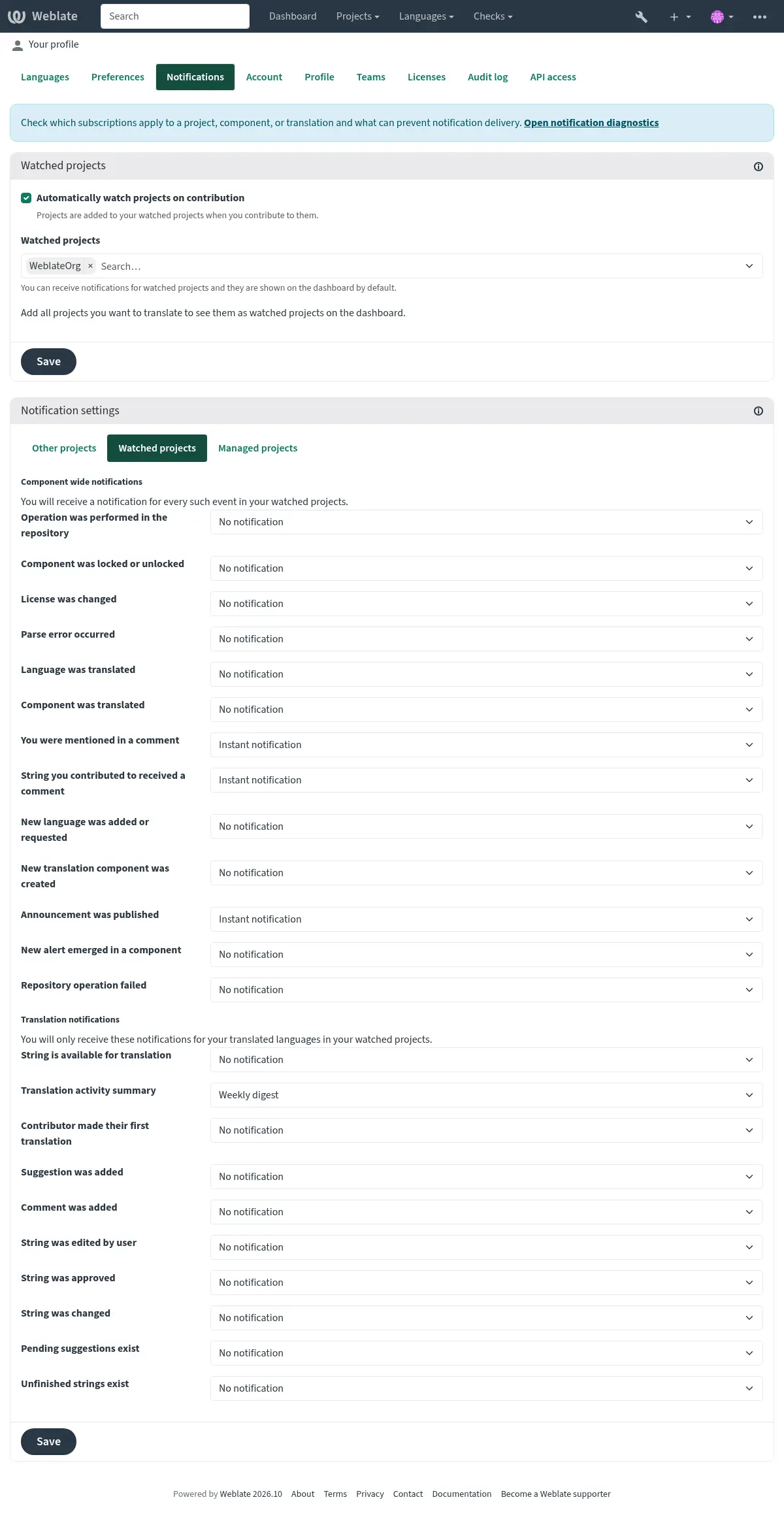
Subscribe to various notifications from the Notifications tab. Notifications for selected events on watched or administered projects will be sent to you per e-mail.
Some of the notifications are sent only for events in your languages (for example about new strings to translate), while some trigger at component level (for example merge errors). These two groups of notifications are visually separated in the settings.
The Translation activity summary notification is digest-only and summarizes added, updated, translated, approved, needs editing, and unfinished strings.
Each periodic notification e-mail contains entries from all matching projects. Listings of individual changes contain up to 100 entries and indicate when additional entries were omitted, while grouped summaries are not limited.
You can toggle notifications for watched projects and administered projects and it can be further tweaked (or muted) per project and component. Visit the component overview page and select appropriate choice from the Watching menu.
In case Automatically watch projects on contribution is enabled you
will automatically start watching projects upon contributing to them. The
default value depends on DEFAULT_AUTO_WATCH.
Napomena
You will not receive notifications for your own actions.
Savjet
Sending out notifications is limited, you will not receive more than 1000 e-mails per day. Any further notifications for you will be discarded.
Open Notification diagnostics from your notification settings to
inspect your own subscriptions. Administrators with management access and
permission to edit users can open the same page for another user from that
user’s Edit tab. The Overview tab includes watched
projects, notification languages, and subscriptions grouped by scope and target.
In the Diagnostics tab, enter an object path such as
project/category/component/cs. Project and category paths summarize inherited
project settings and exceptions across all accessible
components. Equivalent component settings are grouped together, with counts and
up to five example links to inspect individual components. Component paths show
effective settings and language restrictions; translation paths check the selected
language specifically. Broad summaries do not enumerate individual translations.
Summaries are limited to 200 accessible components and 10 original projects
(including the selected project). For larger scopes, choose a smaller category,
a component, or a translation; partial summaries are not shown.
Lists of more than five watched projects or notification languages show counts
instead of individual links.
Only events with a matching subscription are shown, including disabled subscriptions and subscriptions blocked by language or account conditions. Event conditions and overridden subscriptions are shown directly. Subscription links highlight the matching row in the Overview tab. Component example links open diagnostics for that component. Shared components use subscriptions from their original project.
The diagnostics check eligibility without sending e-mail. Notifications that depend on event details, such as mentions or alerts, are marked as conditional. Actual delivery also depends on the event author, digest content, and rate limits.
Račun
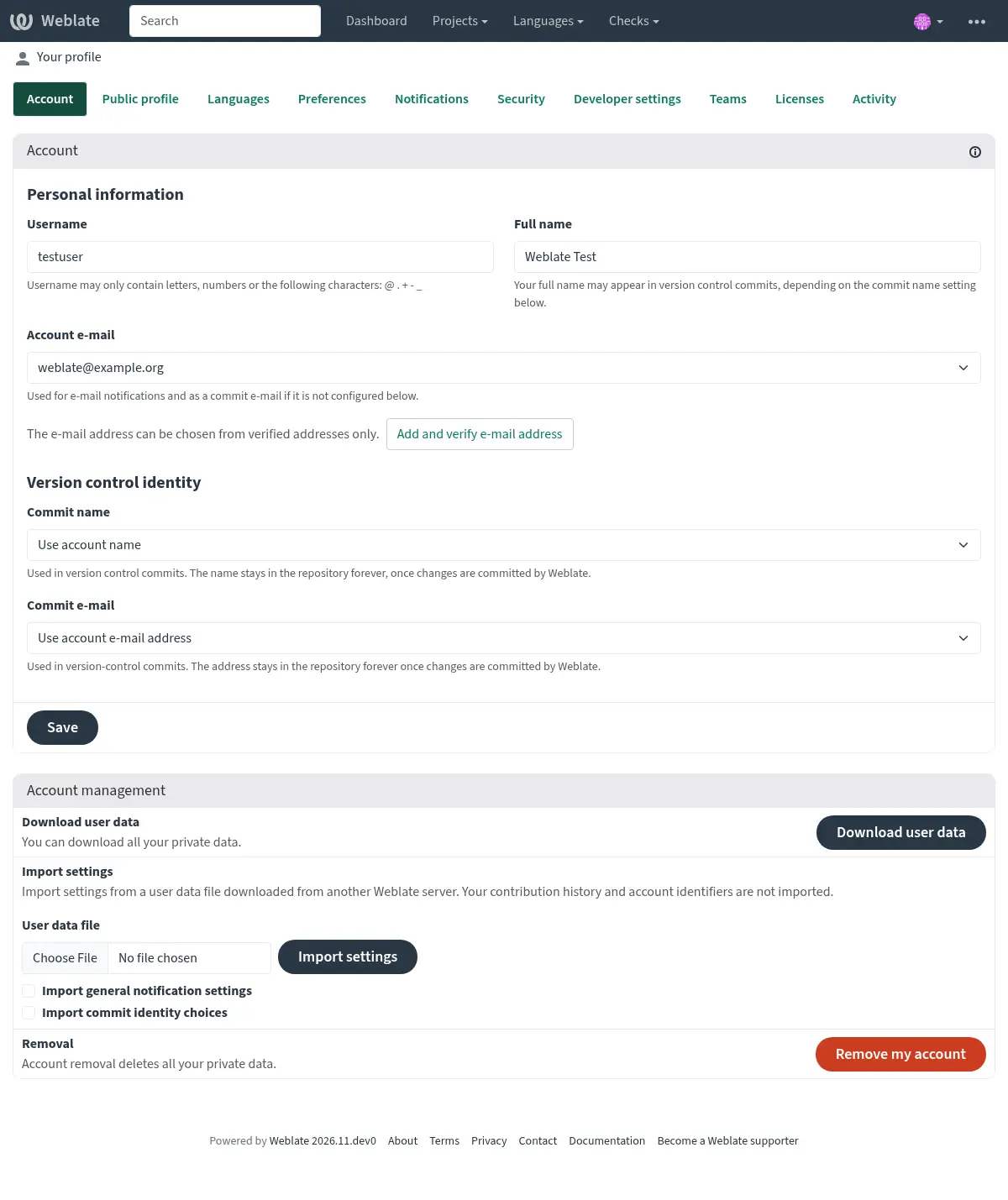
The Account tab contains your username, name, account e-mail, and commit identity. You can verify another e-mail address here. The account management section at the bottom lets you export your user data (see Weblate user data export), import settings, or remove your account.
You can import settings from a user data file on the Account tab. Compatible language, editor, dashboard, watched-project, and public-profile settings replace the corresponding settings on this server. Unavailable values are skipped and shown after import. The file must be no larger than 50 MB. Contribution counts, activity history, username, and account e-mail are not imported.
Personal Saved searches from the file are added to your existing ones; a saved search with the same name is replaced.
General notification settings and commit identity choices can be imported separately by selecting the corresponding options. Both are off by default. Project- and component-specific and one-time notification rules are included in the export but not imported.
The Commit e-mail and Commit name settings let you choose
private identities instead of your account e-mail and name in version control
commits. Use these to avoid publishing your real e-mail and name there. Be aware
that using a different e-mail can disconnect your contributions on other servers
(for example your contributions will no longer link to your profile on GitHub).
Administrators can make private identities the default by setting
PRIVATE_COMMIT_EMAIL_OPT_IN and PRIVATE_COMMIT_NAME_OPT_IN
to False. Your explicit choices override these defaults.
Changes to these settings affect future commits. Names and e-mail addresses already recorded in repository history remain unchanged.
Javni profil
Sva polja na ovoj stranici su opcionalna i mogu se izbrisati u bilo kojem trenutku. Ispunjavanjem tih polja daješ suglasnost, da te podatke dijelimo gdje god se pojavi tvoj korisnički profil.
Public profile URLs, such as Website URL, Contact URL, Fediverse URL, and Code site URL, should point to a website, contact, or profile page. Obvious direct file download links can be rejected, and public profile links show a warning before leaving Weblate where possible.
The Code site URL should use common code-hosting profile paths,
such as /username or /~username; existing repository-style links such
as /username/project or /group/subgroup/project are also accepted. The
Fediverse URL
should use common profile paths, such as /username, /@username,
/web/@username, /users/username, /accounts/username,
/channel/username, /profile/username, /u/username, or
/people/identifier.
Avatar can be shown for each user (depending on ENABLE_AVATARS).
These images are obtained using https://gravatar.com/.
Sigurnost
The Security tab manages your password, connected sign-in identities, and two-factor authentication. Security keys, authenticator apps, and recovery codes each show their current status and management actions.

Napomena
The list of sign-in services depends on your Weblate configuration, but can include sites such as GitLab, GitHub, Google, Facebook, or Bitbucket and other OAuth 2.0 providers.
Previously connected services remain listed after an administrator removes their authentication backend. You can still use Disconnect to remove their sign-in identities from your account.
Licence
Postavke programera
You can get or reset your API access token and view usage examples here. Use Manage code-hosting connections for integrations with workspaces you administer. These connections are separate from the sign-in identities in Security.
Aktivnost
The audit log keeps track of the actions performed with your account. It logs IP address and browser for every important action with your account. The critical actions also trigger a notification to a primary e-mail address.
Više informacija