Code hosting integrations
Weblate integrates with code hosting sites in several separate places: repository access, incoming notifications, and pushing translations back. The exact setup depends on whether you use Hosted Weblate or run your own Weblate instance, and on whether Weblate should push directly or create pull requests.
Use this page as a provider-oriented checklist. The individual setting pages remain the canonical reference for setting syntax.
Setup overview
Grant Weblate access to the repository.
For Hosted Weblate, add the hosted weblate user where it is available, see Hosted Weblate からリポジトリへの接続.
For self-hosted Weblate, create a dedicated code hosting user and grant access using Weblate's SSH key or an HTTPS token, see コード ホスティング サイト (GitHub、GitLab、Bitbucket、Azure DevOps など) のリポジトリへの接続.
Configure ソースコードのリポジトリ so Weblate can clone the repository.
Configure incoming notifications so Weblate pulls changes soon after a push. The repository webhook or app must point to the matching Weblate hook URL, and the project must have フックの有効化 enabled.
Decide how Weblate should push translations back:
Use Git or Mercurial and リポジトリの送信先 URL to push directly.
Use a provider-specific VCS backend, such as GitHub or GitLab, to create pull or merge requests. These backends need API credentials in the Weblate settings.
Optionally set プッシュ先のブランチ when Weblate should push to a branch in the upstream repository instead of using a fork where supported.
変更点を Weblate からプッシュ
Each translation component can have a push URL set up (see リポジトリの送信先 URL), and in that case Weblate will be able to push changes to the remote repository. Weblate can also be configured to automatically push changes on every commit; this is enabled by default, see コミット時にプッシュする.
If you do not want changes to be pushed automatically, you can push manually
under Repository maintenance or using the API via
wlc push.
In case you do not want direct pushes by Weblate, there is support for GitHub プルリクエスト, GitLab マージリクエスト, Gitea プルリクエスト, Pagure マージリクエスト, Azure DevOps プル リクエスト, or Gerrit review requests reviews. You can activate these by choosing GitHub, GitLab, Gitea, Gerrit, Azure DevOps, or Pagure as バージョン管理システム in コンポーネント構成.
Overall, following options are available with Git, Mercurial, GitHub, GitLab, Gitea, Pagure, Azure DevOps, Gerrit, Bitbucket Data Center and Bitbucket Cloud:
理想的な初期設定 |
|||
|---|---|---|---|
プッシュしない |
空 |
空 |
|
直接プッシュ |
SSH URL |
空 |
|
別のブランチに push |
SSH URL |
ブランチ名 |
|
プッシュしない |
空 |
空 |
|
直接プッシュ |
SSH URL |
空 |
|
フォークからの GitHub プルリクエスト |
空 |
空 |
|
ブランチからの GitHub プルリクエスト |
SSH URL [1] |
ブランチ名 |
|
フォークからの GitLab マージリクエスト |
空 |
空 |
|
ブランチからの GitLab マージリクエスト |
SSH URL [1] |
ブランチ名 |
|
フォークからの Gitea マージリクエスト |
空 |
空 |
|
ブランチからの Gitea マージリクエスト |
SSH URL [1] |
ブランチ名 |
|
フォークからの Pagure マージリクエスト |
空 |
空 |
|
ブランチからの Pagure マージリクエスト |
SSH URL [1] |
ブランチ名 |
|
フォークからの Azure DevOps プル リクエスト |
空 |
空 |
|
ブランチからの Azure DevOps プル リクエスト |
SSH URL [1] |
ブランチ名 |
|
Gerrit review |
SSH URL |
Target branch name (optional) |
|
Bitbucket Data Center のフォークからのプルリクエスト |
空 |
空 |
|
Bitbucket Data Center のブランチからのプルリクエスト |
SSH URL [1] |
ブランチ名 |
|
フォークからの Bitbucket Cloud プルリクエスト |
空 |
空 |
|
ブランチからの Bitbucket Cloud プルリクエスト |
SSH URL [1] |
ブランチ名 |
GitHub
GitHub repository access
主に 2 つある、Weblate から GitHub リポジトリへ接続する方法:
Option 1: HTTPS with personal access token
Use HTTPS authentication with a personal access token and your GitHub account. This works for both read-only access and read-write access.
この方法を使用する手順:
コマンドラインで使用するためのアクセス トークンの作成 に記載されている手順に従って、個人アクセス トークンを作成します。
Include the token in your repository URL:
https://username:token@github.com/owner/repo.git.
This is suitable when you are starting with Weblate or working with a single repository.
Option 2: SSH with a dedicated user
For setups with multiple repositories, create a dedicated user for Weblate. This avoids GitHub's limitation that each SSH key can only be used once per platform.
この方法を使用する手順:
Create a dedicated GitHub user account, for example
weblate-bot.Add Weblate's public SSH key to this user, see Weblate SSH 鍵.
Grant this user access to all repositories you want to translate.
Use SSH URLs for your repositories:
git@github.com:owner/repo.git.
この方法は Hosted Weblate でも採用されており、そのため専用の weblate ユーザーが用意されています。
注釈
When using GitHub for pull requests, the プッシュ先のブランチ configuration affects the behavior: if not set, the project is forked and changes are pushed through a fork. If set, changes are pushed to the upstream repository and the chosen branch.
GitHub notifications
Weblate は、GitHub に正式に対応しています。
If you are using Hosted Weblate, the recommended approach is to install the Weblate app. The app delivers GitHub notifications to Hosted Weblate, so you do not need to configure a separate Webhook in GitHub. However, it does not by itself grant Hosted Weblate write access to the repository. To push changes back, you still need to add the Hosted Weblate weblate GitHub user as a collaborator with write access, see Hosted Weblate からリポジトリへの接続.
If you are not using the app, add the Weblate webhook in the repository settings (Webhooks) to receive notifications on every push to a GitHub repository, as shown on the image below:
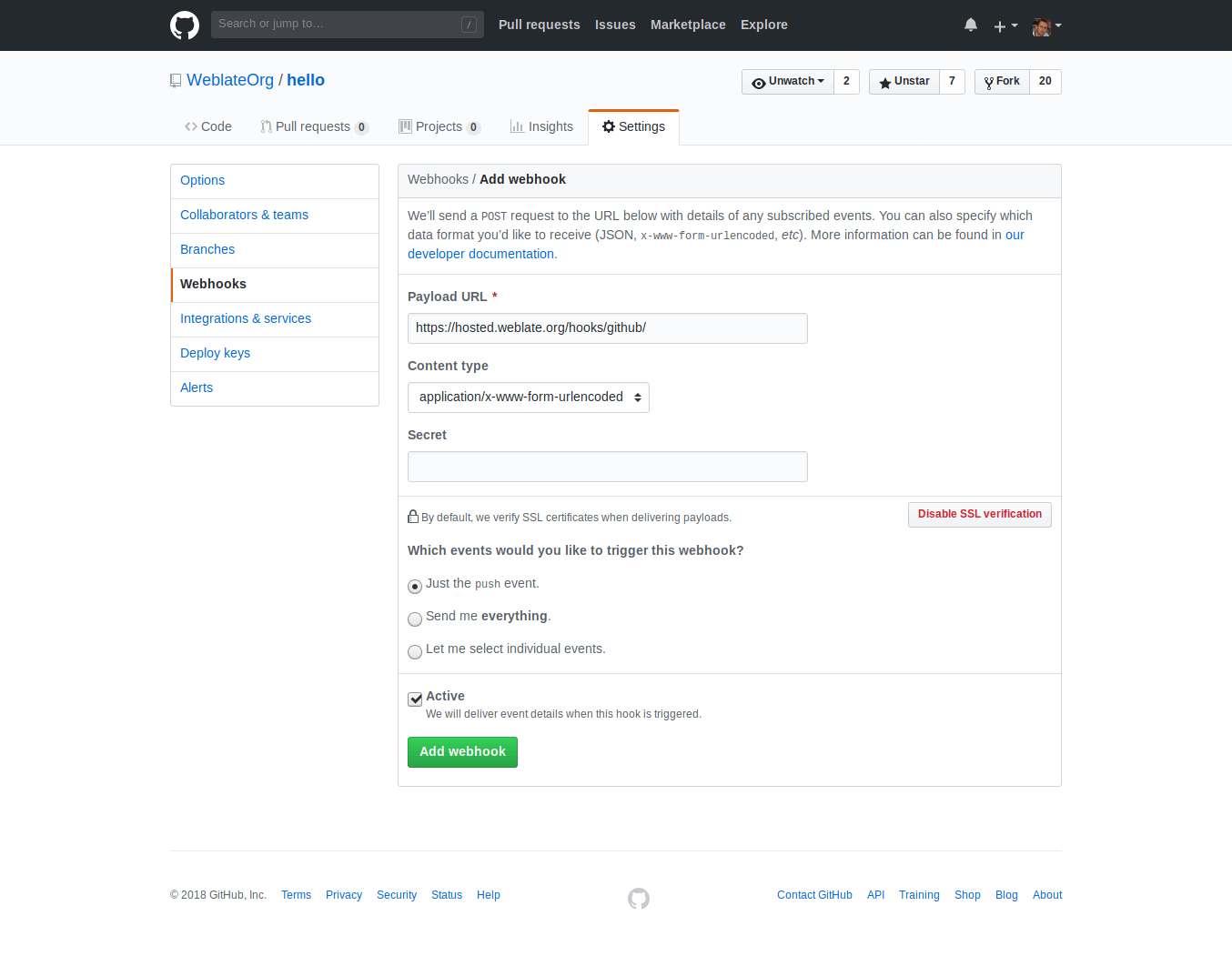
Payload URL URL には、あなたの Weblate の URL に /hooks/github/ を付加したものを指定します。たとえば Hosted Weblate サービスの場合は https://hosted.weblate.org/hooks/github/ になります。
You can leave other values at default settings. Weblate can handle both content types and consumes just the push event.
GitHub プルリクエスト
これにより、リポジトリに直接プッシュするのではなく、GithHub API を使用して 、薄いレイヤーを Git に追加して、変更された翻訳をプルリクエストとしてプッシュできるようになります。
Git pushes changes directly to a repository, while the GitHub backend creates pull requests. The latter is not needed for merely accessing Git repositories.
To create pull requests, select GitHub as
バージョン管理システム and configure GITHUB_CREDENTIALS. For
GitHub.com, use
api.github.com as the API host. The token must allow Weblate to read and
write repository contents and create pull requests. If Weblate should fork
private repositories, the token might also need administration access.
GitLab
GitLab repository access
Access via SSH is possible, see SSH リポジトリ, but if you need to access more than one repository, you will hit a GitLab limitation on allowed SSH key usage because each key can be used only once.
プッシュ先のブランチ を設定していない場合、プロジェクトはフォークされ、変更はフォークを通してプッシュされます。設定されている場合、変更は上流リポジトリと選択したブランチにプッシュされます。
個人アクセス トークンやプロジェクト アクセス トークンを使用することも可能です。リポジトリへ変更をプッシュするには、トークンに write_repository スコープが必要です。また、プロジェクト アクセス トークンでプッシュを行う場合は、Developer ロールが必要となります。
The URL needs to contain a username. For a personal access token, it is the
actual username:
https://user:personal_access_token@gitlab.com/example/example.git.
For project access tokens it can be a non-blank value:
https://example:project_access_token@gitlab.com/example/example.git.
注釈
The rules for using project access tokens have changed between GitLab releases, the non-blank value is the current requirement, but older versions had different expectations (project name, bot user name). Check GitLab documentation matching your version if unsure.
GitLab notifications
Weblate has support for GitLab hooks. Add a project webhook with destination
to /hooks/gitlab/ URL on your Weblate installation, for example
https://hosted.weblate.org/hooks/gitlab/.
問題解決方法
Webhook が配信されているか、GitLab webhook request history を確認してください。
レスポンスのペイロードには、一致したコンポーネントに関する情報が含まれています。
GitLab マージリクエスト
This adds a thin layer atop Git using the GitLab API to allow pushing translation changes as merge requests instead of pushing directly to the repository.
There is no need to use this to access Git repositories, ordinary Git works the same, the only difference is how pushing to a repository is handled. With Git changes are pushed directly to the repository, while the GitLab backend creates a merge request.
To create merge requests, select GitLab as
バージョン管理システム and configure GITLAB_CREDENTIALS.
Gitea, Forgejo, and Codeberg
For Hosted Weblate repositories on Codeberg, add the hosted weblate user where write access is needed, see Hosted Weblate からリポジトリへの接続.
Gitea notifications
Weblate has support for Gitea webhooks. Add a Gitea Webhook for
Push events event with destination to /hooks/gitea/ URL on your
Weblate installation, for example https://hosted.weblate.org/hooks/gitea/.
This can be done in Webhooks under repository Settings.
Forgejo notifications
Weblate has support for Forgejo webhooks. Add a Forgejo Webhook
for Push events event with destination to /hooks/forgejo/ URL
on your Weblate installation, for example
https://hosted.weblate.org/hooks/forgejo/. This can be done in
Webhooks under repository Settings.
Gitea プルリクエスト
Added in version 4.12.
This adds a thin layer atop Git using the Gitea API to allow pushing translation changes as pull requests instead of pushing directly to the repository.
There is no need to use this to access Git repositories, ordinary Git works the same, the only difference is how pushing to a repository is handled. With Git changes are pushed directly to the repository, while the Gitea backend creates pull requests.
To create pull requests, select Gitea as
バージョン管理システム and configure GITEA_CREDENTIALS.
Bitbucket
Hosted Weblate has a dedicated weblate user for Bitbucket access, see Hosted Weblate からリポジトリへの接続.
To push directly, use Git or Mercurial with リポジトリの送信先 URL.
Bitbucket notifications
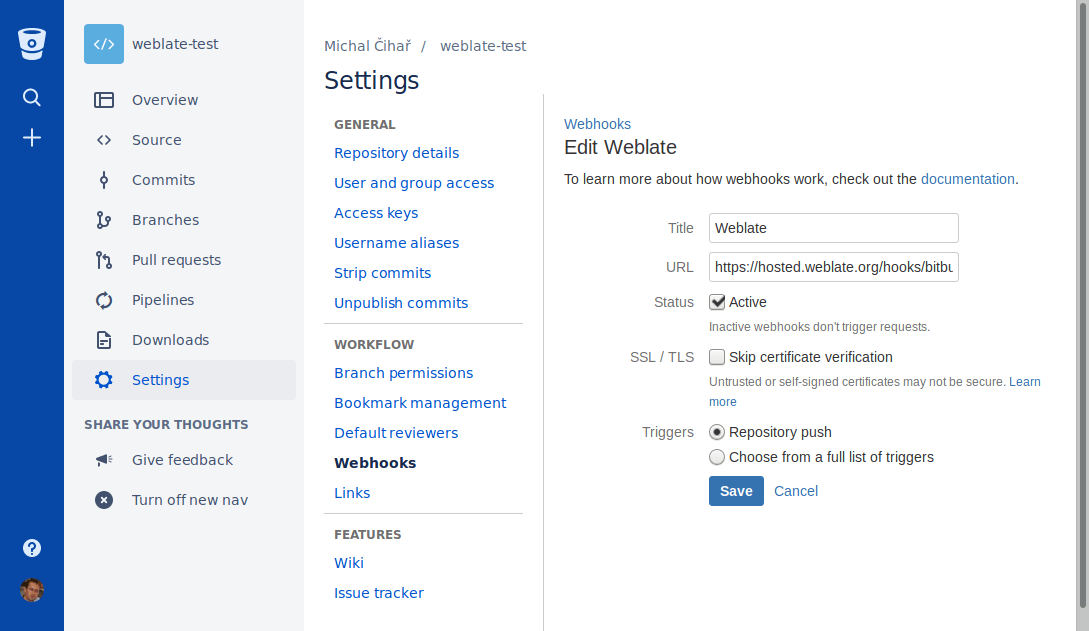
Weblate has support for Bitbucket webhooks. Add a webhook which triggers upon
repository push, with destination to /hooks/bitbucket/ URL on your Weblate
installation, for example https://hosted.weblate.org/hooks/bitbucket/.
Bitbucket Data Center のプルリクエスト
Added in version 4.16.
This adds a thin layer atop Git using the Bitbucket Data Center API to allow pushing translation changes as pull requests instead of pushing directly to the repository.
警告
Bitbucket Cloud API には対応していません。
There is no need to use this to access Git repositories, ordinary Git works the same, the only difference is how pushing to a repository is handled. With Git changes are pushed directly to the repository, while the Bitbucket Data Center backend creates a pull request.
To create pull requests, select Bitbucket Data Center as
バージョン管理システム and configure BITBUCKETSERVER_CREDENTIALS.
Bitbucket Cloud のプルリクエスト
Added in version 5.8.
This adds a thin layer atop Git using the Bitbucket Cloud API to allow pushing translation changes as pull requests instead of pushing directly to the repository.
警告
これは Bitbucket Data Center API とは異なります。
There is no need to use this to access Git repositories, ordinary Git works the same, the only difference is how pushing to a repository is handled. With Git changes are pushed directly to the repository, while the Bitbucket Cloud backend creates a pull request.
To create pull requests, select Bitbucket Cloud as
バージョン管理システム and configure BITBUCKETCLOUD_CREDENTIALS.
Azure DevOps
Azure Repos notifications
Weblate has support for Azure Repos webhooks. Add a webhook for
Code pushed event with destination to /hooks/azure/ URL on your
Weblate installation, for example https://hosted.weblate.org/hooks/azure/.
This can be done in Service hooks under Project
settings.
Azure DevOps プル リクエスト
これにより、リポジトリに直接プッシュするのではなく、Azure DevOps API を使用して 、薄いレイヤーを Git に追加して、変更された翻訳をプルリクエストとしてプッシュできるようになります。
Git pushes changes directly to a repository, while the Azure DevOps backend creates pull requests. The latter is not needed for merely accessing Git repositories.
To create pull requests, select Azure DevOps as
バージョン管理システム and configure AZURE_DEVOPS_CREDENTIALS.
Pagure
Pagure notifications
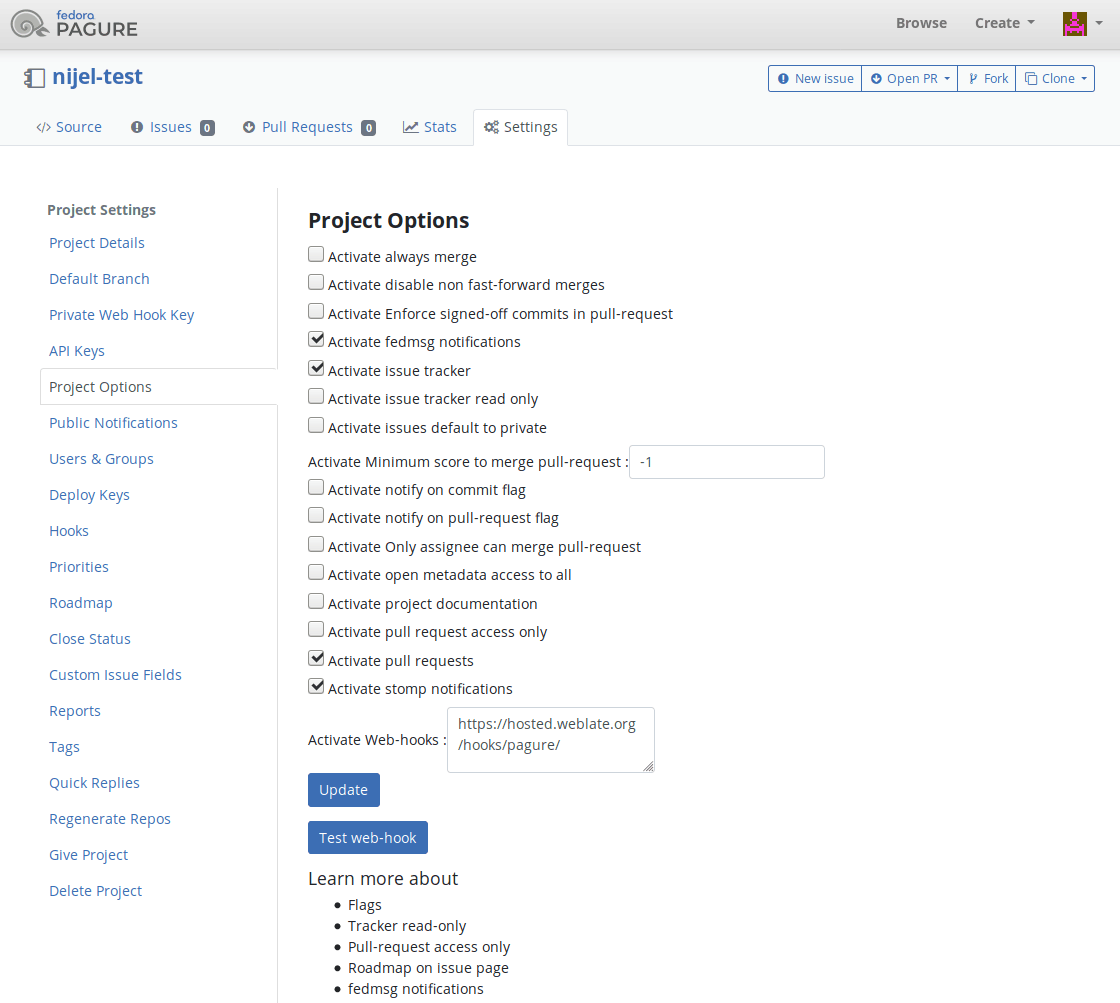
Weblate has support for Pagure hooks. Add a webhook with destination to
/hooks/pagure/ URL on your Weblate installation, for example
https://hosted.weblate.org/hooks/pagure/. This can be done in
Activate Web-hooks under Project options:
Pagure マージリクエスト
Added in version 4.3.2.
This adds a thin layer atop Git using the Pagure API to allow pushing translation changes as merge requests instead of pushing directly to the repository.
There is no need to use this to access Git repositories, ordinary Git works the same, the only difference is how pushing to a repository is handled. With Git changes are pushed directly to the repository, while the Pagure backend creates a merge request.
To create merge requests, select Pagure as
バージョン管理システム and configure PAGURE_CREDENTIALS.
Other workflows
Gitee notifications
Weblate has support for Gitee webhooks. Add a WebHook for
Push event with destination to /hooks/gitee/ URL on your
Weblate installation, for example https://hosted.weblate.org/hooks/gitee/.
This can be done in WebHooks under repository
Management.
Gerrit review requests
Gerrit support adds a thin layer atop Git using the git-review tool to allow pushing translation changes as Gerrit review requests, instead of pushing them directly to the repository.
The optional プッシュ先のブランチ setting selects the target branch for
the Gerrit review. Leave it empty to use リポジトリのブランチ. Use the short
branch name, such as main; Weblate and git-review push the review to
refs/for/<branch> automatically. Do not include Gerrit push options such as
%submit or %l=Code-Review+2 in the branch name.
The Gerrit documentation has the details on the configuration necessary to set up such repositories. There is no separate code hosting credential setting for this backend.
Docker credentials
For Docker installations, code hosting API credentials can also be provided through environment variables, see サイトの認証情報をホストするコード.