Code hosting integrations
Weblate integrates with code hosting sites in several separate places: repository access, incoming notifications, and pushing translations back. The exact setup depends on whether you use Hosted Weblate or run your own Weblate instance, and on whether Weblate should push directly or create pull requests.
Use this page as a provider-oriented checklist. The individual setting pages remain the canonical reference for setting syntax.
Setup overview
Grant Weblate access to the repository.
For Hosted Weblate, add the hosted weblate user where it is available, see Acceder repositorios desde Hosted Weblate.
For self-hosted Weblate, create a dedicated code hosting user and grant access using Weblate’s SSH key or an HTTPS token, see Acceder a repositorios en sitios de alojamiento de código (GitHub, GitLab, Bitbucket, Azure DevOps, …).
Configure Repositorio de código fuente so Weblate can clone the repository.
Configure incoming notifications so Weblate pulls changes soon after a push. The repository webhook or app must point to the matching Weblate hook URL, and the project must have Activar actuadores enabled.
Decide how Weblate should push translations back:
Use Git or Mercurial and URL de envío al repositorio to push directly.
Use a provider-specific VCS backend, such as GitHub or GitLab, to create pull or merge requests. These backends need API credentials in the Weblate settings.
Optionally set Rama a la que enviar when Weblate should push to a branch in the upstream repository instead of using a fork where supported.
Enviar cambios efectuados en Weblate
Each translation component can have a push URL set up (see URL de envío al repositorio), and in that case Weblate will be able to push changes to the remote repository. Weblate can also be configured to automatically push changes on every commit; this is enabled by default, see Enviar al consolidar.
If you do not want changes to be pushed automatically, you can push manually
under Repository maintenance or using the API via
wlc push.
In case you do not want direct pushes by Weblate, there is support for Solicitudes de incorporación de GitHub, Solicitudes de fusión de GitLab, Solicitudes de incorporación de Gitea, Solicitudes de fusión de Pagure, Solicitud de incorporación Azure DevOps, or Gerrit review requests reviews. You can activate these by choosing GitHub, GitLab, Gitea, Gerrit, Azure DevOps, or Pagure as Sistema de control de versiones in Configuración de componentes.
Overall, following options are available with Git, Mercurial, GitHub, GitLab, Gitea, Pagure, Azure DevOps, Gerrit, Bitbucket Data Center and Bitbucket Cloud:
Configuración deseada |
|||
|---|---|---|---|
No enviar |
vacío |
vacío |
|
Enviar directamente |
URL SSH |
vacío |
|
Enviar en una rama separada |
URL SSH |
Nombre de rama |
|
No enviar |
vacío |
vacío |
|
Enviar directamente |
URL SSH |
vacío |
|
Solicitud de extracción GitHub desde bifurcación |
vacío |
vacío |
|
Solicitud de extracción GitHub desde rama |
SSH URL [1] |
Nombre de rama |
|
Solicita fusión de GitLab desde bifurcación |
vacío |
vacío |
|
Fusión GitLab solicitada desde rama |
SSH URL [1] |
Nombre de rama |
|
Solicitud de fusión de Gitea desde la bifurcación |
vacío |
vacío |
|
Solicitud de fusión Gitea desde rama |
SSH URL [1] |
Nombre de rama |
|
Solicitud de fusión Pagure desde bifurcación |
vacío |
vacío |
|
Solicitud de fusión Pagure desde rama |
SSH URL [1] |
Nombre de rama |
|
Solicitud de fusión Azure DevOps desde bifurcación |
vacío |
vacío |
|
Solicitud de extracción Azure DevOps desde rama |
SSH URL [1] |
Nombre de rama |
|
Gerrit review |
URL SSH |
Target branch name (optional) |
|
Solicitud de extracción Bitbucket Data Center desde bifurcación |
vacío |
vacío |
|
Solicitud de extracción Bitbucket Data Center desde rama |
SSH URL [1] |
Nombre de rama |
|
Solicitud de extracción Bitbucket Cloud desde bifurcación |
vacío |
vacío |
|
Solicitud de extracción Bitbucket Cloud desde rama |
SSH URL [1] |
Nombre de rama |
GitHub
GitHub repository access
Hay dos enfoques principales para acceder a los repositorios de GitHub con Weblate:
Option 1: HTTPS with personal access token
Use HTTPS authentication with a personal access token and your GitHub account. This works for both read-only access and read-write access.
Para utilizar este enfoque:
Cree un vale de acceso personal como describió en Crear un vale de acceso para utilizar línea de comando.
Include the token in your repository URL:
https://username:token@github.com/owner/repo.git.
This is suitable when you are starting with Weblate or working with a single repository.
Option 2: SSH with a dedicated user
For setups with multiple repositories, create a dedicated user for Weblate. This avoids GitHub’s limitation that each SSH key can only be used once per platform.
Para utilizar este enfoque:
Create a dedicated GitHub user account, for example
weblate-bot.Add Weblate’s public SSH key to this user, see Clave SSH de Weblate.
Grant this user access to all repositories you want to translate.
Use SSH URLs for your repositories:
git@github.com:owner/repo.git.
Este enfoque también se utiliza para Hosted Weblate, que cuenta con un usuario dedicado weblate para tal propósito.
Nota
When using GitHub for pull requests, the Rama a la que enviar configuration affects the behavior: if not set, the project is forked and changes are pushed through a fork. If set, changes are pushed to the upstream repository and the chosen branch.
GitHub notifications
Weblate admite GitHub nativamente.
If you are using Hosted Weblate, the recommended approach is to install the Weblate app. The app delivers GitHub notifications to Hosted Weblate, so you do not need to configure a separate Webhook in GitHub. However, it does not by itself grant Hosted Weblate write access to the repository. To push changes back, you still need to add the Hosted Weblate weblate GitHub user as a collaborator with write access, see Acceder repositorios desde Hosted Weblate.
If you are not using the app, add the Weblate webhook in the repository settings (Webhooks) to receive notifications on every push to a GitHub repository, as shown on the image below:
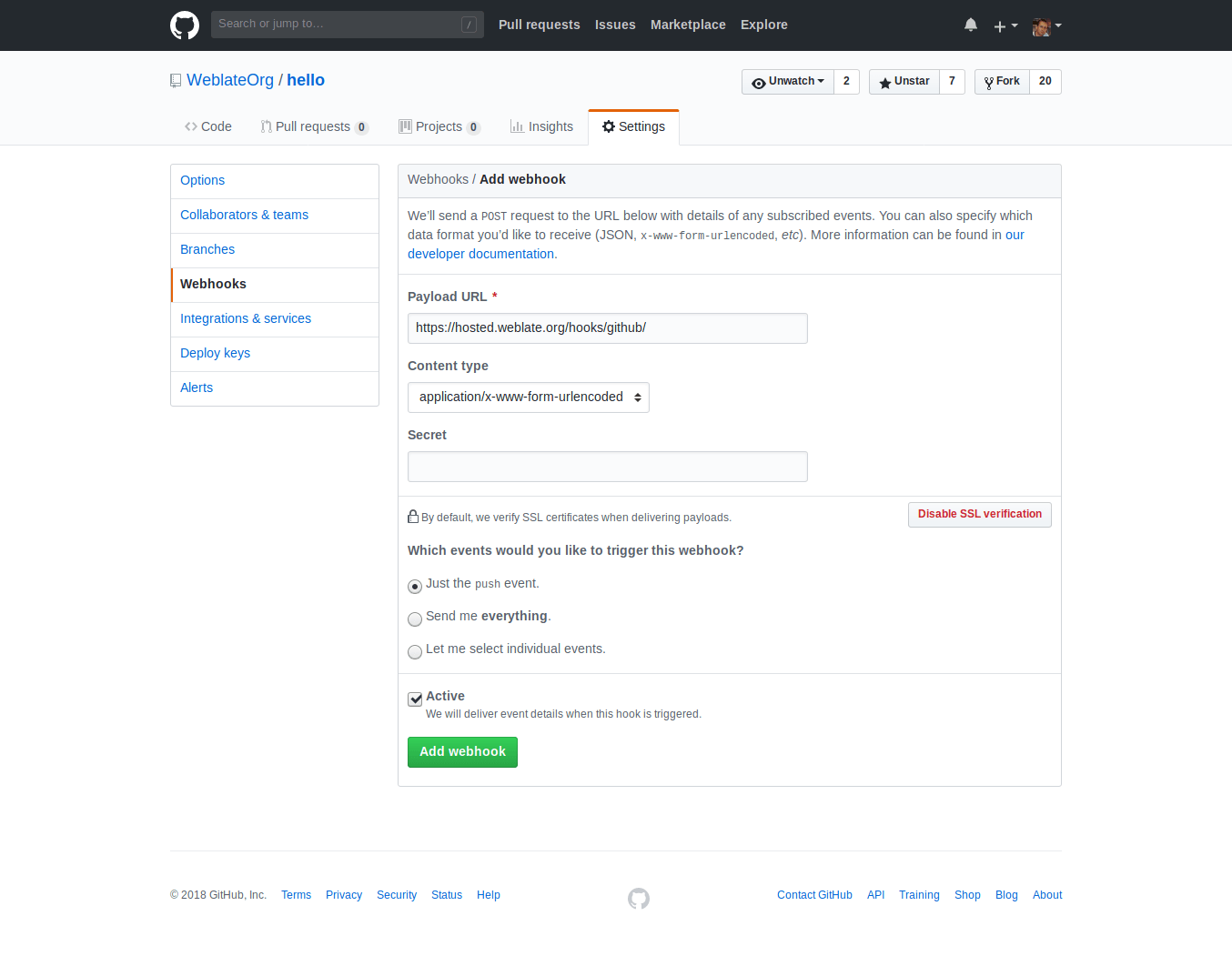
El Payload URL consiste en su URL Weblate adjuntada por /hooks/github/, por ejemplo para el servicio Hosted Weblate, esto es https://hosted.weblate.org/hooks/github/.
You can leave other values at default settings. Weblate can handle both content types and consumes just the push event.
Solicitudes de incorporación de GitHub
Esto añade una capa delgada encima Git utilizando el API de GitHub para conceder empuje de cambios de traducción como solicitudes de incorporar, en vez de empujar directamente al repositorio.
Git pushes changes directly to a repository, while the GitHub backend creates pull requests. The latter is not needed for merely accessing Git repositories.
To create pull requests, select GitHub as
Sistema de control de versiones and configure GITHUB_CREDENTIALS. For
GitHub.com, use
api.github.com as the API host. The token must allow Weblate to read and
write repository contents and create pull requests. If Weblate should fork
private repositories, the token might also need administration access.
GitLab
GitLab repository access
Access via SSH is possible, see Repositorios SSH, but if you need to access more than one repository, you will hit a GitLab limitation on allowed SSH key usage because each key can be used only once.
Si no se configura la rama Rama a la que enviar, el proyecto se bifurca y los cambios se envían a través de una bifurcación. Si se configura, los cambios se envían al repositorio original y a la rama seleccionada.
También es posible usar vale de acceso personales o de proyecto. El vale requiere el ámbito write_repository para poder enviar cambios al repositorio. El token de acceso de proyecto requiere el rol Desarrollador para enviar cambios.
The URL needs to contain a username. For a personal access token, it is the
actual username:
https://user:personal_access_token@gitlab.com/example/example.git.
For project access tokens it can be a non-blank value:
https://example:project_access_token@gitlab.com/example/example.git.
Nota
The rules for using project access tokens have changed between GitLab releases, the non-blank value is the current requirement, but older versions had different expectations (project name, bot user name). Check GitLab documentation matching your version if unsure.
GitLab notifications
Weblate has support for GitLab hooks. Add a project webhook with destination
to /hooks/gitlab/ URL on your Weblate installation, for example
https://hosted.weblate.org/hooks/gitlab/.
Solución de problemas
Compruebe el Historial de solicitudes de webhook de GitLab para ver si se han entregado los enganches de la web.
La carga útil de respuesta contiene información sobre los componentes coincidentes.
Solicitudes de fusión de GitLab
This adds a thin layer atop Git using the GitLab API to allow pushing translation changes as merge requests instead of pushing directly to the repository.
There is no need to use this to access Git repositories, ordinary Git works the same, the only difference is how pushing to a repository is handled. With Git changes are pushed directly to the repository, while the GitLab backend creates a merge request.
To create merge requests, select GitLab as
Sistema de control de versiones and configure GITLAB_CREDENTIALS.
Gitea, Forgejo, and Codeberg
For Hosted Weblate repositories on Codeberg, add the hosted weblate user where write access is needed, see Acceder repositorios desde Hosted Weblate.
Gitea notifications
Weblate has support for Gitea webhooks. Add a Gitea Webhook for
Push events event with destination to /hooks/gitea/ URL on your
Weblate installation, for example https://hosted.weblate.org/hooks/gitea/.
This can be done in Webhooks under repository Settings.
Forgejo notifications
Weblate has support for Forgejo webhooks. Add a Forgejo Webhook
for Push events event with destination to /hooks/forgejo/ URL
on your Weblate installation, for example
https://hosted.weblate.org/hooks/forgejo/. This can be done in
Webhooks under repository Settings.
Solicitudes de incorporación de Gitea
Added in version 4.12.
This adds a thin layer atop Git using the Gitea API to allow pushing translation changes as pull requests instead of pushing directly to the repository.
There is no need to use this to access Git repositories, ordinary Git works the same, the only difference is how pushing to a repository is handled. With Git changes are pushed directly to the repository, while the Gitea backend creates pull requests.
To create pull requests, select Gitea as
Sistema de control de versiones and configure GITEA_CREDENTIALS.
Bitbucket
Hosted Weblate has a dedicated weblate user for Bitbucket access, see Acceder repositorios desde Hosted Weblate.
To push directly, use Git or Mercurial with URL de envío al repositorio.
Bitbucket notifications
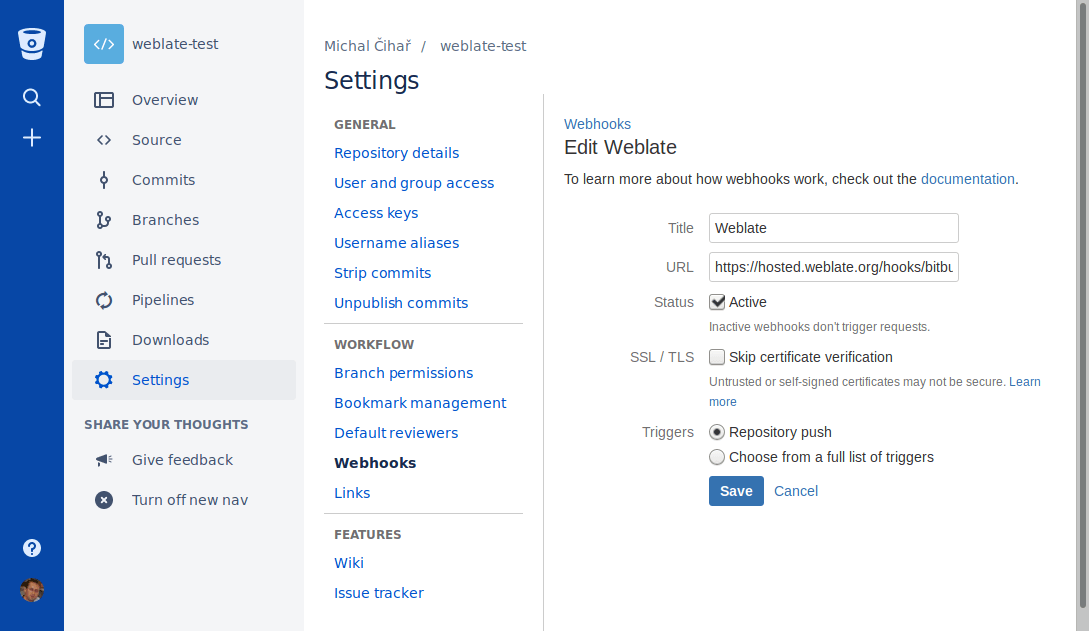
Weblate has support for Bitbucket webhooks. Add a webhook which triggers upon
repository push, with destination to /hooks/bitbucket/ URL on your Weblate
installation, for example https://hosted.weblate.org/hooks/bitbucket/.
Solicitudes de incorporación al Centro de Datos Bitbucket
Added in version 4.16.
This adds a thin layer atop Git using the Bitbucket Data Center API to allow pushing translation changes as pull requests instead of pushing directly to the repository.
Advertencia
Esto no mantiene el API de Bitbucket Cloud.
There is no need to use this to access Git repositories, ordinary Git works the same, the only difference is how pushing to a repository is handled. With Git changes are pushed directly to the repository, while the Bitbucket Data Center backend creates a pull request.
To create pull requests, select Bitbucket Data Center as
Sistema de control de versiones and configure BITBUCKETSERVER_CREDENTIALS.
Solicitud de incorporación a BitBucket Cloud
Added in version 5.8.
This adds a thin layer atop Git using the Bitbucket Cloud API to allow pushing translation changes as pull requests instead of pushing directly to the repository.
Advertencia
Esto es diferente desde el API de Bitbucket Data Center.
There is no need to use this to access Git repositories, ordinary Git works the same, the only difference is how pushing to a repository is handled. With Git changes are pushed directly to the repository, while the Bitbucket Cloud backend creates a pull request.
To create pull requests, select Bitbucket Cloud as
Sistema de control de versiones and configure BITBUCKETCLOUD_CREDENTIALS.
Azure DevOps
Azure Repos notifications
Weblate has support for Azure Repos webhooks. Add a webhook for
Code pushed event with destination to /hooks/azure/ URL on your
Weblate installation, for example https://hosted.weblate.org/hooks/azure/.
This can be done in Service hooks under Project
settings.
Solicitud de incorporación Azure DevOps
Esto añade una fina capa sobre Git utilizando el API de Azure DevOps para permitir enviar los cambios de traducción como solicitudes de extracción, en lugar de enviarlos directamente al repositorio.
Git pushes changes directly to a repository, while the Azure DevOps backend creates pull requests. The latter is not needed for merely accessing Git repositories.
To create pull requests, select Azure DevOps as
Sistema de control de versiones and configure AZURE_DEVOPS_CREDENTIALS.
Pagure
Pagure notifications
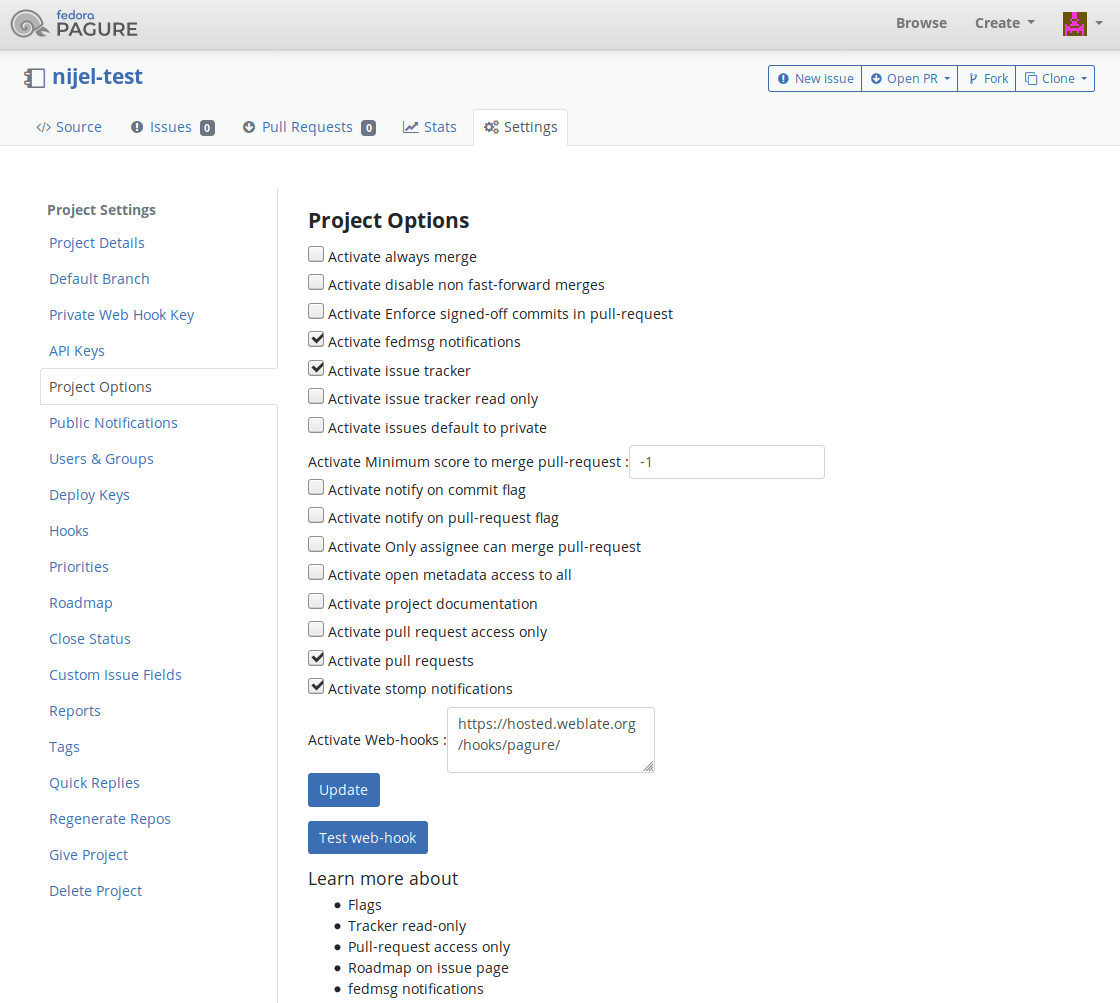
Weblate has support for Pagure hooks. Add a webhook with destination to
/hooks/pagure/ URL on your Weblate installation, for example
https://hosted.weblate.org/hooks/pagure/. This can be done in
Activate Web-hooks under Project options:
Solicitudes de fusión de Pagure
Added in version 4.3.2.
This adds a thin layer atop Git using the Pagure API to allow pushing translation changes as merge requests instead of pushing directly to the repository.
There is no need to use this to access Git repositories, ordinary Git works the same, the only difference is how pushing to a repository is handled. With Git changes are pushed directly to the repository, while the Pagure backend creates a merge request.
To create merge requests, select Pagure as
Sistema de control de versiones and configure PAGURE_CREDENTIALS.
Other workflows
Gitee notifications
Weblate has support for Gitee webhooks. Add a WebHook for
Push event with destination to /hooks/gitee/ URL on your
Weblate installation, for example https://hosted.weblate.org/hooks/gitee/.
This can be done in WebHooks under repository
Management.
Gerrit review requests
Gerrit support adds a thin layer atop Git using the git-review tool to allow pushing translation changes as Gerrit review requests, instead of pushing them directly to the repository.
The optional Rama a la que enviar setting selects the target branch for
the Gerrit review. Leave it empty to use Rama del repositorio. Use the short
branch name, such as main; Weblate and git-review push the review to
refs/for/<branch> automatically. Do not include Gerrit push options such as
%submit or %l=Code-Review+2 in the branch name.
The Gerrit documentation has the details on the configuration necessary to set up such repositories. There is no separate code hosting credential setting for this backend.
Docker credentials
For Docker installations, code hosting API credentials can also be provided through environment variables, see Credenciales de sitios de alojamiento de código.