迁移到 Weblate
在使用别的本地化平台并考虑切换到 Weblate 吗?本指南提供快捷步骤详尽的流程帮助你从 Transifex、Crowdin、Lokalise 或等平台或其他类似服务迁移你的项目。
Weblate 围绕持续本地化进行设计,核心为 Git 集成,这使它对于想让翻译贴近开发流程的团队而言是一个理想选择。
参见
选择合适的国际化框架的 从国际化开始 文档
详细的集成选项 与 Weblate 集成 文档
持续本地化 获取设置自动工作流的信息
前提
开始迁移前,确保你有:
在你的本地化平台上:
访问以导出您的翻译文件
译者列表及其角色/权限
理解当前的工作流程(审校流程、自动化等)
针对 Weblate:
Weblate 实例 (Hosted Weblate 或 self-hosted)
Weblate 实例上的管理或项目创建权限
准备您的翻译文件
从您当前的平台导出翻译
Most localization platforms allow you to export all translations at once:
Transifex: 用官方 CLI 工具或从 web 界面下载译文
Crowdin: Export all translations as a ZIP file from project settings
Lokalise: Use the bulk export feature
Phrase: Download all locales from the project dashboard
提示
Keep your translation files in the format native to your internationalization framework (PO, XLIFF, JSON, etc.) rather than converting them. Weblate supports many formats.
提交翻译到你的 Git 仓库
提示
If you would rather not store translations in an external Git repository, you can skip this step and use the Upload translation files option when creating a component.
如果你的译文还不在 Git 中:
Create a Git repository or use your existing project repository
Organize translation files following your project structure
提交并推送文件到你的 Git 托管服务 (GitHub、GitLab、Bitbucket 等)
git add locales/
git commit -m "Add translation files for Weblate migration"
git push origin main
导入项目到 Weblate
创建新项目
转到您的 Weblate 实例。
Click Add new translation project in the + menu.
Fill in your project details:
Project name: Your application or project name
URL slug: Short identifier (e.g.,
myapp)项目网站:项目主页(可选)
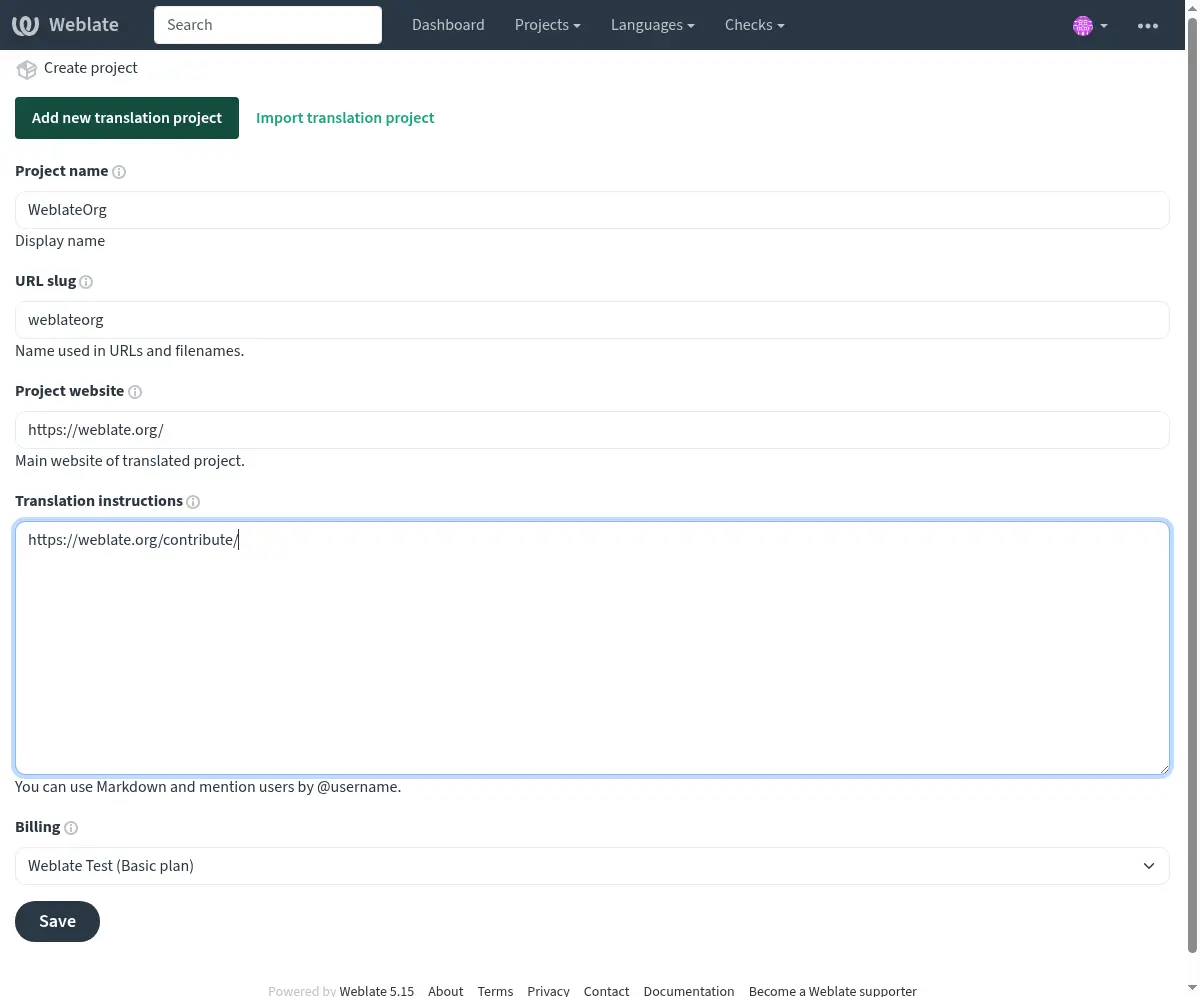
参见
添加翻译项目和部件 for detailed project creation instructions
从 Git 仓库添加部件
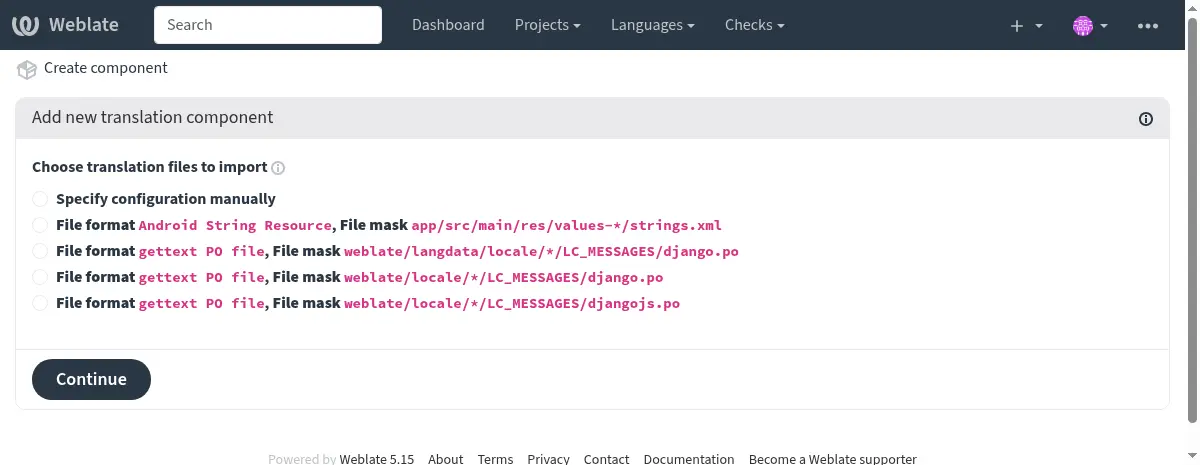
After creating the project, click Add new translation component
选择 From version control
配置部件:
Component name: e.g., "Application strings", "Website", "Documentation"
Repository URL: Your Git repository URL (HTTPS or SSH)
Repository branch: Optional: Specify repository branch (Weblate automatically detects the default branch if not specified)
Weblate will automatically detect:
翻译文件格式
可用语言
源语言
审校并确认检测到的设置
提示
For repositories with multiple translation components (e.g., separate files for backend, frontend, documentation), create a separate Weblate component for each.
You can speed this up using From existing component for shared repositories or 部件发现 to automatically create them.
配置工作流
设置访问控制
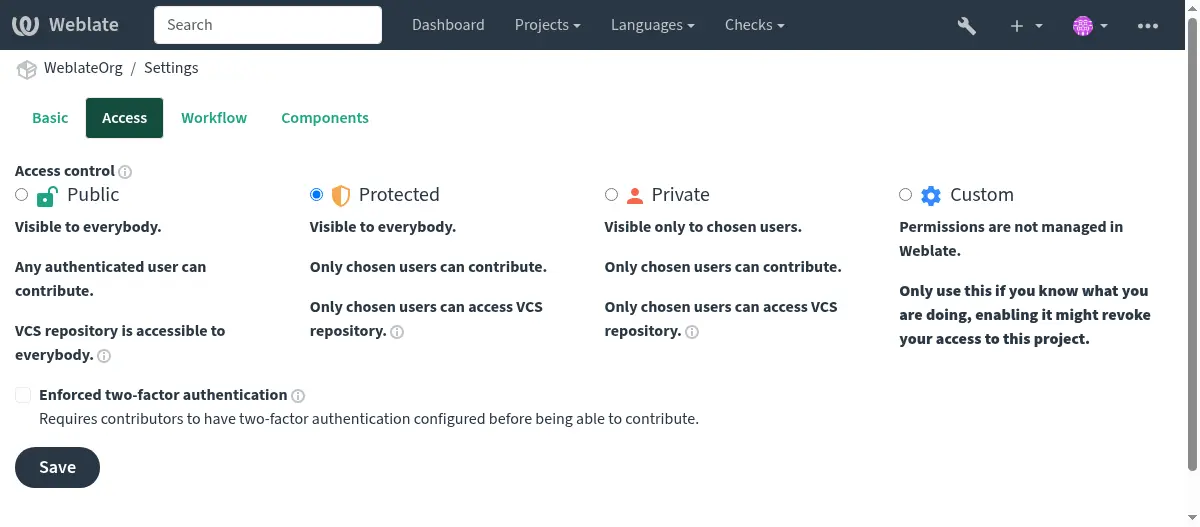
Choose your project's visibility and access level:
Go to your project settings: Operations → Settings → Access tab
Select the appropriate access control:
Public: Open-source projects, anyone can contribute
Protected: Visible to all, but only invited users can translate
Private: Only invited users can view and translate
参见
管理每个项目的访问控制 for detailed access control configuration
设置持续本地化
Enable automatic updates and commits:
配置仓库集成:
Pull changes: Set up a webhook so Weblate updates when your source code changes
Push changes: Configure 推送 Weblate 的更改 so translations are committed back to your repository
在部件设置中开启自动操作:
提交时推送:自动推送译文到仓库
Commit interval: Set how often pending translations are committed (e.g., every 24 hours)
参见
持续本地化 获取完整的工作流自动化
配置质量检查和工作流
自定义译文质量控制:
可选:启用附加组件
Weblate offers 附加组件 to automate common tasks:
更新 PO 文件以匹配 POT 文件 (msgmerge):自动更新来自 POT 模板的 PO 文件
清理翻译文件:删除不用的翻译字符串
挤压 Git 提交:推送到仓库前挤压提交
部件发现:自动发现新的翻译文件
参见
附加组件 查看所有可用的附加组件
测试并验证
在向译者宣布迁移前:
Test the workflow:
进行测试翻译
验证它是否出现在你的 Git 仓库中
测试将更改从仓库拉取到 Weblate 中
导入任何现有的翻译记忆库 (可选):
Use 翻译记忆库 导入之前的译文
This helps with consistency and speeds up translation
配置通知:
参见
翻译记忆库 for translation memory management
邀请和管理用户
邀请译者
对于 受保护 和 私密 项目:
转至项目中的 Operations → Users
用 Add user 邀请译者
Assign them to appropriate teams:
译者:可以翻译字符串
审核者:可审校和批准翻译
Managers: Can manage project settings
For Public projects, users can start contributing immediately after signing up.
小技巧
Send your translators a welcome message with:
到 Weblate 上您的项目的链接
Overview of any project-specific terminology or style guides
关于审校过程的信息
参见
管理每个项目的访问控制 获取团队管理信息
访问控制 for advanced permission configuration
接下去的步骤
完成迁移后:
Announce to translators: Let your translation team know about the migration with clear instructions
Monitor initial usage: Watch for any issues during the first few days
Gather feedback: Ask translators about their experience compared to the previous platform
Optimize workflow: Adjust settings based on your team's needs
Remove previous platform: Once the migration is completed, remember to revoke access granted to the previous platform.
小技巧
During migration, you can run both platforms in parallel for a transition period to ensure everything works as expected before fully switching over.
附加资源
与 Weblate 集成 —— 详细集成模式
翻译工作流 - Different workflow configurations
持续本地化 - Automated continuous localization
Weblate 的 REST API - API for automation and integrations
翻译进度报告 - Setting up translation progress reports
常见问题 —— 常见问题
提示
Join the Weblate community if you need help during your migration. The community is active and helpful!