பதிப்பு கட்டுப்பாட்டு ஒருங்கிணைப்பு
Weblate currently supports அறிவிலி (with extended support for அறிவிலிமையம் கோரிக்கைகள், அறிவிலிஆய்வு கோரிக்கைகளை ஒன்றிணைக்கவும், கிடியா இழுக்கும் கோரிக்கைகள், செரிட், கீழ்ப்படிதல், பிட்பக்கெட் முகில் புல் கோரிக்கைகள், பிட்பக்கெட் தரவு நடுவண் கோரிக்கைகளை இழுக்கவும், and அசூர் டெவொப்ச் கோரிக்கைகளை இழுக்கிறது) and மெர்குரியல் as version control back-ends.
களஞ்சியங்களை அணுகும்
The VCS repository you want to use has to be accessible to Weblate. With a
publicly available repository you just need to enter the correct URL (for
example https://github.com/WeblateOrg/weblate.git), but for private
repositories or for push URLs the setup is more complex and requires
authentication.
புரவலன் செய்யப்பட்ட வலைபெயர்ப்புடிலிருந்து களஞ்சியங்களை அணுகுவது
Note
This section applies only to Hosted Weblate (hosted.weblate.org). If you are running your own self-hosted Weblate instance, please see the next section instead.
For Hosted Weblate, there is a dedicated push user registered on GitHub,
Bitbucket, Codeberg, and GitLab (with the username weblate, e-mail
hosted@weblate.org, and a name or profile description Weblate push user).
Hint
There can be more Weblate users on the platforms, designated for other Weblate instances.
Searching by e-mail hosted@weblate.org is recommended to find the correct
user for Hosted Weblate.
நீங்கள் இந்த பயனரை ஒரு ஒத்துழைப்பாளராகச் சேர்த்து, உங்கள் களஞ்சியத்திற்கு பொருத்தமான அனுமதிகளை வழங்க வேண்டும் (குளோனிங்கிற்கு படிக்க மட்டும் சரி, தள்ளுவதற்கு எழுதுவது தேவை). பணி மற்றும் உங்கள் நிறுவனத்தின் அமைப்புகளைப் பொறுத்து, இது உடனடியாக நிகழ்கிறது, அல்லது வலைபெயர்ப்பு பக்கத்தில் உறுதிப்படுத்தல் தேவைப்படுகிறது.
The weblate user on GitHub accepts invitations automatically within five minutes. Manual processing might be needed on the other services, so please be patient.
Once the weblate user is added to your repository, you can configure
மூல குறியீடு களஞ்சியம் and களஞ்சியம் புச் முகவரி using the SSH protocol (for example
git@github.com:WeblateOrg/weblate.git).
குறியீடு ஓச்டிங் தளங்களில் களஞ்சியங்களை அணுகுவது (கிதுப், அறிவிலிஆய்வு, பிட்பக்கெட், அசூர் டெவொப்ச், ...)
Note
This section applies to self-hosted Weblate instances. If you are using Hosted Weblate (hosted.weblate.org), see புரவலன் செய்யப்பட்ட வலைபெயர்ப்புடிலிருந்து களஞ்சியங்களை அணுகுவது instead.
For self-hosted Weblate, accessing repositories on code hosting sites is typically done by creating a dedicated user who is associated with a Weblate SSH key (see பாஓடு விசை வலைபெயர்ப்பு). This way you associate Weblate SSH key with a single user (platforms frequently enforce single use of a SSH key) and grant this user access to the repository. You can then use SSH URL to access the repository (see பாஓடு களஞ்சியங்கள்).
பாஓடு களஞ்சியங்கள்
The most frequently used method to access private repositories is based on SSH. Authorize the public Weblate SSH key (see பாஓடு விசை வலைபெயர்ப்பு) to access the upstream repository this way.
Warning
On GitHub, each key can only be used once, see அறிவிலிமையம் களஞ்சியங்கள் and புரவலன் செய்யப்பட்ட வலைபெயர்ப்புடிலிருந்து களஞ்சியங்களை அணுகுவது.
Weblate also stores the host key fingerprint upon first connection, and fails to connect to the host should it be changed later (see பாஓடு புரவலன் விசைகளை சரிபார்க்கிறது).
சரிசெய்தல் தேவைப்பட்டால், வலைபெயர்ப்பு நிர்வாக இடைமுகத்திலிருந்து அவ்வாறு செய்யுங்கள்:
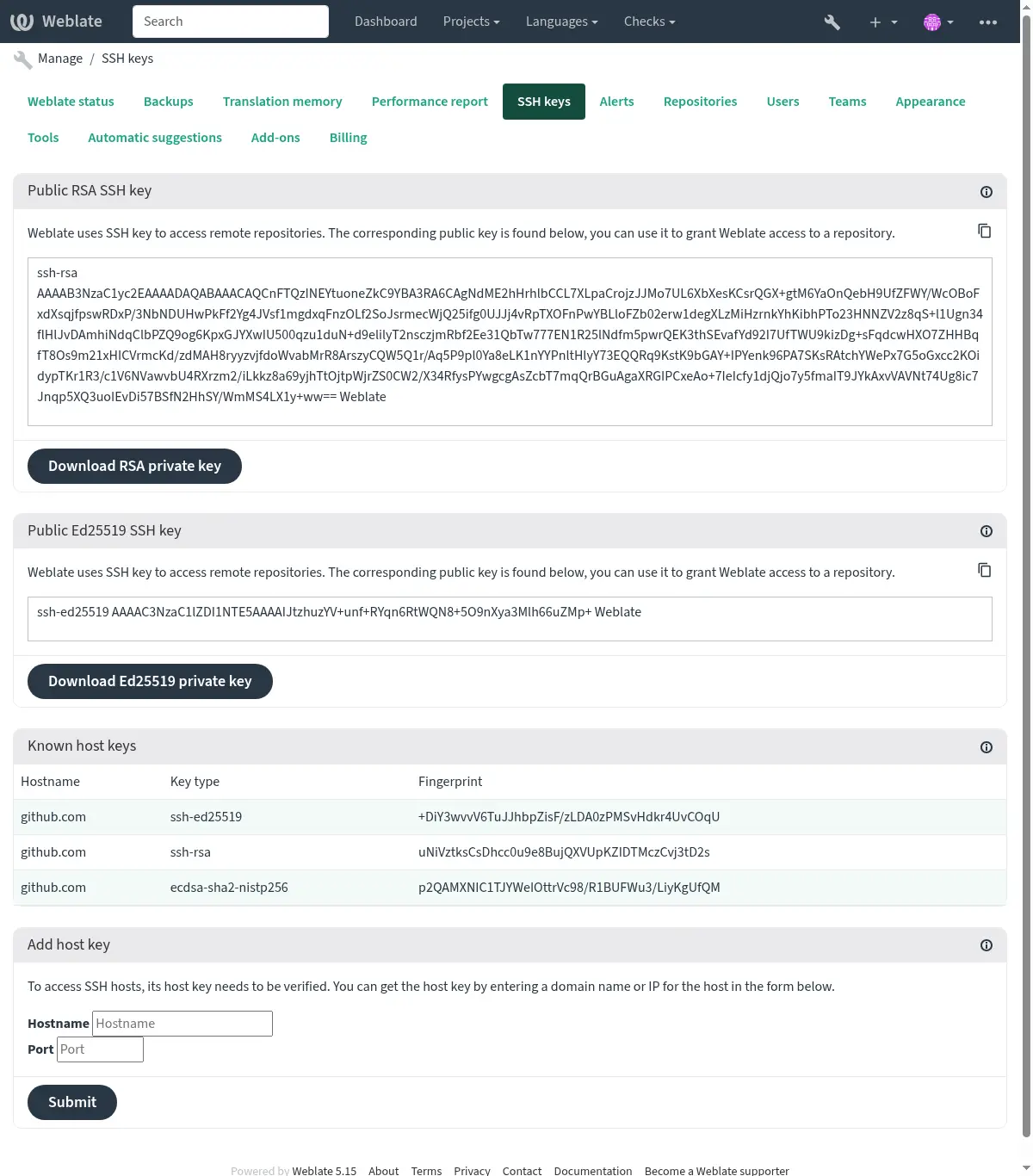
பாஓடு விசை வலைபெயர்ப்பு
Changed in version 4.17: வலைபெயர்ப்பு இப்போது rsa மற்றும் ed25519 பாஓடு விசைகள் இரண்டையும் உருவாக்குகிறது. புதிய அமைப்புகளுக்கு ed25519 ஐப் பயன்படுத்துவது பரிந்துரைக்கப்படுகிறது.
The Weblate public key is visible to all users browsing the About page.
Admins can generate or display the public key currently used by Weblate in the connection (from SSH keys) on the admin interface landing page.
Note
தொடர்புடைய தனியார் பாஓடு விசையில் தற்போது கடவுச்சொல் இருக்க முடியாது, எனவே அது நன்கு பாதுகாக்கப்படுவதை உறுதிசெய்க.
Hint
உருவாக்கப்பட்ட தனியார் வலைபெயர்ப்பு பாஓடு விசையின் காப்புப்பிரதியை உருவாக்கவும்.
பாஓடு புரவலன் விசைகளை சரிபார்க்கிறது
வலைபெயர்ப்பு தானாகவே பாஓடு புரவலன் விசைகளை முதல் அணுகலில் சேமித்து, மேலும் பயன்பாட்டிற்கு அவற்றை நினைவில் கொள்கிறது.
In case you want to verify the key fingerprint before connecting to the
repository, add the SSH host keys of the servers you are going to access in
Add host key, from the same section of the admin interface. Enter
the hostname you are going to access (e.g. gitlab.com), and press
Submit. Verify its fingerprint matches the server you added.
கைரேகைகளுடன் சேர்க்கப்பட்ட விசைகள் உறுதிப்படுத்தல் செய்தியில் காட்டப்பட்டுள்ளன:
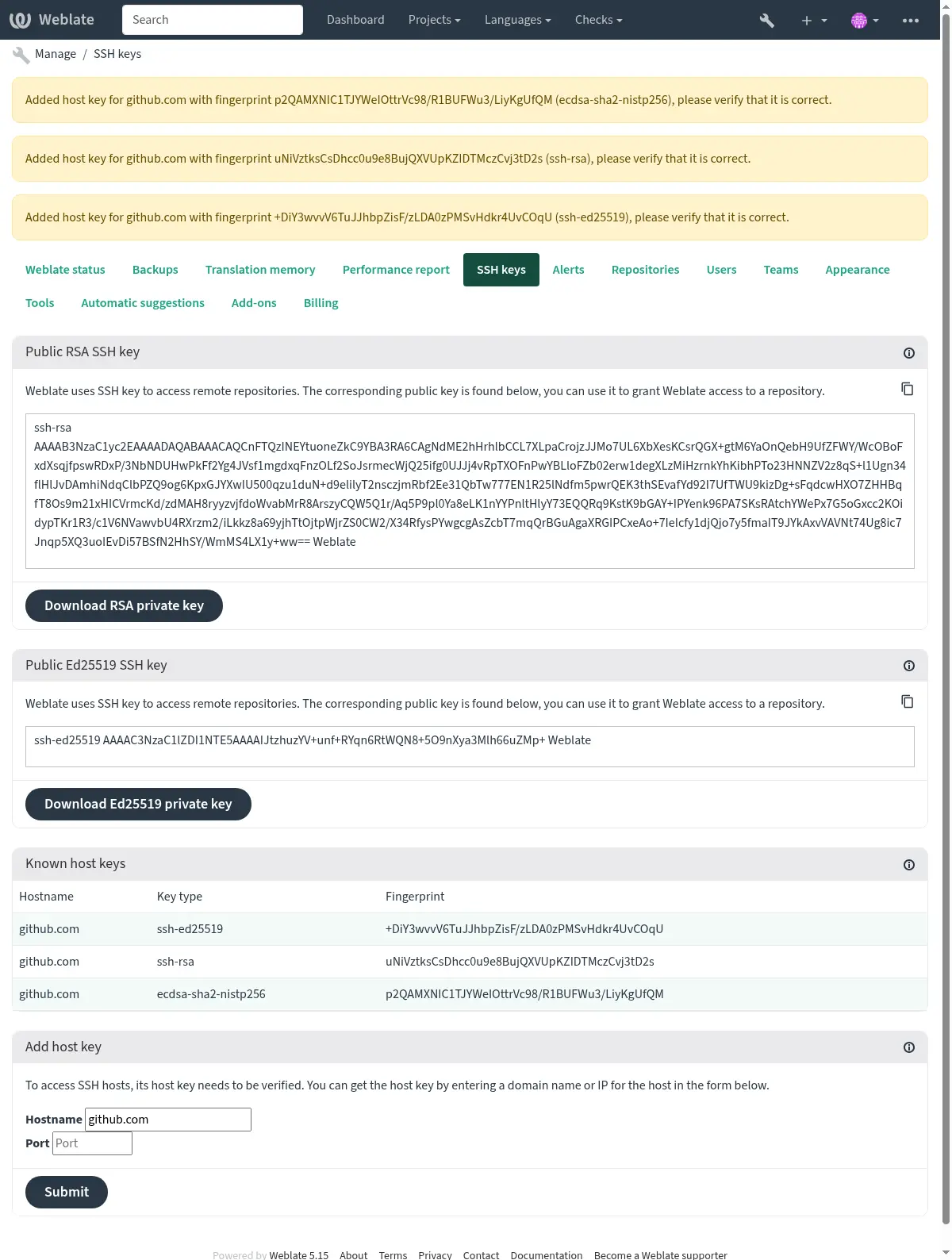
மரபு பாஓடு சேவையகங்களுடன் இணைக்கிறது
அண்மைக் கால ஓபன்ச் வெளியீடுகள் (எடுத்துக்காட்டாக, வலைபெயர்ப்பு கப்பல்துறை கொள்கலனில் பயன்படுத்தப்பட்டவை) இயல்புநிலையாக sha-1 ஆச் வழிமுறையைப் பயன்படுத்தி rsa கையொப்பங்களை முடக்கவும். sha-1 ஆச் வழிமுறை கிரிப்டோகிராஃபிக்காக உடைந்ததால் இந்த மாற்றம் செய்யப்பட்டுள்ளது, மேலும் <usd k 50k க்கு தேர்ந்தெடுக்கப்பட்ட-முன்னேற்ற ஆச் மோதல்களை உருவாக்க முடியும்.
பெரும்பாலான பயனர்களுக்கு, இந்த மாற்றம் கண்ணுக்கு தெரியாததாக இருக்க வேண்டும், மேலும் ssh-rsa விசைகளை மாற்ற வேண்டிய அவசியமில்லை. வெளியீடு 7.2 மற்றும் தற்போதுள்ள ssh-rsa விசைகள் தானாகவே வலுவான வழிமுறையை முடிந்தவரை பயன்படுத்தும் என்பதால் திறந்தபாஓடு rfc8332 rsa/sha-256/512 கையொப்பங்களை ஆதரித்துள்ளது.
மேம்படுத்தப்படாத அல்லது பாஓடு நெறிமுறையில் மேம்பாடுகளை நெருக்கமாகக் கண்காணிக்காத பழைய பாஓடு செயலாக்கங்களுடன் இணைக்கும்போது பொருந்தாத தன்மை அதிகமாகும். அத்தகைய சேவையகத்திற்கான பாஓடு இணைப்பு தோல்வியடையும்:
no matching host key type found. Their offer: ssh-rsa
For these cases, it may be necessary to selectively re-enable RSA/SHA1 to allow
connection and/or user authentication via the HostkeyAlgorithms and
PubkeyAcceptedAlgorithms options. For example, the following stanza in
DATA_DIR/ssh/config will enable RSA/SHA1 for host and user
authentication for a single destination host:
Host legacy-host
   HostkeyAlgorithms +ssh-rsa
   PubkeyAcceptedAlgorithms +ssh-rsa
மரபு செயலாக்கங்களை மற்றொரு முக்கிய வகையுடன் (ecdsa அல்லது ed25519 போன்றவை) மேம்படுத்தலாம் அல்லது மறுசீரமைக்க முடியும் வரை rsa/sha1 ஐ ச்டாப் கேப் நடவடிக்கையாக மட்டுமே இயக்க பரிந்துரைக்கிறோம்.
அறிவிலிமையம் களஞ்சியங்கள்
There are two main approaches to accessing GitHub repositories with Weblate:
Option 1: HTTPS with Personal Access Token (simpler for getting started)
Use HTTPS authentication with a personal access token and your GitHub account. This works for both read-only access (cloning) and read-write access (pushing changes or creating pull requests).
To use this approach:
Create a personal access token as described in Creating an access token for command-line use.
Include the token in your repository URL:
https://username:token@github.com/owner/repo.git
This is suitable when you're starting with Weblate or working with a single repository.
Option 2: SSH with Dedicated User (recommended for multiple repositories)
For setups with multiple repositories, it is recommended to create a dedicated user for Weblate. This avoids GitHub's limitation that each SSH key can only be used once per platform.
To use this approach:
Create a dedicated GitHub user account (e.g.,
weblate-bot)Add Weblate's public SSH key to this user (see பாஓடு விசை வலைபெயர்ப்பு)
Grant this user access to all repositories you want to translate
Use SSH URLs for your repositories:
git@github.com:owner/repo.git
This approach is also used for Hosted Weblate, which has a dedicated weblate user for that purpose.
Note
When using அறிவிலிமையம் கோரிக்கைகள் for pull requests, the புச் கிளை configuration affects the behavior: if not set, the project is forked and changes are pushed through a fork. If set, changes are pushed to the upstream repository and the chosen branch.
GitLab repositories
Access via SSH is possible (see பாஓடு களஞ்சியங்கள்), but in case you need to access more than one repository, you will hit a GitLab limitation on allowed SSH key usage (since each key can be used only once).
In case the புச் கிளை is not set, the project is forked and changes pushed through a fork. In case it is set, changes are pushed to the upstream repository and chosen branch.
Using personal or project access tokens is possible as well. The token needs write_repository scope to be able to push changes to the repository. The project access token requires Developer role for pushing.
The URL needs to contain an username, for personal access token it is the
actual username (
https://user:personal_access_token@gitlab.com/example/example.git) for
project access tokens it can be non-blank value
(https://example:project_access_token@gitlab.com/example/example.git).
Note
The rules for using project access tokens has changed between GitLab releases, the non-blank value is the current requirement, but older versions had different expectations (project name, bot user name). Check GitLab documentation matching your version if unsure.
உள் முகவரி களை வலைபெயர்ப்பு செய்யுங்கள்
Share one repository setup between different components by referring to its
placement as weblate://project/component in other (linked) components. This
way linked components use the VCS repository configuration of the
main (referenced) component.
Warning
முக்கிய கூறுகளை நீக்குவது இணைக்கப்பட்ட கூறுகளையும் நீக்குகிறது.
பொருந்தக்கூடிய களஞ்சிய அமைப்பைக் கொண்ட ஒரு கூறுகளைக் கண்டால் ஒரு கூறுகளை உருவாக்கும்போது வலைபெயர்ப்பு தானாகவே களஞ்சிய முகவரி ஐ சரிசெய்கிறது. கூறு உள்ளமைவின் கடைசி கட்டத்தில் இதை நீங்கள் மேலெழுதலாம்.
இதைப் பயன்படுத்துவதற்கான காரணங்கள்:
சேவையகத்தில் வட்டு இடத்தை சேமிக்கிறது, களஞ்சியம் ஒரு முறை சேமிக்கப்படுகிறது.
புதுப்பிப்புகளை விரைவாகச் செய்கிறது, ஒரு களஞ்சியம் மட்டுமே புதுப்பிக்கப்படுகிறது.
There is just single exported repository with Weblate translations (see அறிவிலி ஏற்றுமதியாளர்).
சில துணை நிரல்கள் ஒரு களஞ்சியத்தைப் பகிரும் பல கூறுகளில் செயல்பட முடியும், எடுத்துக்காட்டாக ச்குவாச் அறிவிலி கம்யூச்.
https களஞ்சியங்கள்
பாதுகாக்கப்பட்ட https களஞ்சியங்களை அணுக, முகவரி இல் பயனர்பெயர் மற்றும் கடவுச்சொல்லை சேர். கவலைப்பட வேண்டாம், பயனர்களுக்கு முகவரி காட்டப்படும் போது வலைபெயர்ப்பு இந்த தகவலை அகற்றும் (களஞ்சிய முகவரி ஐக் காண கூட அனுமதிக்கப்பட்டால்).
For example the GitHub URL with authentication added might look like:
https://user:your_access_token@github.com/WeblateOrg/weblate.git.
In case you don't provide credentials in the URL and the repository requires it, Git will fail with an error:
fatal: could not read Username for 'https://github.com': terminal prompts disabled
Changed in version 5.10.2: HTTP நற்சான்றிதழ்கள் வழங்கப்படும் போது வலைபெயர்ப்பு GIT 2.46.0 மற்றும் புதியது ஆகியவற்றுடன் செயல்திறன்மிக்க அங்கீகாரத்தைப் பயன்படுத்துகிறது.
இது அசூர் டெவொப்ச் களஞ்சியங்களை அணுகுவதை சாத்தியமாக்குகிறது மற்றும் அங்கீகரிக்கப்பட்ட களஞ்சியங்களை விரைவாக அணுகுகிறது.
Note
If your username or password contains special characters, those have to be
URL encoded, for example
https://user%40example.com:%24password%23@bitbucket.org/….
பதிலாளைப் பயன்படுத்துதல்
பதிலாள் சேவையகத்தைப் பயன்படுத்தி நீங்கள் http/https vcs களஞ்சியங்களை அணுக வேண்டும் என்றால், அதைப் பயன்படுத்த vcs ஐ உள்ளமைக்கவும்.
This can be done using the http_proxy, https_proxy, and all_proxy
environment variables, (as described in the cURL documentation)
or by enforcing it in the VCS configuration, for example:
git config --global http.proxy http://user:password@proxy.example.com:80
Note
The proxy configuration needs to be done under user running Weblate (see
also கோப்பு முறைமை அனுமதிகள்) and with HOME=$DATA_DIR/home (see
DATA_DIR), otherwise Git executed by Weblate will not use it.
See also
அறிவிலி
Hint
வெப்லேட்டுக்கு அறிவிலி 2.28 அல்லது புதியது தேவை.
See also
See களஞ்சியங்களை அணுகும் for info on how to access different kinds of repositories.
படை உந்துதலுடன் அறிவிலி
இது அறிவிலி போலவே செயல்படுகிறது, ஒரே வேறுபாடு என்னவென்றால், அது எப்போதும் கட்டாயப்படுத்துகிறது. மொழிபெயர்ப்புகளுக்கு தனி களஞ்சியத்தைப் பயன்படுத்தும் விசயத்தில் மட்டுமே இது நோக்கம் கொண்டது.
Warning
எச்சரிக்கையுடன் பயன்படுத்து, ஏனெனில் இது உங்கள் மேலோடை களஞ்சியத்தில் இழந்த கமிட்டுகளுக்கு எளிதில் வழிவகுக்கிறது.
அறிவிலி உள்ளமைவைத் தனிப்பயனாக்குதல்
Weblate invokes all VCS commands with HOME=$DATA_DIR/home (see
DATA_DIR), therefore editing the user configuration needs to be done
in DATA_DIR/home/.git.
அறிவிலிமையம் கோரிக்கைகள்
This adds a thin layer atop அறிவிலி using the GitHub API to allow pushing translation changes as pull requests, instead of pushing directly to the repository.
அறிவிலி pushes changes directly to a repository, while அறிவிலிமையம் கோரிக்கைகள் creates pull requests. The latter is not needed for merely accessing Git repositories.
You need to configure API credentials (GITHUB_CREDENTIALS) in the
Weblate settings to make this work. Once configured, you will see a
GitHub option when selecting பதிப்பு கட்டுப்பாட்டு அமைப்பு.
அறிவிலிஆய்வு கோரிக்கைகளை ஒன்றிணைக்கவும்
This just adds a thin layer atop அறிவிலி using the GitLab API to allow pushing translation changes as merge requests instead of pushing directly to the repository.
There is no need to use this to access Git repositories, ordinary அறிவிலி works the same, the only difference is how pushing to a repository is handled. With அறிவிலி changes are pushed directly to the repository, while அறிவிலிஆய்வு கோரிக்கைகளை ஒன்றிணைக்கவும் creates merge request.
You need to configure API credentials (GITLAB_CREDENTIALS) in the
Weblate settings to make this work. Once configured, you will see a
GitLab option when selecting பதிப்பு கட்டுப்பாட்டு அமைப்பு.
கிடியா இழுக்கும் கோரிக்கைகள்
Added in version 4.12.
This just adds a thin layer atop அறிவிலி using the Gitea API to allow pushing translation changes as pull requests instead of pushing directly to the repository.
There is no need to use this to access Git repositories, ordinary அறிவிலி works the same, the only difference is how pushing to a repository is handled. With அறிவிலி changes are pushed directly to the repository, while கிடியா இழுக்கும் கோரிக்கைகள் creates pull requests.
You need to configure API credentials (GITEA_CREDENTIALS) in the
Weblate settings to make this work. Once configured, you will see a
Gitea option when selecting பதிப்பு கட்டுப்பாட்டு அமைப்பு.
பிட்பக்கெட் தரவு நடுவண் கோரிக்கைகளை இழுக்கவும்
Added in version 4.16.
This just adds a thin layer atop அறிவிலி using the Bitbucket Data Center API to allow pushing translation changes as pull requests instead of pushing directly to the repository.
Warning
இது பிட்பக்கெட் முகில் பநிஇ ஐ ஆதரிக்காது.
There is no need to use this to access Git repositories, ordinary அறிவிலி works the same, the only difference is how pushing to a repository is handled. With அறிவிலி changes are pushed directly to the repository, while பிட்பக்கெட் தரவு நடுவண் கோரிக்கைகளை இழுக்கவும் creates pull request.
You need to configure API credentials (BITBUCKETSERVER_CREDENTIALS) in the
Weblate settings to make this work. Once configured, you will see a
Bitbucket Data Center option when selecting பதிப்பு கட்டுப்பாட்டு அமைப்பு.
பிட்பக்கெட் முகில் புல் கோரிக்கைகள்
Added in version 5.8.
This just adds a thin layer atop அறிவிலி using the Bitbucket Cloud API to allow pushing translation changes as pull requests instead of pushing directly to the repository.
Warning
இது பிட்பக்கெட் தரவு மைய பநிஇ இலிருந்து வேறுபட்டது.
There is no need to use this to access Git repositories, ordinary அறிவிலி works the same, the only difference is how pushing to a repository is handled. With அறிவிலி changes are pushed directly to the repository, while பிட்பக்கெட் முகில் புல் கோரிக்கைகள் creates pull request.
You need to configure API credentials (BITBUCKETCLOUD_CREDENTIALS) in the
Weblate settings to make this work. Once configured, you will see a
Bitbucket Cloud option when selecting பதிப்பு கட்டுப்பாட்டு அமைப்பு.
pagure ஒன்றிணைப்பு கோரிக்கைகள்
Added in version 4.3.2.
This just adds a thin layer atop அறிவிலி using the Pagure API to allow pushing translation changes as merge requests instead of pushing directly to the repository.
There is no need to use this to access Git repositories, ordinary அறிவிலி works the same, the only difference is how pushing to a repository is handled. With அறிவிலி changes are pushed directly to the repository, while pagure ஒன்றிணைப்பு கோரிக்கைகள் creates merge request.
You need to configure API credentials (PAGURE_CREDENTIALS) in the
Weblate settings to make this work. Once configured, you will see a
Pagure option when selecting பதிப்பு கட்டுப்பாட்டு அமைப்பு.
செரிட்
Adds a thin layer atop அறிவிலி using the git-review tool to allow pushing translation changes as Gerrit review requests, instead of pushing them directly to the repository.
அத்தகைய களஞ்சியங்களை அமைப்பதற்குத் தேவையான உள்ளமைவு குறித்த விவரங்களை கெரிட் ஆவணத்தில் கொண்டுள்ளது.
அசூர் டெவொப்ச் கோரிக்கைகளை இழுக்கிறது
This adds a thin layer atop அறிவிலி using the Azure DevOps API to allow pushing translation changes as pull requests, instead of pushing directly to the repository.
அறிவிலி pushes changes directly to a repository, while அசூர் டெவொப்ச் கோரிக்கைகளை இழுக்கிறது creates pull requests. The latter is not needed for merely accessing Git repositories.
You need to configure API credentials (AZURE_DEVOPS_CREDENTIALS) in the
Weblate settings to make this work. Once configured, you will see a
Azure DevOps option when selecting பதிப்பு கட்டுப்பாட்டு அமைப்பு.
மெர்குரியல்
மெர்குரியல் என்பது நீங்கள் நேரடியாகப் பயன்படுத்தக்கூடிய மற்றொரு வி.சி.எச்.
Note
இது எந்த மெர்குரியல் பதிப்பிலும் வேலை செய்ய வேண்டும், ஆனால் சில நேரங்களில் கட்டளை-வரி இடைமுகத்தில் பொருந்தாத மாற்றங்கள் உள்ளன, இது வலைபெயர்ப்பு ஒருங்கிணைப்பை உடைக்கிறது.
See also
See களஞ்சியங்களை அணுகும் for info on how to access different kinds of repositories.
கீழ்ப்படிதல்
Weblate uses git-svn to interact with subversion repositories. It is a Perl script that lets subversion be used by a Git client, enabling users to maintain a full clone of the internal repository and commit locally.
Note
Weblate tries to detect Subversion repository layout automatically - it supports both direct URLs for branch or repositories with standard layout (branches/, tags/ and trunk/). More info about this is to be found in the git-svn documentation. If your repository does not have a standard layout and you encounter errors, try including the branch name in the repository URL and leaving branch empty.
கீழ்ப்படிதல் நற்சான்றிதழ்கள்
Weblate expects you to have accepted the certificate up-front (and your
credentials if needed). It will look to insert them into the DATA_DIR
directory. Accept the certificate by using svn once with the $HOME
environment variable set to the DATA_DIR:
# Use DATA_DIR as configured in Weblate settings.py, it is /app/data in the Docker
HOME=${DATA_DIR}/home svn co https://svn.example.com/example
See also
உள்ளக கோப்புகள்
Hint
அடியில், இது பயன்படுத்துகிறது அறிவிலி. இதற்கு அறிவிலி நிறுவப்பட வேண்டும் மற்றும் உங்கள் மொழிபெயர்ப்புகளின் முழு வரலாற்றையும் கொண்ட அறிவிலி பயன்படுத்த அனுமதிக்கிறது.
வலைபெயர்ப்பு தொலைநிலை வி.சி.எச் இல்லாமல் செயல்பட முடியும். ஆரம்ப மொழிபெயர்ப்புகள் அவற்றை பதிவேற்றுவதன் மூலம் இறக்குமதி செய்யப்படுகின்றன. பின்னர் நீங்கள் தனிப்பட்ட கோப்புகளை கோப்பு பதிவேற்றம் மூலம் மாற்றலாம் அல்லது மொழிபெயர்ப்பு சரங்களை வலைபெயர்ப்புடிலிருந்து நேரடியாகச் சேர்க்கலாம் (தற்போது ஒருமொழி மொழிபெயர்ப்புகளுக்கு மட்டுமே கிடைக்கிறது).
பின்னணியில், வலைபெயர்ப்பு உங்களுக்காக ஒரு அறிவிலி களஞ்சியத்தை உருவாக்குகிறது மற்றும் அனைத்து மாற்றங்களும் கண்காணிக்கப்படுகின்றன. பின்னர் மொழிபெயர்ப்புகளைச் சேமிக்க ஒரு வி.சி.எச் பயன்படுத்த முடிவு செய்தால், நீங்கள் ஏற்கனவே வலைபெயர்ப்புடுக்குள் ஒரு களஞ்சியத்தை வைத்திருக்கிறீர்கள்.