வலைபெயர்ப்பைப் பயன்படுத்தி மொழிபெயர்ப்பு
வெப்லேட்டுடன் மொழிபெயர்ப்பதில் உங்கள் ஆர்வத்திற்கு நன்றி!
பொதுவாக, மொழிபெயர்ப்பின் இரண்டு அதிகம் பயன்படுத்தப்படும் முறைகள் உள்ளன:
திட்டம் நேரடி மொழிபெயர்ப்புகளை ஏற்றுக்கொள்கிறது
பயனர்கள் அளித்த பரிந்துரைகளை திட்டம் ஏற்றுக்கொள்கிறது.
சில நேரங்களில், அநாமதேய பரிந்துரைகளும் ஏற்றுக்கொள்ளப்படுகின்றன.
மேலும் மொழிபெயர்ப்பு பணிப்பாய்வுகள் மொழிபெயர்ப்பு பணிப்பாய்வு இல் விவரிக்கப்பட்டுள்ளன.
திட்டங்கள், அல்லது அவற்றில் உள்ள கூறுகள் அனைவருக்கும் தெரியும், அல்லது ஒரு குறிப்பிட்ட மொழிபெயர்ப்பாளர்களுக்கு மட்டுமே.
மொழிபெயர்ப்பு திட்டங்கள்
மொழிபெயர்ப்பு திட்டங்கள் தொடர்புடைய கூறுகளை வைத்திருக்கின்றன; அதே மென்பொருள், நூல் அல்லது திட்டத்திற்கான ஆதாரங்கள்.
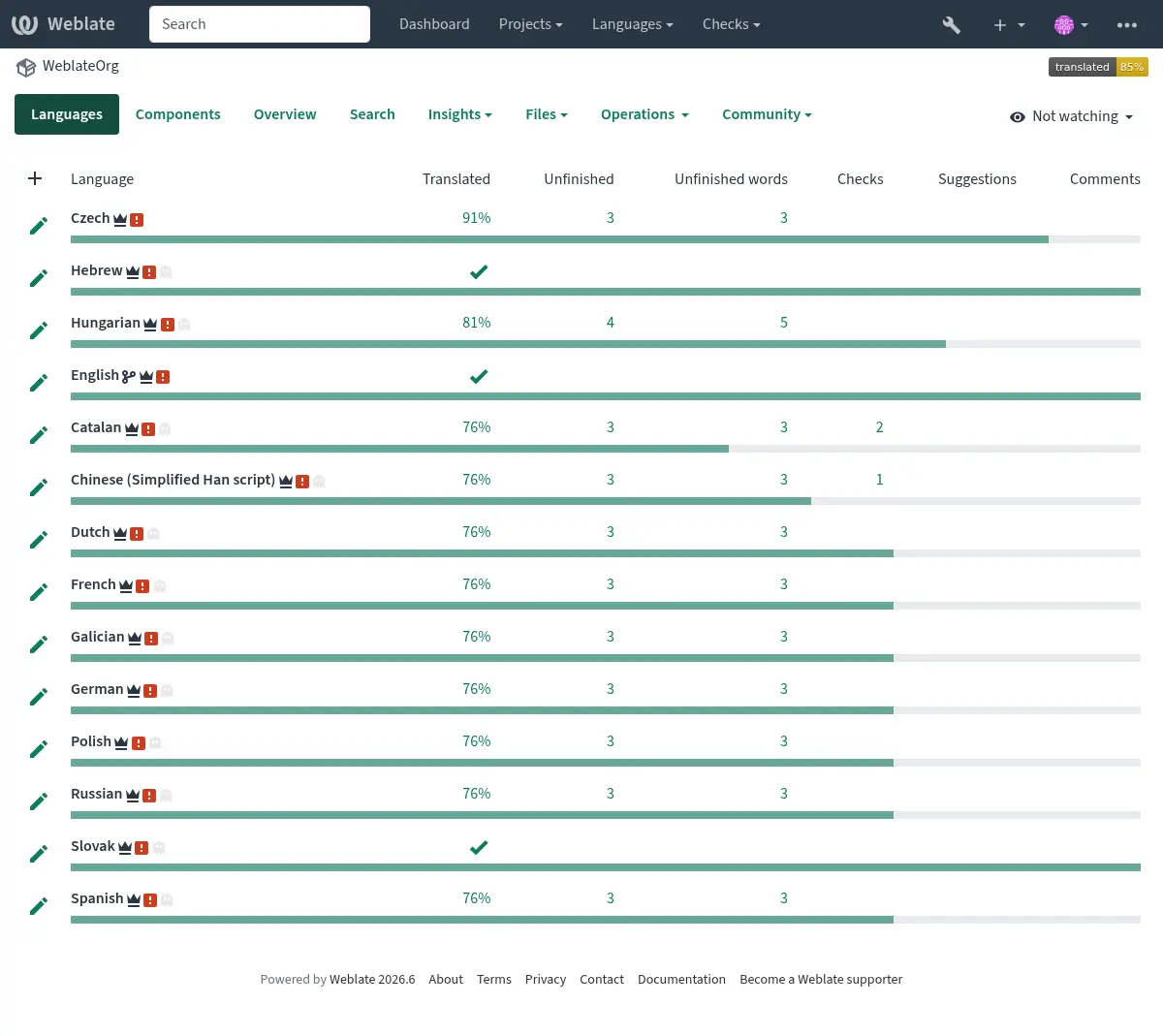
மொழிபெயர்ப்பு இணைப்புகள்
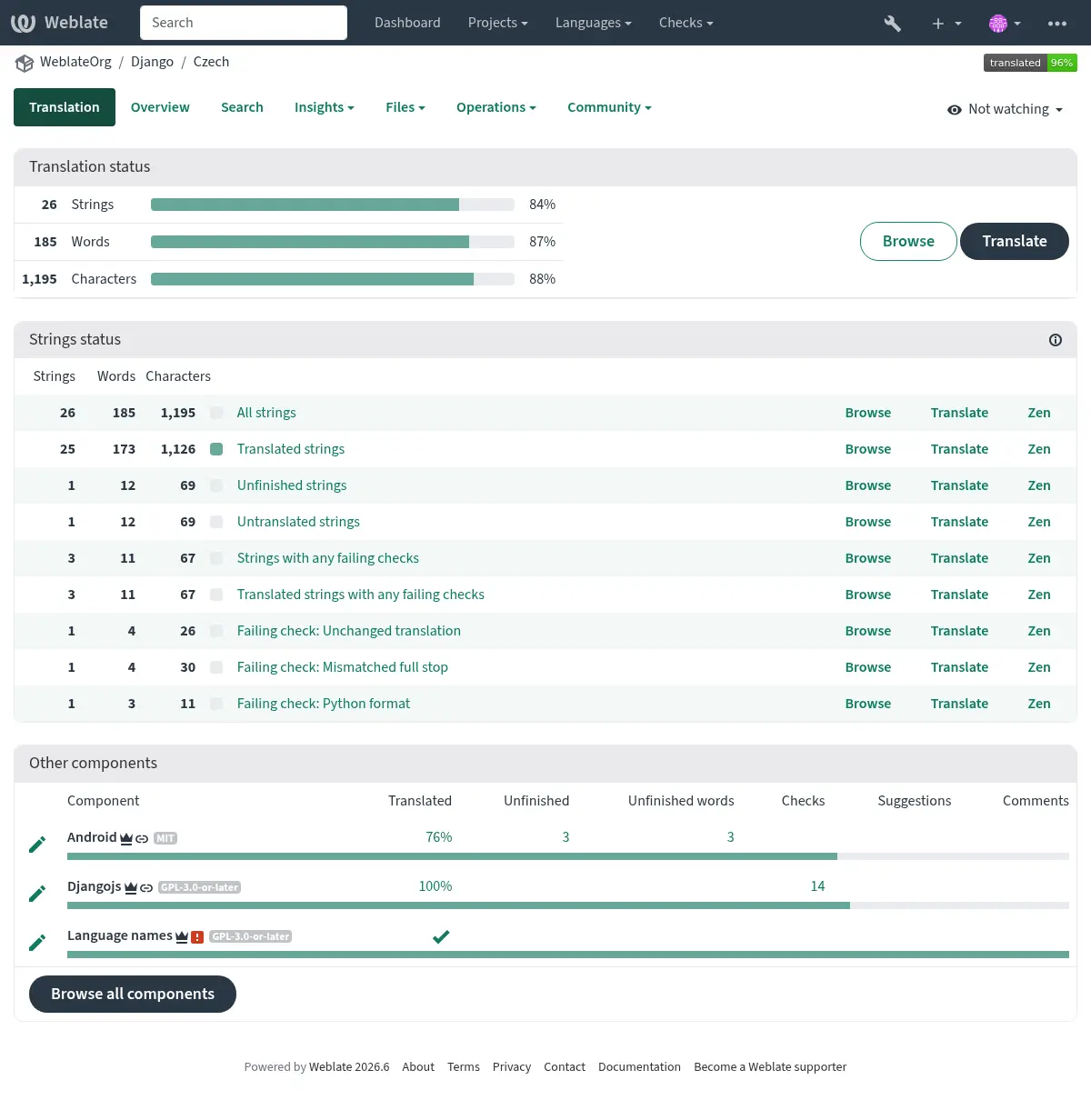
ஒரு கூறுக்கு வழிசெலுத்தப்பட்ட பிறகு, இணைப்புகளின் தொகுப்பு அதன் உண்மையான மொழிபெயர்ப்புக்கு வழிவகுக்கும். மொழிபெயர்ப்பு மேலும் தனிப்பட்ட சரிபார்ப்புகளாக பிரிக்கப்பட்டுள்ளது, அதாவது மொழிபெயர்க்கப்படாத சரங்கள் அல்லது முடிக்கப்படாத சரங்கள். முழு திட்டமும் ஏற்கனவே எந்த பிழையும் இல்லாமல் மொழிபெயர்க்கப்பட்டிருந்தால், எல்லா சரங்களும் இன்னும் கிடைக்கும். மாற்றாக நீங்கள் ஒரு குறிப்பிட்ட சரம் அல்லது சொல்லைக் கண்டறிய Search அம்சத்தைப் பயன்படுத்தலாம்.
பரிந்துரைகள்
Note
உங்கள் வலைபெயர்ப்பு உள்ளமைவைப் பொறுத்து உண்மையான அனுமதிகள் மாறுபடலாம்.
அநாமதேய பயனர்கள் (இயல்புநிலையாக) பரிந்துரைகளை மட்டுமே அனுப்ப முடியும். அவ்வாறு செய்வது, உள்நுழைந்துள்ள பயனர்களுக்கு இன்னும் கிடைக்கும், ஒரு மொழிபெயர்ப்பைப் பற்றிய நிச்சயமற்ற நிலை ஏற்படும் சந்தர்ப்பங்களில், பிற மொழிபெயர்ப்பாளர்கள் அதை மதிப்பாய்வு செய்ய தூண்டும். எந்தவொரு பயனரும் ஏற்கனவே உள்ள பரிந்துரையை பன்மை வடிவங்கள் உட்பட மொழிபெயர்ப்புப் புலங்களில் நகலி செய்து புதிய பரிந்துரை அல்லது மொழிபெயர்ப்பிற்கான அடிப்படையாகப் பயன்படுத்தலாம்.
நகல்கள் மற்றும் பொருந்தக்கூடிய தற்போதைய மொழிபெயர்ப்புகளை அகற்ற அனைத்து பரிந்துரைகளும் நாள்தோறும் அடிப்படையில் ச்கேன் செய்யப்படுகின்றன.
If you have the Accept suggestions permission, you can bulk accept all suggestions from a specific user by clicking the account check icon next to their suggestion. This is useful for quickly processing suggestions from trusted contributors. Suggestions failing quality checks are skipped and remain for manual review. Weblate shows the number of matching suggestions for confirmation and processes the acceptance in the background. If you can review the translation, you can accept and approve the suggestions in the same step.
மாறுபாடுகள்
ஒரு சரத்தின் வெவ்வேறு நீள மாறுபாடுகளை தொகுக்க மாறுபாடுகள் பயன்படுத்தப்படுகின்றன. உங்கள் திட்டத்தின் முன்புறம் ஒரு திரை அல்லது சாளரத்தின் அளவைப் பொறுத்து வெவ்வேறு சரங்களை பயன்படுத்தலாம்.
See also
சிட்டைகள்
உள்ளூர்மயமாக்கல் பணிப்பாய்வுகளை மேலும் தனிப்பயனாக்க ஒரு திட்டத்திற்குள் சரங்களை வகைப்படுத்த சிட்டைகள் பயன்படுத்தப்படுகின்றன (எடுத்துக்காட்டாக சரங்களின் வகைகளை வரையறுக்க).
பின்வரும் சிட்டைகளை வலைபெயர்ப்பு பயன்படுத்துகிறது:
- தானாக மொழிபெயர்க்கப்பட்டுள்ளது
சரம் தானியங்கி மொழிபெயர்ப்பு ஐப் பயன்படுத்தி மொழிபெயர்க்கப்பட்டுள்ளது.
- மூலத்திற்கு மதிப்பாய்வு தேவை
மூல சரங்கள் மதிப்புரைகள் ஐப் பயன்படுத்தி மதிப்பாய்வுக்காக சரம் குறிக்கப்பட்டது.
See also
மொழிபெயர்
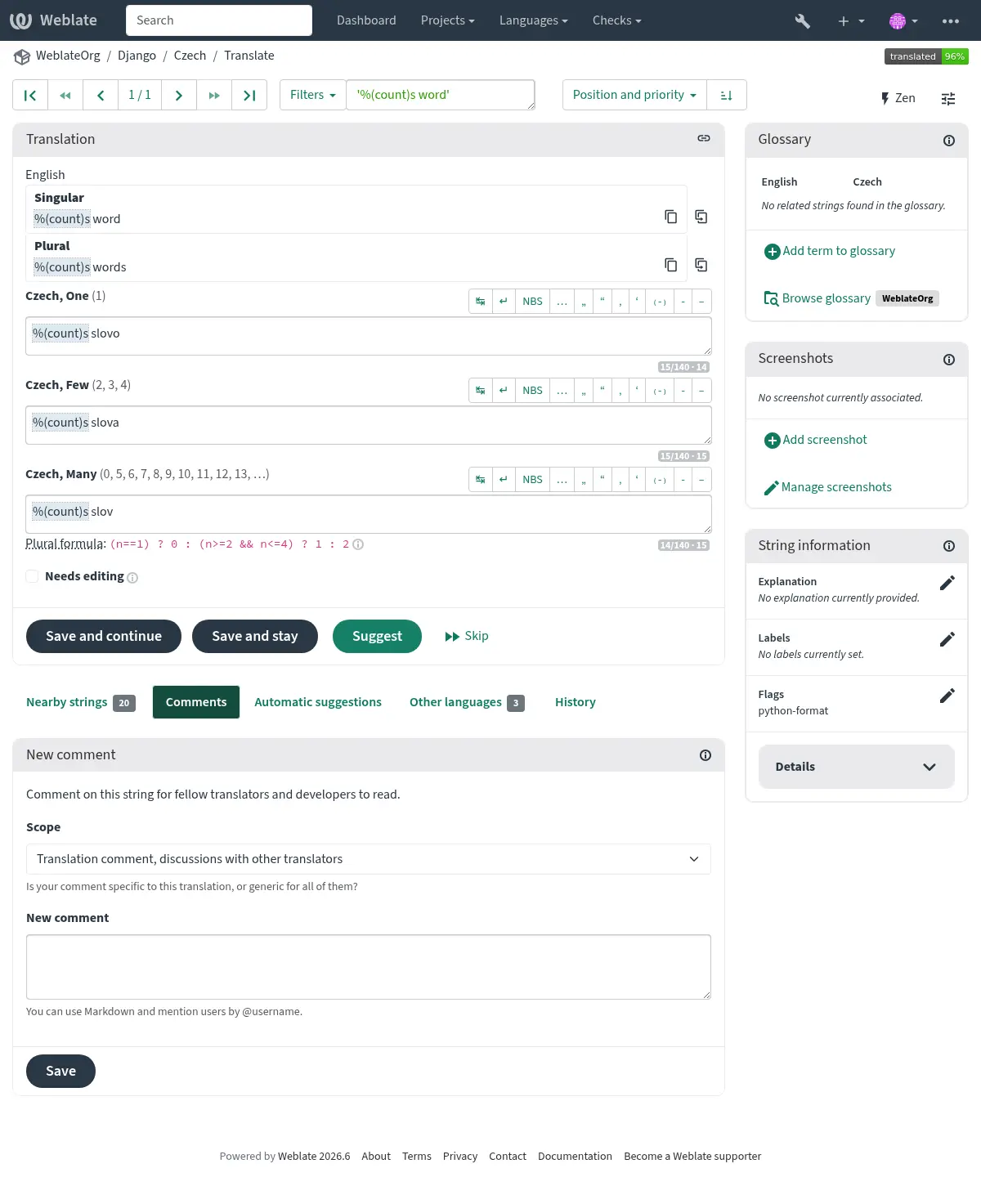
மொழிபெயர்ப்பு பக்கத்தில், மூல சரம் மற்றும் அதன் மொழிபெயர்ப்பிற்கான திருத்துதல் பகுதி காட்டப்பட்டுள்ளன. மொழிபெயர்ப்பு பன்மை இருக்க வேண்டுமானால், பல மூல சரங்கள் மற்றும் திருத்துதல் பகுதிகள் காட்டப்பட்டுள்ளன, ஒவ்வொன்றும் விவரிக்கப்பட்டு மொழிபெயர்க்கப்பட்ட மொழியின் பன்மை வடிவங்களின் அளவில் பெயரிடப்பட்டுள்ளன.
அனைத்து சிறப்பு இடைவெளி எழுத்துகளும் சிவப்பு நிறத்தில் அடிக்கோடிட்டுக் காட்டப்பட்டு சாம்பல் சின்னங்களுடன் குறிக்கப்படுகின்றன. மொழிபெயர்ப்பாளரை ஒரு சாத்தியமான வடிவமைப்பு சிக்கலுக்கு எச்சரிக்க ஒன்றுக்கு மேற்பட்ட இடங்கள் சிவப்பு நிறத்தில் அடிக்கோடிட்டுக் காட்டப்படுகின்றன.
இந்தப் பக்கத்தில் கூடுதல் தகவல்களின் பல்வேறு பிட்கள் காட்டப்படலாம், அவற்றில் பெரும்பாலானவை திட்ட மூலக் குறியீட்டிலிருந்து (சூழல், கருத்துகள் அல்லது செய்தி பயன்படுத்தப்படும் இடம் போன்றவை) இருந்து வருகின்றன. விருப்பத்தேர்வுகளில் தேர்ந்தெடுக்கப்பட்ட எந்த இரண்டாம் நிலை மொழிகளுக்கான மொழிபெயர்ப்பு புலங்கள் மூல சரத்திற்கு மேலே காட்டப்படும் (பார்க்க இரண்டாம் நிலை மொழிகள்).
மொழிபெயர்ப்புக்கு கீழே, மொழிபெயர்ப்பாளர்கள் மற்றவர்களால் செய்யப்பட்ட ஆலோசனையை ஏற்றுக்கொள்வார்கள், ஏற்றுக்கொள்ளப்பட வேண்டும் (✓) மாற்றங்களுடன் ஏற்றுக்கொள்ளப்பட வேண்டும் (✏️) பெரிதாக பயனரிடமிருந்து (👤✓), நகலி எடுக்கப்பட்ட இடங்கள் (📑) அல்லது நீக்கப்பட்ட (🗑) வேண்டும்.
Translating special text safely
Some source strings contain text that the application interprets at runtime. Translate the human-readable parts, but keep technical markers intact unless the project instructions say otherwise.
- Placeholders and format strings
Keep variables such as
%s,%1$d,%(name)s,{count},{{ value }}, or similar markers in the translation. Named placeholders describe the inserted value, but the names themselves are not translated. You can usually reorder numbered or named placeholders to fit the target language. Use the placeable copy shortcuts to insert them without typing mistakes.- Markup
Keep HTML and XML tags, tag names, and attribute names unchanged. Translate the visible text between tags and any attribute value that is meant for users, for example alternative text or a tooltip, when it appears as part of the translatable string. Make sure opening and closing tags still match after reordering the sentence.
- Program syntax
Leave function names, commands, environment variables, spreadsheet functions, SQL keywords, and similar program syntax untranslated unless the project explicitly documents a localized form.
- Punctuation and whitespace
Preserve punctuation and spaces that affect the interface, such as trailing colons, ellipses, leading or trailing spaces, and punctuation next to placeholders. Follow the target language's typography when it differs from the source, and use comments when a source punctuation choice looks wrong.
- Accelerators
Menu labels can mark keyboard accelerators with characters such as
&,_, or~. When the source has an accelerator, keep one in the translation. Choose a readable key in the translated label and avoid obvious conflicts with nearby menu items or buttons.- Plural forms
Translate each plural field Weblate shows. Do not combine forms into a single construction such as
file(s)unless that is correct for the target language and project. If the source string uses an ambiguous plural, report it with a source string comment or review.
Weblate quality checks catch many technical mistakes in placeholders, markup, punctuation, whitespace, and plural forms. They do not replace translator judgment, so use மொழிபெயர்ப்பு சூழல், சொற்களஞ்சியம், and கருத்துகள் when the source text needs clarification.
பன்மை
சொற்கள் அவற்றின் எண் பதவிக்கு படிவத்தை மாற்றும் பன்மைகள் என்று அழைக்கப்படுகின்றன. ஒவ்வொரு மொழிக்கும் அதன் சொந்த வரையறை உள்ளது. ஆங்கிலம், எடுத்துக்காட்டாக, ஒன்றை ஆதரிக்கிறது. ஒரு எடுத்துக்காட்டு "கார்" இன் ஒற்றை வரையறையில், மறைமுகமாக ஒரு கார் குறிப்பிடப்படுகிறது, "கார்கள்" என்பதன் பன்மை வரையறையில், இரண்டு அல்லது அதற்கு மேற்பட்ட கார்கள் குறிப்பிடப்படுகின்றன (அல்லது கார்களை ஒரு பெயர்ச்சொல்லாகக் கருதுகின்றன). எடுத்துக்காட்டாக, செக் அல்லது அரபு போன்ற மொழிகள் பன்முகங்களின் வடிவங்களைக் கொண்டுள்ளன, மேலும் பன்மைகளுக்கான அவற்றின் விதிகளும் வேறுபட்டவை.
ஒவ்வொரு வடிவத்திலும், அந்தந்த ஒவ்வொரு மொழியிலும் வலைபெயர்ப்பு முழு ஆதரவைக் கொண்டுள்ளது. ஒவ்வொரு இலக்கண எண்ணும் மொழிபெயர்ப்பு மொழிக்கு குறிப்பிட்ட கார்டினல் எண்களின் முன் வரையறுக்கப்பட்ட தொகுப்பிற்கு தனி துறையில் மொழிபெயர்க்கப்பட்டுள்ளது. புலங்களின் எண்ணிக்கை மற்றும் அவை மொழிபெயர்க்கப்பட்ட பயன்பாடு அல்லது திட்டத்தில் எவ்வாறு பயன்படுத்தப்படுகின்றன, கட்டமைக்கப்பட்ட பன்மை சூத்திரத்தைப் பொறுத்தது. வலைபெயர்ப்பு அடிப்படை தகவல்களையும், யூனிகோட் கூட்டமைப்பின் மொழி பன்மை விதிகளும் ஐ இன்னும் விரிவான விளக்கத்தைக் காட்டுகிறது.
See also
மாற்று மொழிபெயர்ப்புகள்
Added in version 4.13.
Note
இது தற்போது multivalue காபிம கோப்பு உடன் மட்டுமே ஆதரிக்கப்படுகிறது.
சில வடிவங்களில், ஒரு சரத்திற்கு அதிக மொழிபெயர்ப்புகள் இருக்க முடியும். Tools மெனுவைப் பயன்படுத்தி மேலும் மாற்று மொழிபெயர்ப்புகளைச் சேர்க்கலாம். எந்த வெற்று மாற்று மொழிபெயர்ப்புகளும் சேமித்தவுடன் தானாகவே அகற்றப்படும்.
விசைப்பலகை குறுக்குவழிகள்
பின்வரும் விசைப்பலகை குறுக்குவழிகளை மொழிபெயர்ப்பின் போது பயன்படுத்தலாம்:
விசைப்பலகை குறுக்குவழி |
விளக்கம் |
|---|---|
? |
கிடைக்கக்கூடிய விசைப்பலகை குறுக்குவழிகளைத் திறக்கவும். |
Alt+Home |
தற்போதைய தேடலில் முதல் மொழிபெயர்ப்புக்கு செல்லவும். |
Alt+End |
தற்போதைய தேடலில் கடைசி மொழிபெயர்ப்புக்குச் செல். |
Alt+PageUp அல்லது Ctrl+↑ அல்லது Alt+↑ அல்லது Cmd+↑ |
தற்போதைய தேடலில் முந்தைய மொழிபெயர்ப்புக்கு செல்லவும். |
Alt+PageDown அல்லது Ctrl+↓ அல்லது Alt+↓ அல்லது Cmd+↓ |
தற்போதைய தேடலில் அடுத்த மொழிபெயர்ப்புக்கு செல்லவும். |
Ctrl+Enter அல்லது Cmd+Enter |
தற்போதைய படிவத்தை சமர்ப்பிக்கவும்; இது மொழிபெயர்ப்பைத் திருத்தும் போது சேமித்து தொடரவும் என்பதை அழுத்துவது போன்றது. |
Ctrl+Shift+Enter அல்லது Cmd+Shift+Enter |
திருத்தி அதைத் திருத்தி சமர்ப்பிக்கவும். |
Alt+Enter அல்லது Option+Enter |
சரத்தை பரிந்துரையாகச் சமர்ப்பிக்கவும்; மொழிபெயர்ப்பைத் திருத்தும்போது Suggest என்பதை அழுத்துவது போலவே இதுவும் செயல்படுகிறது. |
Ctrl+E அல்லது Cmd+E |
மொழிபெயர்ப்பு எடிட்டரில் கவனம் செலுத்துங்கள். |
Ctrl+U அல்லது Cmd+U |
கருத்து எடிட்டரில் கவனம் செலுத்துங்கள். |
Ctrl+M அல்லது Cmd+M |
தானியங்கி பரிந்துரைகள் தாவலைக் காட்டுகிறது, பார்க்கவும் தானியங்கி பரிந்துரைகள். |
Ctrl+1 முதல் Ctrl+9 அல்லது Cmd+1 முதல் Cmd+9 வரை |
மூல சரத்திலிருந்து கொடுக்கப்பட்ட எண்ணின் நகல்கள். |
Ctrl+M followed by 1 பெறுநர் 9 or Cmd+M followed by 1 பெறுநர் 9 |
கொடுக்கப்பட்ட எண்ணின் இயந்திர மொழிபெயர்ப்பைத் தற்போதைய மொழிபெயர்ப்புக்கு நகலெடுக்கவும். |
Ctrl+I followed by 1 பெறுநர் 9 or Cmd+I followed by 1 பெறுநர் 9 |
தோல்வியுற்ற சோதனைகளின் பட்டியலில் ஒரு உருப்படியை புறக்கணிக்கவும். |
Ctrl+J அல்லது Cmd+J |
Narby strings தாவலைக் காட்டுகிறது. |
Ctrl+S அல்லது Cmd+S |
தேடல் புலத்தில் கவனம் செலுத்துங்கள். |
Ctrl+O அல்லது Cmd+O |
மூல சரத்தை நகலெடுக்கவும். |
Ctrl+Y அல்லது Cmd+Y |
நீட்ச் எடிட்டிங் தேர்வுப்பெட்டியை மாற்றவும். |
→ |
அடுத்த மொழிபெயர்ப்பு சரத்தை உலாவுக. |
← |
முந்தைய மொழிபெயர்ப்பு சரத்தை உலாவுக. |
காட்சி விசைப்பலகை
மொழிபெயர்ப்பு புலத்திற்கு சற்று மேலே ஒரு சிறிய காட்சி விசைப்பலகை வரிசை காட்டப்பட்டுள்ளது. அதன் வரிசைகள் ஒவ்வொரு மொழிக்கும் குறிப்பிட்டவை; உள்ளக நிறுத்தற்குறி அல்லது கையால் தட்டச்சு செய்ய கடினமாக இருக்கும் எழுத்துக்களுக்கு இது பயனுள்ளதாக இருக்கும்.
காட்டப்பட்ட சின்னங்கள் காரணி மூன்று வகைகளாக:
பயனர் கட்டமைக்கப்பட்டது சிறப்பு எழுத்துக்கள் பயனர் சுயவிவரம் இல் வரையறுக்கப்பட்டுள்ளது
வலைபெயர்ப்பு வழங்கிய ஒவ்வொரு மொழி எழுத்துக்கள் (எ.கா. மேற்கோள்கள் அல்லது ஆர்.டி.எல்-குறிப்பிட்ட எழுத்துக்கள்)
எழுத்துகள்
SPECIAL_CHARSஐப் பயன்படுத்தி கட்டமைக்கப்பட்டுள்ளன
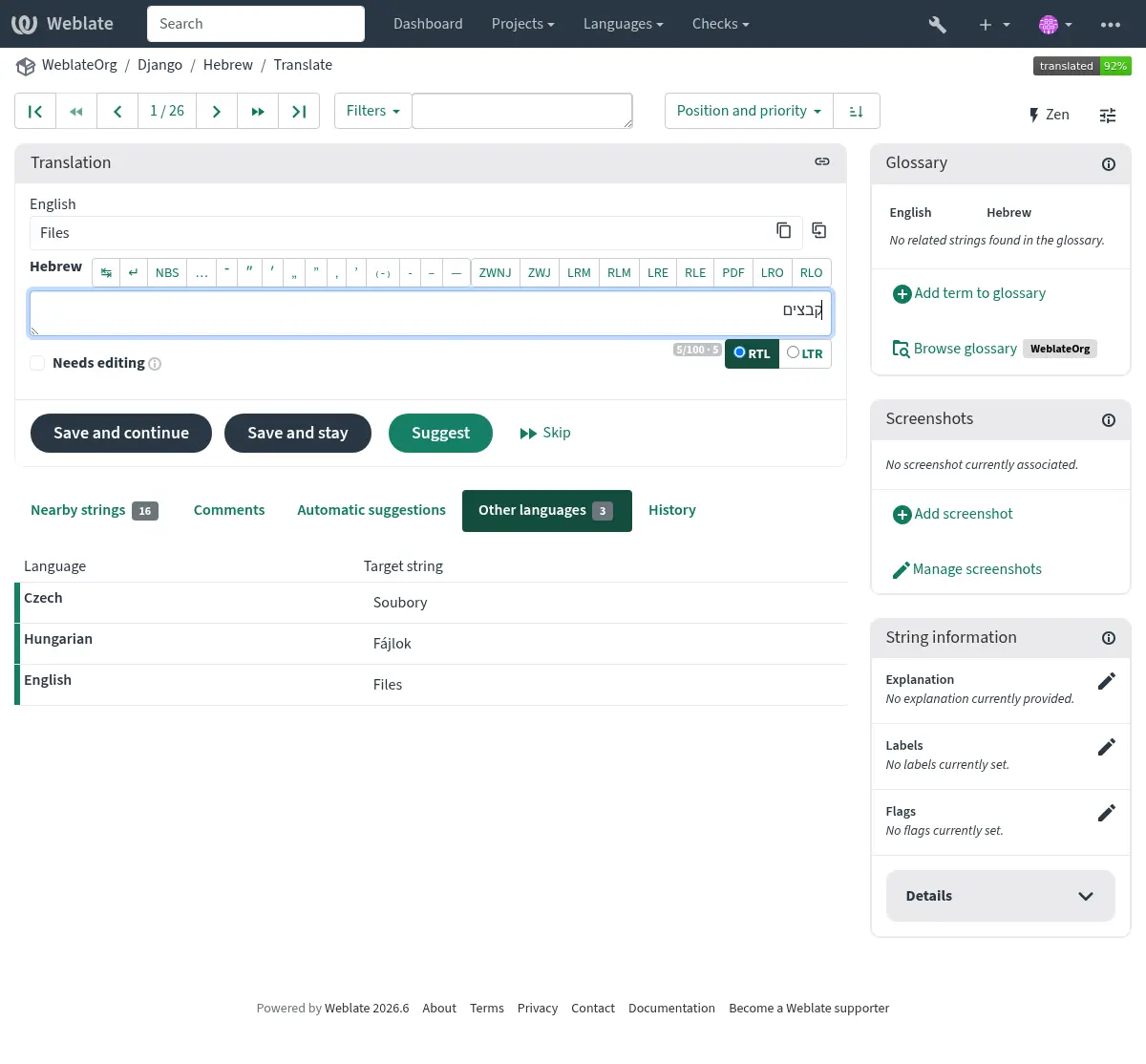
மொழிபெயர்ப்பு சூழல்
இந்த சூழல் விளக்கம் தற்போதைய சரம் பற்றிய தொடர்புடைய தகவலை வழங்குகிறது.
- சரம் பண்புக்கூறுகள்
செய்தி அடையாளம், சூழல் (
msgctxt) அல்லது மூலக் குறியீட்டில் உள்ள இடம் போன்ற விசயங்கள்.- விளக்கம்
Further clarification can be provided in Weblate via விளக்கம்.
- திரைக்காட்சிகள்
ச்கிரீன்சாட்களை இந்தப் பேனலில் இருந்து நேரடியாகப் பதிவேற்றலாம் ச்கிரீன்சாட்டைச் சேர் என்பதைப் பயன்படுத்தி, அல்லது சரம் எங்கு, எப்படிப் பயன்படுத்தப்படுகிறது என்பதை மொழிபெயர்ப்பாளர்களுக்குச் சிறப்பாகத் தெரிவிக்க, வலைபெயர்ப்பு இல் வேறு இடங்களில் நிர்வகிக்கலாம். சரத்தின் ஒவ்வொரு மொழிபெயர்ப்பிற்கும் மூல-மொழி ச்கிரீன்சாட்கள் காட்டப்படும், அதே சமயம் மொழிபெயர்ப்பு-குறிப்பிட்ட ச்கிரீன்சாட்கள் அந்த மொழிபெயர்ப்புக்கு மட்டுமே காட்டப்படும்; பார்க்க திரை சாட்கள் மற்றும் காட்சி சூழல்.
- அருகிலுள்ள சரங்கள்
மொழிபெயர்ப்பு கோப்பிலிருந்து அண்டை சரங்களை காட்டுகிறது. இவை வழக்கமாக இதேபோன்ற சூழலில் பயன்படுத்தப்படுகின்றன மற்றும் மொழிபெயர்ப்பை சீராக வைத்திருக்க பயனுள்ளதாக இருக்கும்.
- பிற நிகழ்வுகள்
ஒரு செய்தி பல இடங்களில் தோன்றினால் (எ.கா. பல கூறுகள்), அவை சீரற்றதாகக் கண்டறியப்பட்டால் அவை அனைத்தையும் இந்தத் தாவல் காட்டுகிறது (பார்க்க சீரற்ற). எதைப் பயன்படுத்த வேண்டும் என்பதை நீங்கள் தேர்வு செய்யலாம்.
- மொழிபெயர்ப்பு நினைவகம்
கடந்த காலத்தில் மொழிபெயர்க்கப்பட்ட ஒத்த சரங்களைப் பார்க்கவும், பார்க்கவும் மொழிபெயர்ப்பு நினைவகம்.
- சொற்களஞ்சியம்
தற்போதைய செய்தியில் பயன்படுத்தப்படும் திட்ட சொற்களஞ்சியத்திலிருந்து சொற்களைக் காட்டுகிறது.
- வரலாறு
வலைபெயர்ப்பைப் பயன்படுத்தி அண்மைக் காலத்தில் இந்த செய்தியை மாற்றிய நபர்களின் பட்டியல்.
- திட்டம்
மொழிபெயர்ப்பாளர்களுக்கான வழிமுறைகள் போன்ற திட்டத் செய்தி, அல்லது திட்டம் பயன்படுத்தும் பதிப்பு கட்டுப்பாட்டு கணினி களஞ்சியத்தில் ஒரு அடைவு அல்லது சரத்துடன் இணைப்பு.
நீங்கள் நேரடி இணைப்புகளை விரும்பினால், மொழிபெயர்ப்பு வடிவம் அதை ஆதரிக்க வேண்டும்.
மொழிபெயர்ப்பு வரலாறு
ஒவ்வொரு மாற்றமும் இயல்பாகவே (கூறு அமைப்புகளில் அணைக்கப்படாவிட்டால்) தரவுத்தளத்தில் சேமிக்கப்படுகிறது, மேலும் அதை மாற்றலாம். விருப்பமாக, மொழிபெயர்ப்புகளை அடிப்படை பதிப்பு கட்டுப்பாட்டு அமைப்பிலும் மாற்றலாம்.
மொழிபெயர்க்கப்பட்ட சரம் நீளம்
மொழிபெயர்க்கப்பட்ட சரம் மிக நீளமாக இல்லை என்பதை உறுதிப்படுத்த ஒரு மொழிபெயர்ப்பின் நீளத்தை வலைபெயர்ப்பு கட்டுப்படுத்தலாம்:
மொழிபெயர்ப்பிற்கான இயல்புநிலை வரம்பு மூல சரத்தை விட பத்து மடங்கு அதிகமாகும். இதை
LIMIT_TRANSLATION_LENGTH_BY_SOURCE_LENGTHமூலம் மாற்றலாம். நீங்கள் இதைத் தாக்கினால், ஒருமொழி மொழிபெயர்ப்பு தவறாக இருமொழியாக அமைக்கப்படுவதாலும், வலைபெயர்ப்பு உண்மையான மூலச் சரத்திற்கு மொழிபெயர்ப்பு விசையை தவறாகப் புரிந்துகொள்வதால் ஏற்படலாம். மேலும் தகவலுக்கு இருமொழி மற்றும் ஒற்றை மொழி வடிவங்கள் ஐப் பார்க்கவும்.மொழிபெயர்ப்பின் அதிகபட்ச நீளம் இன் படி, மொழிபெயர்ப்பு கோப்பு அல்லது கொடியால் வரையறுக்கப்பட்ட எழுத்துகளில் அதிகபட்ச நீளம்.
கொடிகளால் வரையறுக்கப்பட்ட பிக்சல்களில் அதிகபட்சமாக வழங்குதல் செய்யப்பட்ட அளவு; பார்க்க மொழிபெயர்ப்பின் அதிகபட்ச அளவு.
தானியங்கி பரிந்துரைகள்
உள்ளமைவு மற்றும் நீங்கள் மொழிபெயர்க்கப்பட்ட மொழியின் அடிப்படையில், வலைபெயர்ப்பு பல இயந்திர மொழிபெயர்ப்பு கருவிகள் மற்றும் மொழிபெயர்ப்பு நினைவகம் ஆகியவற்றிலிருந்து பரிந்துரைகளை வழங்குகிறது. எல்லா இயந்திர மொழிபெயர்ப்புகளும் ஒவ்வொரு மொழிபெயர்ப்புப் பக்கத்தின் ஒரு தாவலில் கிடைக்கும்.
நீங்கள் மொழிபெயர்ப்பு நினைவகம் இல் ஒத்திசைவு தேடலையும் செய்யலாம்.
See also
ஆதரிக்கப்படும் கருவிகளின் பட்டியலை தானியங்கி பரிந்துரைகள் இல் காணலாம்.
தானியங்கி மொழிபெயர்ப்பு
வெளிப்புற மூலங்களின் அடிப்படையில் மொழிபெயர்ப்பை தொடக்கவார் செய்ய தானியங்கி மொழிபெயர்ப்பைப் பயன்படுத்தலாம். இந்தக் கருவி தானியங்கி மொழிபெயர்ப்பு என அழைக்கப்படுகிறது, நீங்கள் ஒரு கூறு மற்றும் மொழியைத் தேர்ந்தெடுத்தவுடன் Operations பட்டியலில் அணுகலாம்:
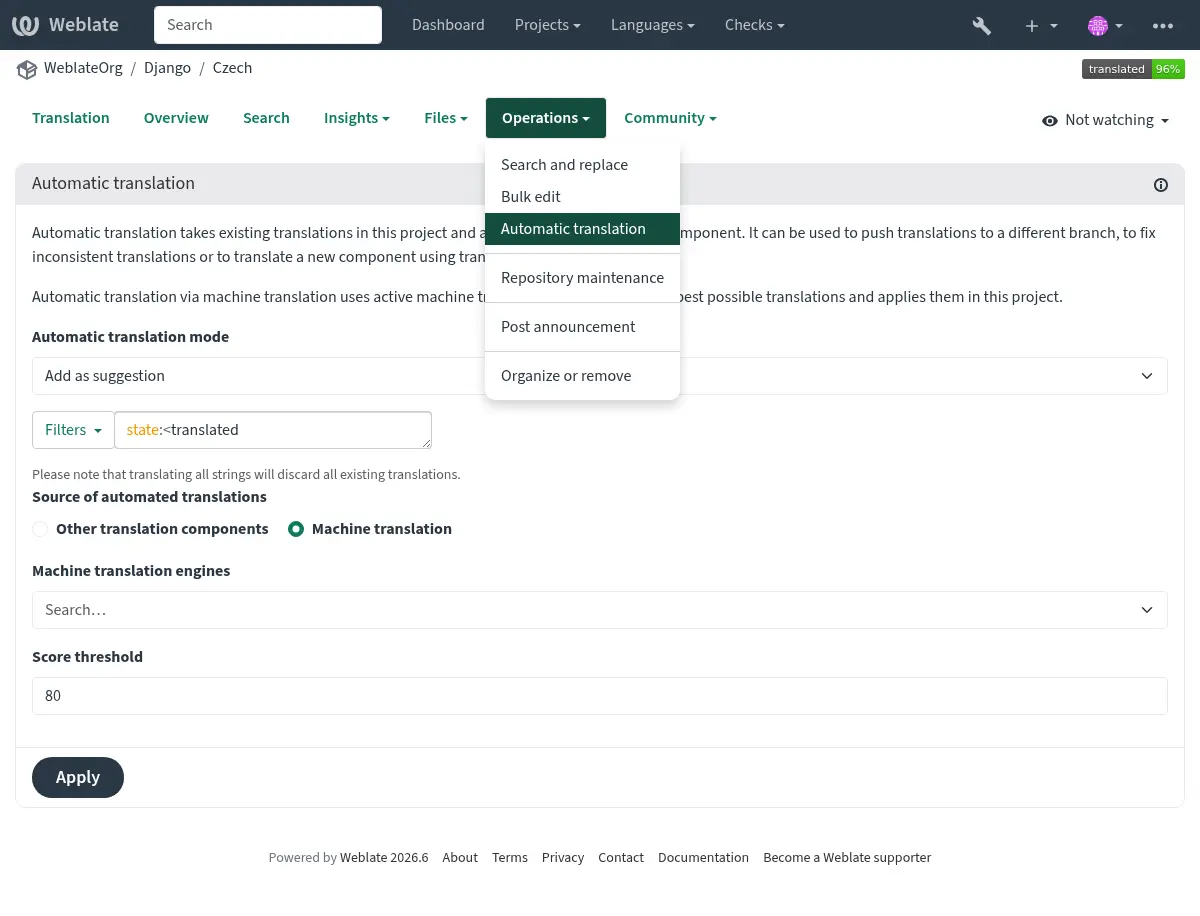
நீங்கள் திட்ட மொழி, கூறு அல்லது வகையைத் தேர்ந்தெடுத்திருந்தால், இதேபோன்ற செயல்பாடு தொகுப்பு தானியங்கு மொழிபெயர்ப்பு கிடைக்கும்.
செயல்படும் இரண்டு முறைகள் சாத்தியமாகும்:
மொழிபெயர்ப்புகளுக்கான ஆதாரமாக பிற வலைபெயர்ப்பு கூறுகளைப் பயன்படுத்துதல்.
தேர்ந்தெடுக்கப்பட்ட இயந்திர மொழிபெயர்ப்பு சேவைகளைப் பயன்படுத்துதல் ஒரு குறிப்பிட்ட தர வாசலுக்கு மேலே உள்ள மொழிபெயர்ப்புகளுடன்.
பிற கூறுகளை ஆதாரமாகப் பயன்படுத்தும் போது, பன்மை வடிவங்கள் இணக்கமாக இருக்கும்போது மட்டுமே வலைபெயர்ப்பு மொழிபெயர்ப்புகளைப் பயன்படுத்துகிறது. மூல கூறு வெவ்வேறு பன்மை விதிகளைப் பயன்படுத்தினால், பன்மைப்படுத்தப்பட்ட சரங்கள் தவிர்க்கப்படும் மற்றும் வலைபெயர்ப்பு ஒரு எச்சரிக்கையைக் காட்டுகிறது, அதே நேரத்தில் ஒற்றை வடிவ சரங்கள் இன்னும் மொழிபெயர்க்கப்படுகின்றன.
எந்த சரங்கள் தானாக மொழிபெயர்க்கப்பட வேண்டும் என்பதையும் நீங்கள் தேர்வு செய்யலாம்.
Warning
All strings போன்ற பரந்த வடிப்பான்களைப் பயன்படுத்தினால், ஏற்கனவே உள்ள மொழிபெயர்ப்புகளை இது மேலெழுதிவிடும் என்பதை நினைவில் கொள்ளவும்.
வெவ்வேறு கூறுகளுக்கு இடையில் மொழிபெயர்ப்பு (எடுத்துக்காட்டாக பயன்பாடு மற்றும் அதன் வலைத்தளம்) அல்லது ஏற்கனவே உள்ள மொழிபெயர்ப்புகளைப் பயன்படுத்தி (மொழிபெயர்ப்பு நினைவகம்) புதிய கூறுக்கான மொழிபெயர்ப்பை பூட்ச்ட்ராப்பிங் செய்யும் போது பல சூழ்நிலைகளில் பயனுள்ளதாக இருக்கும்.
தானாக மொழிபெயர்க்கப்பட்ட சரங்கள் தானாக மொழிபெயர்க்கப்பட்டது என லேபிளிடப்பட்டுள்ளது.
வீதத்தைக் கட்டுப்படுத்துதல்
இடைமுகத்தை தீய பயன்பாடு செய்வதைத் தவிர்ப்பதற்கு, தேடல், தொடர்பு படிவங்களை அனுப்புதல் அல்லது மொழிபெயர்ப்பது போன்ற பல செயல்பாடுகளுக்கு வீதத்தைக் கட்டுப்படுத்துவது பயன்படுத்தப்படுகிறது. இதன் மூலம் பாதிக்கப்பட்டால், நீங்கள் மீண்டும் ஒரு குறிப்பிட்ட காலத்திற்கு தடுக்கப்படுவீர்கள், நீங்கள் மீண்டும் செயல்பாட்டைச் செய்ய முடியும்.
இயல்புநிலை வரம்புகள் மற்றும் ஃபைன்-ட்யூனிங் ஆகியவை நிர்வாக கையேட்டில் விவரிக்கப்பட்டுள்ளன, பார்க்கவும் வீதத்தைக் கட்டுப்படுத்துதல்.
தேடி மாற்றவும்
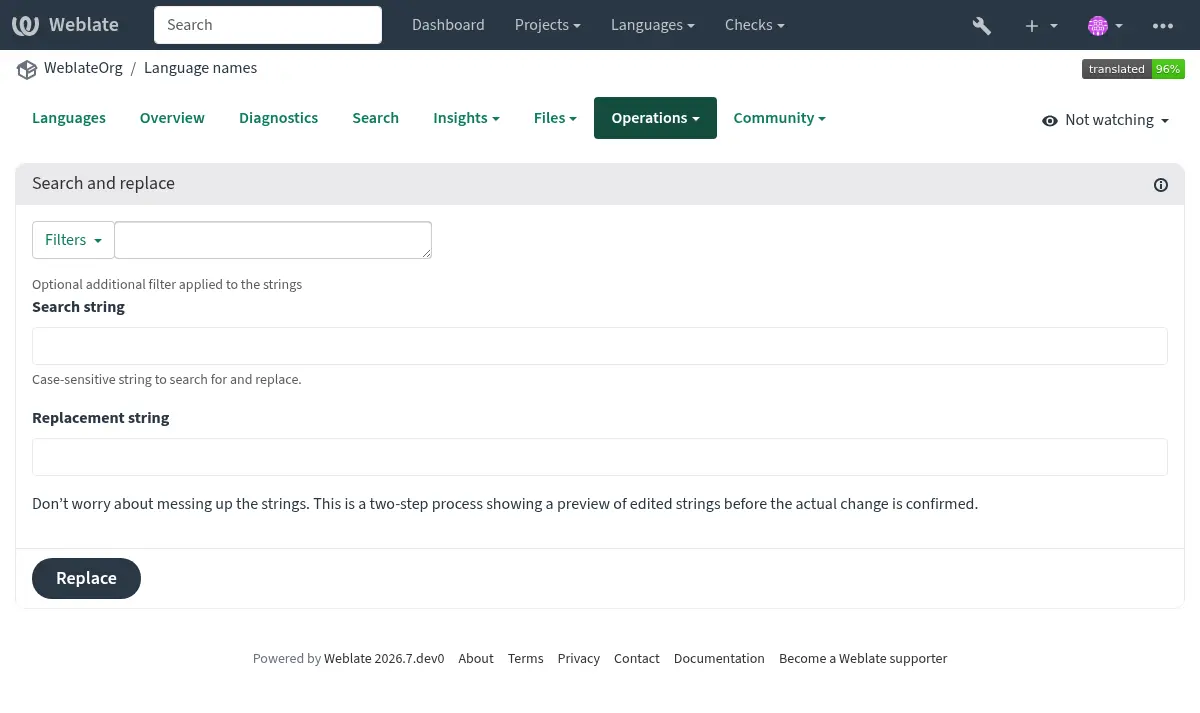
கலைச்சொற்களை திறம்பட மாற்றவும் அல்லது Operations பட்டியலில் தேடு மற்றும் மாற்றவும் ஐப் பயன்படுத்தி சரங்களை மொத்தமாக சரிசெய்யவும்.
Hint
Don't worry about messing up the strings, as it is a two-step process. A preview of edited strings is shown before confirming the change. You can adjust the search parameters from the preview and update it before applying the replacement.
மொத்த திருத்து
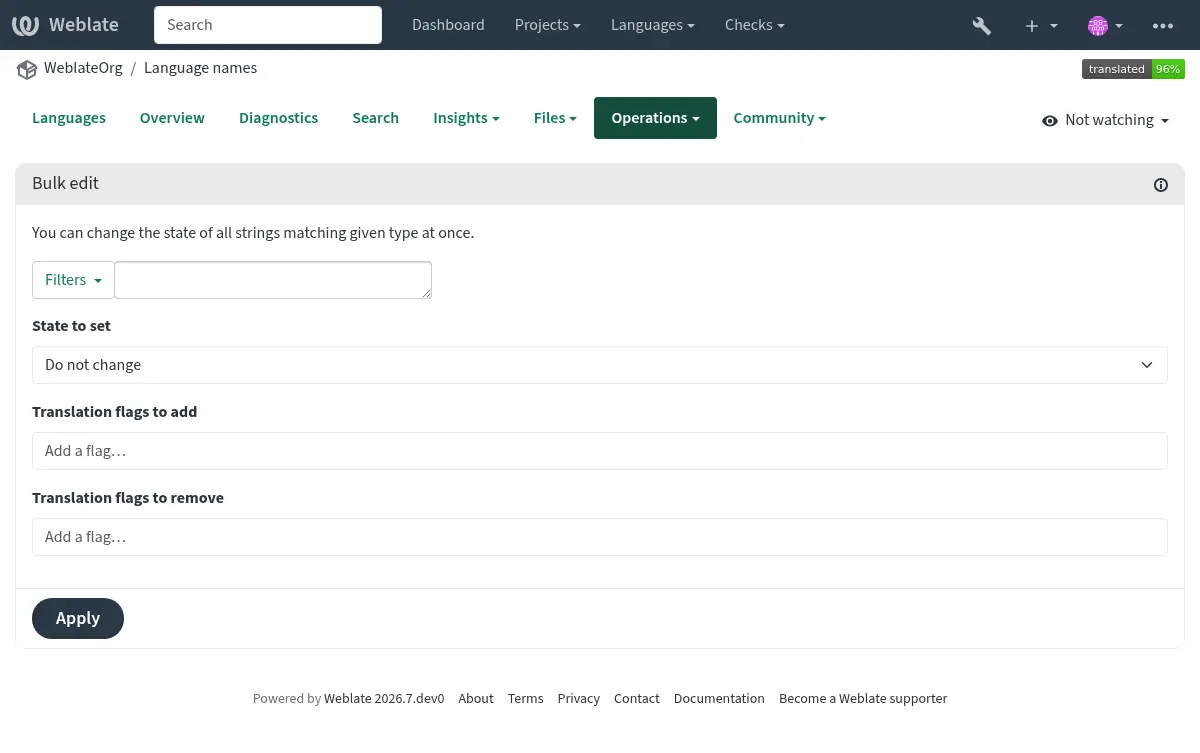
மொத்த திருத்துதல் பல சரங்களுக்கு ஒரு செயல்பாட்டைச் செய்ய அனுமதிக்கிறது. சரங்களை அவற்றைத் தேடுவதன் மூலம் வரையறுக்கவும் மற்றும் பொருந்தக்கூடியவற்றைச் செய்வதற்கான செயல்கள். உதவி செயல்பாடுகள்:
சரம் நிலையை மாற்றவும் (எடுத்துக்காட்டாக, மறுபரிசீலனை செய்யப்படாத அனைத்து சரங்களையும் அங்கீகரிக்க).
மொழிபெயர்ப்புக் கொடிகளைச் சரிசெய்யவும் (பார்க்க கொடிகளைப் பயன்படுத்தி நடத்தை தனிப்பயனாக்குதல்)
சரம் லேபிள்களை சரிசெய்யவும் (பார்க்க சரம் சிட்டைகள்)
Hint
இந்தக் கருவி Bulk edit என அழைக்கப்படுகிறது, ஒவ்வொரு திட்டப்பணி, கூறு அல்லது மொழிபெயர்ப்பின் Operations பட்டியலில் அணுகலாம்.
See also
அணி பார்வை
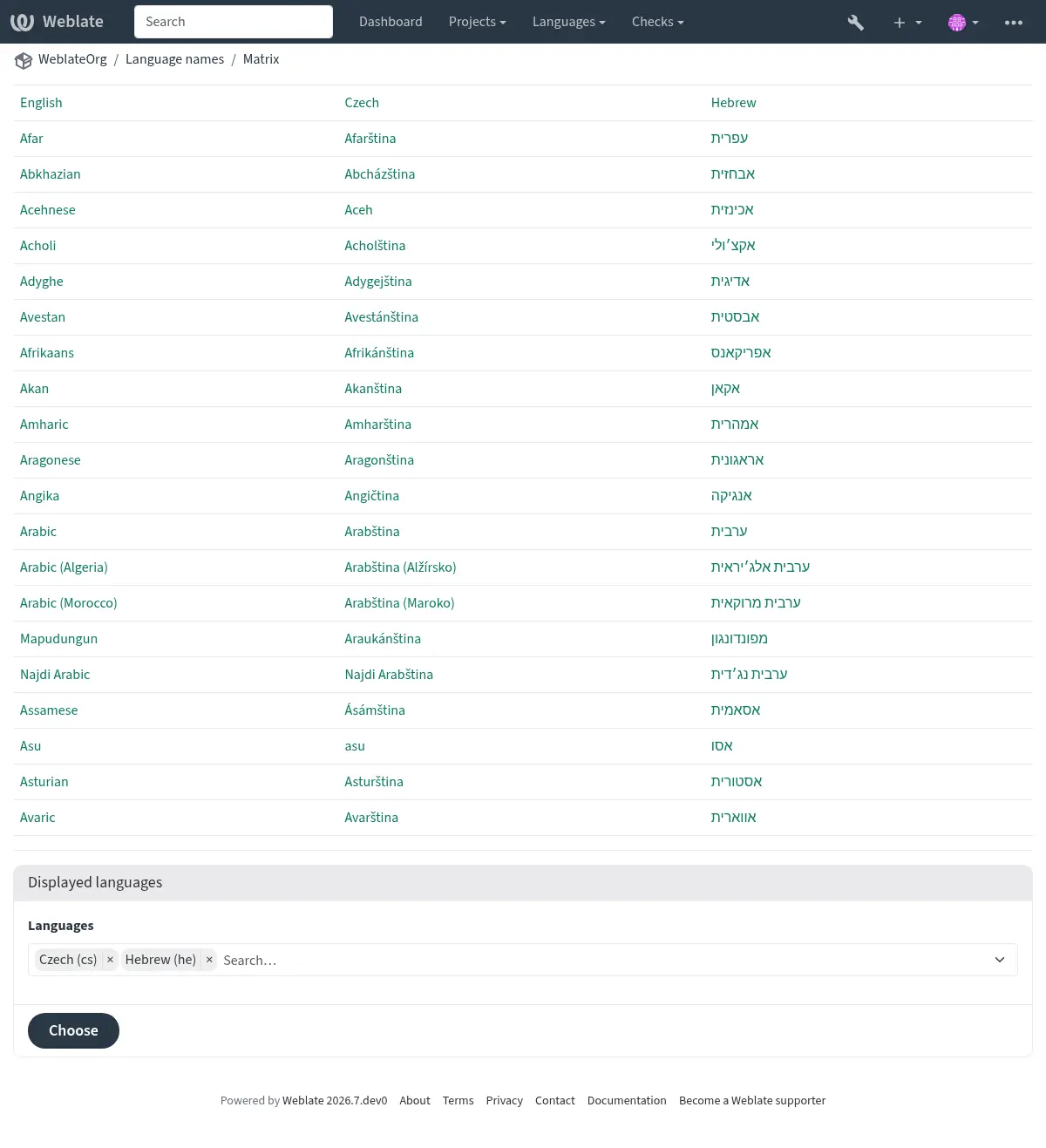
இந்தக் காட்சியைப் பயன்படுத்தி வெவ்வேறு மொழிகளை திறமையாக ஒப்பிடலாம். இது Operations மெனுவிலிருந்து ஒவ்வொரு கூறுப் பக்கத்திலும் கிடைக்கும். முதலில் நீங்கள் ஒப்பிட விரும்பும் அனைத்து மொழிகளையும் தேர்ந்தெடுங்கள், உங்கள் தேர்வை உறுதிசெய்து, எந்த மொழிபெயர்ப்பையும் சொடுக்கு செய்து அதைத் திறந்து திருத்தவும்.
வெவ்வேறு மொழிகளில் காணாமல் போன மொழிபெயர்ப்புகளைக் கண்டறிவதற்கு மேட்ரிக்ச் பார்வை ஒரு நல்ல தொடக்க புள்ளியாகும், மேலும் அவற்றை ஒரு பார்வையில் இருந்து விரைவாகச் சேர்க்கவும்.
சென் பயன்முறை
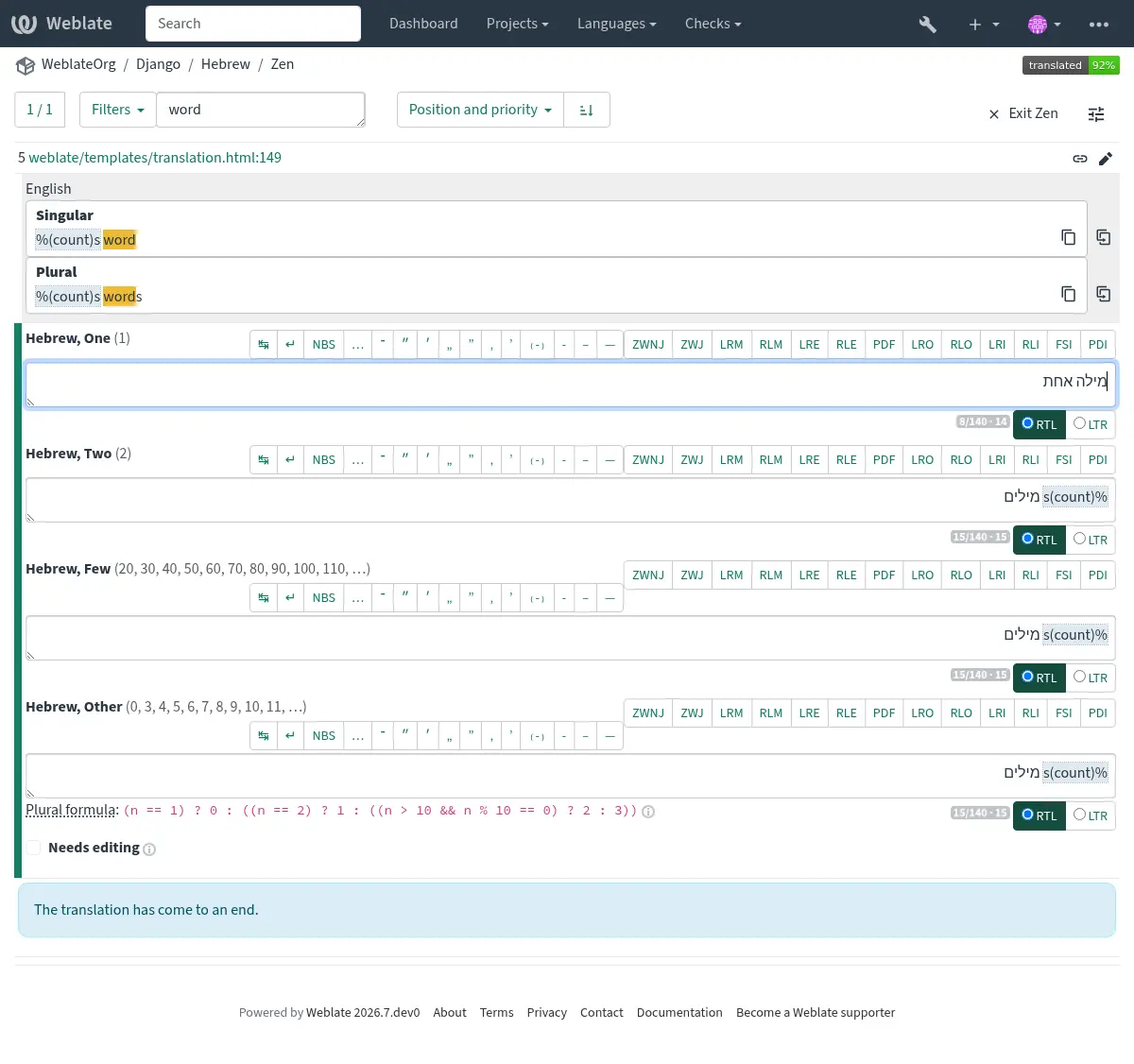
இந்தப் பயன்முறை தளவமைப்பை எளிதாக்குகிறது மற்றும் கூடுதல் இடைமுகம் உறுப்புகளான Narby strings அல்லது Glossary போன்றவற்றை நீக்குகிறது. வழக்கமான எடிட்டரின் மேல் வலதுபுறத்தில் உள்ள Zen பொத்தானைக் சொடுக்கு செய்வதன் மூலம் இது கிடைக்கும் (ஒரு சரத்தின் மொழிபெயர்ப்பு).
உங்கள் விருப்பத்தேர்வுகள் தாவலைப் பயன்படுத்தி உங்கள் பயனர் சுயவிவரம் ஐப் பயன்படுத்தி உங்கள் இயல்புநிலை எடிட்டராக சென் எடிட்டரைத் தேர்ந்தெடுக்கலாம். உங்கள் தனிப்பட்ட விருப்பத்தைப் பொறுத்து, பட்டியலிடப்பட்டுள்ள மொழிபெயர்ப்புகள் மேலிருந்து கீழாக அல்லது பக்க பக்கமாக என்பதை நீங்கள் தேர்வு செய்யலாம்.
கருத்துகள்
மூன்று வகையான கருத்துகளை வெளியிடலாம்:
மொழிபெயர்ப்புகளுக்கு
மூல சரங்களுக்கு
மூல மதிப்புரைகளை இயக்கவும் ஐப் பயன்படுத்தி இந்த செயல்பாடு இயக்கப்பட்டிருக்கும் போது மூல சரப் பிழைகளைப் புகாரளிக்க.
நீங்கள் விவாதிக்க விரும்பும் தலைப்புக்கு பொருத்தமான வகையைத் தேர்வுசெய்க. மூல சரம் கருத்துகள் எந்தவொரு நிகழ்விலும் அசல் சரம் குறித்த கருத்துக்களை வழங்குவதற்கு நல்லது, எடுத்துக்காட்டாக அது மறுபெயரிடப்பட வேண்டும், அல்லது அதைப் பற்றி கேள்விகளைக் கேட்க வேண்டும்.
Markdown syntax can be used in all comments, as well as mentioning other users by using
@username. Mention a maintainer or another translator when you need them to see a follow-up question; they can reply in the same Comments tab.To find comments again, open your பயனர் சுயவிவரம்; the comment count links to your comment activity. To find strings with comments by a specific user, use தேடி. For example,
comment_author:USERNAMEfinds strings with comments by that user, andsource_comment_author:USERNAMEfinds strings with source string comments by that user. When you are signed in, the search filter menu also includes shortcuts for comments by you and source comments by you.See also
மூல சரம் பின்னூட்டத்தைப் பெறுதல்
மூல சரங்கள் மதிப்புரைகள்
மூல மதிப்புரைகளை இயக்கவும்