Code-Hosting-Integrationen
Weblate lässt sich an mehreren Stellen mit Code-Hosting-Sites integrieren: Repository-Zugriff, eingehende Benachrichtigungen und Zurückpushen von Übersetzungen. Die genaue Einrichtung hängt davon ab, ob Sie Hosted Weblate nutzen oder eine eigene Weblate-Instanz betreiben, und davon, ob Weblate direkt pushen oder Pull Requests erstellen soll.
Verwenden Sie diese Seite als Checkliste für Anbieter. Die einzelnen Einstellungsseiten bleiben die maßgebliche Referenz für die Einstellungssyntax.
Einrichtungsübersicht
Weblate Zugriff auf das Repository gewähren.
Für Hosted Weblate den gehosteten weblate-Benutzer hinzufügen, wenn er verfügbar ist, siehe Auf Repositorys von Hosted Weblate zugreifen.
Für ein selbst gehostetes Weblate einen dedizierten Code-Hosting-Benutzer erstellen und ihm Zugriff mit dem SSH-Schlüssel von Weblate oder einem HTTPS-Token gewähren, siehe Auf Repositorys von Code-Hosting-Sites zugreifen (GitHub, GitLab, Bitbucket, Azure DevOps, …).
Quellcode-Repository konfigurieren, damit Weblate das Repository klonen kann.
Eingehende Benachrichtigungen so konfigurieren, dass Weblate Änderungen kurz nach einem Push zieht. Der Repository-Webhook oder die App muss auf die entsprechende Weblate-Hook-URL verweisen, und für das Projekt muss Hooks aktivieren eingeschaltet sein.
Wie Weblate Übersetzungen zurückpushen soll:
Git oder Mercurial und Repository-Push-URL verwenden, um direkt zu pushen.
Ein anbieterspezifisches VCS-Backend, wie GitHub oder GitLab verwenden, um Pull oder Merge Requests zu erstellen. Diese Backends benötigen API-Zugangsdaten in den Weblate-Einstellungen.
Optional Push-Branch einsetzen, wenn Weblate zu einem Branch im Upstream-Repository pushen soll, anstatt einen Fork zu verwenden, sofern unterstützt.
Änderungen aus Weblate pushen
Für jede Übersetzungskomponente kann eine Push-URL eingerichtet werden (siehe Repository-Push-URL), und in diesem Fall kann Weblate Änderungen an das Remote-Repository pushen. Weblate kann auch so konfiguriert werden, dass Änderungen automatisch bei jedem Commit gepusht werden; dies ist standardmäßig aktiviert, siehe Bei Commit gleichzeitig Pushen.
Wenn Sie nicht möchten, dass Änderungen automatisch gepusht werden, können Sie manuell unter Repository-Wartung oder über die API via wlc push pushen.
In case you do not want direct pushes by Weblate, there is support for GitHub-Pull-Requests, GitLab-Merge-Requests, Gitea-Pull-Requests, Pagure-Merge-Requests, Azure-DevOps-Pull-Requests, or Gerrit review requests reviews. You can activate these by choosing GitHub, GitLab, Gitea, Gerrit, Azure DevOps, or Pagure as Versionsverwaltung in Komponentenkonfiguration.
Overall, following options are available with Git, Mercurial, GitHub, GitLab, Gitea, Pagure, Azure DevOps, Gerrit, Bitbucket Data Center and Bitbucket Cloud:
Gewünschte Einrichtung |
|||
|---|---|---|---|
Kein Push |
leer |
leer |
|
Direkt pushen |
SSH-URL |
leer |
|
Push zu separatem Branch |
SSH-URL |
Name des Branches |
|
Kein Push |
leer |
leer |
|
Direkt pushen |
SSH-URL |
leer |
|
GitHub-Pull-Request vom Fork |
leer |
leer |
|
GitHub-Pull-Request vom Branch |
SSH-URL [1] |
Name des Branches |
|
GitLab-Merge-Request vom Fork |
leer |
leer |
|
GitLab-Merge-Request vom Branch |
SSH-URL [1] |
Name des Branches |
|
Gitea-Merge-Request vom Fork |
leer |
leer |
|
Gitea-Merge-Request vom Branch |
SSH-URL [1] |
Name des Branches |
|
Pagure-Merge-Request vom Fork |
leer |
leer |
|
Pagure-Merge-Request vom Branch |
SSH-URL [1] |
Name des Branches |
|
Azure-DevOps-Pull-Request vom Fork |
leer |
leer |
|
Azure-DevOps-Pull-Request vom Branch |
SSH-URL [1] |
Name des Branches |
|
Gerrit review |
SSH-URL |
Target branch name (optional) |
|
Bitbucket-Data-Center-Pull-Request vom Fork |
leer |
leer |
|
Bitbucket-Data-Center-Pull-Request vom Branch |
SSH-URL [1] |
Name des Branches |
|
Bitbucket-Cloud-Pull-Request vom Fork |
leer |
leer |
|
Bitbucket-Cloud-Pull-Request vom Branch |
SSH-URL [1] |
Name des Branches |
GitHub
GitHub repository access
Es gibt zwei Hauptansätze für den Zugriff auf GitHub-Repositorys mit Weblate:
Option 1: HTTPS with personal access token
Use HTTPS authentication with a personal access token and your GitHub account. This works for both read-only access and read-write access.
Um diesen Ansatz zu verwenden:
Ein persönliches Zugangstoken erstellen, wie in Creating an access token for command-line use beschrieben.
Include the token in your repository URL:
https://username:token@github.com/owner/repo.git.
This is suitable when you are starting with Weblate or working with a single repository.
Option 2: SSH with a dedicated user
For setups with multiple repositories, create a dedicated user for Weblate. This avoids GitHub’s limitation that each SSH key can only be used once per platform.
Um diesen Ansatz zu verwenden:
Create a dedicated GitHub user account, for example
weblate-bot.Add Weblate’s public SSH key to this user, see Weblate-SSH-Schlüssel.
Grant this user access to all repositories you want to translate.
Use SSH URLs for your repositories:
git@github.com:owner/repo.git.
Dieser Ansatz wird auch für Hosted Weblate verwendet, das zu diesem Zweck einen eigenen Benutzer weblate hat.
Bemerkung
When using GitHub for pull requests, the Push-Branch configuration affects the behavior: if not set, the project is forked and changes are pushed through a fork. If set, changes are pushed to the upstream repository and the chosen branch.
GitHub notifications
Weblate bietet native Unterstützung für GitHub.
If you are using Hosted Weblate, the recommended approach is to install the Weblate app. The app delivers GitHub notifications to Hosted Weblate, so you do not need to configure a separate Webhook in GitHub. However, it does not by itself grant Hosted Weblate write access to the repository. To push changes back, you still need to add the Hosted Weblate weblate GitHub user as a collaborator with write access, see Auf Repositorys von Hosted Weblate zugreifen.
If you are not using the app, add the Weblate webhook in the repository settings (Webhooks) to receive notifications on every push to a GitHub repository, as shown on the image below:
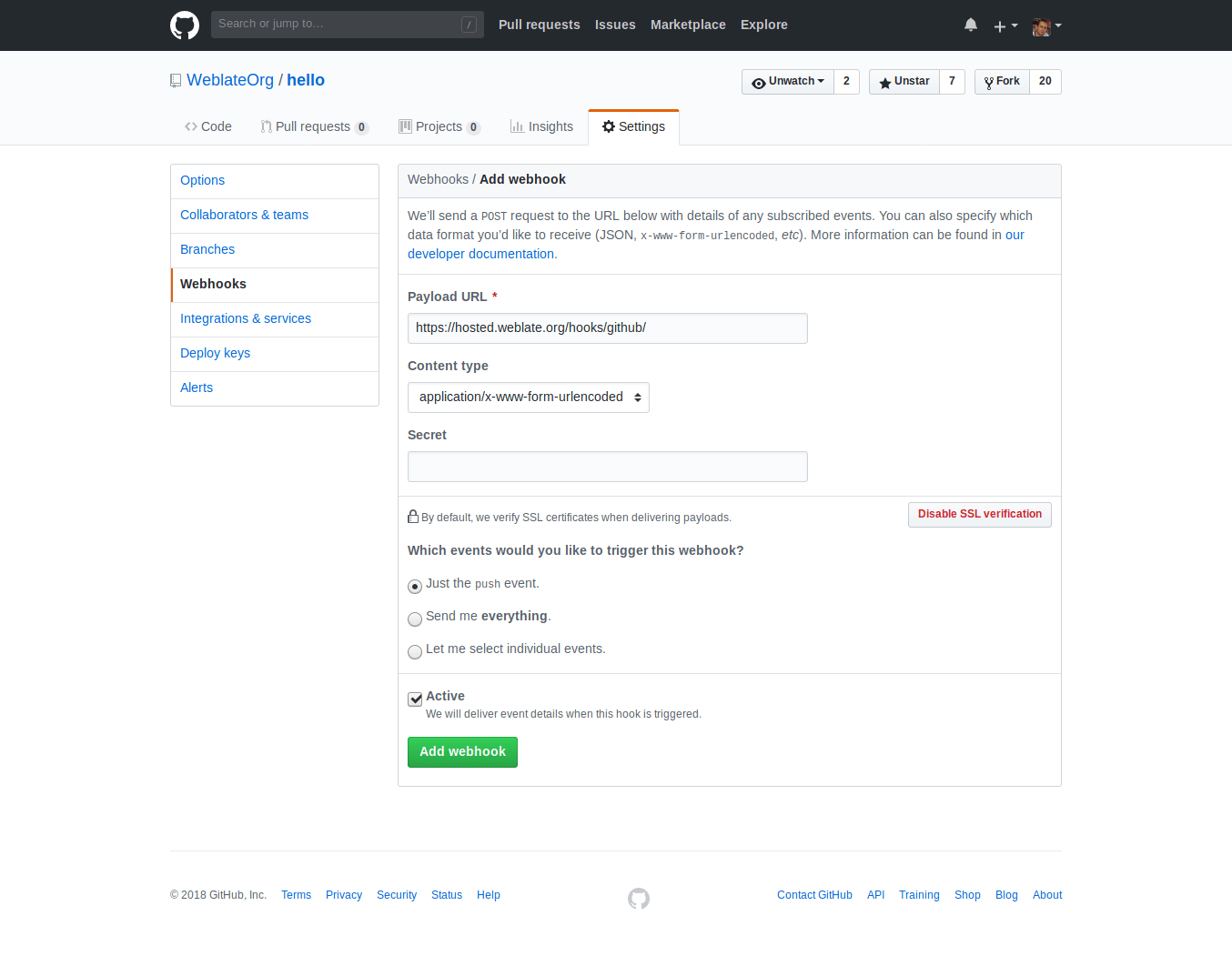
Die Payload URL besteht aus Ihrer Weblate-URL, an die /hooks/github/ angehängt wird, für den Hosted-Weblate-Dienst ist dies zum Beispiel https://hosted.weblate.org/hooks/github/.
You can leave other values at default settings. Weblate can handle both content types and consumes just the push event.
GitHub-Pull-Requests
Dies fügt eine dünne Schicht über Git unter Verwendung der GitHub API hinzu, um das Pushen von Übersetzungsänderungen als Pull Requests zu ermöglichen, anstatt sie direkt in das Repository zu pushen.
Git pushes changes directly to a repository, while the GitHub backend creates pull requests. The latter is not needed for merely accessing Git repositories.
To create pull requests, select GitHub as
Versionsverwaltung and configure GITHUB_CREDENTIALS. For
GitHub.com, use
api.github.com as the API host. The token must allow Weblate to read and
write repository contents and create pull requests. If Weblate should fork
private repositories, the token might also need administration access.
GitLab
GitLab repository access
Access via SSH is possible, see SSH-Repositorys, but if you need to access more than one repository, you will hit a GitLab limitation on allowed SSH key usage because each key can be used only once.
Falls der Push-Branch nicht gesetzt ist, wird das Projekt geforkt und die Änderungen durch einen Fork gepusht. Ist er gesetzt, werden die Änderungen an das vorgelagerte Repository und den gewählten Branch gepusht.
Das Verwenden von persönlichen oder Projekt-Zugangstoken ist ebenfalls möglich. Das Token benötigt die Berechtigung write_repository, um Änderungen an das Repository pushen zu können. Der Zugangstoken für das Projekt benötigt die Rolle Developer, um Änderungen pushen zu können.
The URL needs to contain a username. For a personal access token, it is the
actual username:
https://user:personal_access_token@gitlab.com/example/example.git.
For project access tokens it can be a non-blank value:
https://example:project_access_token@gitlab.com/example/example.git.
Bemerkung
The rules for using project access tokens have changed between GitLab releases, the non-blank value is the current requirement, but older versions had different expectations (project name, bot user name). Check GitLab documentation matching your version if unsure.
GitLab notifications
Weblate has support for GitLab hooks. Add a project webhook with destination
to /hooks/gitlab/ URL on your Weblate installation, for example
https://hosted.weblate.org/hooks/gitlab/.
Fehlerbehebung
Überprüfen Sie den GitLab-Webhook-Request-Verlauf darauf, ob Webhooks geliefert werden.
Die Nutzdaten der Antwort enthalten Informationen über übereinstimmende Komponenten.
GitLab-Merge-Requests
This adds a thin layer atop Git using the GitLab API to allow pushing translation changes as merge requests instead of pushing directly to the repository.
There is no need to use this to access Git repositories, ordinary Git works the same, the only difference is how pushing to a repository is handled. With Git changes are pushed directly to the repository, while the GitLab backend creates a merge request.
To create merge requests, select GitLab as
Versionsverwaltung and configure GITLAB_CREDENTIALS.
Gitea, Forgejo, and Codeberg
For Hosted Weblate repositories on Codeberg, add the hosted weblate user where write access is needed, see Auf Repositorys von Hosted Weblate zugreifen.
Gitea notifications
Weblate has support for Gitea webhooks. Add a Gitea Webhook for
Push events event with destination to /hooks/gitea/ URL on your
Weblate installation, for example https://hosted.weblate.org/hooks/gitea/.
This can be done in Webhooks under repository Settings.
Forgejo notifications
Weblate has support for Forgejo webhooks. Add a Forgejo Webhook
for Push events event with destination to /hooks/forgejo/ URL
on your Weblate installation, for example
https://hosted.weblate.org/hooks/forgejo/. This can be done in
Webhooks under repository Settings.
Gitea-Pull-Requests
Added in version 4.12.
This adds a thin layer atop Git using the Gitea API to allow pushing translation changes as pull requests instead of pushing directly to the repository.
There is no need to use this to access Git repositories, ordinary Git works the same, the only difference is how pushing to a repository is handled. With Git changes are pushed directly to the repository, while the Gitea backend creates pull requests.
To create pull requests, select Gitea as
Versionsverwaltung and configure GITEA_CREDENTIALS.
Bitbucket
Hosted Weblate has a dedicated weblate user for Bitbucket access, see Auf Repositorys von Hosted Weblate zugreifen.
To push directly, use Git or Mercurial with Repository-Push-URL.
Bitbucket notifications
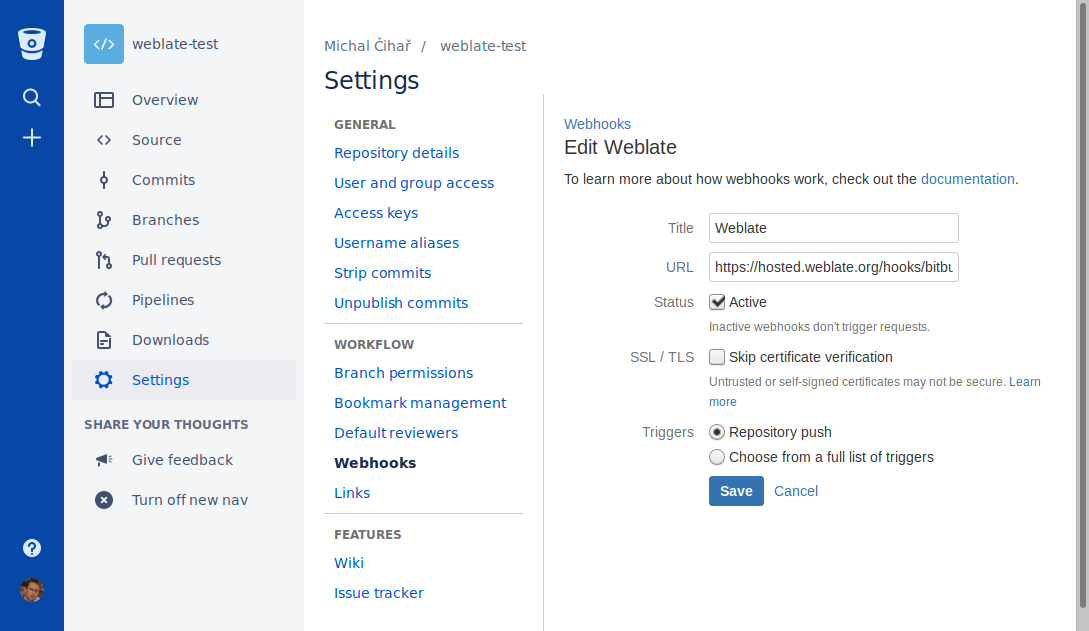
Weblate has support for Bitbucket webhooks. Add a webhook which triggers upon
repository push, with destination to /hooks/bitbucket/ URL on your Weblate
installation, for example https://hosted.weblate.org/hooks/bitbucket/.
Bitbucket-Data-Center-Pull-Requests
Added in version 4.16.
This adds a thin layer atop Git using the Bitbucket Data Center API to allow pushing translation changes as pull requests instead of pushing directly to the repository.
Warnung
Dies unterstützt die Bitbucket-Cloud-API nicht.
There is no need to use this to access Git repositories, ordinary Git works the same, the only difference is how pushing to a repository is handled. With Git changes are pushed directly to the repository, while the Bitbucket Data Center backend creates a pull request.
To create pull requests, select Bitbucket Data Center as
Versionsverwaltung and configure BITBUCKETSERVER_CREDENTIALS.
Bitbucket-Cloud-Pull-Requests
Added in version 5.8.
This adds a thin layer atop Git using the Bitbucket Cloud API to allow pushing translation changes as pull requests instead of pushing directly to the repository.
Warnung
Dies unterscheidet sich von der Bitbucket-Data-Center-API.
There is no need to use this to access Git repositories, ordinary Git works the same, the only difference is how pushing to a repository is handled. With Git changes are pushed directly to the repository, while the Bitbucket Cloud backend creates a pull request.
To create pull requests, select Bitbucket Cloud as
Versionsverwaltung and configure BITBUCKETCLOUD_CREDENTIALS.
Azure DevOps
Azure Repos notifications
Weblate has support for Azure Repos webhooks. Add a webhook for
Code pushed event with destination to /hooks/azure/ URL on your
Weblate installation, for example https://hosted.weblate.org/hooks/azure/.
This can be done in Service hooks under Project
settings.
Azure-DevOps-Pull-Requests
Dies fügt eine dünne Schicht über Git unter Verwendung der Azure DevOps API hinzu, um das Pushen von Übersetzungsänderungen als Pull Requests zu ermöglichen, anstatt sie direkt in das Repository zu pushen.
Git pushes changes directly to a repository, while the Azure DevOps backend creates pull requests. The latter is not needed for merely accessing Git repositories.
To create pull requests, select Azure DevOps as
Versionsverwaltung and configure AZURE_DEVOPS_CREDENTIALS.
Pagure
Pagure notifications
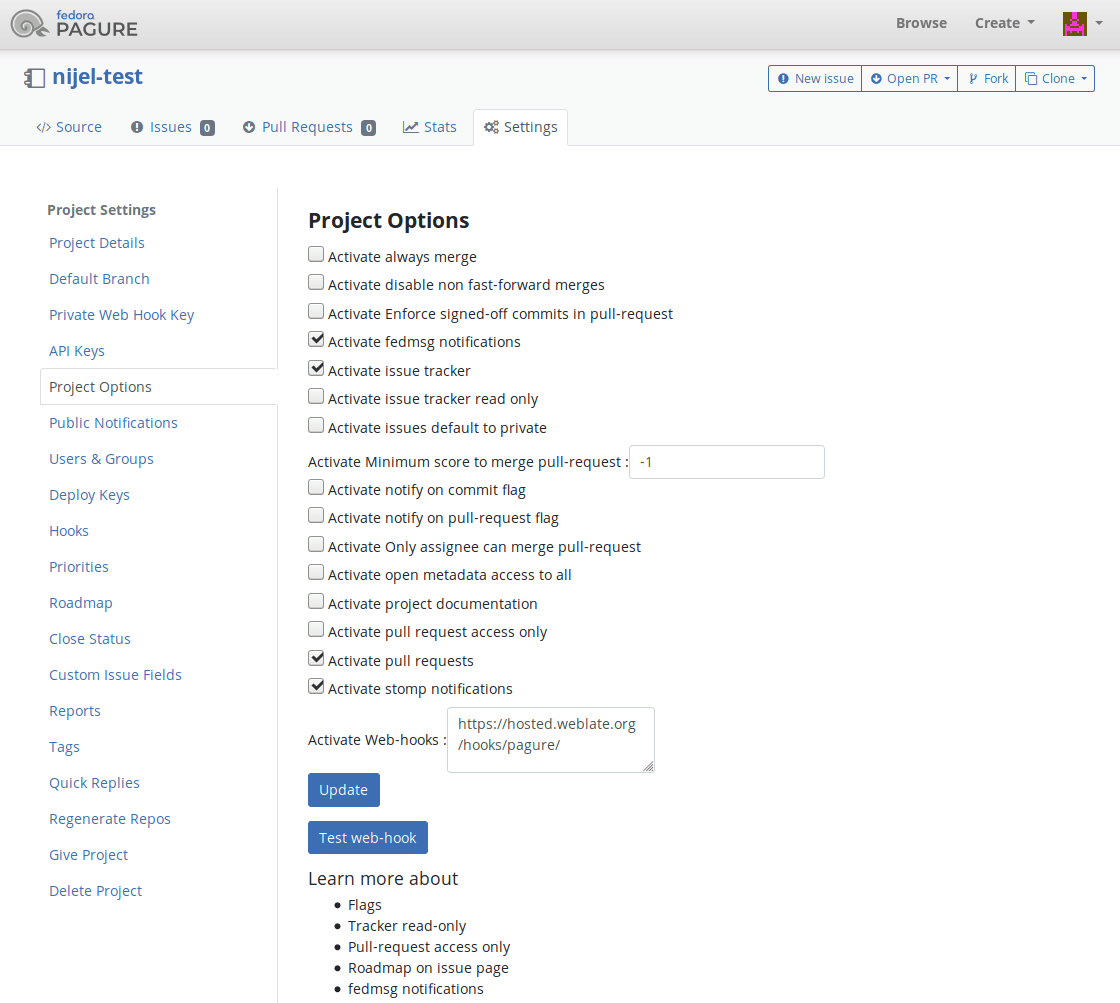
Weblate has support for Pagure hooks. Add a webhook with destination to
/hooks/pagure/ URL on your Weblate installation, for example
https://hosted.weblate.org/hooks/pagure/. This can be done in
Activate Web-hooks under Project options:
Pagure-Merge-Requests
Added in version 4.3.2.
This adds a thin layer atop Git using the Pagure API to allow pushing translation changes as merge requests instead of pushing directly to the repository.
There is no need to use this to access Git repositories, ordinary Git works the same, the only difference is how pushing to a repository is handled. With Git changes are pushed directly to the repository, while the Pagure backend creates a merge request.
To create merge requests, select Pagure as
Versionsverwaltung and configure PAGURE_CREDENTIALS.
Other workflows
Gitee notifications
Weblate has support for Gitee webhooks. Add a WebHook for
Push event with destination to /hooks/gitee/ URL on your
Weblate installation, for example https://hosted.weblate.org/hooks/gitee/.
This can be done in WebHooks under repository
Management.
Gerrit review requests
Gerrit support adds a thin layer atop Git using the git-review tool to allow pushing translation changes as Gerrit review requests, instead of pushing them directly to the repository.
The optional Push-Branch setting selects the target branch for
the Gerrit review. Leave it empty to use Repository-Branch. Use the short
branch name, such as main; Weblate and git-review push the review to
refs/for/<branch> automatically. Do not include Gerrit push options such as
%submit or %l=Code-Review+2 in the branch name.
The Gerrit documentation has the details on the configuration necessary to set up such repositories. There is no separate code hosting credential setting for this backend.
Docker credentials
For Docker installations, code hosting API credentials can also be provided through environment variables, see Zugangsdaten für Code-Hosting-Sites.