Começar a contribuir com código para o Weblate

Entenda o código-fonte do Weblate a passar por Código-fonte do Weblate, Frontend do Weblate e Componentes internos do Weblate.

Começar com a base de código

Familiarize-se com a base de código do Weblate, a dar uma olhada nos bugs etiquetados como good first issue.

É bem-vindo para começar a trabalhar nesses problemas sem perguntar. Apenas anuncie isso no relatório de problemas, para que fique claro que alguém está a trabalhar nesse relatório de problemas.

Execução local de Weblate

A abordagem mais confortável para começar a desenvolver o Weblate é seguir Instalar a partir do código fonte. Isto irá proporcionar-lhe um ambiente Python com fontes editáveis do Weblate.

  1. Clone o código-fonte do Weblate:

    git clone https://github.com/WeblateOrg/weblate.git
    cd weblate
    
  2. Instale o Weblate e todas as dependências úteis para o desenvolvimento:

    uv sync --all-extras --dev
    
  3. Inicie um servidor de desenvolvimento:

    uv run weblate runserver
    
  4. Dependendo da sua configuração, também quereria inciar workers do Celery:

    uv run ./weblate/examples/celery start
    
  5. Para executar testes (veja Testes locais do Weblate para mais detalhes):

    . scripts/test-database.sh
    uv run pytest
    

Development container for tests and lint

The development container prepares Python dependencies, PostgreSQL, Valkey, compiled translations, and static files for running tests and lint checks. It supports ordinary clones and linked Git worktrees. Each checkout has its own containers, network, database, virtual environment, and caches, with no published host ports in the default test profile. The optional application profile runs Weblate and workers for local QA with separate storage and dynamically allocated localhost ports.

Install Docker with the Compose plugin, Git, and Python 3.12 or newer on the host. For the command-line workflow, also install Node.js 20 or newer and the Dev Container CLI:

npm install --global @devcontainers/cli@0.89.0
./scripts/devcontainer up
./scripts/devcontainer doctor
./scripts/devcontainer exec -- uv run pytest weblate/lang/tests.py
./scripts/devcontainer exec -- uv run prek run --all-files

Alternatively, open the checkout in Visual Studio Code with its Dev Containers extension and select Dev Containers: Reopen in Container. Both workflows use .devcontainer/devcontainer.json and wait for bootstrap to finish. The CLI must be installed separately for the default backend of scripts/devcontainer. To use Docker Compose directly without Node.js or the Dev Container CLI, pass --backend compose before the command:

./scripts/devcontainer --backend compose up
./scripts/devcontainer --backend compose exec -- uv run pytest weblate/lang/tests.py

Both backends share the same test environment for a checkout. The Compose backend runs bootstrap on each up invocation. CI checks both backends on ARM Linux runners, including concurrent application QA in separate worktrees.

Bootstrap uses the frozen dependency lock and builds lxml and xmlsec from source, matching CI. Initial setup requires network access to download images and dependencies; lint hooks download their environments on first use. After changing dependencies, rerun:

./scripts/devcontainer bootstrap

Pytest creates and migrates its test database on first use and reuses it on subsequent runs. To recreate it after incompatible migration changes, pass --create-db to pytest. Existing host virtual environments and local weblate/settings.py are not used by the container.

For a separate task, create a worktree and start its environment:

git worktree add ../weblate-task -b task/example
cd ../weblate-task
./scripts/devcontainer up

The environment identifier is derived from the checkout’s absolute path, so changing branches preserves the environment. Stop or destroy the environment before moving or deleting its checkout. Linked worktrees also mount the shared Git metadata directory at its original path; Git operations therefore affect the same repository as host Git operations. Other worktrees” sources are not mounted. Unset COMPOSE_PROJECT_NAME when using this workflow, and remove its assignments from .env files in the checkout, .devcontainer, and the directory from which you launch the tools. Initialization rejects these assignments because they can override the checkout-specific project name.

To stop containers while retaining their data, or explicitly delete their containers and volumes:

./scripts/devcontainer stop
./scripts/devcontainer destroy --yes

These commands only manage the current checkout’s test environment. They do not remove its source files or the application environment started by rundev.sh. Tests run through ./rundev.sh test share this test environment, so stopping it affects both test launchers. Closing the IDE stops the entire checkout’s Compose project, including application QA, while retaining its data. Launcher stop commands affect only their selected profile. Use --all before stop, logs, or destroy to manage both profiles in the checkout.

If setup fails, use ./scripts/devcontainer doctor to inspect the source paths, service connections, dependency consistency, and test assets. Service readiness checks have a timeout. Containers remain available for inspection; their logs can be read with docker compose:

docker compose -f .devcontainer/compose.yaml -f .devcontainer/compose.local.json logs

The generated .devcontainer/compose.local.json is ignored by Git and contains checkout-specific paths. Keep credentials and host configuration out of this file.

The shared development image includes native Chromium and its matching driver from the XtraDeb Ubuntu repository on ARM and amd64. These system packages are not version-pinned. To fetch browser updates, rebuild without the Docker build cache and recreate the test container:

./scripts/devcontainer --backend compose compose -- build --no-cache developer
./scripts/devcontainer --backend compose restart

To verify browser startup, page loading, and JavaScript execution, or run the existing Selenium suite with a required browser:

./scripts/devcontainer doctor --browser
./scripts/devcontainer browser-test
./rundev.sh browser-test -k test_login_form_accessibility
./rundev.sh browser-test --target weblate/trans/tests/test_selenium.py::SeleniumTests::test_js_unit_tests

browser-test prepares the isolated test environment, runs browser diagnostics, and sets CI_SELENIUM=1 so unavailable WebDriver fails instead of skipping. It prints pytest’s test totals and skip reasons, preserving legitimate skips and pytest’s exit status. Additional arguments are passed to pytest; repeat --target to select specific test paths or node IDs instead of the default Selenium module. doctor --browser checks the test profile through either launcher and reports installed browser and driver versions.

The image sets WEBLATE_TEST_CHROME_BINARY and WEBLATE_TEST_CHROMEDRIVER to the installed executable paths. These developer-only variables are shared by the diagnostic and Selenium tests, avoiding automatic browser downloads. Outside the image, leaving them unset preserves Selenium’s default browser discovery. Use your own browser with the application profile’s URL for exploratory QA.

Linux and WSL2 with a checkout in the Linux filesystem are the primary targets. macOS Docker Desktop and Codespaces use the same configuration, but are not covered by the Linux CI smoke test. Native Windows paths and remote Docker daemons are not supported by the host-path mounts.

Executando Weblate localmente no Docker

Install Docker with the Compose plugin, Git, and Python 3.12 or newer on the host. Start the development application with:

./rundev.sh

This is equivalent to ./scripts/devcontainer --profile app up. Both commands use the same launcher and Compose project as the test environment, without requiring Node.js or the Dev Container CLI for the application profile.

The launcher builds the development image, starts Weblate with supervised web and Celery workers, and prints the application and Maildev mailbox URLs when Weblate is ready. Sign in as admin with password admin. The installation starts empty; continue with Adicionar projetos e componentes de tradução.

Docker assigns free HTTP ports bound to 127.0.0.1. Each worktree has its own application database, Valkey instance, data, virtual environment, home, and caches, separate from the test profile. SMTP, PostgreSQL, and Valkey ports are not published. Weblate uses the discovered application URL for generated links and authentication origins. To display the current URLs again:

./rundev.sh urls
./rundev.sh urls --json

To exercise real background workers through complete application journeys:

./rundev.sh application-test

This is also available as ./scripts/devcontainer application-test. It starts the application profile and uses its administrator API token to import a small component archive, save a translation, request a background commit, and inspect the committed Git file. It then checks the exported ZIP, eventual translation statistics in the API and rendered application page, translation memory, and a translation notification delivered to Maildev. Export generation itself is synchronous; its contents must reflect the completed background work.

A separate transaction check queues a real task before its fixture row is committed, waits for a retry, and verifies successful redelivery after commit. The suite requires non-eager Celery and the application’s Valkey broker and Maildev. Polls have deadlines, worker task failures include their tracebacks, and failures print the application service logs. CI runs these journeys in both the Docker development job and concurrent isolated worktrees.

Each invocation creates a uniquely named celery-qa- project and notification recipient with an unusable password. These fixtures remain available for inspection, including after failure; the suite does not reset existing data. Remove these projects and users through the application when finished, or destroy --yes the disposable application environment.

Ports can change after containers are recreated or restarted. Use ./rundev.sh restart to restart and rediscover them; direct Docker restarts cannot initialize the application domain. Ordinary startup reuses unchanged containers. Application containers do not restart automatically after Docker restarts. When the image changes Python minor versions, startup recreates the application virtual environment and reinstalls dependencies. Application data is retained.

To access the application database from inside its container:

./rundev.sh exec -- weblate dbshell

The application service definitions are in dev-docker/docker-compose.yml and are included by the shared Compose configuration. Use the launchers to initialize paths and ports. For other Compose operations, use ./rundev.sh compose -- COMMAND (or existing shortcuts such as ./rundev.sh ps). Project-wide Compose commands can affect both profiles.

Existing development environments are not migrated automatically. Before updating from the old launcher, stop its containers with its ./rundev.sh stop command. If already updated, identify the old containers using docker ps and stop them explicitly. The new launcher leaves their databases, volumes, and dev-docker/data/ untouched and starts with fresh application data.

To execute tests, run the script with the test parameter and pytest arguments, for example running only tests in the weblate.machine module:

./rundev.sh test --exitfirst weblate/machine

The command automatically starts and bootstraps the development container using Docker Compose, without requiring the Dev Container CLI. It runs independently of the application and workers, with separate databases, virtual environments, and caches. Each invocation refreshes dependencies and test assets before running pytest.

To display application logs:

./rundev.sh logs

To stop only the application profile, retaining its data:

./rundev.sh stop

Use ./scripts/devcontainer stop to stop only tests. To stop or destroy both profiles, including their volumes when destroying:

./rundev.sh --all stop
./rundev.sh --all destroy --yes

Without --all, destroy --yes removes only the selected profile’s containers and volumes. Other worktrees remain running.

Aviso

Este contentor não é adequado para o uso em produção. A segurança é sacrificada para fazer o desenvolvimento mais fácil.

Inicializar a sua instância de desenvolvimento

Pode usar import_demo para criar traduções de demonstração e createadmin para criar um utilizador administrador.

Se também tem Faturação instalado, pode usar billing_demo para criar uma fatura de projeto de demonstração.

Codificando Weblate com PyCharm

PyCharm é uma IDE conhecida para Python, aqui estão algumas linhas diretrizes para o ajudar a configurar o seu projeto Weblate nele.

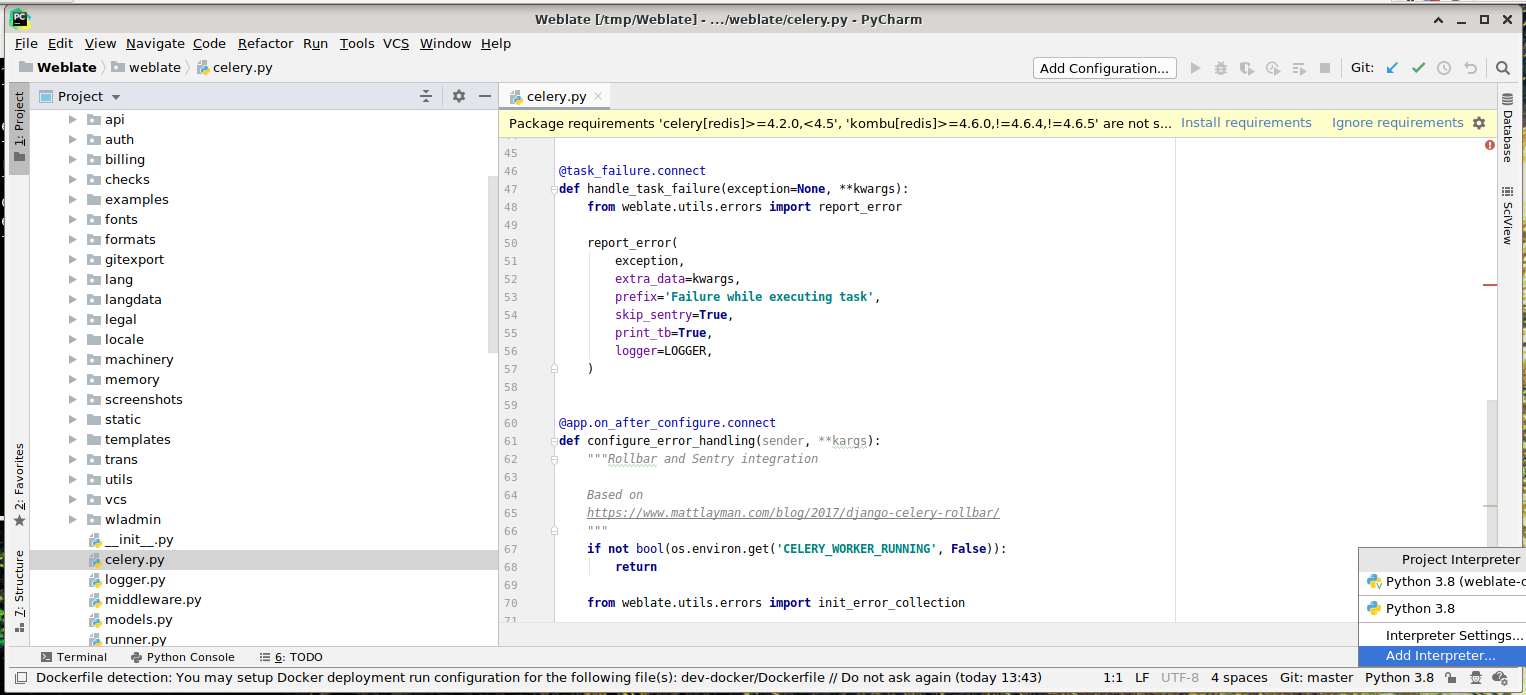
Considerando que acabou de clonar o repositório GitHub, para uma pasta, basta abri-la com o PyCharm. Assim que a IDE estiver aberta, o primeiro passo é especificar o interpretador que deseja:
../_images/pycharm-1.png

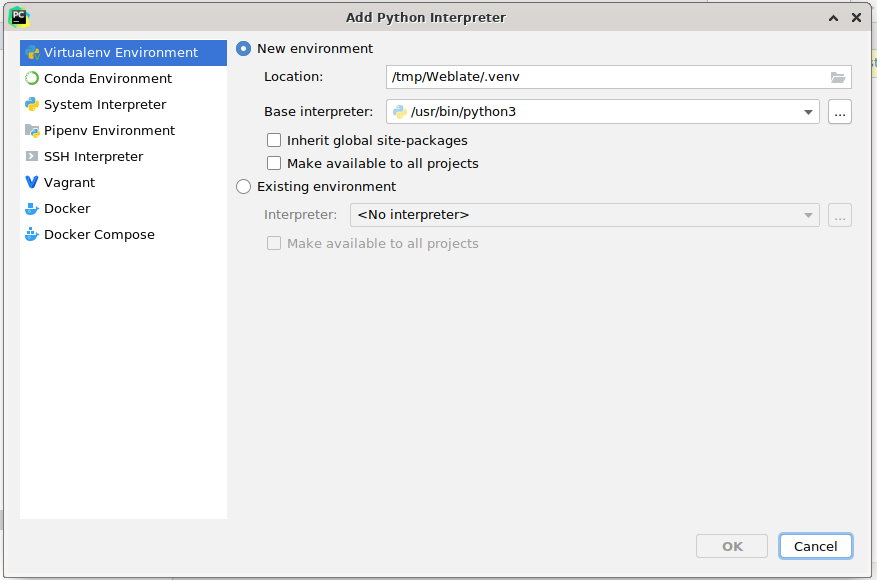
Selecione o ambiente .venv. criado por uv sync --all-extras --dev para corresponder à configuração de desenvolvimento de linha de comandos. Também pode deixar o PyCharm criar um ambiente Python para si, mas o ambiente uv-managed é preferido:
../_images/pycharm-2.png

Não se esqueça de instalar as dependências quando o interpretador está definido. Ao utilizar o ambiente uv-managed preferido, execute uv sync --all-extras --dev a partir da consola.

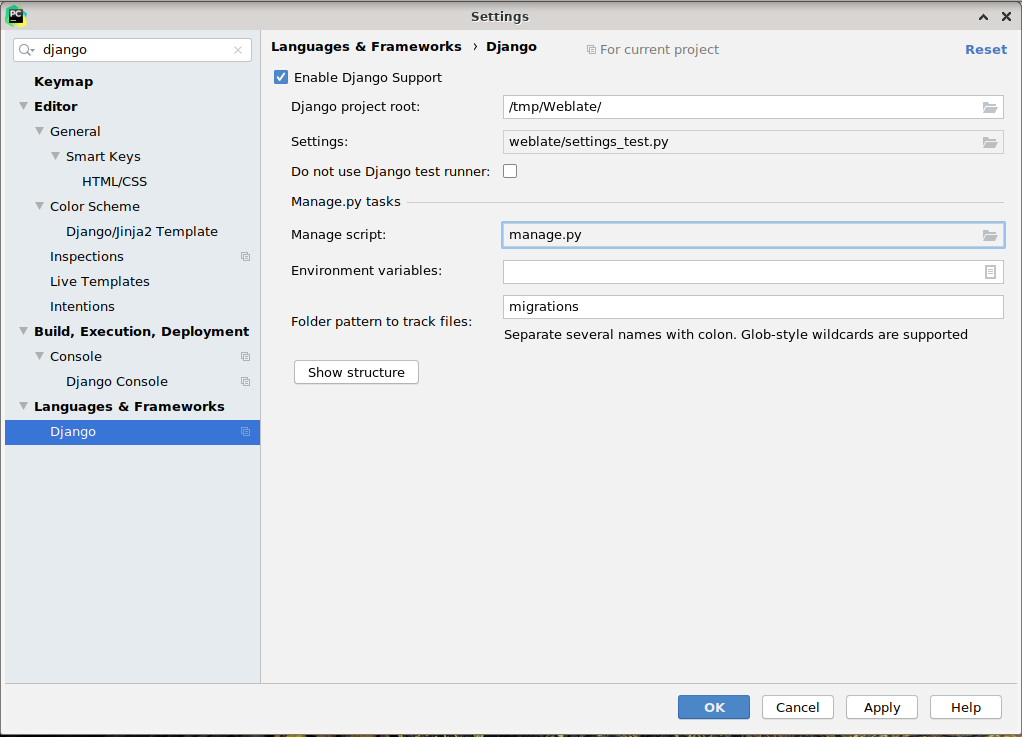
O segundo passo é definir a informação certa para usar o Django nativo dentro do PyCharm: a ideia é ser capaz de acionar imediatamente os testes unitários no IDE. Para isso, precisa especificar o caminho raiz do projeto Django e o caminho para as suas configurações:
../_images/pycharm-3.png

Tenha cuidado, Django project root é a raiz real do repositório, não o subdiretório do Weblate. Sobre as configurações, poderia usar o weblate/settings_test.py do repositório, mas pode criar a sua própria configuração e configurá-la lá.

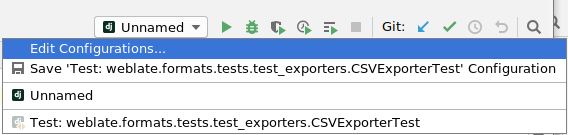
O último passo é executar o servidor e pôr pontos de interrupção no código para poder depurá-lo. Isto é feito a criar uma nova configuração do Django Server:
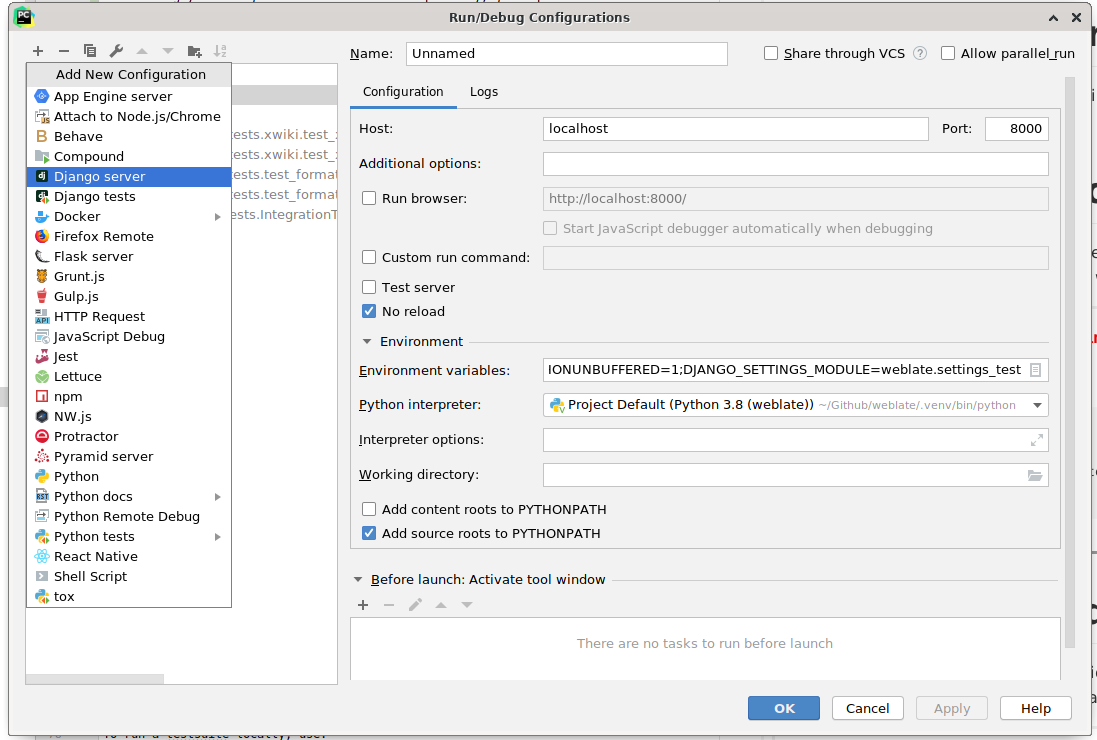
../_images/pycharm-4.png ../_images/pycharm-5.png

Dica

Tenha cuidado com a propriedade chamada No reload: ela evita do servidor ser recarregado automaticamente quando modificar os ficheiros. Isso permite que os pontos de interrupção de depuração existentes persistam, quando eles normalmente seriam descartados no recarregamento do servidor.