認証
ユーザー登録
Weblate のデフォルトの設定では、新規ユーザーの登録を処理するために Web サイト上のフォームである python-social-auth を使用します。メールを確認すると、新規ユーザーはサード パーティのサービスを利用して協力したり認証したりできます。
新規ユーザーの登録は、REGISTRATION_OPEN を使用して無効にもできます。
認証の試行は、接続制限 の対象です。
認証バックエンド
Weblate は認証に Django を使用しています。これには、Django に標準で備わっているパスワード認証、ソーシャル認証、および Django 用のサードパーティ製認証バックエンドが含まれます。
Django の組み込み認証機能を使用することで、他の Django ベースのプロジェクトのユーザー データベースをインポートすることができます(参照: Pootle から移行)。
参考
認証設定 で、 Docker の公式イメージで認証を設定する方法を説明します。
パスワード認証
デフォルトの settings.py には、脆弱なパスワードを許可しないように設計された、適切な AUTH_PASSWORD_VALIDATORS の設定が含まれています。この設定は、あなたのパスワード ポリシーに合わせてカスタマイズできます。
さらに django-zxcvbn-password-validator もインストールできます。これは、入力されたパスワードの難易度をかなり正確に計算できるので、一定のしきい値以下のパスワードを拒否することができます。
SAML 認証
Added in version 4.1.1.
バージョン 5.12 で変更: SAML 認証に必要な依存パッケージは、デフォルトの all extras には含まれなくなりました。Weblate パッケージを pip でインストールする際は、saml を明示的に含めることが必要です(例: uv pip install Weblate[all,saml])。
設定については、Python Social Auth の手順に従ってください。注意が必要な違い:
Weblate は単一の IDP のみに対応しており、
SOCIAL_AUTH_SAML_ENABLED_IDPSではその IDP 名をWeblateとして設定することが必要です。SAML の XML メタデータ URL は
/accounts/metadata/saml/であり、これはエンティティ ID としても使用されます。サインイン URL は
/accounts/complete/saml/(ACS URL とも呼ばれます)。自動的に入力される設定項目:
SOCIAL_AUTH_SAML_SP_ENTITY_ID,SOCIAL_AUTH_SAML_TECHNICAL_CONTACT,SOCIAL_AUTH_SAML_SUPPORT_CONTACT
設定例:
# Authentication configuration
AUTHENTICATION_BACKENDS = (
    "social_core.backends.email.EmailAuth",
    "social_core.backends.saml.SAMLAuth",
    "weblate.accounts.auth.WeblateUserBackend",
)

# Social auth backends setup
SOCIAL_AUTH_SAML_SP_ENTITY_ID = f"https://{SITE_DOMAIN}/accounts/metadata/saml/"
SOCIAL_AUTH_SAML_SP_PUBLIC_CERT = "-----BEGIN CERTIFICATE-----"
SOCIAL_AUTH_SAML_SP_PRIVATE_KEY = "-----BEGIN PRIVATE KEY-----"
SOCIAL_AUTH_SAML_ENABLED_IDPS = {
    "weblate": {
        "entity_id": "https://idp.testshib.org/idp/shibboleth",
        "url": "https://idp.testshib.org/idp/profile/SAML2/Redirect/SSO",
        "x509cert": "MIIEDjCCAvagAwIBAgIBADA ... 8Bbnl+ev0peYzxFyF5sQA==",
    }
}
SOCIAL_AUTH_SAML_ORG_INFO = {
    "en-US": {
        "name": "example",
        "displayname": "Example Inc.",
        "url": "http://example.com"
    }
}
SOCIAL_AUTH_SAML_TECHNICAL_CONTACT = {
    "givenName": "Tech Gal",
    "emailAddress": "technical@example.com"
}
SOCIAL_AUTH_SAML_SUPPORT_CONTACT = {
    "givenName": "Support Guy",
    "emailAddress": "support@example.com"
}
新しい鍵ペアを生成するコマンド:
openssl req -newkey rsa:4096 -new -x509 -days 3652 -nodes -out saml.crt -keyout saml.key
デフォルトの構成では、以下の属性からユーザーの詳細が抽出されます。下記を提供するように IdP を設定:
属性 |
SAML 参照 URI |
|---|---|
フルネーム |
|
名前 (名) |
|
姓 |
|
メールアドレス |
|
ユーザー名 |
|
IdP(アイデンティティ プロバイダー)で Weblate のサービス プロバイダー(SP)を構成する際は、Name ID format で persistent(永続) を選択してください。
ヒント
一部のIDプロバイダー(多要素認証を備えた Microsoft Entra ID など)は、SAMLセキュリティ設定のデフォルト値 requestedAuthnContext を無効にする必要があります:
SOCIAL_AUTH_SAML_SECURITY_CONFIG = {"requestedAuthnContext": False}
Dockerでは、代替として WEBLATE_SAML_SECURITY_CONFIG を設定してください。
ヒント
上記の例と Docker イメージは、weblate と呼ばれる IdP(アイデンティティ プロバイダー)を定義しています。IdP で、この文字列を Relay に設定してください。
注釈
Weblate の認証処理では、RelayState パラメーターが認証フローを通じて渡される必要があります。一部のアイデンティティ プロバイダー(IdP)で必要なパラメーターの設定:
LDAP 認証
LDAP認証は、django-auth-ldap パッケージを使用することが最適です。通常のインストール方法:
# Using PyPI
uv pip install 'django-auth-ldap>=1.3.0'

# Using apt-get
apt-get install python-django-auth-ldap
ヒント
このパッケージは、Docker コンテナに含まれています。参照: Docker を使用したインストール。
注釈
Python LDAP 3.1.0 モジュールは一部に互換性がなく、そのバージョンは使用できないことがあります。エラー AttributeError: 'module' object has no attribute '_trace_level' が発生した場合は、python-ldap を 3.0.0 にダウングレードしてみてください。
パッケージのインストール後に、Django 認証にフックする方法:
# Add LDAP backed, keep Django one if you want to be able to sign in
# even without LDAP for admin account
AUTHENTICATION_BACKENDS = (
    "django_auth_ldap.backend.LDAPBackend",
    "weblate.accounts.auth.WeblateUserBackend",
)

# LDAP server address
AUTH_LDAP_SERVER_URI = "ldaps://ldap.example.net"

# DN to use for authentication
AUTH_LDAP_USER_DN_TEMPLATE = "cn=%(user)s,o=Example"
# Depending on your LDAP server, you might use a different DN
# like:
# AUTH_LDAP_USER_DN_TEMPLATE = 'ou=users,dc=example,dc=com'

# List of attributes to import from LDAP upon sign in
# Weblate stores full name of the user in the full_name attribute
AUTH_LDAP_USER_ATTR_MAP = {
    "full_name": "name",
    # Use the following if your LDAP server does not have full name
    # Weblate will merge them later
    # 'first_name': 'givenName',
    # 'last_name': 'sn',
    # Email is required for Weblate (used in VCS commits)
    "email": "mail",
}
# Optional: route "Forgot your password?" to your LDAP self-service page
PASSWORD_RESET_URL = "https://id.example.net/password-reset/"


# Hide the registration form
REGISTRATION_OPEN = False
注釈
AUTHENTICATION_BACKENDS の設定から 'social_core.backends.email.EmailAuth' を削除してください。削除しなければ、ユーザーは Weblate でパスワードを設定すると認証できてしまいます。匿名ユーザーが簡単にログインできるアクセス権を作成するには、'weblate.accounts.auth.WeblateUserBackend' の設定を維持することが必要です。ローカル管理者アカウントが作成されている場合は、ローカル管理者アカウントを使用してサインインすることもできます(例: createadmin)。
バインド パスワードの使用
認証に直接バインドを使用できない場合は、検索を使用し、検索にバインドするユーザーを指定してください。ユーザーを指定する設定例:
import ldap
from django_auth_ldap.config import LDAPSearch

AUTH_LDAP_BIND_DN = ""
AUTH_LDAP_BIND_PASSWORD = ""
AUTH_LDAP_USER_SEARCH = LDAPSearch(
    "ou=users,dc=example,dc=com", ldap.SCOPE_SUBTREE, "(uid=%(user)s)"
)
Active Directory との連携
import ldap
from django_auth_ldap.config import LDAPSearch, NestedActiveDirectoryGroupType

AUTH_LDAP_BIND_DN = "CN=ldap,CN=Users,DC=example,DC=com"
AUTH_LDAP_BIND_PASSWORD = "password"

# User and group search objects and types
AUTH_LDAP_USER_SEARCH = LDAPSearch(
    "CN=Users,DC=example,DC=com", ldap.SCOPE_SUBTREE, "(sAMAccountName=%(user)s)"
)

# Make selected group a superuser in Weblate
AUTH_LDAP_USER_FLAGS_BY_GROUP = {
    # is_superuser means user has all permissions
    "is_superuser": "CN=weblate_AdminUsers,OU=Groups,DC=example,DC=com",
}

# Map groups from AD to Weblate
AUTH_LDAP_GROUP_SEARCH = LDAPSearch(
    "OU=Groups,DC=example,DC=com", ldap.SCOPE_SUBTREE, "(objectClass=group)"
)
AUTH_LDAP_GROUP_TYPE = NestedActiveDirectoryGroupType()
AUTH_LDAP_FIND_GROUP_PERMS = True

# Optionally enable group mirroring from LDAP to Weblate
# AUTH_LDAP_MIRROR_GROUPS = True
CAS 認証
CAS 認証は、Django CAS NG などのパッケージを使用して実行できます。
ステップ 1、CAS 経由でユーザーのメールアドレスの入力フィールドを表示させます。これは、CAS サーバー自体に設定することが必要です。、CAS v 1 は属性に一切対応していないため、少なくとも CAS v 2 の実行が必要です。
ステップ 2、Weblate を更新して CAS サーバーと属性を使用します。
Django CAS NG のインストール方法:
uv pip install django-cas-ng
パッケージをインストールした後に、settings.py ファイルを変更して Django 認証システムに接続する設定方法:
# Add CAS backed, keep the Django one if you want to be able to sign in
# even without LDAP for the admin account
AUTHENTICATION_BACKENDS = (
    "django_cas_ng.backends.CASBackend",
    "weblate.accounts.auth.WeblateUserBackend",
)

# CAS server address
CAS_SERVER_URL = "https://cas.example.net/cas/"

# Add django_cas_ng somewhere in the list of INSTALLED_APPS
INSTALLED_APPS = (..., "django_cas_ng")
最後に、signal を使用してメールの入力フィールドをユーザー オブジェクトに設置できます。この機能を使用するには django-cas-ng パッケージから signal をインポートし、この signal を使用してコードに接続することが必要です。設定ファイルに設定すると問題が発生することがあります。推奨する設定方法:
アプリケーションの設定ファイル、
django.apps.AppConfig.ready()メソッドの中に記述プロジェクト ファイル、
urls.pyの中に記述(モデルが存在しない場合)
from django_cas_ng.signals import cas_user_authenticated
from django.dispatch import receiver


@receiver(cas_user_authenticated)
def update_user_email_address(sender, user=None, attributes=None, **kwargs):
    # If your CAS server does not always include the email attribute
    # you can wrap the next two lines of code in a try/catch block.
    user.email = attributes["email"]
    user.save()
サード パーティの Django 認証の設定
通常、Django 認証プラグインは Weblate で動作します。プラグインの指示に従い、Weblate user backend をインストールした状態にしておくことに注意が必要です。
通常の、認証バックエンドを AUTHENTICATION_BACKENDS に追加し、認証アプリケーション(存在する場合)を INSTALLED_APPS にインストールする方法:
AUTHENTICATION_BACKENDS = (
    # Add authentication backend here
    "weblate.accounts.auth.WeblateUserBackend",
)

INSTALLED_APPS += (
    # Install authentication app here
)
二要素認証
Added in version 5.7.
ヒント
二要素認証は、パスワードだけでなく、追加の認証要素を要求することでアカウントのセキュリティをより強固にします。
Weblate は次の二要素認証に対応しています。
- セキュリティ キー(WebAuthn)
パス キーと秘密鍵の両方に対応しています。
パスキーにはユーザー認証が含まれており、タッチ、顔認識、デバイスのパスワード、または PIN を使用して ID を検証します。
セキュリティ キーは、認証の 2 番目の要素としてのみ使用できる WebAuthn 認証情報であり、ユーザーの存在のみを検証します。
- 認証アプリ(TOTP)
Aegis、Bitwarden、Google Authenticator、1Password、Authy、Microsoft Authenticator などの認証アプリやブラウザー拡張機能は、サインイン時に求められた場合に、あなたの身元を確認するための第二要素として使用する、ワンタイムパスワードを生成します。
- 回復コード
回復コードは、デバイスへのアクセスができない場合、または二要素認証コードを受け取ることができない場合、アカウントにアクセスするために使用します。
回復コードをパスワードと同じくらい安全な場所に保存してください。Bitwarden、1Password、Authy、または Keeper などのパスワードマネージャーに保存することをお勧めします。
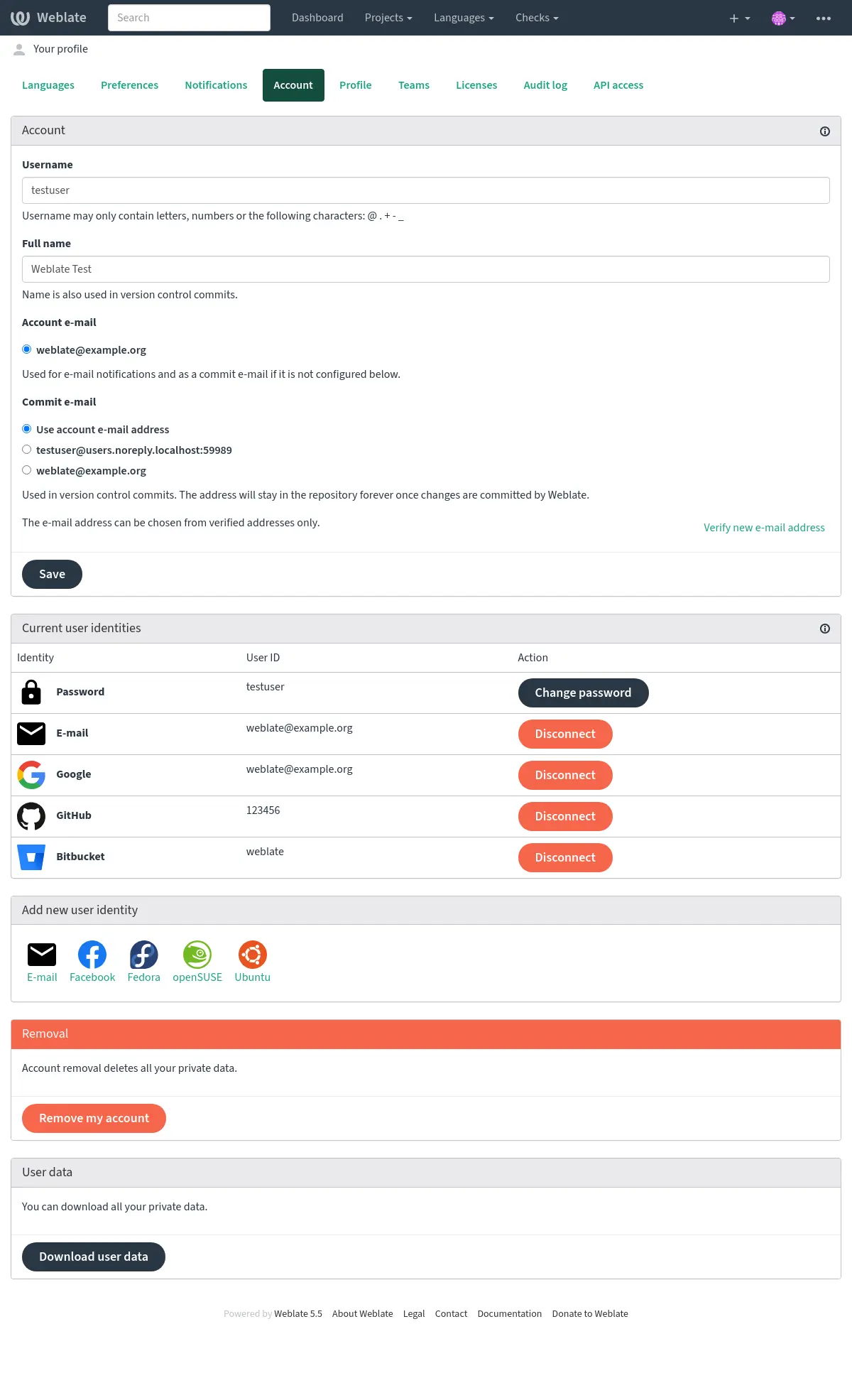
各ユーザーは、これを アカウント で設定することができます。既存の認証方法に加えてサインインには 2 番目の要素が必要となります。
これは、プロジェクト(参照: 強制的な二要素認証)またはチーム単位でユーザーに適用できます。サイト全体の展開では、デフォルトの ユーザー チームで有効化することで、すべてのユーザーに二要素認証を強制できます。このチームは 自動チーム割り当て により新規ユーザーに自動的に割り当てられます。
二要素認証を強制しているチームの権限は、それを設定していないユーザーには適用されません。
ソーシャル認証
Welcome to Python Social Auth’s documentation! のおかげで、GitLab、Ubuntu、Fedora など、多くのサードパーティサービスを使用した認証に対応しています。
一般的な設定方法については、Django Framework のドキュメントを確認してください。
注釈
デフォルトでは、Weblate はサードパーティの認証サービスを使用して、検証済みのメールアドレスを運用します。使用するサービスの中に、認証サービスに対応していないものがある場合は、FORCE_EMAIL_VALIDATION を設定して、Weblate 側でメールアドレスの検証を強制してください。設定例:
参考
Pipeline
それぞれのバックエンドを有効にするのは非常に簡単です。
AUTHENTICATION_BACKENDSの設定にエントリを追加し、場合によっては特定の認証方式に必要な秘密鍵を追加するだけです。バックエンドの中には、デフォルトではユーザーのメールアドレスを公開しないものがあり、リクエストで指定することが必要なことに注意してください。そうしなければ、Weblate は適切にユーザーの貢献をクレジットできません。ヒント
ほとんどの認証バックエンドは、HTTPS が必要です。Web サーバーで HTTPS を有効にしたら、Weblate が正確にレポートするように、
ENABLE_HTTPSを設定するか、または Docker コンテナのWEBLATE_ENABLE_HTTPSを設定してください。参考
Python Social Auth backend
OpenID 認証
OpenID ベースのサービスでは、通常は認証を有効にするだけで使用できます。次のセクションは、OpenSUSE、Fedora、および Ubuntu で OpenID 認証を有効にする方法:
参考
OpenID
GitHub 認証
GitHub 上で OAuthアプリケーションを登録し、Weblate にすべての秘密鍵を設定することが必要です。秘密鍵の設定例:
GitHub のコールバック URL を
https://WEBLATE SERVER/accounts/complete/github/に設定することが必要です。GitHub for Organizations と GitHub for Teams にも同様の認証バックエンドがあります。この設定は
SOCIAL_AUTH_GITHUB_ORG_*とSOCIAL_AUTH_GITHUB_TEAM_*という名前で、範囲(SOCIAL_AUTH_GITHUB_ORG_NAMEまたはSOCIAL_AUTH_GITHUB_TEAM_ID)の追加設定が必要です。 コールバック URL は、https://WEBLATE SERVER/accounts/complete/github-org/およびhttps://WEBLATE SERVER/accounts/complete/github-teams/です。注釈
認証時に Weblate が提供するコールバック URL には、設定したドメインが含まれています。URL の不一致でエラーが発生した場合の修正は、サイトの正確なドメイン設定 を確認してください。
参考
GitHub
GitHub EE 認証
GitHub EE 上で OAuth アプリケーションを登録し、Weblate にすべての秘密鍵を設定することが必要です。秘密鍵の設定例:
GitHub OAuth App のコールバック URL を
https://WEBLATE SERVER/accounts/complete/github-enterprise/に設定することが必要です。GitHub OAuth App の代わりに、GitHub App を使用することもできます。 GitHub App を使用すると、リポジトリ、組織、ユーザー レベルで権限を付与できます。 GitHub App を使用する場合、ユーザーの「メールアドレス」および組織の「メンバー」に対して Access: Read-only 権限を有効にすることが必要です。
注釈
認証時に Weblate が提供するコールバック URL には、設定したドメインが含まれています。URL の不一致でエラーが発生した場合の修正は、サイトの正確なドメイン設定 を確認してください。
参考
Backend classes
Bitbucket 認証
アプリケーションを Bitbucket に登録し、Weblate にすべての秘密鍵を設定することが必要です。秘密鍵の設定例:
注釈
認証時に Weblate が提供するコールバック URL には、設定したドメインが含まれています。URL の不一致でエラーが発生した場合の修正は、サイトの正確なドメイン設定 を確認してください。
参考
Bitbucket
Google OAuth 2
Google OAuth 2 を使用するには、<https://console.developers.google.com/> にアプリケーションを登録することが必要です。
リダイレクト先の URL は、
https://WEBLATE SERVER/accounts/complete/google-oauth2/。注釈
認証時に Weblate が提供するコールバック URL には、設定したドメインが含まれています。URL の不一致でエラーが発生した場合の修正は、サイトの正確なドメイン設定 を確認してください。
参考
Google
Facebook OAuth 2
一般的な OAuth 2 サービスと同じように、Facebook にアプリケーションを登録することが必要です。登録後に、Weblateを設定して使用できます。Facebook への登録例と Weblate の設定例:
リダイレクト先の URL は、
https://WEBLATE SERVER/accounts/complete/facebook/。注釈
認証時に Weblate が提供するコールバック URL には、設定したドメインが含まれています。URL の不一致でエラーが発生した場合の修正は、サイトの正確なドメイン設定 を確認してください。
参考
Facebook
GitLab OAuth 2
GitLab OAuth 2 を使用するには、<https://gitlab.com/profile/applications> にアプリケーションを必ず登録してください。
リダイレクト先の URL は
https://WEBLATE SERVER/accounts/complete/gitlab/であり、スコープが read_user に設定されているかどうかを確認してください。注釈
認証時に Weblate が提供するコールバック URL には、設定したドメインが含まれています。URL の不一致でエラーが発生した場合の修正は、サイトの正確なドメイン設定 を確認してください。
参考
GitLab
Gitea OAuth 2
Gitea OAuth 2 を使用するには、
https://GITEA SERVER/user/settings/applicationsにアプリケーションを登録することが必要です。リダイレクト URL は
https://WEBLATE SERVER/accounts/complete/gitea/です。注釈
認証時に Weblate が提供するコールバック URL には、設定したドメインが含まれています。URL の不一致でエラーが発生した場合の修正は、サイトの正確なドメイン設定 を確認してください。
注釈
上記の設定は Forgejo でも機能します。Forgejo を使用した本番環境のデプロイメントの例については、Codeberg Translate を参照してください。
参考
Gitea
Microsoft Entra ID
Azure Active Directory (Azure AD) は現在 Microsoft Entra ID として提供されています。ただし Weblate では、既存環境との互換性を保つために、
azuread-oauth2およびazuread-tenant-oauth2のバックエンド名を引き続き使用しています。これは、基盤となる Python Social Auth のバックエンド名や既存デプロイとの整合性を維持するためです。Weblate は、認証に共通または特定のテナントを使用する設定にできます。
リダイレクト先の URL は、共通では
https://WEBLATE SERVER/accounts/complete/azuread-oauth2/、テナント固有の認証ではhttps://WEBLATE SERVER/accounts/complete/azuread-tenant-oauth2/です。必須項目:
Application (client) ID は、Microsoft Entra 管理センターのアプリ登録の概要ページで確認できます。一方、Object ID は Weblate では使用しません。
Directory (tenant) ID は、通常必要なテナント スコープの認証に必要です。
Secret value は、アプリ登録でクライアント シークレットを作成した際にその場で一度だけ表示されます。一方、Secret ID は Weblate では使用しません。
注釈
認証時に Weblate が提供するコールバック URL には、設定したドメインが含まれています。URL の不一致でエラーが発生した場合の修正は、サイトの正確なドメイン設定 を確認してください。
参考
Microsoft Azure Active Directory
Slack
Slack OAuth 2 を使用するには、 <https://api.slack.com/apps> でアプリケーションを登録する必要があります。
リダイレクト URL は
https://WEBLATE SERVER/accounts/complete/slack/です。注釈
認証時に Weblate が提供するコールバック URL には、設定したドメインが含まれています。URL の不一致でエラーが発生した場合の修正は、サイトの正確なドメイン設定 を確認してください。
参考
Slack
認証方法の名前とアイコンの上書き
認証方法の表示名とアイコンは、
SOCIAL_AUTH_<NAME>_IMAGEおよびSOCIAL_AUTH_<NAME>_TITLE設定で上書きできます。例えば、Auth0 を上書きすると、次のように見えます:パスワード認証の無効化
メールとパスワード認証は、
AUTHENTICATION_BACKENDSからsocial_core.backends.email.EmailAuthを削除すると無効にできます。weblate.accounts.auth.WeblateUserBackendは Weblate のコア機能に必要なので残しておいてください。メール認証を無効にすると、メールに関連するすべての機能(ユーザーの招待またはパスワードのリセット機能)が無効になります。
Tip
管理画面から手動で作成したユーザーは、引き続きパスワード認証ができます。
/admin/login/で入力するだけです。openSUSE Open ID プロバイダのみを使用して認証する設定例: